

Supported scheduling providers
Revve supports exactly four scheduling providers. Any installed app with the Book Meeting capability appears in the calendar selectors described below.There is no Google Calendar integration. If your team’s availability lives in Google Calendar, connect it through one of the four providers above — Calendly and Cal.com both sync from Google Calendar on their side.
The Calendar App selector
Every place an agent can book uses the same Calendar App selector:- Placeholder: Select a calendar app.
- Each option shows the app’s icon and the profile alias (or the app name if there’s no alias) — so a Cal.com app with a “Sales Team Calendar” profile appears under that alias, not just “Cal.com”.
- With nothing installed, it shows No calendar apps available.
- The list always ends with an Install new app shortcut that opens the Apps page — you can go install a calendar without abandoning the agent you’re configuring.
Booking from a chat agent
Chat agents book in two places, and they behave differently.Advanced Settings → Schedule Meeting
The Schedule Meeting card in a chat agent’s Advanced Settings (“Allow customers to schedule meetings directly through your chat agent”) is the agent-wide switch: enable it, pick a Calendar App, and the agent can offer booking anywhere in the conversation.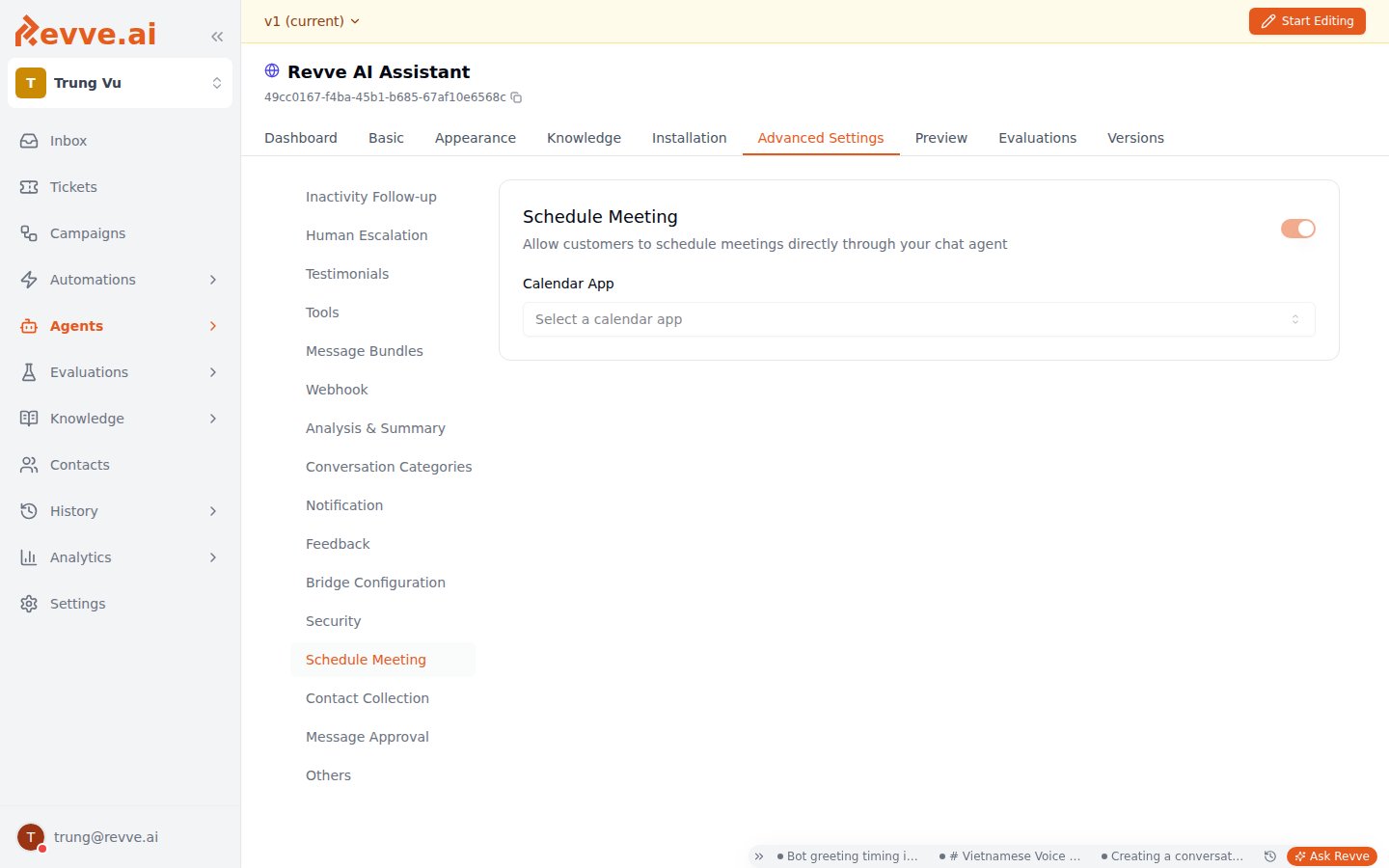
The Schedule Meeting flow node
For agents built on a conversational flow, the Schedule Meeting node type puts booking at a specific point in the conversation instead of agent-wide. Each node has its own Calendar App selector, so different flow branches can book on different calendars — route enterprise leads to the account executive’s calendar and everyone else to the round-robin one. See Flow Node Features for the node’s other settings. If the selected app is ChiliPiper, an extra Chili Piper Booking Method dropdown appears on the node: Router or Direct Link. See Connect ChiliPiper for what each mode does.Booking from a Voice Agent
Voice Agents book through two tool presets, added from the Tools section of Advanced Settings (see Voice Agent Tools for the full Tools catalog):
Attach both — an agent that can check availability but not book leaves the caller with a slot and no appointment. Each tool’s dialog has:
Both presets work with all four providers. Booking behavior on a call:
- If the requested time isn’t available, the availability check returns near-slot suggestions the agent can offer instead (“2 PM is taken — I have 2:30 or 3:15”).
- A booking requires the caller’s name, email, booking time, and timezone — the agent collects whatever is missing before it books.
- Past times are rejected.
- Calendar profiles can be configured to reject personal email addresses (useful when the meeting must go to a work inbox).
What happens after a booking
A successful booking does three things:- The meeting is created in the external provider. Invitations, confirmation emails, and meeting links (Zoom, Google Meet, and so on) come from the provider’s own event-type settings — configure those in Calendly, Cal.com, HubSpot, or ChiliPiper, not in Revve.
- Revve records the appointment against the contact — platform, time, timezone, name, and email — so the booking shows up on the contact’s record, not just in the external calendar.
- Optional follow-up campaign. Teams can configure a default “after appointment booked” campaign; the booked contact is auto-enrolled into it — a reminder campaign is the typical use, so no-shows drop without anyone sending manual reminders. See What Is a Campaign?.
Connect Cal.com
Cal.com connects with an API key, not OAuth. In Settings → Apps, find Cal.com and click Install — it opens the profile manager directly. Each profile is one bookable calendar; create one per event type you want agents to book:
Multiple profiles are supported — each shows up as its own option in the Calendar App selector, under its alias. Delete a profile via the trash icon (with confirmation).
Connect ChiliPiper
In Settings → Apps, install ChiliPiper to open the ChiliPiper Integration Setup page: “Enter your ChiliPiper configuration details. You can find these in your ChiliPiper admin settings.” Two fields apply to both modes:
Then pick a mode — the form shows the two as tabs:
- Router — books through a ChiliPiper Concierge router, which applies your routing rules (round-robin, territory, ownership) to pick the meeting owner. Fields: Router Slug (the Concierge router’s slug), API Key (a Bearer token for the ChiliPiper API, with a show/hide toggle), and Router Form Mapping, which maps Revve contact fields to the ChiliPiper form fields — the defaults map email, first name, and last name.
- Direct Link — books onto a specific person’s calendar using a per-lead booking link. Fields: Owner Booking Link Field (the contact field that holds each lead’s personal ChiliPiper link) plus its own form mapping. Use this when lead ownership already lives on the contact record and you want the meeting to land on the owner’s calendar, no routing involved.
What’s Next
Connecting Calendly
The Calendly-specific setup — profiles, event types, and the SMS booking-link tool.
Build a Voice Agent That Books Appointments Mid-Call
The complete recipe: both calendar tools configured, plus the prompts that make them work together.