

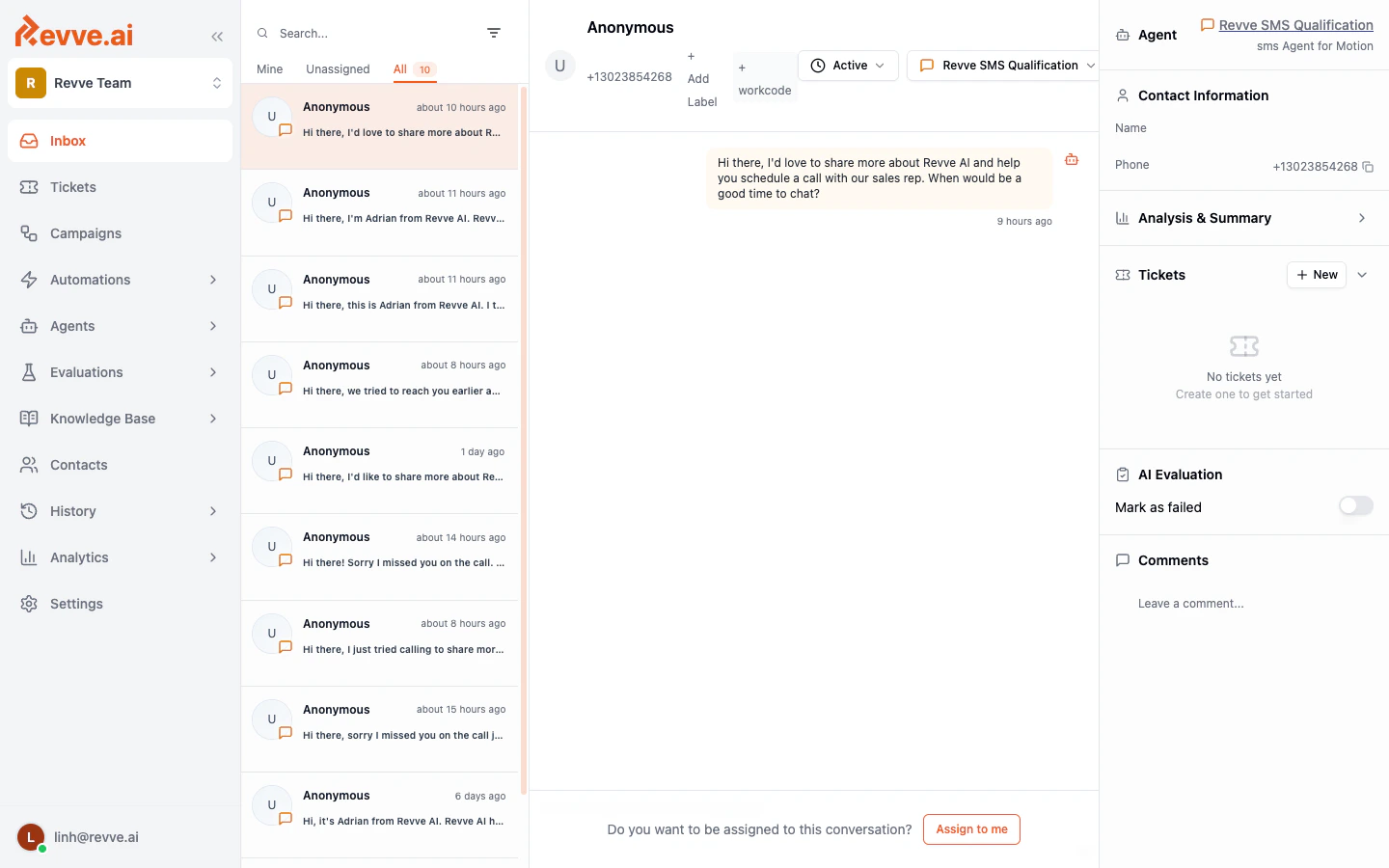
Layout at a Glance
The Inbox uses a three-panel layout:The Three Tabs
At the top of the conversation list you will find three tabs that help you focus on what matters most.
Each tab displays a count badge showing the number of conversations that match the current filters.
How Conversations Appear in the Inbox
A conversation is created every time a visitor engages with one of your Chat Agents. The conversation list shows:- Contact name (or “Anonymous” if unknown)
- Channel icon indicating the source (website, SMS, WhatsApp, Messenger, email, Zalo)
- Last message preview so you can quickly scan without opening the thread
- Timestamp showing how long ago the last message was sent
- Labels if any have been applied to the conversation
- Custom field values if your team has configured custom field types
- Unread indicator — conversations with new messages since you last viewed them appear with bold text
Real-Time Updates
The Inbox refreshes automatically every 30 seconds and also receives real-time updates via live subscriptions. When a visitor sends a new message, you will see it appear without needing to reload the page.Navigating Between Conversations
Click any conversation in the list to open it in the center panel. The right panel will update to show that conversation’s contact information and analysis. You can also share a direct link to a specific conversation — the URL updates automatically when you select a conversation.Tips
- Start with the “Unassigned” tab at the beginning of your shift to handle conversations that need human attention.
- Use the “Mine” tab to stay focused on conversations you are actively managing.
- Scroll to load more — the conversation list loads in batches of 20 and automatically loads more as you scroll down.
- Unseen conversations are highlighted with bold text so you can quickly spot new activity.