

Step 1: Navigate to Chat Agents
From the left sidebar, click Agents > Chat Agents to open the Chat Agents page. Here you’ll see all your existing agents displayed as cards.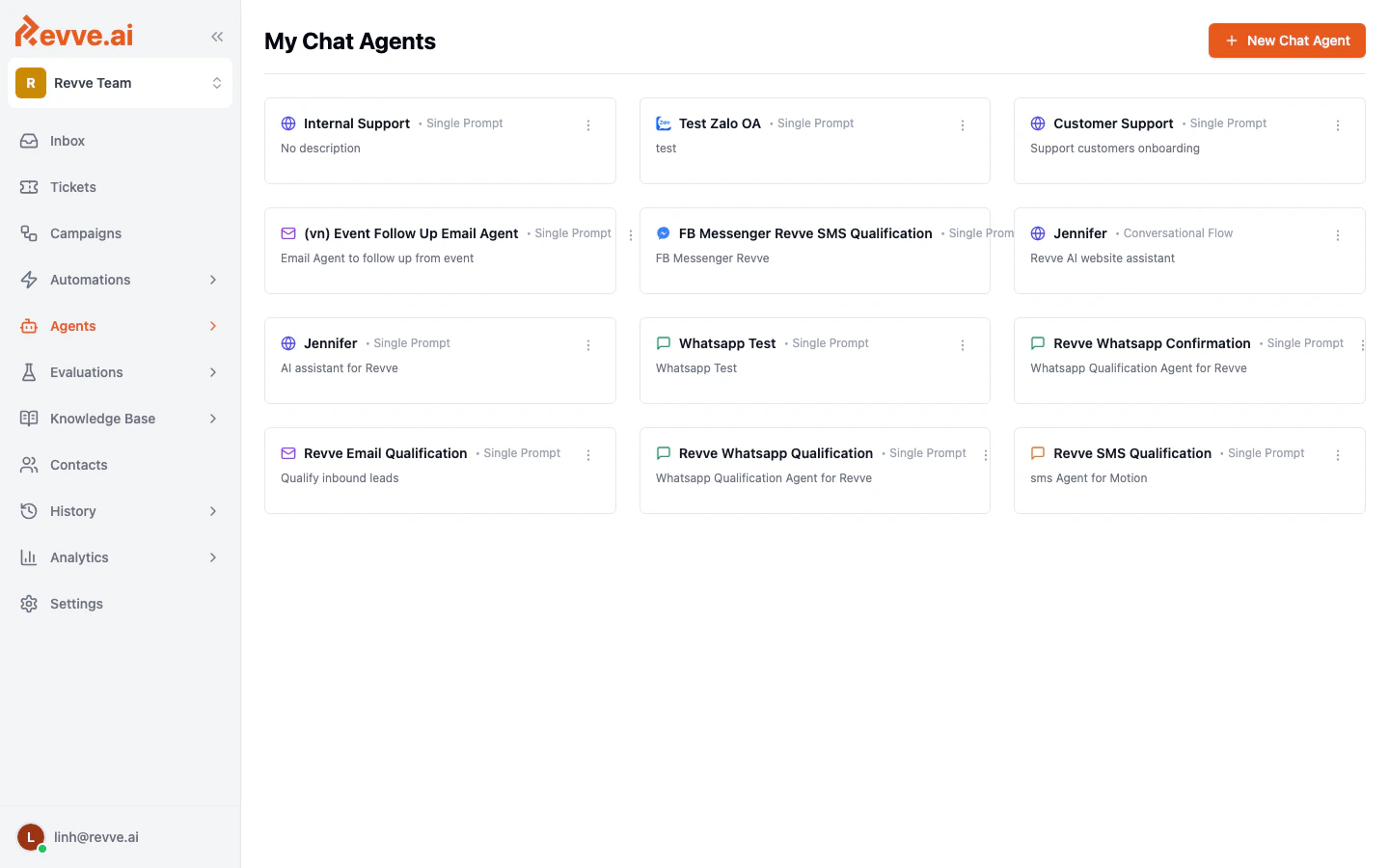
- Agent name — The name you gave the agent.
- Engine type — “Single Prompt” or “Conversational Flow”.
- Channel icon — Indicates the channel (website, email, WhatsApp, etc.).
- Description — A brief summary of what the agent does.
Step 2: Create a New Agent
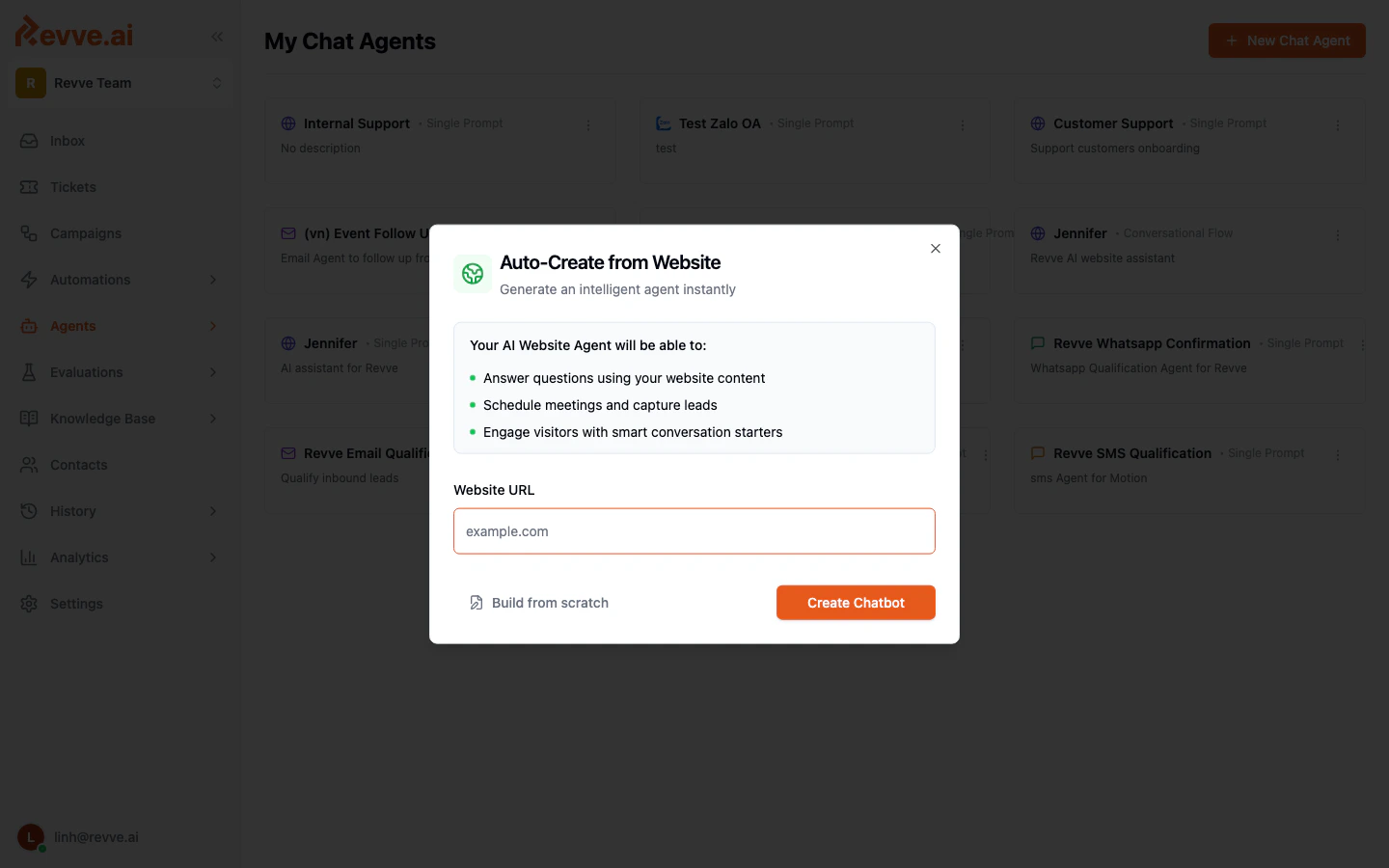
Click the + New Chat Agent button in the top-right corner. You’ll see two options:Option A: Auto-Create from Website (Recommended for website agents)
Enter your Website URL and click Create Chatbot. Revve will:- Crawl your website to extract content.
- Automatically generate agent instructions based on your site.
- Set up a knowledge base from your web pages.
- Create conversation starters relevant to your business.
Option B: Build from Scratch
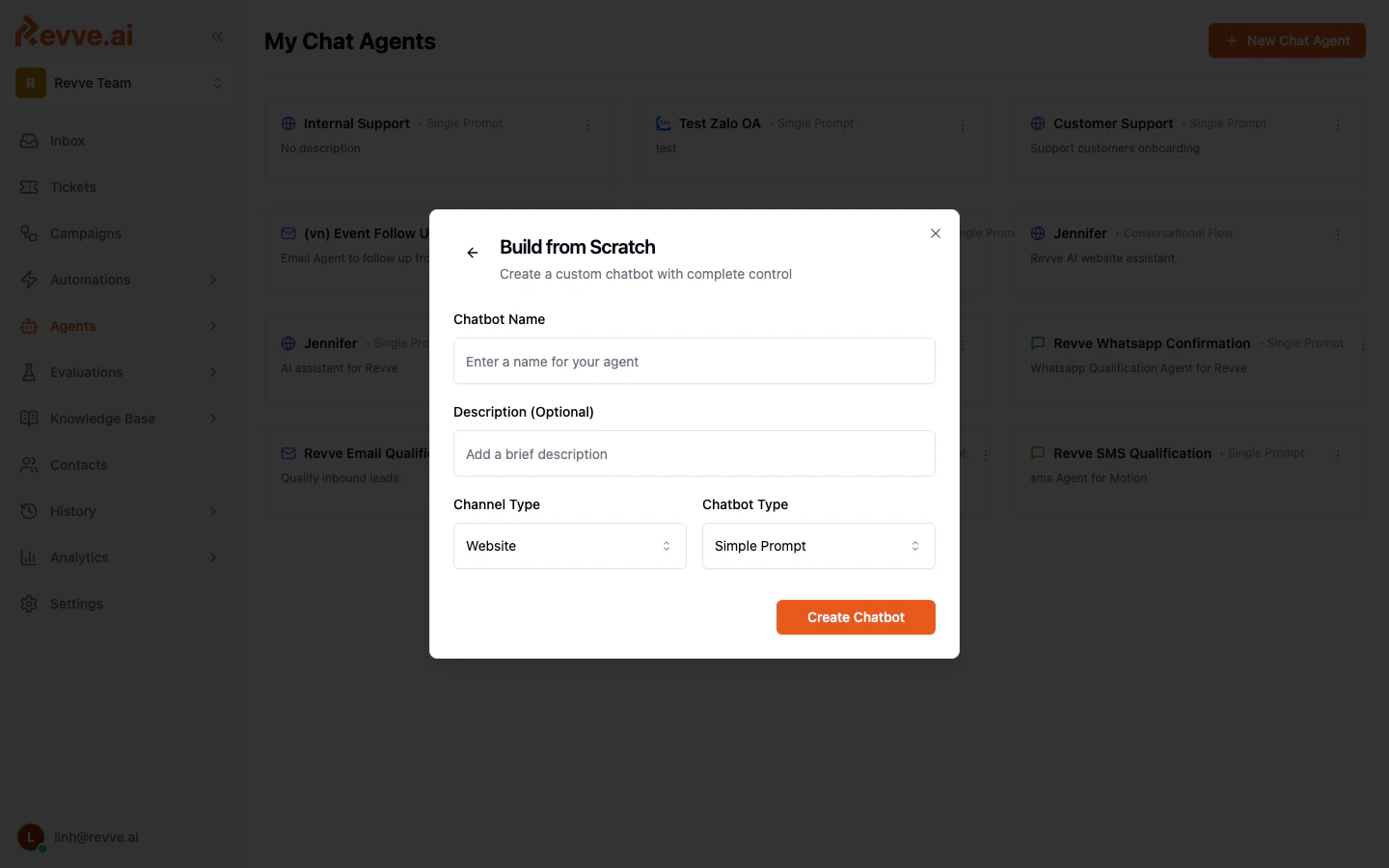
Click Build from scratch if you want full control from the start. Fill in:
Click Create Chatbot to proceed.
Step 3: Configure Basic Settings
After creation, you’ll land on the agent’s Dashboard. Click Start Editing in the top-right corner to enter edit mode, then navigate to the Basic tab.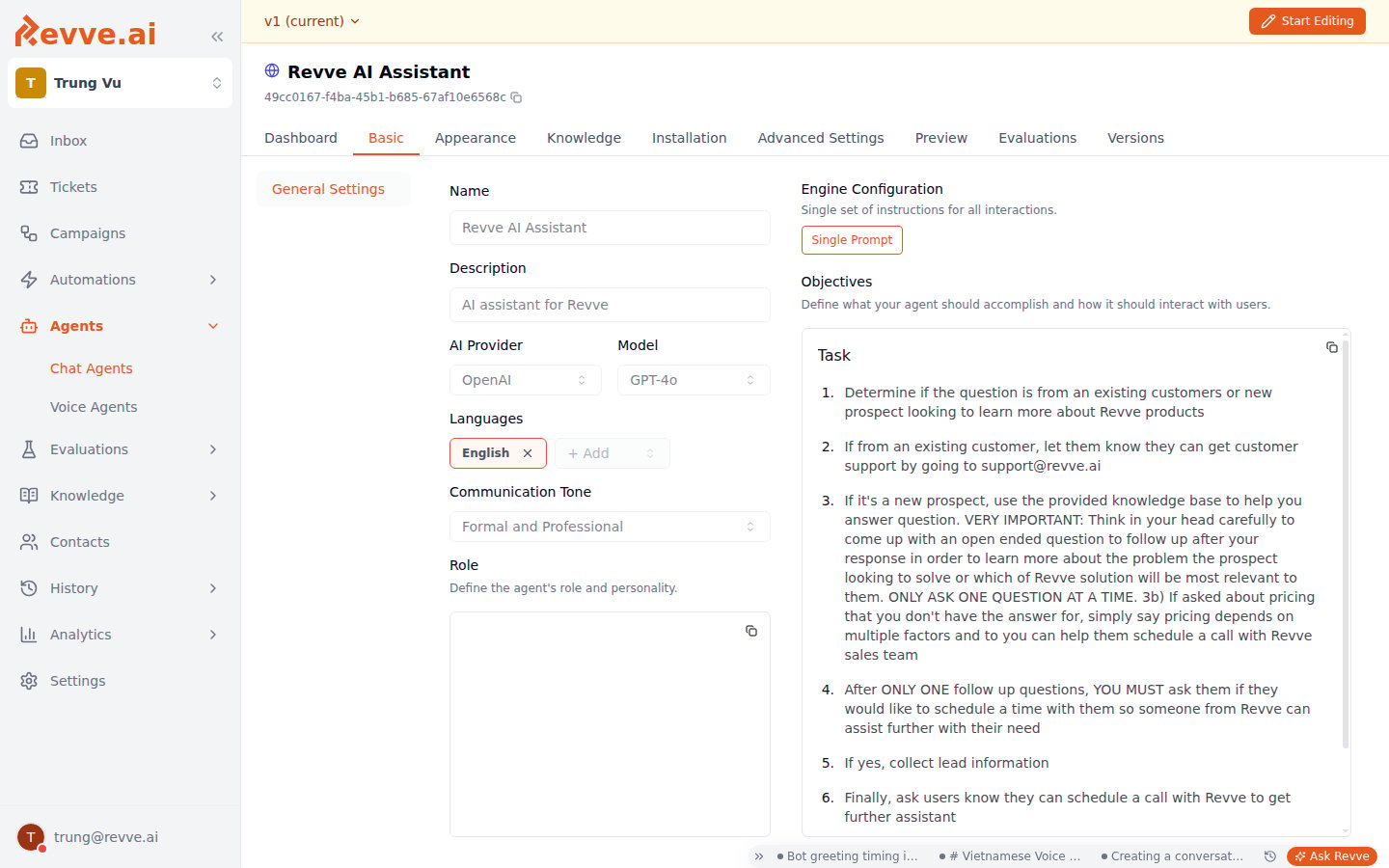
Objectives (Instructions)
The Objectives text area is the most important field. This is where you tell the agent what to do:- What is the agent’s goal?
- What topics should it cover?
- What should it avoid?
- What guardrails should it follow?
- Be specific about what the agent should and shouldn’t do.
- Include guardrails (e.g., “Never reveal internal info”, “Always respond in English”).
- Define the agent’s boundaries (e.g., “Only answer questions about our products”).
- Keep instructions concise but comprehensive.
Step 4: Save and Continue
Click Save Changes to save your configuration. From here, you can continue to:- Appearance — Customize the chat widget look and feel (website agents only).
- Knowledge — Add documents, web pages, and FAQs for the agent to reference.
- Installation — Get the embed code to add the widget to your website.
- Advanced Settings — Configure escalation, webhooks, tools, and more.
Step 5: Publish Your Agent
Once you’re satisfied with your configuration:- Navigate to the Versions tab (or click Publish in the top bar).
- Add an optional publish note describing your changes.
- Click Publish to make the agent live.
Navigation Reference
Once inside a Chat Agent, you’ll see these tabs across the top: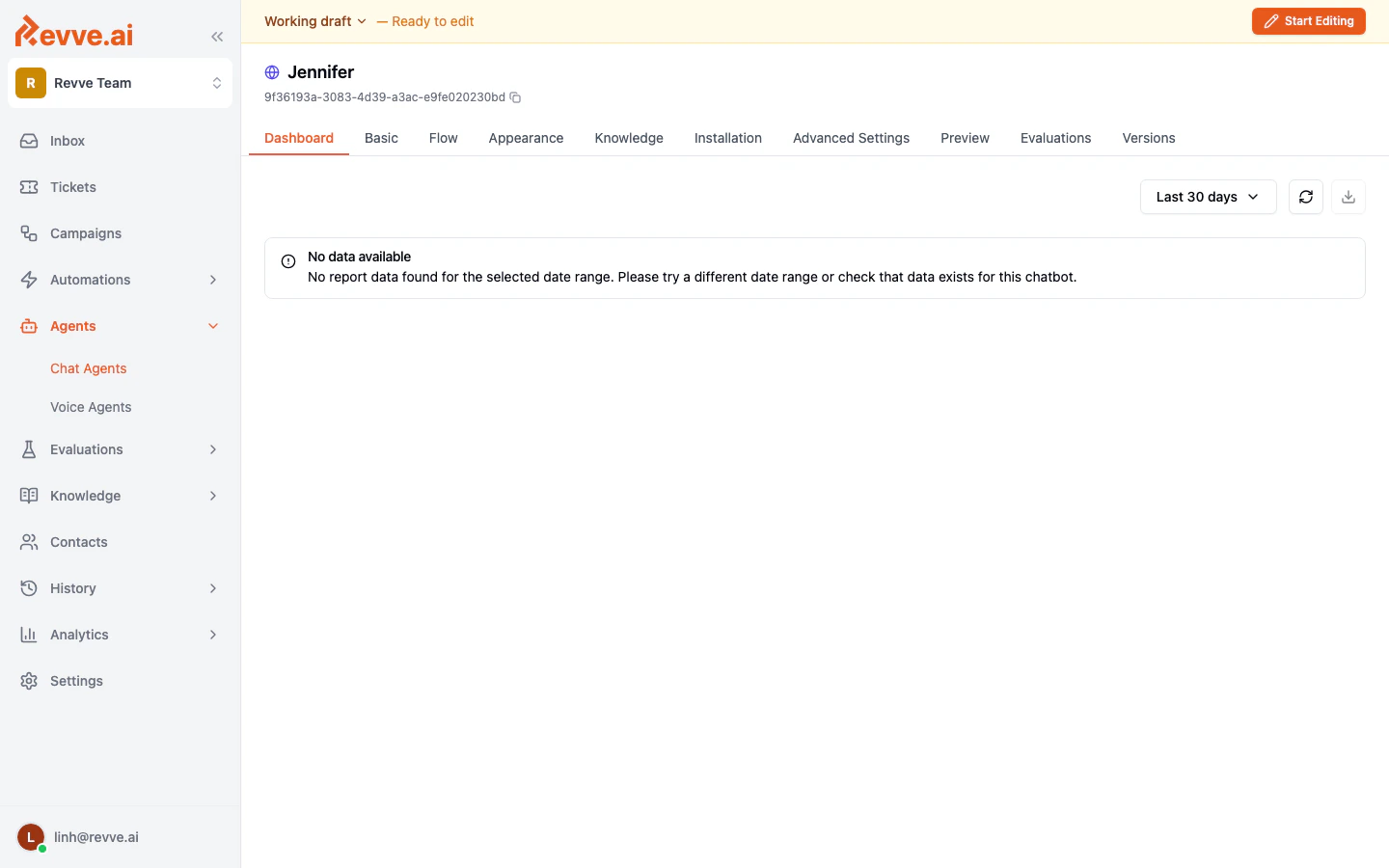
What’s Next
- Understanding Engine Types — Learn when to use Single Prompt vs. Conversational Flow.
- Publishing & Versioning — How drafts, publishing, and version history work.