Configure bubble messages, dynamic messages by URL, and conversation content settings for your website chat widget.
No external setup needed. The website channel requires no external account setup. You can configure and deploy your chat widget entirely from the Revve dashboard.
Bubble messages are the small text prompts that appear near the chat widget button to grab your visitors’ attention and encourage them to start a conversation. You can set a default bubble message, configure URL-specific messages, and customize the content displayed inside the chat window.To access these settings, navigate to Agents > Chat Agents, select your website Chat Agent, click the Appearance tab, and then select Bubble Message, Configure by URLs, or Content from the left sidebar.
The Bubble Message section lets you configure the default behavior of the message bubble that appears next to the chat button.
Setting
Description
Default Bubble Message
The text that appears in the bubble next to the chat button. Leave empty to show no bubble message. Example: “Hi there! How can I help you today?”
Chat Button Tooltip
The text displayed when visitors hover over the chat button. Default is “Ask a question…”
Always show message bubble on refresh page
When enabled, the bubble message appears every time the page loads. When disabled, the bubble will only show again after 60 minutes, preventing repeat visitors from seeing it too frequently.
Auto turn off alert after (seconds)
Set the number of seconds before the bubble message automatically disappears. Set to 0 to disable auto-dismiss — the bubble will stay visible until the visitor closes it.
This section allows you to create page-specific configurations for your chat widget. You can set different bubble messages, conversation starters, and behaviors based on which page the visitor is viewing.
When enabled, the widget automatically generates greeting messages based on the current page’s content. This only works for pages that have been indexed in your Chat Agent’s knowledge base.
Use URL-specific messages to tailor the experience: show “Have questions about pricing?” on your pricing page and “Need help getting started?” on your documentation pages.
The URL pattern field supports regex, so you can use patterns like /products/.* to match all product pages at once.
Enable “Generate Contextual Prompt” to automatically create relevant greetings based on page content — this is especially useful for sites with many pages where creating individual URL configurations would be impractical.
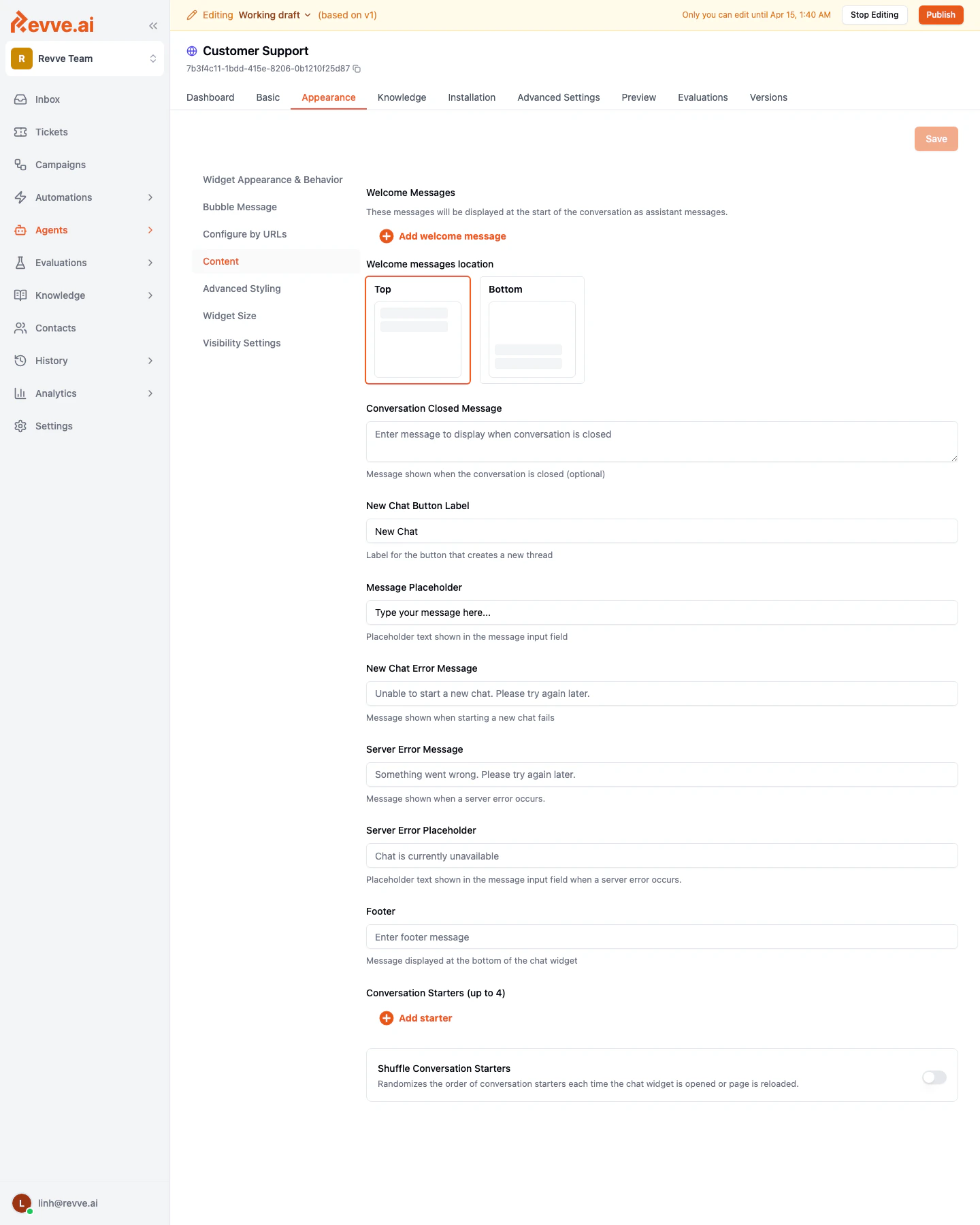
The Content section lets you configure messages and labels displayed inside the chat window itself.
Setting
Description
Welcome Messages
Messages displayed at the start of a conversation as assistant messages. Click Add welcome message to create one or more greeting messages that appear when a visitor opens the chat.
Welcome Messages Location
Choose where welcome messages appear in the chat window: Top (at the beginning of the conversation) or Bottom (near the input field).
Conversation Closed Message
An optional message shown when the conversation is closed. For example: “This conversation has been closed. Start a new chat to continue.”
New Chat Button Label
Customize the label of the button that starts a new conversation.
Use welcome messages to set expectations. For example: “Hi! I’m your AI assistant. I can help with product questions, account issues, and more.”
Adding multiple welcome messages creates a more natural introduction. The first message could introduce the agent, and the second could suggest topics.
The “Top” location for welcome messages is the most common choice, as it provides context before the visitor types their first message.