

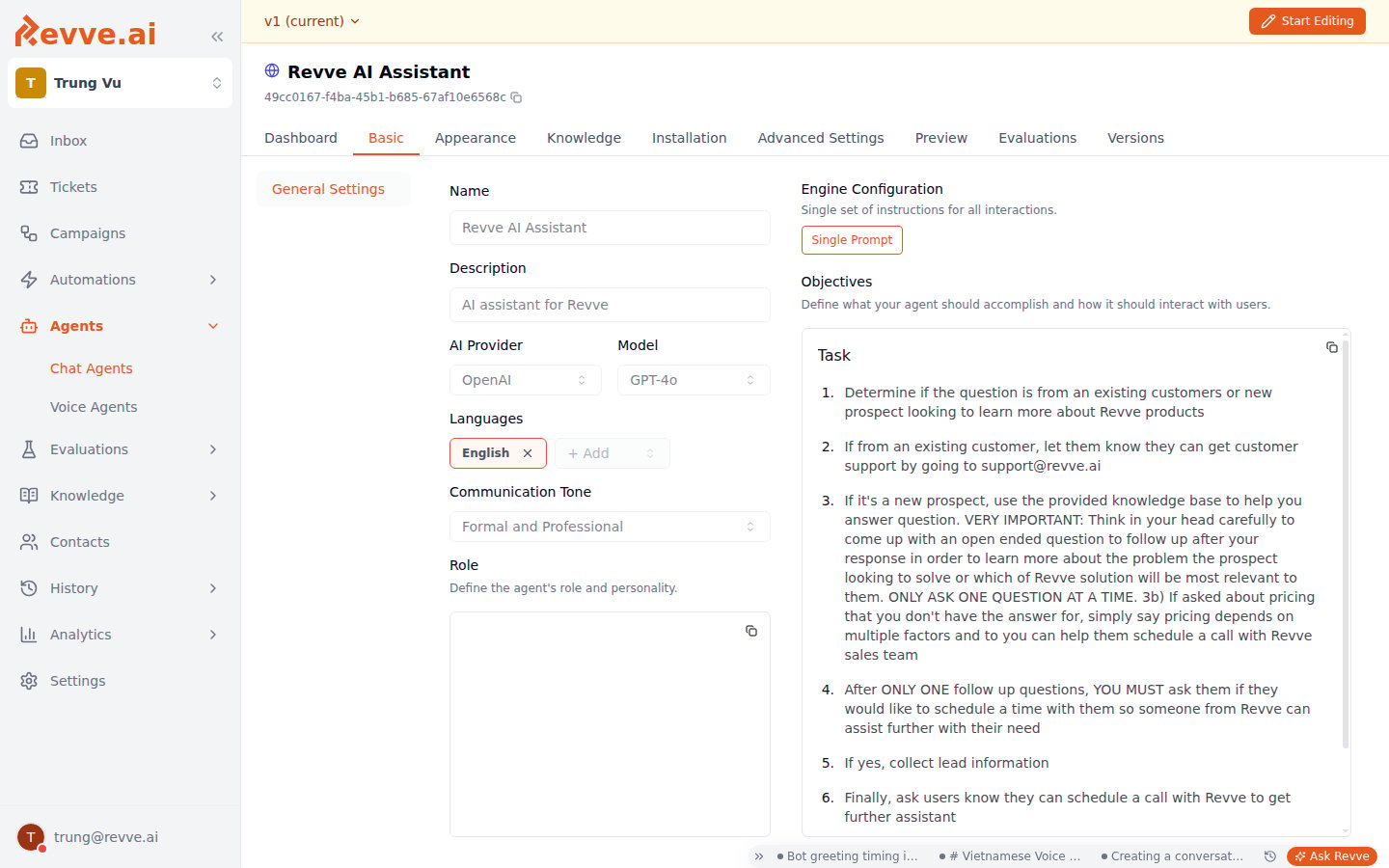
Provider and Model fields
The model list currently offers GPT-4o, GPT-4.1, and GPT-5; new agents start on GPT-4.1.
How to select a model
- Navigate to Agents > Chat Agents in the sidebar and select your agent.
- Click the Basic tab.
- Click Start Editing if not already in edit mode.
- Click the Model dropdown and select your preferred model.
- Changes save automatically — watch for the Last saved indicator in the tab bar.
How to choose
- Start with GPT-4.1 for most agents. It’s the default for a reason: the best balance of quality, speed, and cost for typical customer-facing conversations.
- Move up (GPT-5) when the agent mishandles complexity — technical support, multi-step policies, conversations that need real reasoning. Expect slightly slower responses.
- Move down (GPT-4o) when speed is the problem and the conversations are straightforward, FAQ-style exchanges.
- Test before publishing. After changing the model, re-test your key scenarios in the Preview tab (shown for website and SMS agents) — different models interpret the same instructions slightly differently, so a model change is a behavior change.
Model choice elsewhere in Revve
The chat conversational model above is the one fixed-provider picker. The other model selectors draw from a central catalog of providers and models that Revve administrators maintain — the dropdowns list whatever is currently enabled, so exact options evolve over time. Today the catalog spans multiple providers, including OpenAI, Anthropic, and Google Gemini.
Where a selected model supports it, a Reasoning Effort selector appears next to the model dropdown with Low / Medium / High options (default Medium). Higher effort means more thinking before answering — better decisions on complex judgments, at the cost of latency. It’s a good fit for campaign decision models, where decisions are infrequent but consequential.
Teams with their own Azure OpenAI capacity can route OpenAI-model traffic to their own Azure deployments via custom endpoints and time-window routing rules, configured in team settings. This changes where requests run, not which models appear in the pickers — ask your Revve contact if you need this.
What’s Next
- Voice Agent Settings — the AI Model section covers the voice-side model, temperature, and max tokens with tuning guidance.
- Configuring Agent Identity — the name, description, and role that guide whichever model you pick.