

Phone Number
The Outbound Phone Number card controls which number appears as caller ID when this agent places outbound calls. One field:
If the select is empty, follow the inline link to the Phone Numbers page to add a number first.
This tab selects the outbound caller ID only. It does not assign an inbound number to the agent — there is no inbound routing control here.
Phone Verification
Confirms the caller’s identity by having them speak their phone number and checking it against the number already on file — built for Vietnamese callers. Toggle on Phone Verification and two tools are added to the agent automatically (an info box lists them):extract_and_validate_phone— extracts and validates Vietnamese spoken digits. It converts spoken digit words to digits, expects a 10-digit number, reads it back for confirmation, and asks again if it hears too few or too many digits.verify_phone— compares the extracted number with the existing phone number in the system. Both numbers are normalized before comparing, so formatting differences don’t cause false mismatches.
Retry & Callback
Two cards that decide what happens when a call doesn’t happen.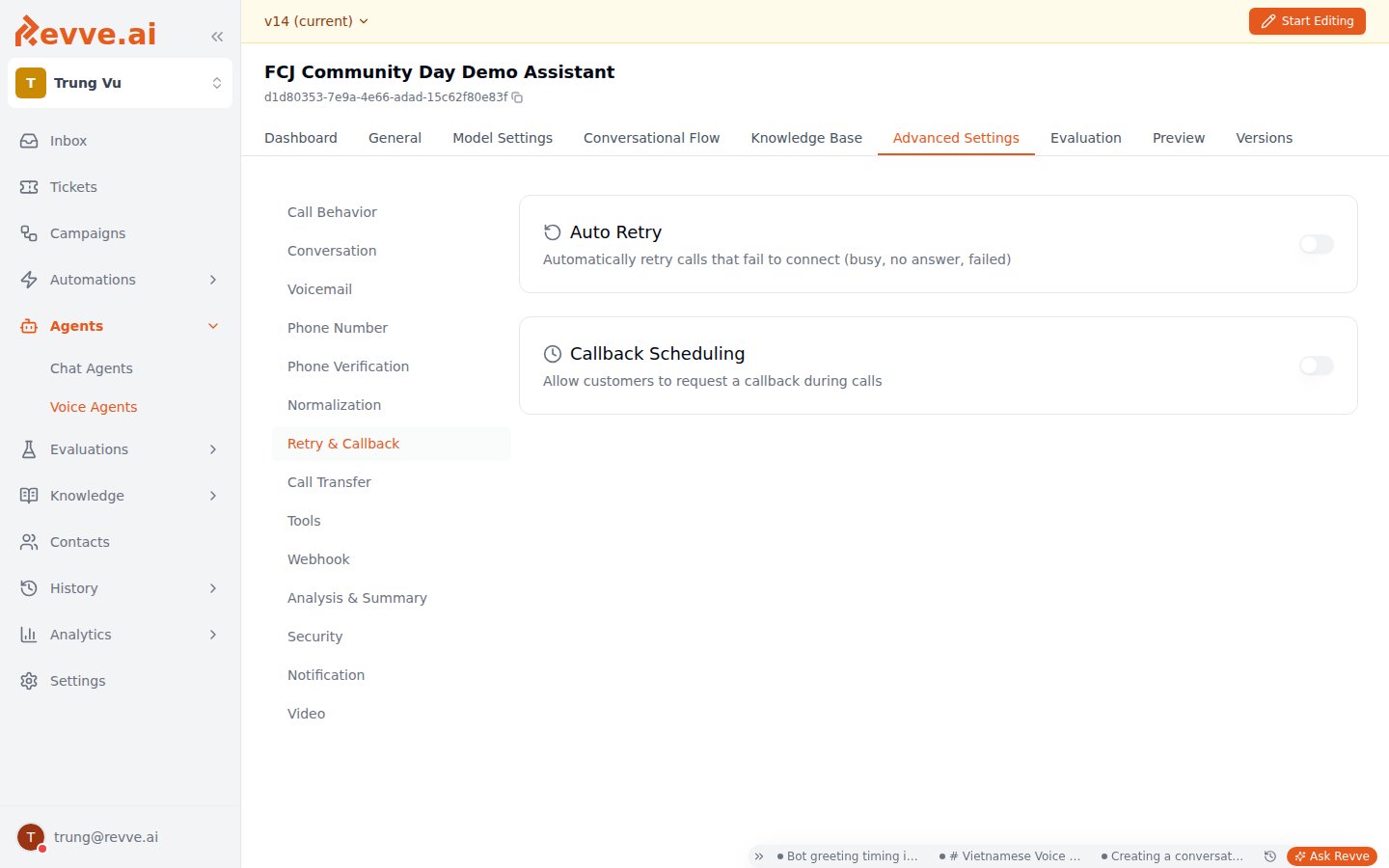
Auto Retry
Callback Scheduling
The default prompt:
Webhook
The Webhook Configuration card sends real-time updates from your voice agent to your own systems.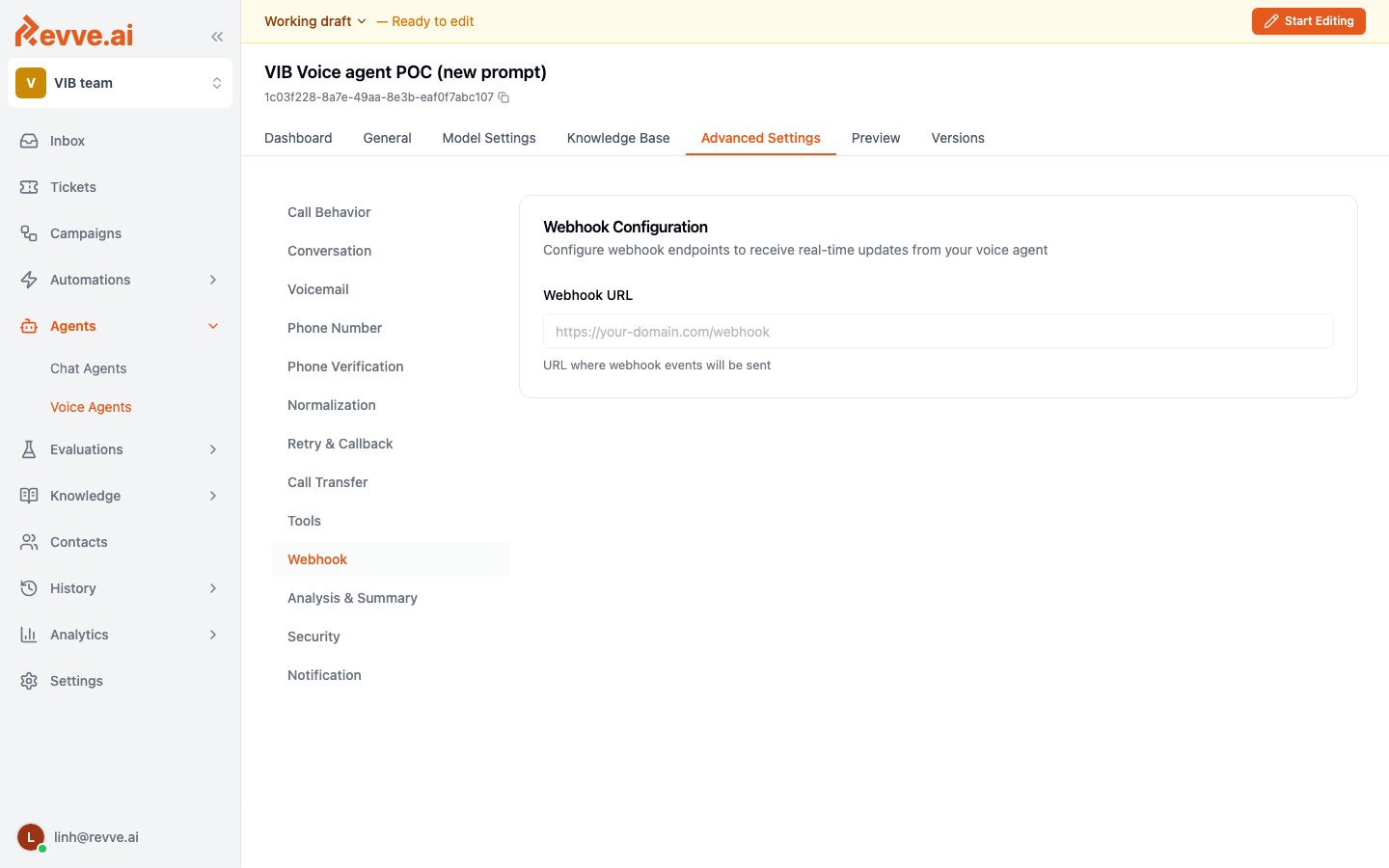
There’s no per-event selection or signing-secret field — one URL receives the agent’s events. If you only need to trigger actions inside Revve (tags, assignments, follow-ups), use automation rules instead of standing up an endpoint.
Analysis & Summary
Controls what Revve extracts from each finished call: the model that does the analysis, the summary written to Call History, and the structured fields pulled from the transcript. Voice agents share this pattern with chat agents — see Chat Agent Advanced Settings for the chat counterpart.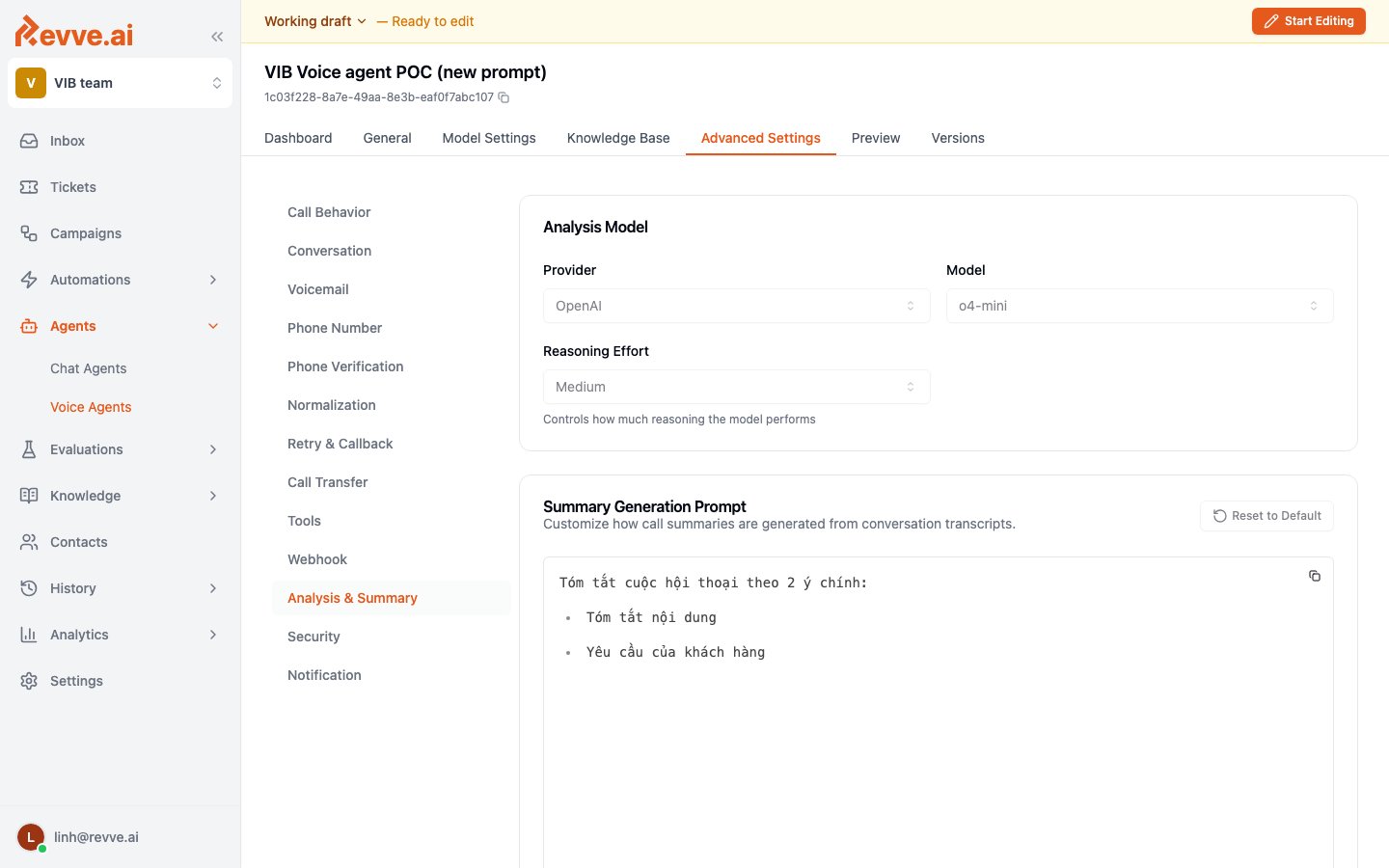
Analysis Model
Summary Generation Prompt
A rich editor customizing how call summaries are generated from transcripts, with a Reset to Default button. The default prompt handles two cases: unconnected or voicemail calls are summarized simply as “Call is not connected.”; connected calls produce a structured summary — Brief, Quick Stats, Key Points, and Action Items — translated into the agent’s language. Edit it when your team reads summaries for something specific (objections raised, payment promises) that the generic structure buries.Call Analysis Fields Configuration
Defines the structured data extracted from every call. Extracted values appear in Call History and are available to automations aspayload.call.custom_analysis_data — this is how a spoken answer (“yes, Thursday works”) becomes a field your automation rules can route on.
Click Add to define a field:
Security
The Security Settings card holds one toggle:Notification
The Notifications card alerts your team when specific conditions are met in conversations — a caller asks for a manager, a payment promise is made, a call escalates. You describe the trigger in plain language (“When to trigger notification”), and the AI decides per conversation whether to fire it. Configuration is the same as the chat agent’s Notification panel — trigger description, Channel (Email or Slack — Slack requires the Slack app, and an inline Install Slack card appears if it’s not installed), a required Subject/Title, then recipients (email addresses) or a Slack Integration + Channel ID. See Chat Agent Advanced Settings for the field-by-field walkthrough. One detail worth knowing for voice: email recipients accept template variables like{{lead_owner_email}} (validated as chips as you type), so an alert can route to the specific owner of the contact who was on the call rather than a shared inbox.
What’s Next
- Voice Agent Settings — the conversation-shaping tabs this page continues: Call Behavior, Conversation, Voicemail, and Call Transfer.
- Voice Agent Tools — attach custom tools and presets the agent can call mid-conversation.
- Automation Rules Overview — route on the extracted
custom_analysis_datafields your Analysis configuration produces.