

How a transfer works
- The agent decides to transfer (your System Prompt controls when — tell it explicitly, e.g., “If the caller asks for a human, or asks about refunds, transfer the call”).
- It speaks your Transfer Message to the caller, so the handover doesn’t feel like a hang-up.
- It generates a call summary (guided by your Summary Prompt) for the human who picks up.
- It routes the call according to Transfer To: ringing an available agent in the Revve app, or dialing out to a SIP address or phone number.
Step 1: Configure Call Transfer on the agent
Open your voice agent, go to Advanced Settings → Call Transfer, and flip the toggle on to reveal the settings.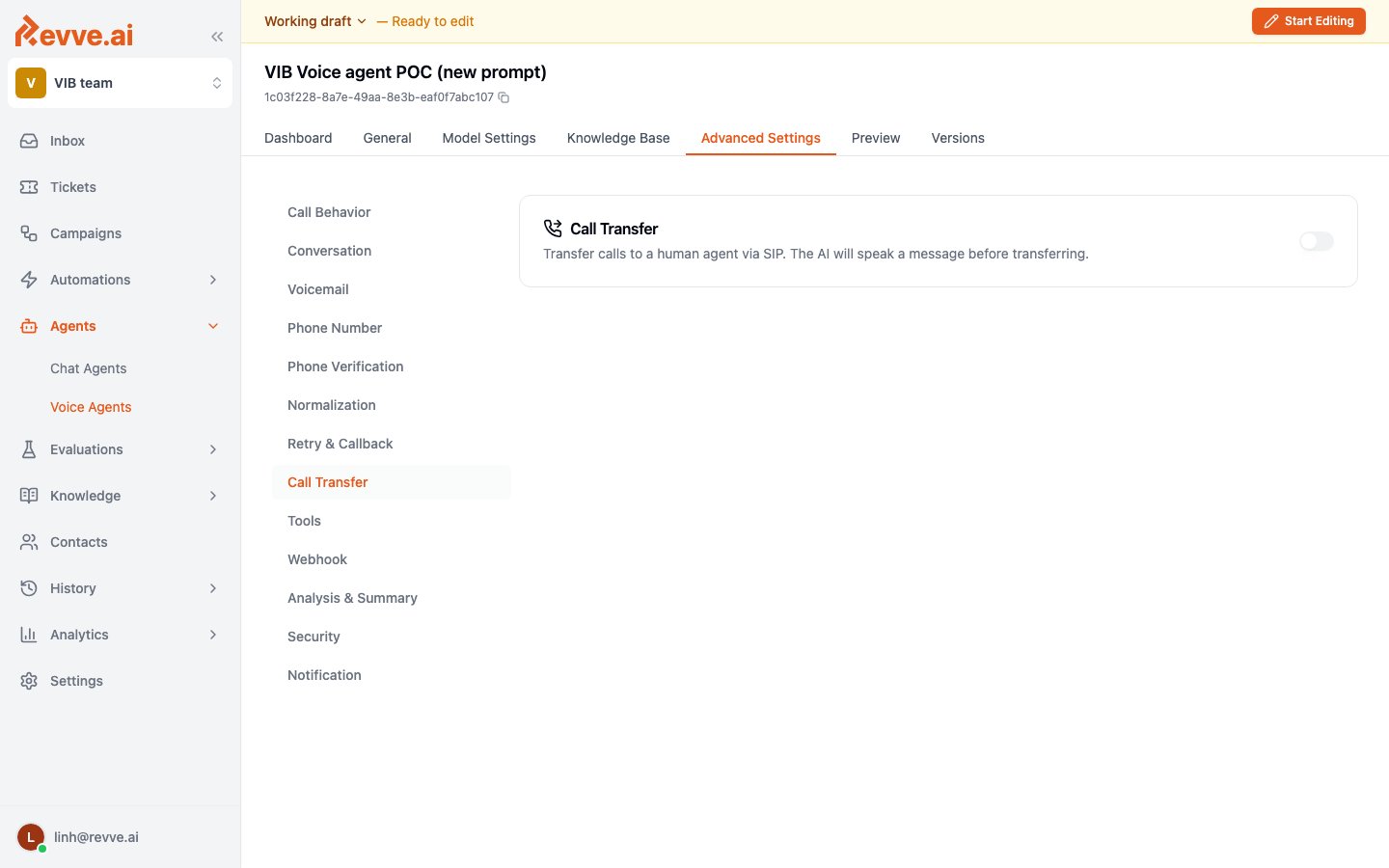
Choose where the call goes
Transfer To has three options:
For Revve User, you can set a Fallback Phone Number (optional) in E.164 format. If outbound calling is available, Revve tries this number after an in-app transfer fails. If that attempt cannot connect, or no fallback number is configured, Revve can try another available in-app agent once.
Bridge or cold transfer
For SIP Address and Phone Number transfers, choose a Transfer Type:
Revve User transfers don’t have this choice — the call routes in-app.
Set how long to wait for a connection
Set Connection timeout (seconds) to a whole number from 1 to 180. It controls the wait for each transfer attempt to connect. The setting appears for Revve User transfers and for Bridge Transfer to a phone number or SIP address. It does not apply to Cold Transfer.
Older transfer nodes can retain a 30-second default. Set the field explicitly when you need a specific timeout.
Use a shorter value when callers should return to the AI sooner if nobody answers. Use a longer value when your team needs more time to answer. For example, 20 gives each attempt a 20-second connection window.
The value applies separately to each attempt, including a fallback phone call or a second in-app invitation. It is not a limit on the total handoff time. Setup, the private summary, and a short wait for connection updates can add time before the transfer finishes or reports failure.
For a Conversational Flow, configure this value on the Transfer Call node. Connect its Transfer Failed transition to the next step for callers whose transfer cannot connect. Revve follows that transition after the transfer and its fallback attempts fail. Without a connected failure transition, the AI apologizes and continues helping the caller.
This setting limits the wait for a connection. A phone system can report an answer when voicemail, a recorded greeting, or a hold queue picks up. The timeout does not distinguish those answers from a human or end a call that already answered.
Write the handover
Step 2: Make your team reachable
For Revve User transfers, a teammate only receives calls while they’re accepting them. Open the account menu (bottom-left, your email) — it has three availability toggles: Accept Conversations, Accept Tickets, and Accept Calls, each showing Accepting or Paused with a green or red dot. Turn Accept Calls on. Anyone with it paused is skipped when a transfer comes in — if your whole team shows Paused, every transfer goes straight to the fallback number (or fails, if you didn’t set one).Step 3: Answer the transfer
When the agent initiates an in-app transfer, the selected available teammate sees an Incoming Call card. It includes a countdown in seconds and a call summary when available. The countdown uses Connection timeout (seconds), with a default of 30 seconds when no value is saved.- Accept — you’re connected to the caller in the browser, and you get the AI-generated call summary so you’re not walking in blind.
- Decline — you pass, and Revve follows the fallback sequence.
- Nobody accepts before the countdown ends — the invitation expires, and Revve follows the same fallback sequence. The configured timeout applies to each new attempt.
What’s Next
- Agent Assist Copilot — configure live guidance, knowledge, tools, and notes for human agents who handle calls in Revve.
- Voice Agent Settings — the rest of the Advanced Settings, including the tuning workflow.
- Human Takeover — the chat-side equivalent: claiming conversations from the Inbox and handing them back to the AI.