

The same section also contains Dashboards, where you can create call reports with configurable charts, metrics, filters, and layouts. See Custom Dashboards.
The Analytics sidebar requires Manage Analytics. Current default admin and member roles include it; your workspace may use different grants. See Roles and Permissions if the section is missing from your sidebar.
Overview
The Overview page (titled Agent Productivity) gives you a snapshot of your operations. It refreshes automatically every five minutes. You can also click Refresh for the latest data. AI Agents and Human Agents use the same fixed refresh interval.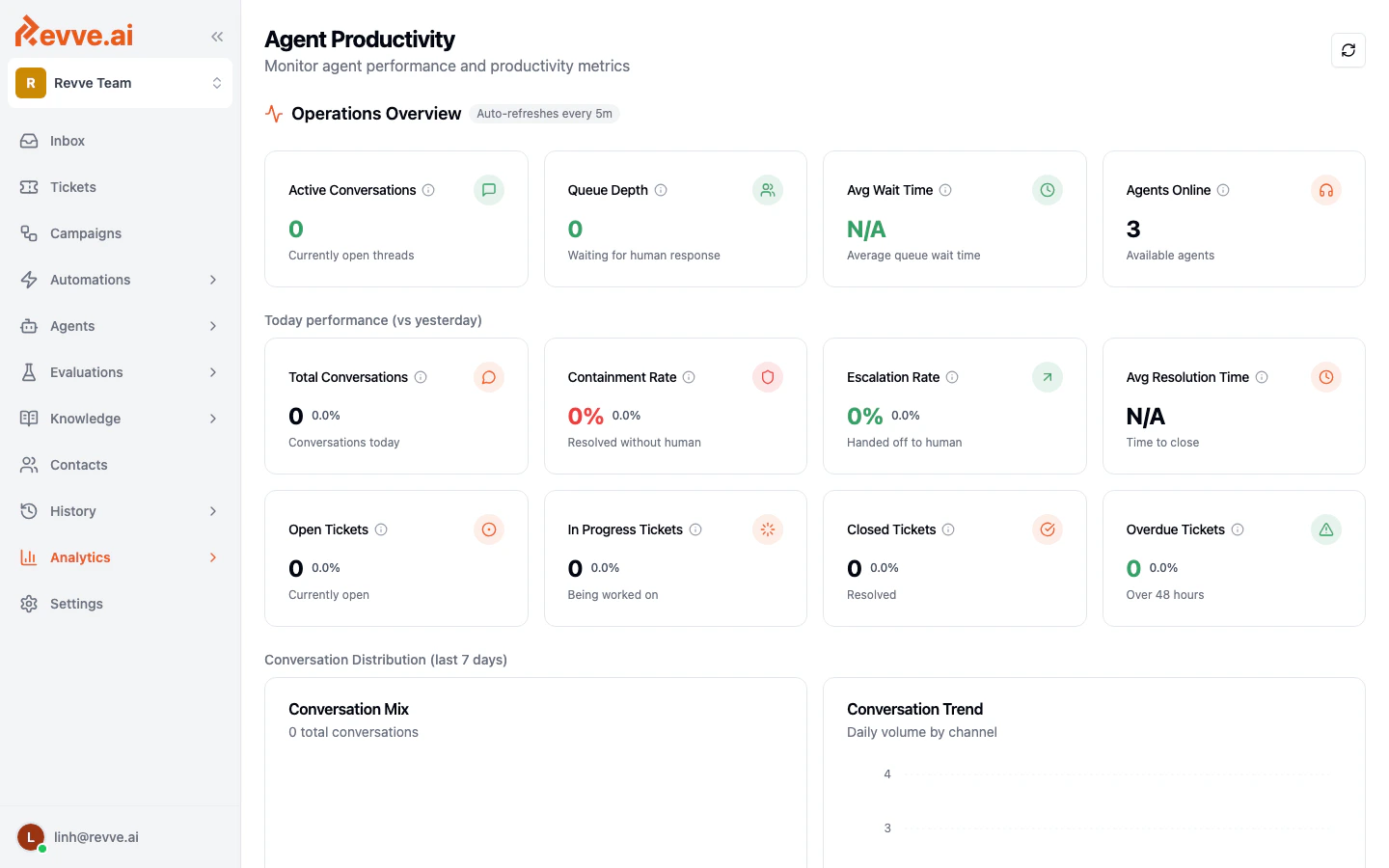
Real-Time Status
Four cards show your current operational state:Today’s Performance (vs Yesterday)
Summary cards compare today’s numbers to yesterday, each with the current value and the percentage change:Distribution charts (Last 7 Days)
Below the cards, three groups of charts break down the past week:- Conversation distribution — a pie chart of conversation volume by channel (Website, SMS, WhatsApp, Messenger, Email, Zalo, Zalo OA) and a line chart of daily volume per channel.
- Ticket distribution — daily tickets by status (Open, In Progress, Closed) and daily ticket volume by channel.
- Escalation trends — escalations per day, and a breakdown of which channels generate the most escalations.
Chat Agents
The Chat Agents page measures engagement and conversion for website chat agents — how many visitors see your pages, how many start a chat, and how many become leads. It covers website agents only; if you have none, the page prompts you to create one.
Controls
Summary cards
Four cards, each showing a trend against the prior period of equal length:
Read the two conversion percentages as a funnel: page views → chats → leads. If page views are healthy but chats are low, your widget or conversation starters need work; if chats are high but leads are low, the agent isn’t collecting contact details effectively.
Engagement and conversion charts
- Engagement chart — Page Views as a toggleable line, Chats as a line, and Leads as bars, over time.
- Conversion Performance — chat conversion % and lead conversion % over time, with averages.
- Why People Chat — a donut of the top contact reasons.
- How Chats Begin — Manual (visitor typed) vs Preset (clicked a conversation starter).
- Conversation Starter Distribution — which preset buttons get used most. Retire starters nobody clicks and promote the ones that convert.
- Top Chat URLs — the 10 pages generating the most chats, with its own Export CSV.
- URL Categories — chats by website section (top 5, plus Other).
Exports
Two CSVs are available: a daily report (Date, Page Views, Chats, Leads, Meetings, Successful Resolutions, Chat Conversion, Lead Conversion, Resolution Rate) and a URL data file (URL, Chat Count). Use the daily report to build your own week-over-week comparisons, or subscribe to Daily Reports for a scheduled summary instead.AI Agents
The AI Agents page (titled AI Agent Performance) monitors AI effectiveness, response performance, and escalation patterns. Use the date range selector to choose a period (defaults to the last 7 days). Data refreshes automatically every five minutes. A manual Refresh control is also available; there is no export.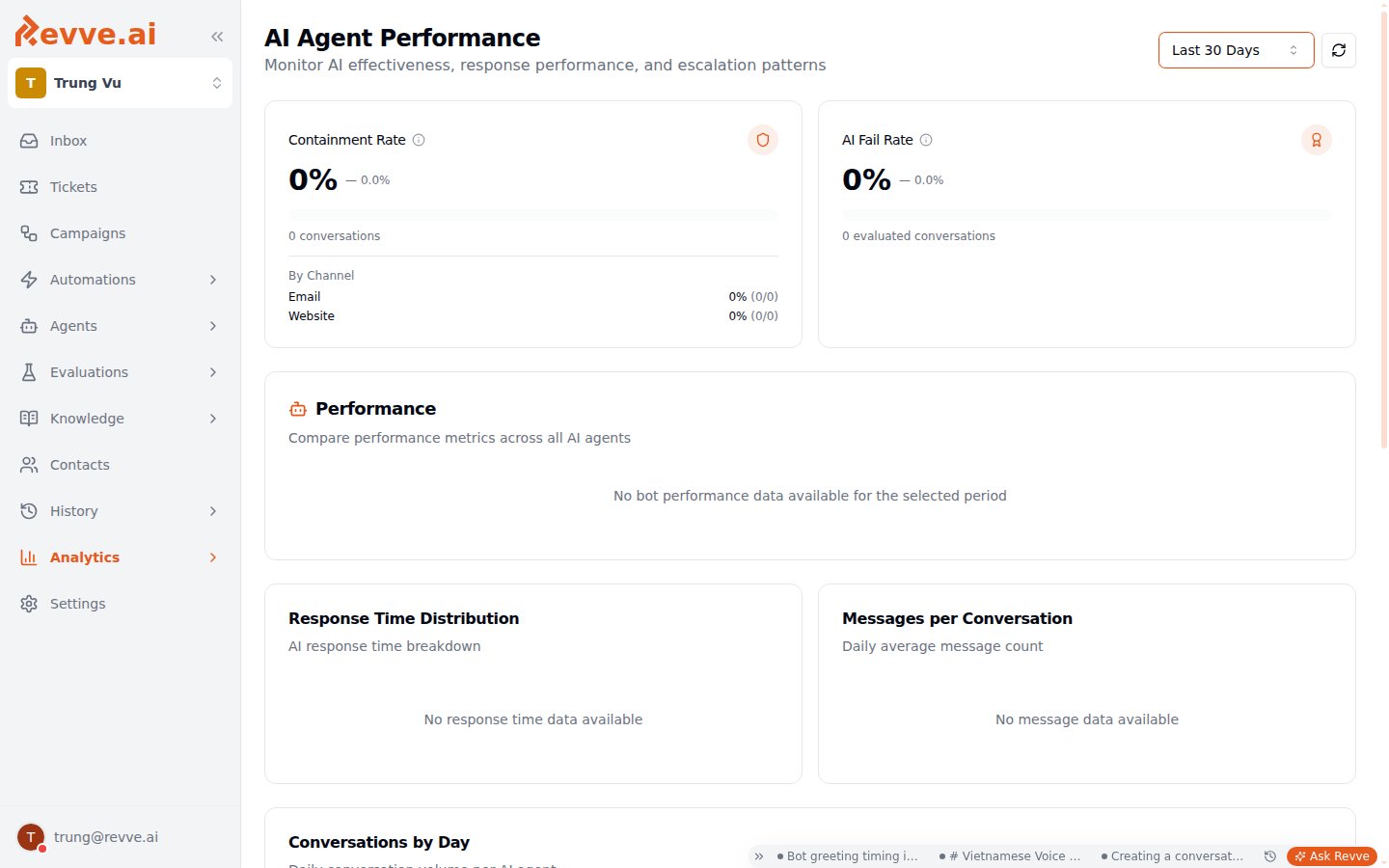
KPI cards
Two cards summarize AI performance:
The two come from different systems: Containment Rate, volume, and response times come from conversation analysis, while AI Fail Rate is produced by the evaluation system — see Evaluations Overview for how conversations get scored.
Read the two cards together. High containment with a high fail rate means the AI is closing conversations it shouldn’t — customers aren’t escalating, but they aren’t getting good answers either. Aim for containment rising while fail rate holds or falls.
Agent Performance table
A sortable per-agent table with these columns:
Sort by Fail % to find the agent that most needs prompt or knowledge base work; sort by Volume to see where a fix pays off fastest.
Response and escalation charts
- Response time histogram — the distribution of AI response times, with the average.
- Messages per conversation — how long a typical AI conversation runs, with the average.
- Conversations by day — daily volume broken down per agent.
- Conversation heatmap — conversation volume by date and hour of day. Use it to see when visitors are most active.
- Escalation heatmap — when handoffs to humans happen, by time of day.
Human Agents
The Human Agents page (titled Human Agent Performance) tracks team productivity, workload distribution, and response times. Use the date range selector to choose a period (defaults to the last 7 days). Data refreshes automatically every five minutes. A manual Refresh control is also available; there is no export.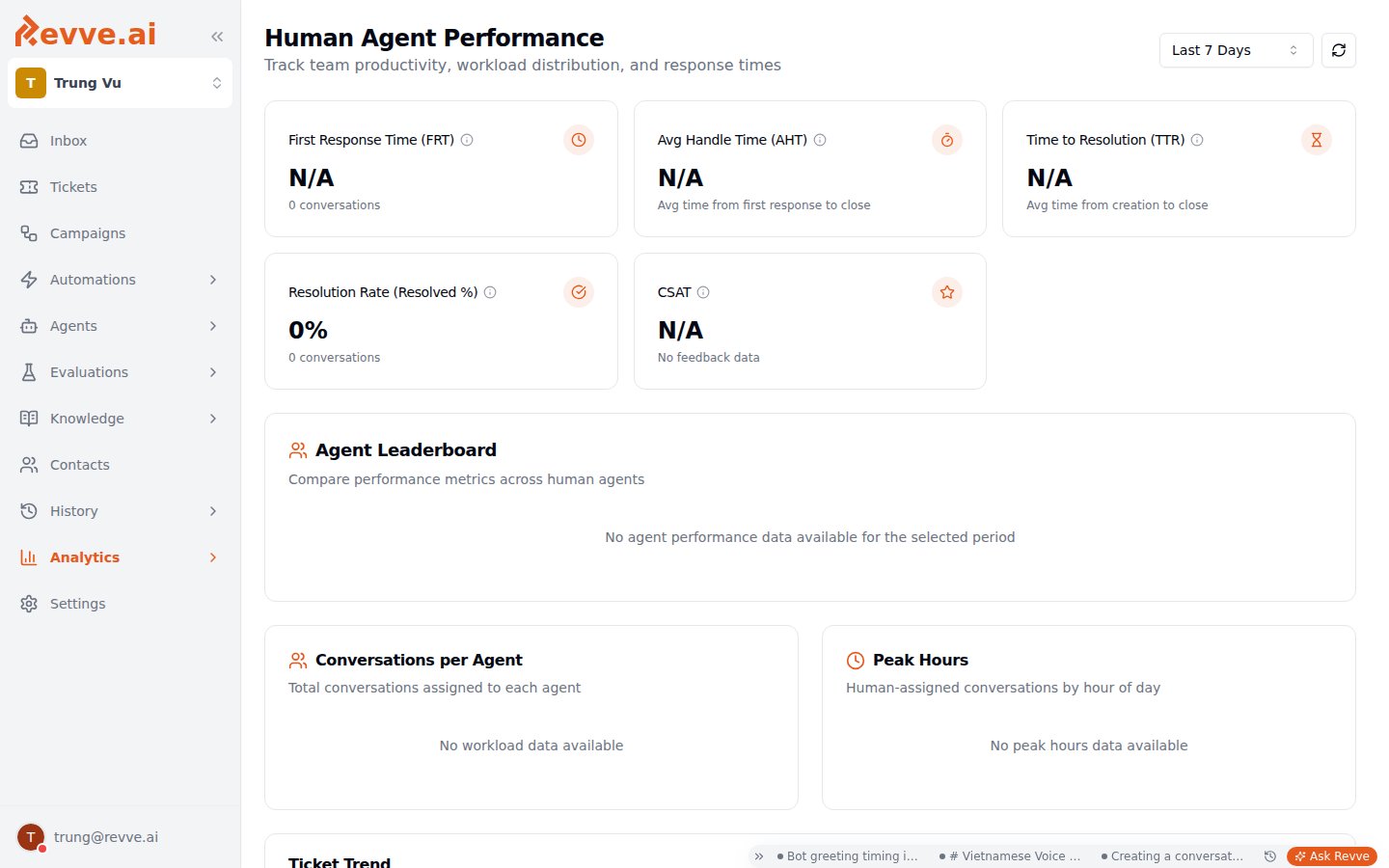
Team summary cards
Five cards summarize the team:
CSAT comes from conversation feedback ratings — customers must be asked to rate. Enable feedback in the Feedback section of Chat Agent Advanced Settings, or this card stays empty.
Agent leaderboard
A sortable per-agent table: Agent, Active (open conversations), Total (conversations), Tickets Assigned, Tickets Resolved, FRT, Handle Time, Resolution Time, Resolution %, CSAT. Use it to compare like with like: an agent with a slow FRT but the highest ticket load isn’t underperforming — they’re overloaded. Ticket columns reflect the workflows described in Working with Tickets.Workload and response charts
- Workload distribution — conversations per agent and peak hours.
- Ticket trend — ticket creation and resolution over the period.
- Response time analysis — human response times, including first response time by hour.
What’s Next
- Daily Reports — get a scheduled summary of these metrics delivered instead of checking dashboards.
- Evaluations Overview — how the quality checks behind AI Fail Rate work, and how to tune them.