

Where Scorecards fits
Four things in Revve grade conversations, and they all draw metrics from the same library:
Because a scorecard is just a policy over shared metrics, editing a metric’s definition in the library changes how every scorecard that uses it grades — the scorecard only owns the metric’s weight within its policy.
The Scorecards page
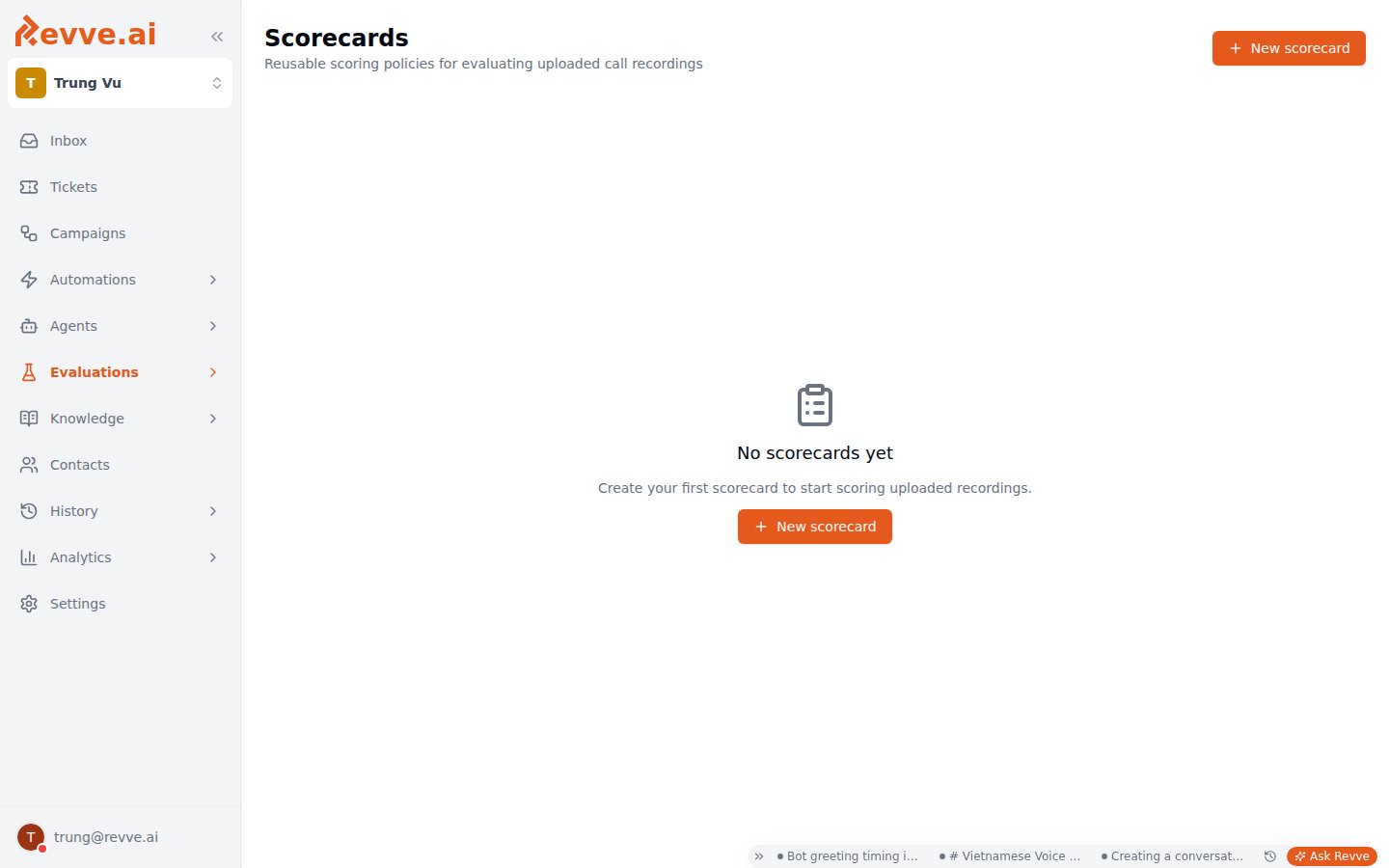
The page (“Reusable scoring policies for evaluating uploaded call recordings”) lists your team’s scorecards in a table:
Before you’ve created any, the empty state reads “No scorecards yet — Create your first scorecard to start scoring uploaded recordings.”
Creating and editing a scorecard
Click New scorecard (top right) to open a sheet from the right — “Pick metrics and weights to score completed call recordings.” Clicking an existing row opens the same sheet as Edit scorecard.
The policy editor is the same weighted-metrics editor as the Voice Agent Evaluation tab: pick metrics from the shared Metrics library, give each a weight, and set a minimum passing score (1–5) per tab. It has separate Caller and Agent tabs, each with its own minimum pass score — so a scorecard can hold the agent side to a strict compliance bar while scoring the caller side leniently (or not at all). If you already know that editor from an agent’s Evaluation tab, there’s nothing new to learn here; the scoring mechanics are documented in Voice Agent Evaluation.
Submit with Create scorecard (new) or Save changes (editing).
Upload Batches
Once you’ve uploaded at least one batch of recordings, an Upload Batches section appears below the scorecards table — “Batches of uploaded call recordings queued for scoring” Scoring is asynchronous: a batch queues, processes each file, and reports progress here.The Scorecards page defines the policy and tracks batch progress — that’s all. Uploading the recordings themselves, and reviewing each scored call afterward, both happen on the Call History side. Clicking a batch name here is the shortcut across: it lands you in Call History pre-filtered to that batch.
partial or failed status means some files never got scored — check the Failed count before treating the batch’s results as a complete sample, especially for a compliance audit where the unscored calls are exactly the ones you can’t vouch for.
When to reach for a scorecard
What’s Next
- Evaluation Metrics — build the deterministic and LLM-judged metrics your scorecards attach.
- Voice Agent Evaluation — the same weighted-metrics editor, applied automatically to every live call one agent completes.