

Before you start
- Your account must belong to the workspace that contains the voice agent and call.
- The voice agent must have a Copilot Agent attached, with a published version.
- For in-app transfers, enable Accept Calls in your account menu and allow browser microphone access.
- For observation and takeover from Live Calls, enable Live Observability in the voice agent’s call settings.
- Knowledge answers need configured knowledge sources. API actions need configured tools and access to the target system.
Configure a Copilot Agent
- Open AI Agents > Copilot Agents and select New Copilot Agent.
- Enter a name and description, then create the agent.
- Select Start Editing when you need to change an existing configuration.
- In Overview, write Instructions for the copilot. Start with the example below and keep the default models for your first test.
- Configure the relevant tabs below.
- Test the draft, then have a team administrator select Publish.
- Open the voice agent’s call settings and select it under AI Assist for Human Agents.
- Save and publish the voice agent’s configuration through its normal publish workflow.
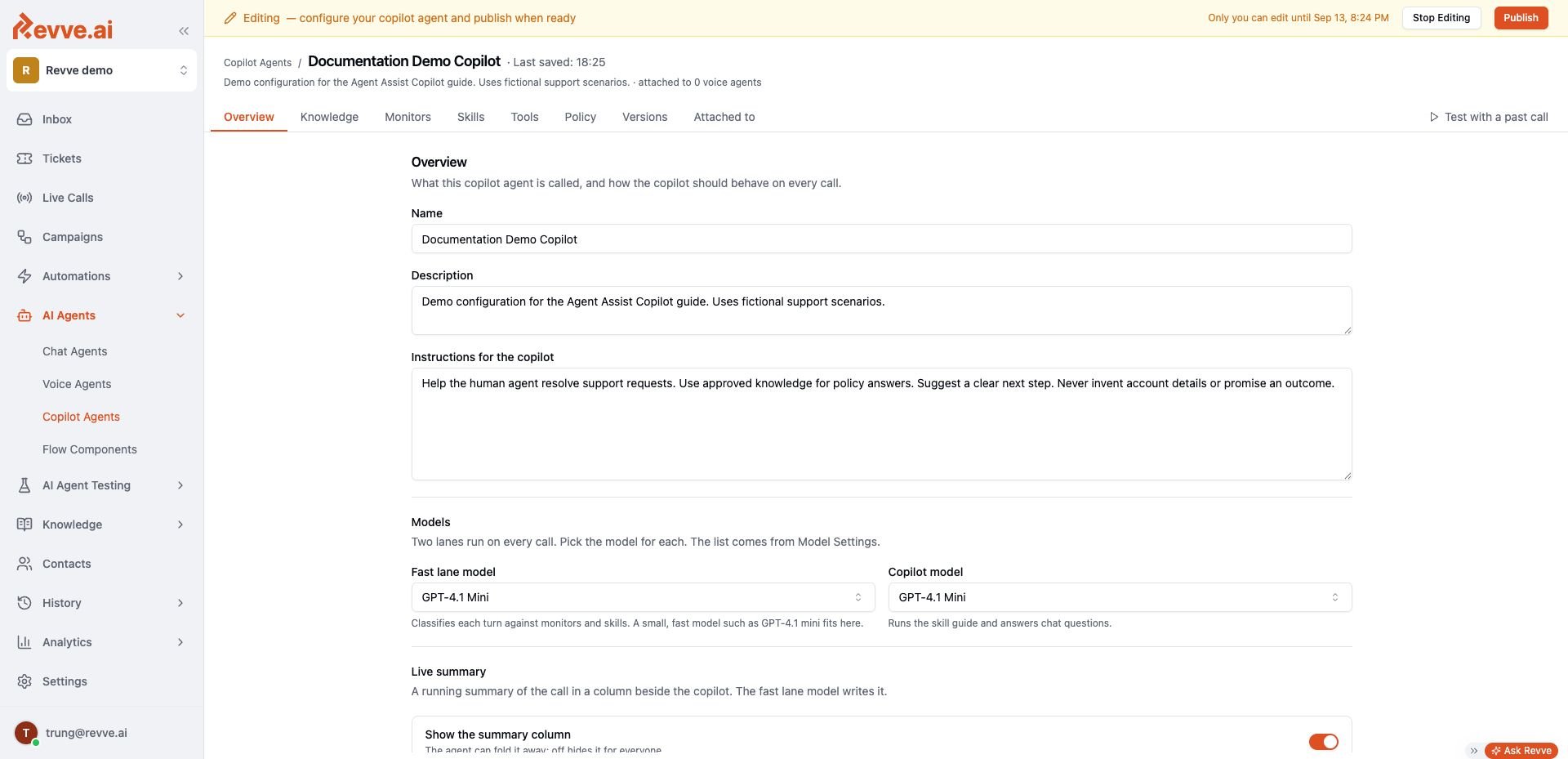
Draft changes save automatically while you hold the edit lock. Publish the draft to make its configuration available for new sessions.
An active session keeps the Copilot version selected when it started. Publishing a new version does not replace that session’s configuration.
Tool definitions are an exception: edits to shared tools can affect active sessions without publishing a new Copilot version. Coordinate endpoint, credential, and behavior changes with operators before changing a tool used by live calls.
Add a supervisor-request warning
- In Monitors, select New monitor.
- Set Name to
Supervisor requestand Message toAcknowledge the concern and follow the supervisor escalation process. - Keep Severity at Warning and On enabled.
- Set Say instead (optional) to
I understand your concern. Let me check the next step for involving a supervisor. - Under Trigger, select Exact phrases and enter
supervisorin Phrases. - Keep Watches set to Caller and Cooldown (s) at its default of
120, then select Save monitor.
Test before a live call
With the monitor saved in your draft, open Test with a past call. Paste a transcript with one turn per line, then select Run: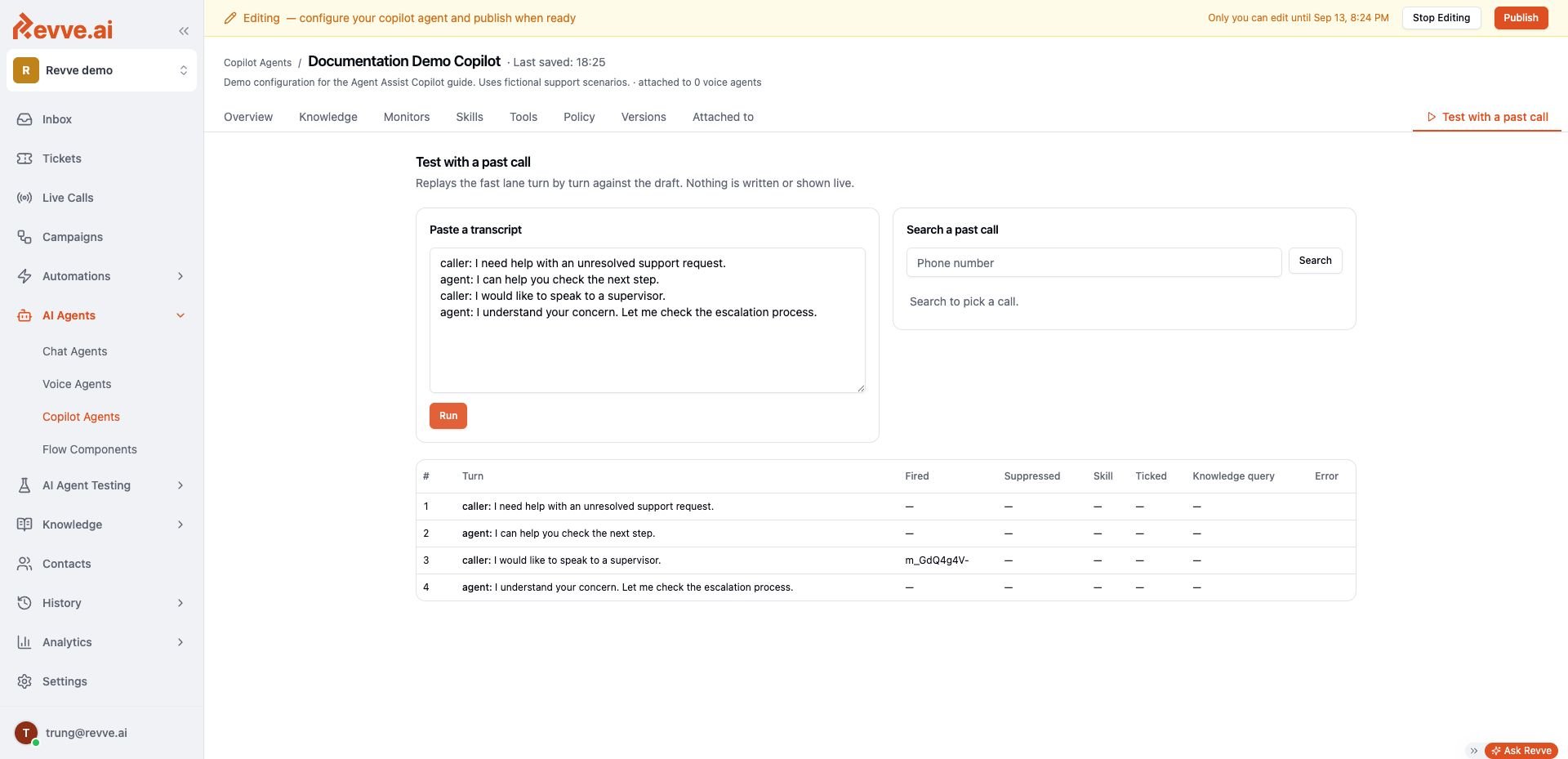
supervisor, and Watches is Caller.
This test checks the draft’s transcript classification. It does not place a call, execute the full live Copilot workflow, or display guidance to live agents.
Use a controlled test call to check audio, transfer, knowledge answers, and tool confirmations before operational use.
Open Copilot during a call
For an in-app transfer, select Accept on the incoming transfer card. Revve opens the live-call workspace in a new tab. Allow the tab and microphone permissions when prompted. If the browser blocks the tab, Revve can show a compact phone instead. For a call on the Live Calls board, open the call and select Take Over when you need to speak to the caller. The assigned human agent controls the Copilot session. Other authorized team members can observe it; their status shows Viewing.Read the workspace
The header shows the Copilot name, version, and status. Listening means it is ready; Thinking means it is processing work.
On a narrow screen, open the Copilot panel from the call header. On a wide screen, you can collapse the summary column.
Ask for help and search knowledge
Type a question in the composer, or select Draft my next line, Summarize so far, or Search knowledge. For example, ask: “What information must I collect before I escalate this request?” Press Enter to send. Press Shift+Enter for a new line. Type/ to show available skills and commands.
If Copilot suggests a knowledge search, run or dismiss the suggestion. Automatic answers depend on the Knowledge configuration.
When an answer includes source chips, select a source to inspect its content. Open original opens its original URL when available.
Check the source and the caller’s context before you use a suggested response. Knowledge quality depends on the selected, available documents.
Follow warnings and guides
Monitors can show warnings with a reason, suggested wording, and transcript evidence. Review the warning and select Dismiss when appropriate. A skill guides you through a configured procedure. It can start from a configured condition, a suggestion you accept, or the slash-command menu. The guide shows completed, skipped, and pending steps. Completion depends on the configured conditions and available conversation evidence. Select End skill when you need to leave the current procedure. A completed guide is not proof that an external record changed.Review tool actions
When a step or Copilot request needs your input, the panel shows Needs you or a pending action.- Check the tool name and proposed values.
- Select Edit values if you need to correct them.
- For a read-only action awaiting approval, select Run.
- For a write action, select Confirm and run, then Click again to run.
- Select Skip if the action should not run.
- Check the result before you tell the caller that the action succeeded.
Review the session after the call
Open the call in call history and select Copilot.- Agent view replays the saved Copilot experience alongside the transcript.
- Debug log shows recorded events for detailed review, including actions, notes, and errors.
- If the call has multiple Copilot sessions, use the session selector.
Access and troubleshooting
Live assistance requires Revve to receive the conversation after transfer. A cold SIP transfer leaves that media path and does not capture the human conversation.
An external phone system needs an explicit media and session integration for continued assistance. An embedded phone widget alone does not provide it.