

Where to find it
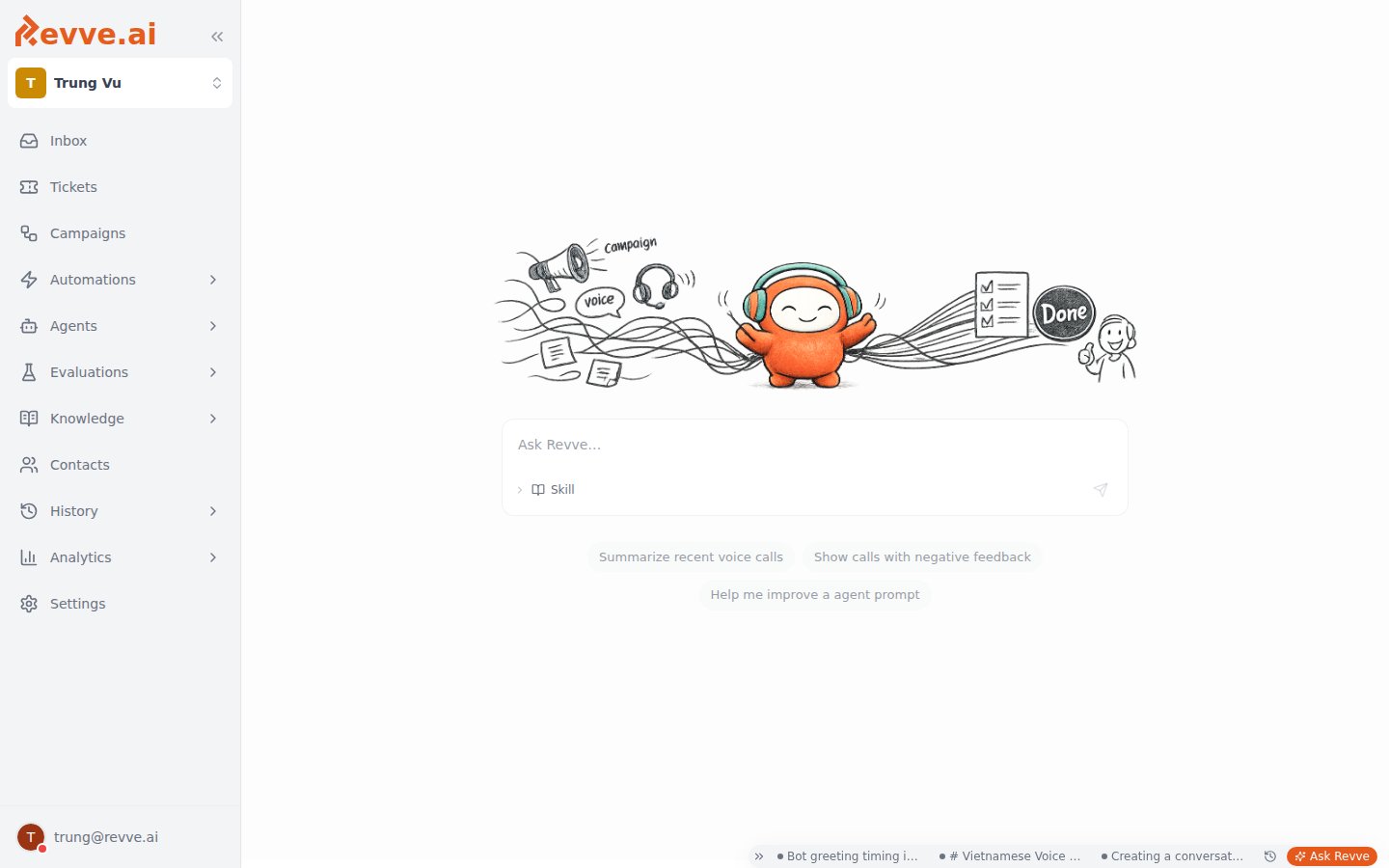
Ask Revve is one click away on every dashboard page, via the pill dock at the bottom right:- The orange Ask Revve button (sparkles icon) starts a fresh conversation.
- Up to three pills show your most recent conversations — click one to pick it back up.
- The Chat history clock icon opens your full conversation history.
- The chevron (Collapse dock / Expand dock) tucks the dock away when you need the space.
Conversations and history
Each chat is a thread with its own context. Ask Revve always starts a new one; the dock pills are your three most recent. For anything older, open Chat history — it has a Search chat history box and groups threads by Today, Yesterday, Last week, 2 weeks ago, Last month, and Older. Threads title themselves automatically after the first exchange, so you don’t need to name anything.It knows what you’re looking at
On a chat agent, voice agent, or call-detail page, Ask Revve attaches the thing you’re viewing as a context chip in the composer (for example This call). That means “improve this bot’s greeting” or “why did this call fail?” just works — you don’t have to name the agent or paste a call ID. Click the chip’s dismiss control if you want a question answered without that context. Other pages attach no context, so name what you’re asking about.What it can do
Ask Revve’s capabilities come in three tiers, ordered by how much they change:
Direct actions create new things — a new agent, a new metric, a new campaign. One caveat to know: a copilot-created campaign lands active (though empty — no contacts are enrolled until you add them), not as a draft. Anything that would modify an existing agent’s prompt or flow goes through the proposal flow below.
Proposals: review before anything changes
When you ask Ask Revve to change an agent — “make the greeting warmer”, “add an objection-handling step to the flow” — it doesn’t edit the agent. It replies with a proposal card titled “Proposed N change(s)” for that agent, with a per-change diff showing exactly what would change. From the card you can:- Apply an individual change, or use Apply all / Apply selected (n) for several at once.
- Discard all / Discard selected (n) to reject changes you don’t want.
- Edit the proposed text inline before applying — supported for the system/global prompt and for node instructions — when the suggestion is close but not quite right.
- Proposals write to the agent’s draft, never to the live published version.
- Publishing stays a separate, human step — the same draft/publish workflow as any manual edit, including publish approval if your workspace requires review.
- Proposing and applying agent changes both require the Manage Agents permission — without it, the copilot declines to propose changes at all (and conversations are private to each user, so there is no hand-off-to-a-teammate path).
Drafts are single-editor. If a teammate holds the agent’s edit lock, applying fails with
Draft is locked by {name}. Try again later. — coordinate with them or wait for the lock to release.Permissions at a glance
See Roles and Permissions for how these permissions map to roles.
Teach it your playbooks with skills
The Skill button (book icon) in the composer lets you invoke a specific skill — a reusable, named instruction module — for a message, and the Manage skills link opens the Skills page where you author your own. Skills are how you turn a one-off prompt like “review this week’s calls the way our team does” into a procedure every teammate’s copilot follows the same way. See Skills for scopes, authoring, and the built-in skills that ship with Revve.What’s Next
- Skills — encode your team’s workflows so Ask Revve follows them consistently.
- Publishing and Versioning — the draft/publish model that keeps applied proposals from going live on their own.