

General
Model Settings
Speech Recognition
Configures how the agent understands spoken input.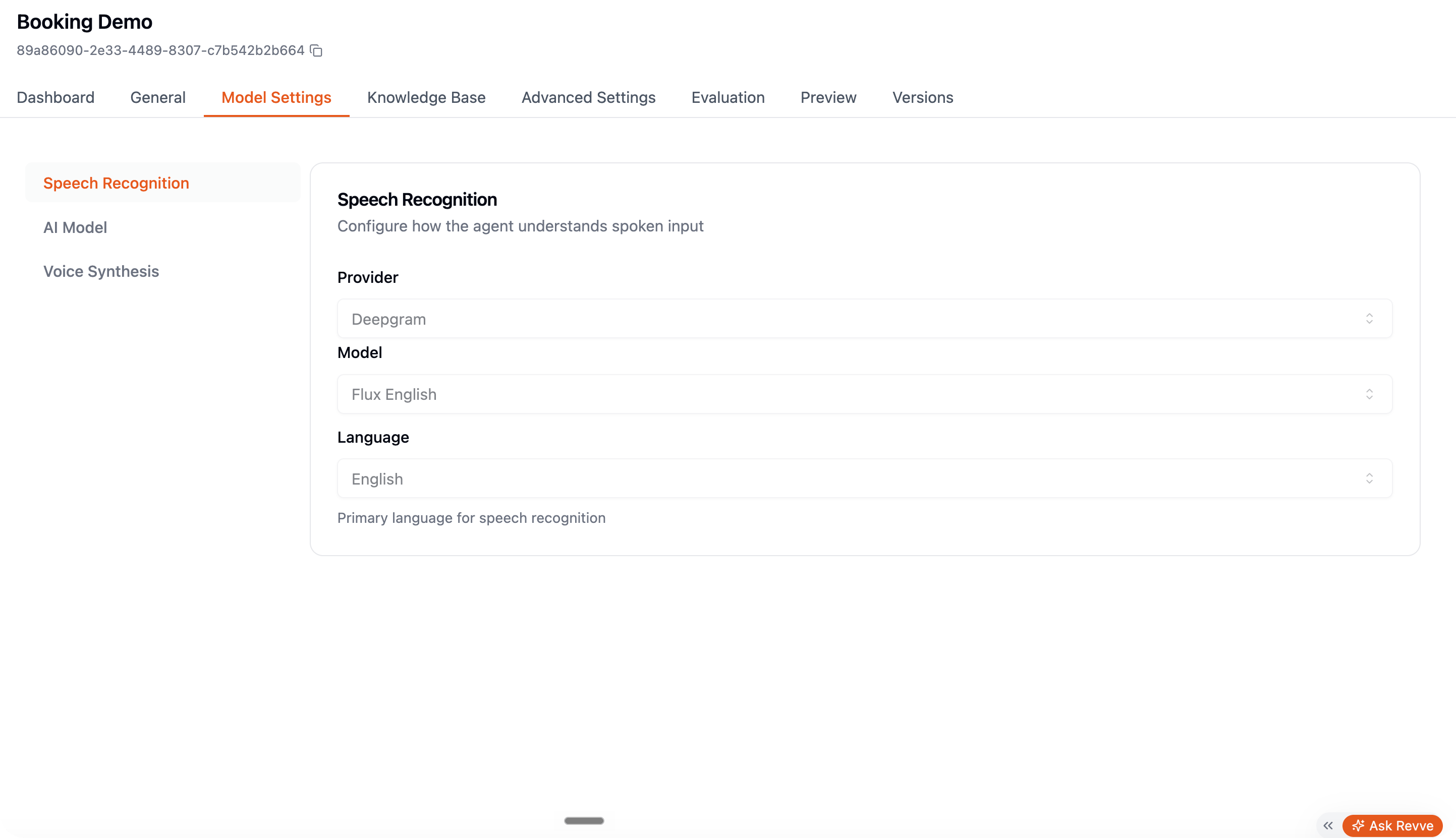
AI Model
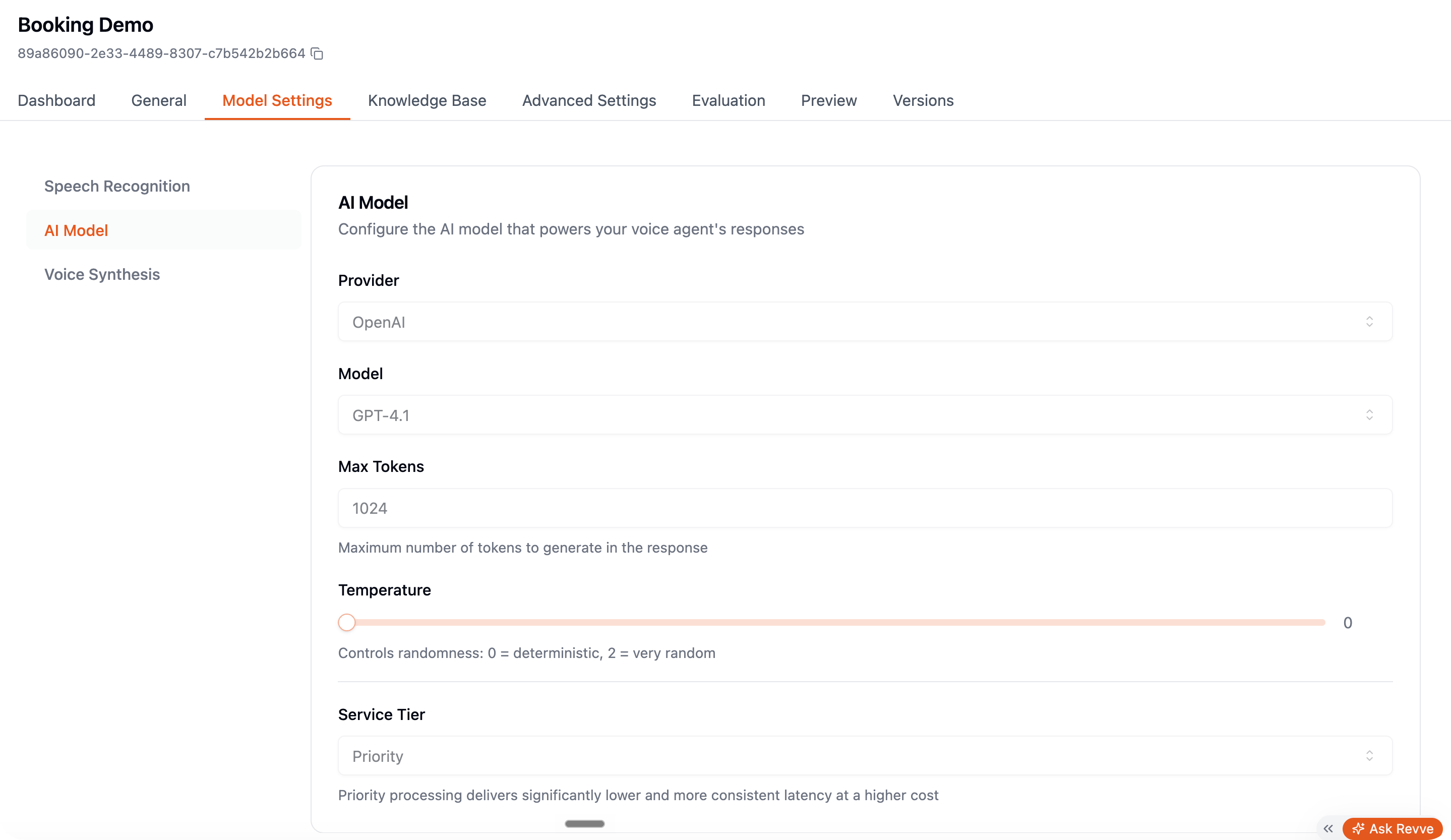
Voice Synthesis
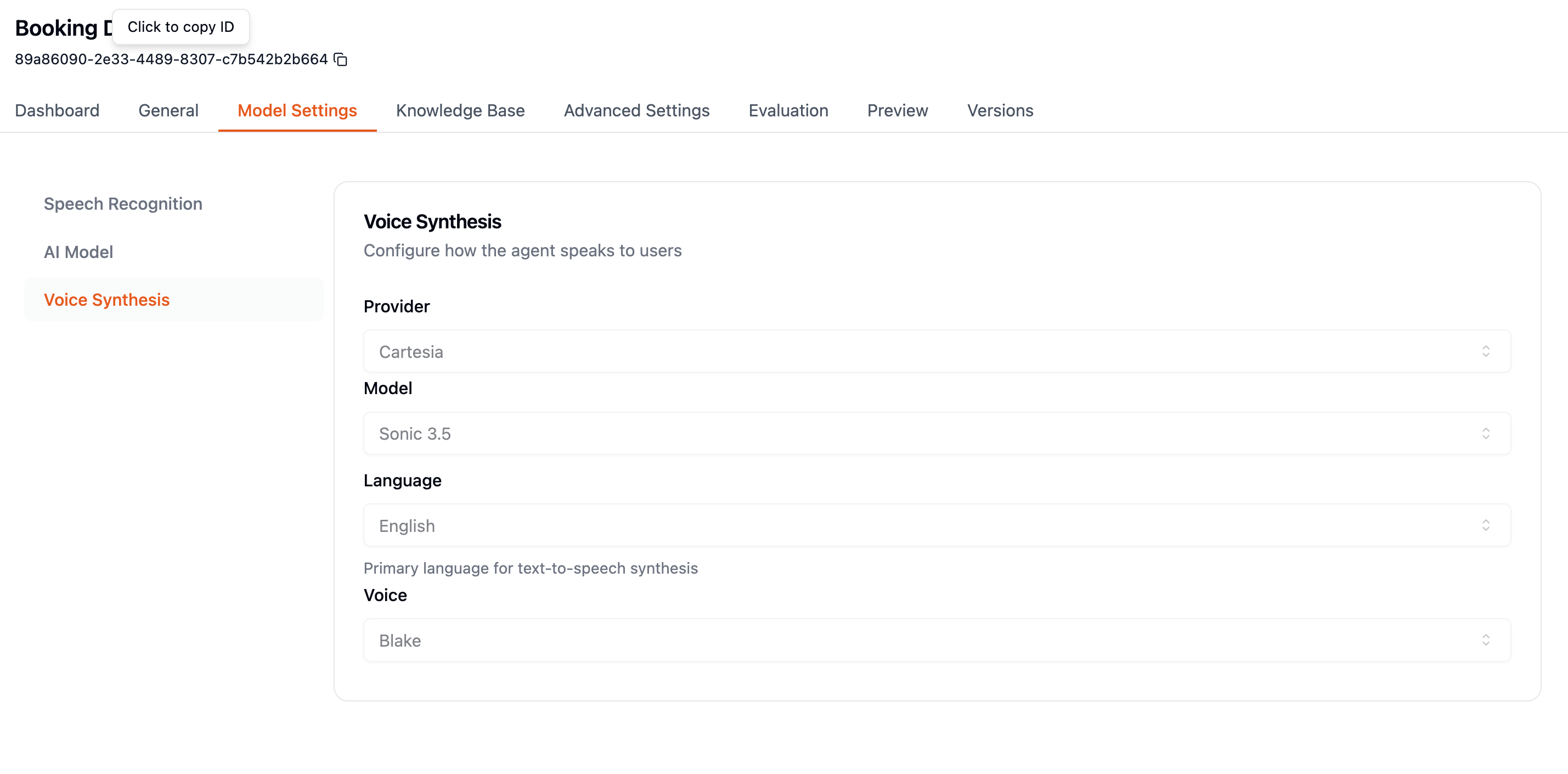
Advanced Settings
Advanced Settings is organized into sections in a left sidebar. The impactful ones in detail:Call Behavior
Conversation
This section controls the feel of the conversation — it’s where voice agents are won or lost. Conversation Start
Turn Handling — how the agent decides the caller finished speaking, and how fast it replies:
Interruption Handling
Quiet Speech Handling
Prompts callers who are speaking too quietly to speak up — worth enabling for audiences skewing older or soft-spoken, or calls prone to a noisy line (driving, retail floor, poor mic).
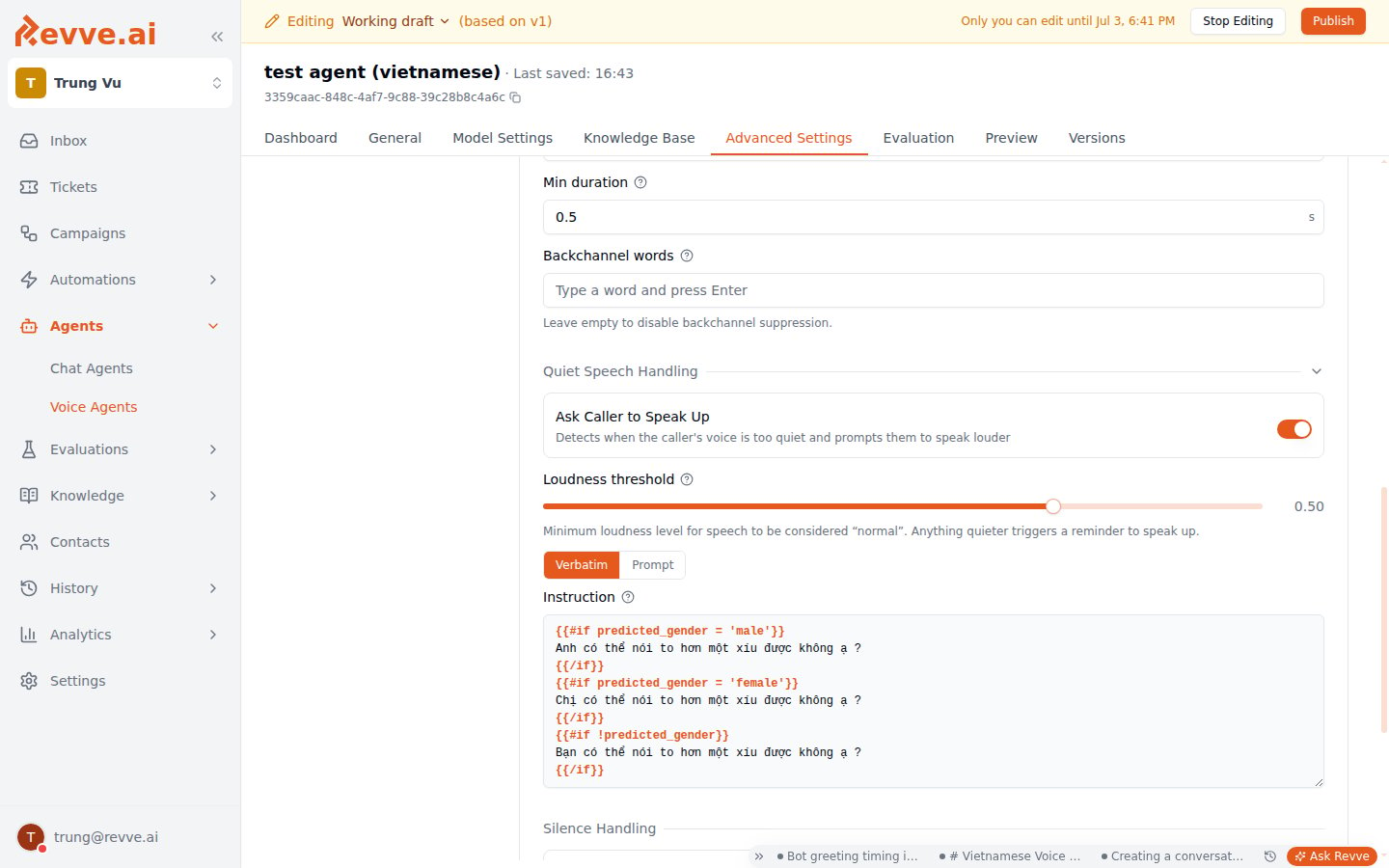
The runtime caps this at 2 speak-up prompts per call session, so a caller who stays quiet won’t get nagged repeatedly.
Silence Handling
Environment
Voicemail
Off by default — when voicemail is detected the call simply hangs up. Enable voicemail detection to leave a message instead: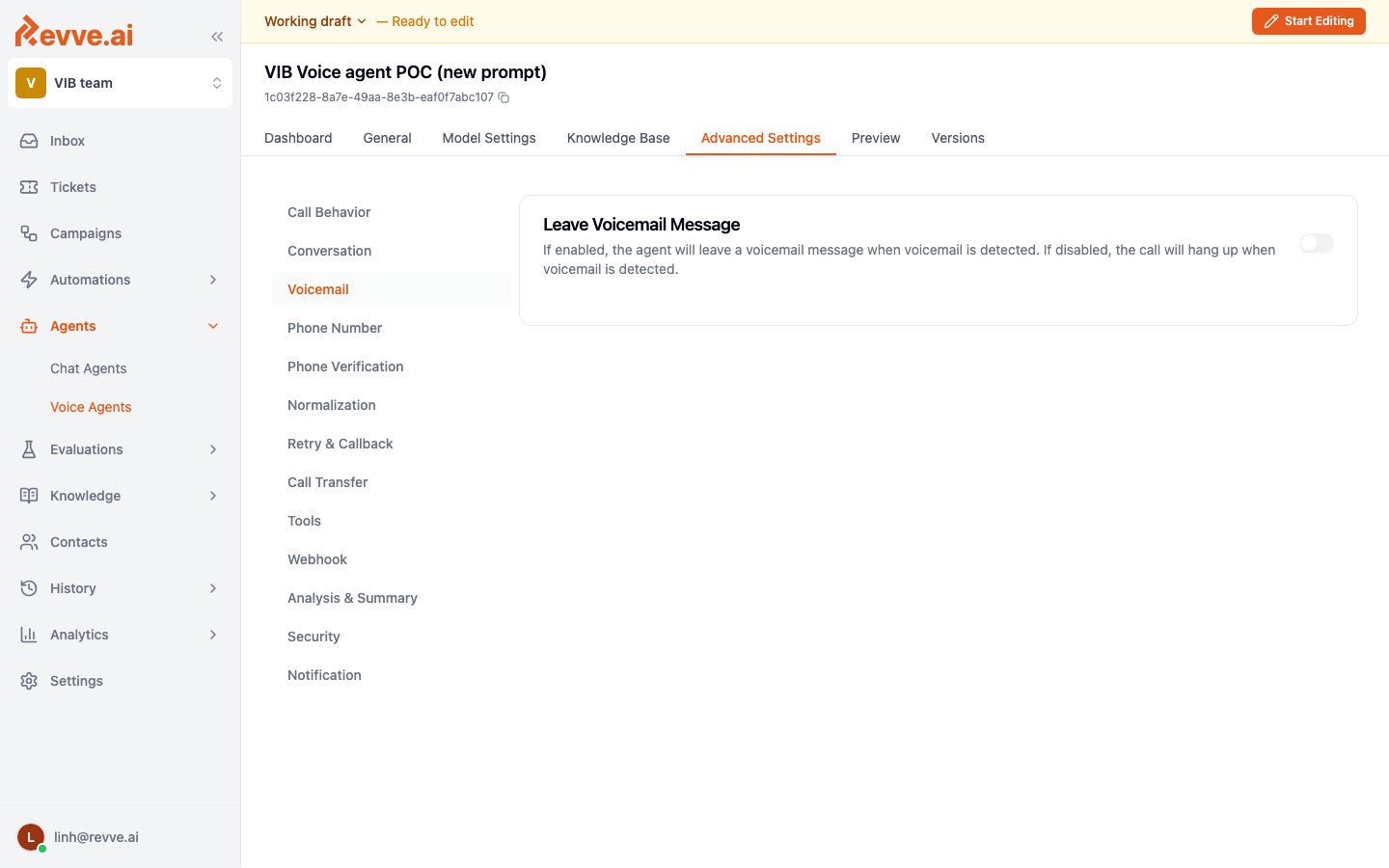
- Voicemail Message supports
{{contact}}placeholders — for example: “Hi{{firstName}}, this is Acme calling about your application…” - Detection Timeout (default 5000 ms): how long to listen before deciding it’s a machine. Leave it unless detection misfires.
Call Transfer
Lets the AI hand the call to a human, with a spoken handover message:
For flow transfers, set the timeout on the Transfer Call node. See Call Transfer for defaults, failure behavior, and how answered greetings or queues affect the timeout.
Everything else
The remaining sections are covered in depth on Voice Agent Advanced Capabilities — the short version:A tuning workflow that works
- Ship with defaults. Make 5–10 test calls in Preview, including a noisy-environment call from your phone.
- Read the transcripts. Transcription errors → fix Language/Key Terms first; everything downstream depends on hearing correctly.
- Fix the single most annoying rhythm problem (cutting off / sluggishness) with one turn-handling change, re-test, repeat.
- Only then polish: voicemail message, transfer message, pronunciation dictionary.
What’s Next
- Voice Agent Evaluation — automatically grade completed calls against a weighted set of metrics.
- Voice Agent Tools — every Tools-tab preset, and which ones don’t work on a phone call.
- Call Transfer — the full warm-transfer workflow, including routing to in-app agents.
- Do Not Call List — the team-wide list every outbound call is checked against before it’s placed.
- Creating a Campaign — drive outbound calls with your tuned agent.