

Evaluations is easy to confuse with two other things that use similar words:
- The per-Voice-Agent Evaluation tab (Voice Agent Evaluation) automatically grades every live call a single voice agent completes, after the fact. It’s configured on that one agent and needs no test scenarios — Evaluations, by contrast, runs simulated or scripted tests before a call ever happens with a real customer.
- The per-Chat-Agent “Evaluations” tab (mentioned in Creating Your First Chat Agent) is an older, separate legacy system for one chatbot’s test cases and test history. It predates this product, runs on different underlying tables, and isn’t documented further here.
How it works
- Build an Evaluator. An Evaluator is a test case: pick the agent under test (any Text/Chat agent or Voice agent), define a scenario — either an LLM-generated persona and instructions, or a fixed script of messages — and choose the metrics to grade it against. You also set limits: max turns, and for voice, max call duration.
- Add a Profile, for voice evaluators only. A Profile is a reusable simulated-caller persona: which LLM plays the caller, what it sounds like (TTS voice/language), how it listens (STT), and a free-text instruction describing who it is and its emotional state (e.g. “Frustrated caller”). Text evaluators skip this — there’s no simulated voice to configure.
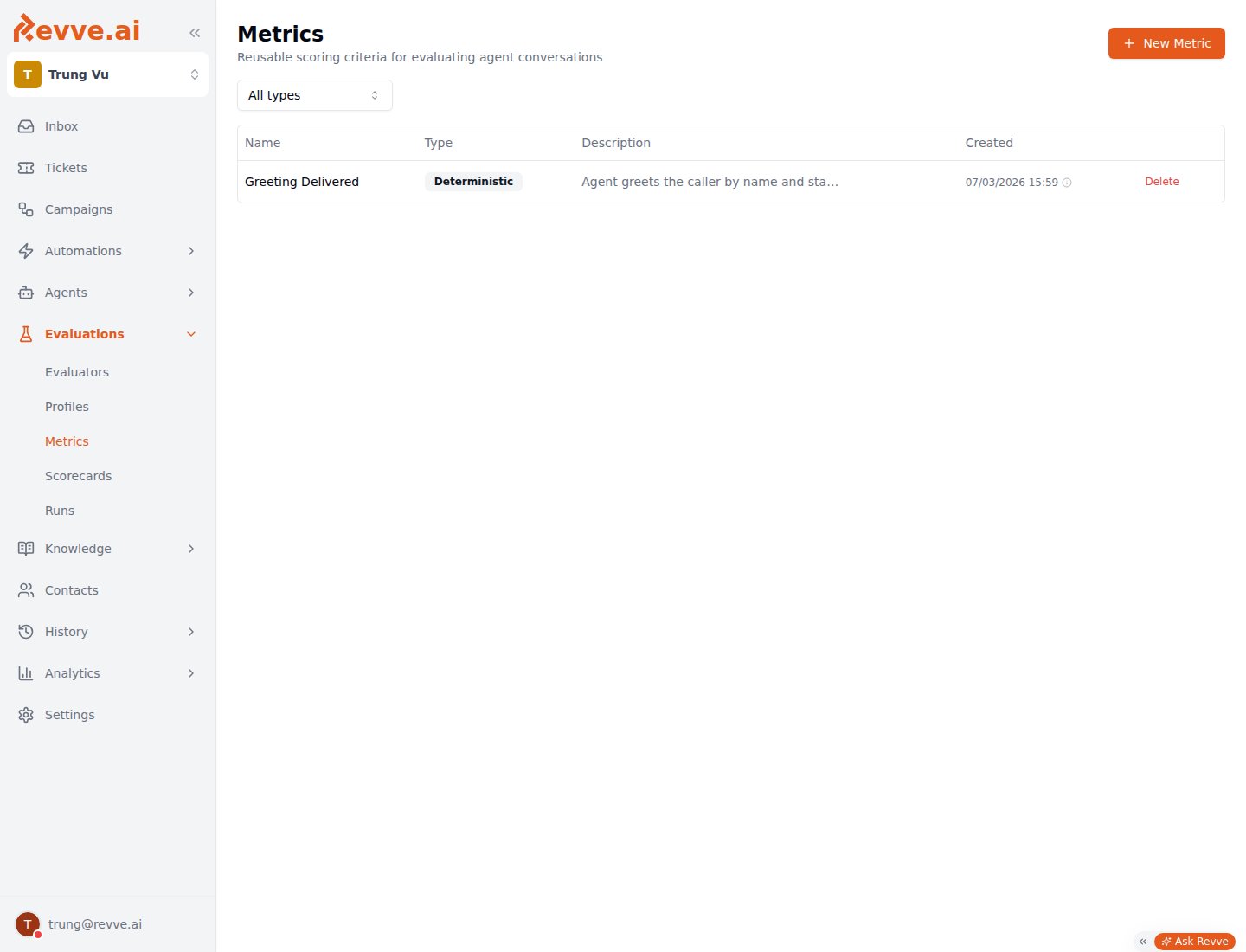
- Grade against Metrics. Metrics are your team’s shared scoring-criteria library — deterministic checks and LLM-judged criteria — reused across Evaluators, per-agent Evaluation policies, and Scorecards alike. See Evaluation Metrics for the full breakdown of metric types.
- Launch a Run from the Evaluators page. Running one or more Evaluators (against the same agent) kicks off a Run — a queued, asynchronous batch execution. There’s no “New Run” button on the Runs page itself; Runs is read-only execution history.
- Read the results. A finished run reports pass/fail counts, a success rate, and per-conversation transcripts with tool-call logs, so you can see exactly why a scenario failed. The full create-evaluator-then-run-it workflow is covered in Creating an Evaluator.
Capabilities
Scorecards is a related but distinct concept from the rest of Evaluations: it grades recordings of real calls that already happened, uploaded as a batch from Call History, rather than running a simulated test before you ship. It shares the same team-wide Metrics library, and a scorecard bundles a name, description, and a set of weighted metrics — the same weighting UI as the per-Voice-Agent Evaluation tab — but the batches it lists are created elsewhere.
What’s Next
- Evaluation Metrics — the deterministic and LLM-judged metric types shared across Evaluators, Scorecards, and per-agent Evaluation.
- Creating an Evaluator — build a test case, run it, and read the results.
- Voice Agent Evaluation — if what you actually want is automatic post-call grading of every live call, not pre-ship testing.