

The Skills page appears under Settings → Skills for members with the Manage Settings permission; everyone else reaches it through the Manage skills link next to the composer’s Skill button.
Scopes
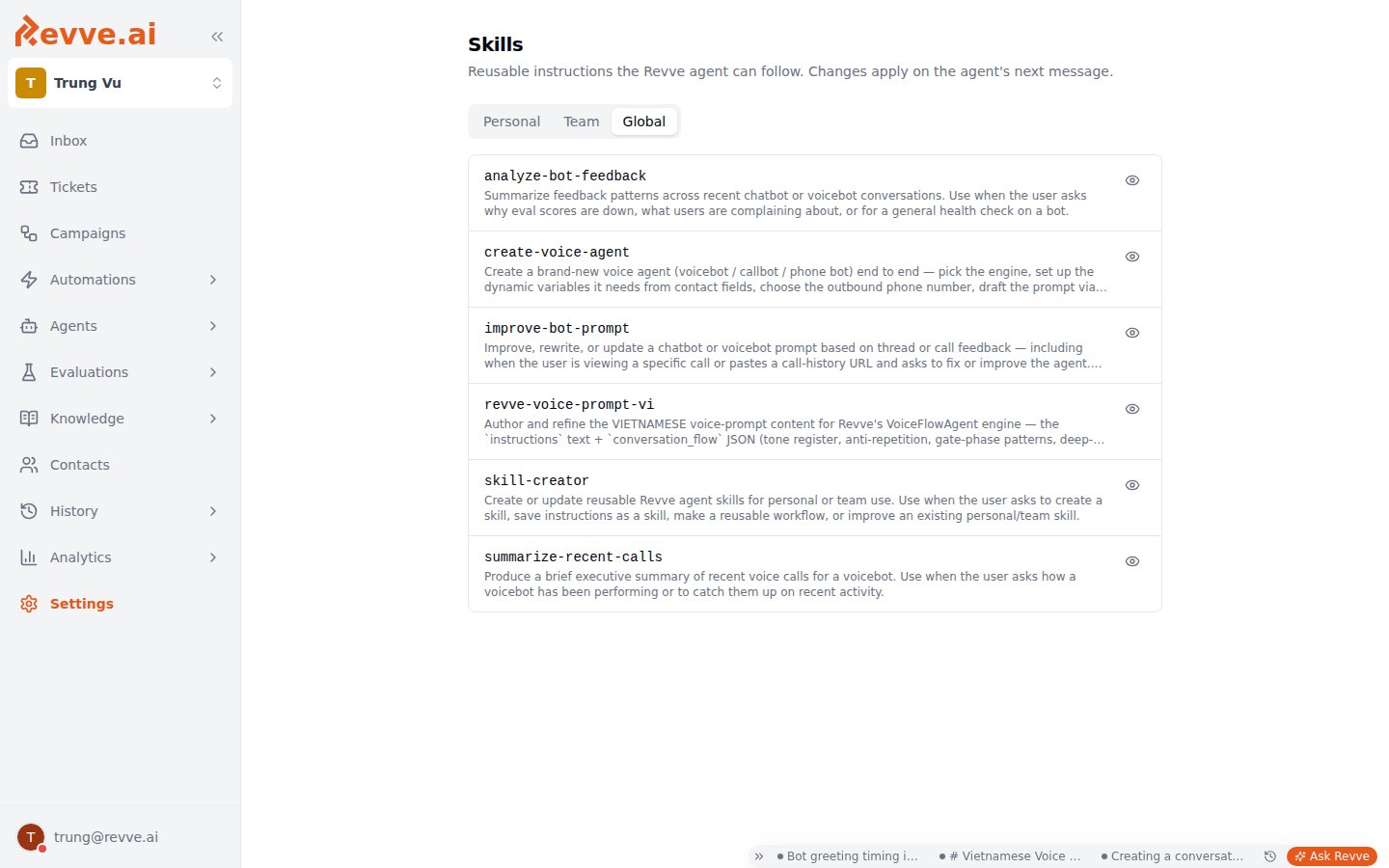
Skills live in three tabs, each with its own ownership and permission model:
Global skills are the copilot’s stock playbooks. The ones that ship include
analyze-bot-feedback, create-voice-agent, improve-bot-prompt, revve-voice-prompt-vi, summarize-recent-calls, and skill-creator.
Start in Personal while a workflow is still yours to refine; promote it to Team once it’s stable and you want every teammate’s copilot following the same procedure. Team scope is the point of the feature — it turns individual habits into shared process. See Roles & Permissions for how Manage Settings is granted.
Creating a skill
Click New skill (on the Personal tab, or on Team if you hold Manage Settings). The dialog has three fields:
Click Create skill to save (or Save changes when editing an existing one). Deleting asks you to confirm with
Delete skill "{name}"?.
There is no versioning. Edits take effect on the copilot’s next message — so if a team skill misfires mid-rollout, fixing the instructions fixes it immediately for everyone.
How skills get used
Three ways, from least to most deliberate:- Automatic loading. Ask Revve loads Global + Team + your Personal skills on every conversation and picks whichever fits the message. This is why the description matters: it’s the matching surface.
- Forcing a skill. The Skill button (book icon) in the composer lets you invoke a specific skill for a message — useful when you want a particular playbook regardless of how you phrase the request.
- Asking the copilot to write one. Tell Ask Revve to “save this workflow as a skill” after a session that went well — the built-in
skill-creatorskill guides it through drafting the name, description, and instructions. Saving to Team scope this way still requires Manage Settings.
What makes a good skill
Good skills encode your playbooks — the procedures that live in someone’s head or a forgotten wiki page:- A weekly call-review routine — which metrics to pull, what counts as a red flag, how to summarize findings.
- Your team’s prompt style guide — so every “improve this prompt” request applies the same voice and structure rules.
- A campaign-launch checklist — the checks to run before a campaign draft goes to review.
What’s Next
- Ask Revve Overview — what the copilot is, what it sees, and how its proposal-and-apply flow keeps humans in charge of publishing.
- Roles & Permissions — the Manage Settings permission that gates Team-scope skills.