

General
Settings → General has six horizontal tabs: General, Brand, Block List, Whitelist, Global Limits, and Privacy & Security.General tab
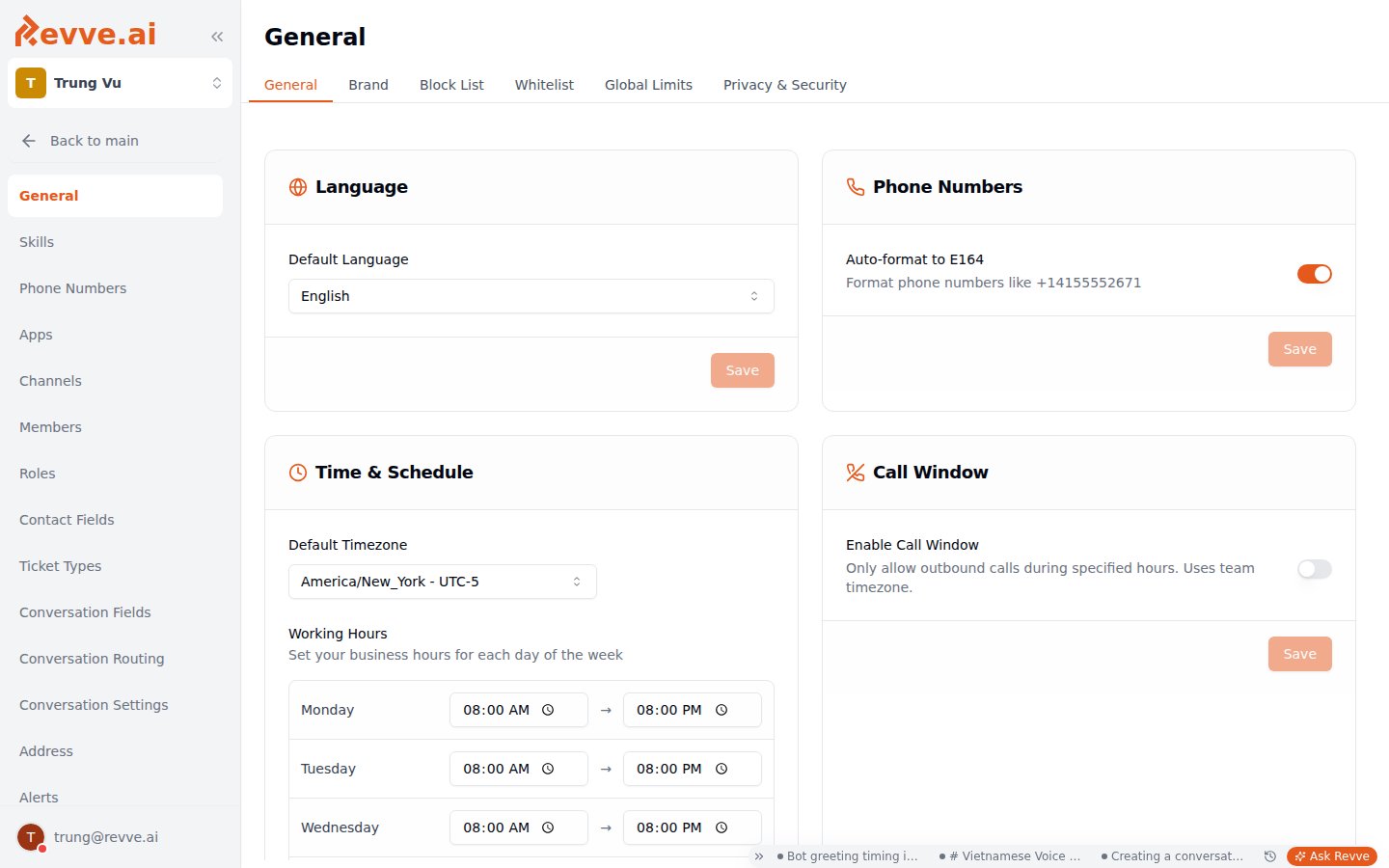
When you enable the Call Window, the seed schedule is Mon–Fri 09:00–18:00 with weekends off. Adjust the per-weekday enable and start/end times (“Allowed Calling Hours”) to match your local regulations before launching a campaign — the window fails calls silently from the caller’s perspective, so a too-narrow window looks like a campaign that mysteriously stopped dialing.
Brand tab
Two textareas (each capped at 1,000 words, with a live counter) that give every AI agent shared context about your company:- Business Description — your business, products, services, and target audience.
- Brand Voice — how your brand should sound: tone, style, personality traits, and example phrases to use or avoid.
Block List tab
The team’s voice Do Not Call list — numbers here are never contacted by voice agents. Add numbers via Add to Block List (minimum 10 digits); the table shows each number with matched contact info, when it was added, and an Export CSV option. This tab covers voice calls only. SMS “STOP” opt-outs are handled automatically per contact via a do-not-message flag — there is no SMS block list to manage. For the full picture (how blocked numbers behave in campaigns, exporting for compliance audits), see Do Not Call List.Whitelist tab
An allow-list of numbers permitted for outbound calls — the inverse of the Block List. It only takes effect when Enable Whitelist Only is on in the Privacy & Security tab, and it exists primarily for development and test environments: turn it on in a test workspace and your agents physically cannot dial anyone except your QA numbers. Add to Whitelist takes a Phone Number and an optional Description (e.g. “Test number for QA team”). The table tracks who added each number and when, and supports Export CSV.Global Limits tab
Team-wide call frequency caps. These are your anti-harassment and cost guardrails: no matter what a campaign or automation does, no phone number gets called more often than these limits allow.Privacy & Security tab
Four cards:Alerts
Settings → Alerts currently offers one alert type, Channel Alerts — get notified when messaging channels experience delivery failures or connectivity issues.
There are no per-event alert rules; this is a single on/off with a recipient list.
Secrets
Settings → Secrets stores values that are injected into prehook and webhook templates as{{secrets.name}}. This is how you keep API keys and tokens out of your automation configurations: the template references the secret by name, and the value never appears in the automation itself — or in front of teammates who can edit automations but shouldn’t see credentials.
Click Add Secret in the Team Secrets card. Each secret has:
- Name — letters, digits, and underscores; must not start with a digit. The name is immutable after creation, so choose deliberately — it becomes the template variable
{{secrets.<name>}}that your automations reference. - Key Source — one of two options:
- Direct Value: you paste the value into a password field. When editing later, leave the field blank to keep the current value.
- Environment Variable: the value is read from the server environment at runtime, from a variable whose name must start with
CUSTOM_. Use this for values your ops team manages outside the app.
Deleting a secret does not update anything that references it: any prehook or webhook still using
{{secrets.name}} will simply stop resolving that value. Search your automations for the variable before deleting.Audit Logs
Settings → Audit Logs answers “who changed this setting, and what was it before?” It records all settings changes for the team with field-level old → new diffs.Audit Logs requires the admin role, not just Manage Settings. Non-admins see “Access Denied — Only administrators can view audit logs.”
- Team and access — team settings, members, invitations, groups, secrets, roles and permissions
- Conversation configuration — routing, conversation fields, ticket types
- Channels and phone — channel configs, phone numbers, pools, whitelist, do-not-call
- Data and content — contact fields, address divisions, installed apps
Conversation Settings
Settings → Conversation Settings configures auto-close timeouts — how long inactive conversations stay open before the system closes them. Stale open conversations skew your metrics and clutter agents’ queues; these settings keep the inbox honest.Address
Settings → Address (“Address Management”) holds the team’s administrative-divisions reference data — provinces, districts, and wards — used by address normalization in voice agents. The table lists each division’s Code, Name, Level, Country, and Parent Hierarchy, with search and country/level filters. You can Add Division individually, Import CSV in bulk, and edit or delete entries — deleting a division cascades to its children, so check the hierarchy first. Most teams only touch this page when setting up address collection for a new country or region. For how normalization is used on calls, see Voice Agent Advanced Capabilities.What’s Next
Conversation Routing
Build the human routing pool and the preset and custom rules that decide which agent gets each conversation.
Phone Numbers
Connect Twilio, manage SIP numbers, monitor connection-rate insights, and set up number pools for caller-ID rotation.