

Setup Required: This channel requires initial technical setup by your account administrator before you can configure it here. This includes connecting a Mailgun or Gmail account and configuring email domains. Contact your Revve team or administrator to get started.Once your administrator has completed the initial setup, you can configure the following settings directly from the dashboard:
- Select which connected email account the agent uses
- Add business domains to identify team members in email threads
- Set default BCC recipients for CRM logging
- Toggle behavior settings like “Pause when human joins” and “Outbound email only”
Accessing Email Settings
- Navigate to Agents > Chat Agents.
- Select your email Chat Agent (or create a new one with the Email channel type).
- Click the Email Settings tab.
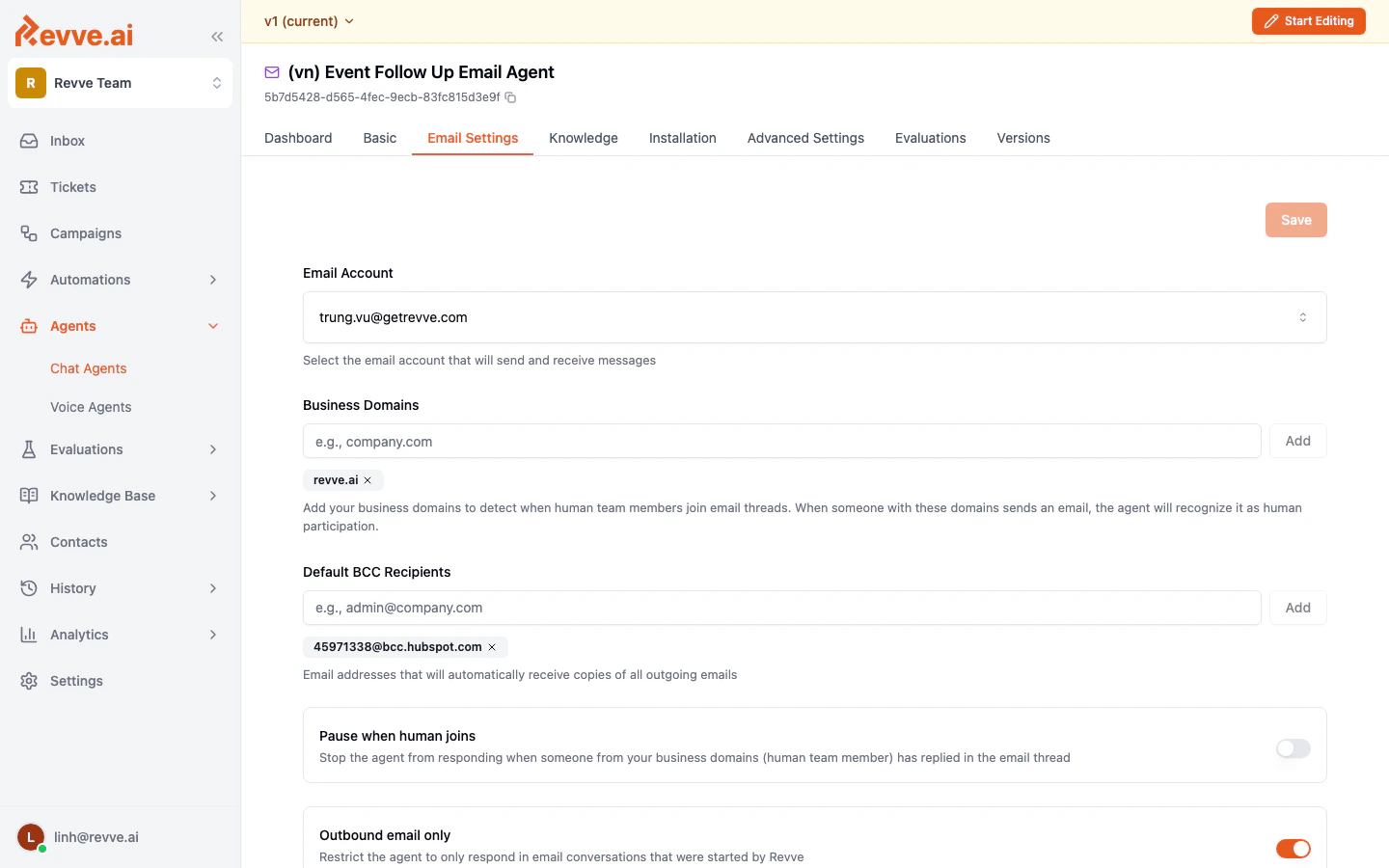
Email Settings Fields
Setup Steps
1. Connect an Email Account
Before configuring an email Chat Agent, you need to connect at least one email account in your team settings.- Go to Settings in the left sidebar.
- Navigate to the email integrations section.
- Connect your email account (Gmail, Microsoft 365, or other supported providers).
- Return to the Chat Agent’s Email Settings tab and select the connected account from the Email Account dropdown.
2. Configure Business Domains
Add all of your company’s email domains so the agent can distinguish between customer emails and team member emails.- In the Business Domains field, type your domain (e.g.,
yourcompany.com). - Click Add to add it to the list.
- Repeat for any additional domains your team uses.
3. Set Up BCC Recipients (Optional)
If you want copies of all outgoing agent emails sent to specific addresses:- In the Default BCC Recipients field, enter the email address.
- Click Add.
- Common use cases include CRM BCC addresses for automatic email logging.
4. Configure Behavior Toggles
Review and set the behavior toggles based on your use case:- For customer support agents: Enable “Pause when human joins” so the agent steps aside when a team member replies.
- For outbound follow-up agents: Enable “Outbound email only” to restrict the agent to only respond in threads it initiated.
- For general email agents: You may want both toggles disabled so the agent responds to all email threads assigned to it.
Best Practices
- Always add your business domains. This ensures the agent correctly identifies when a human team member has joined a conversation, which is critical for the pause behavior to work properly.
- Use BCC for CRM integration. If you use HubSpot, Salesforce, or another CRM, add the CRM’s BCC email address to automatically log all agent emails in your CRM’s contact records.
- Start with “Outbound email only” for new agents. If you are testing a new email agent, enabling this setting reduces risk by limiting the agent to only conversations your team initiated.
- Monitor the Inbox. Email conversations handled by the agent appear in your team’s Inbox, where you can review the agent’s responses and intervene if needed.