

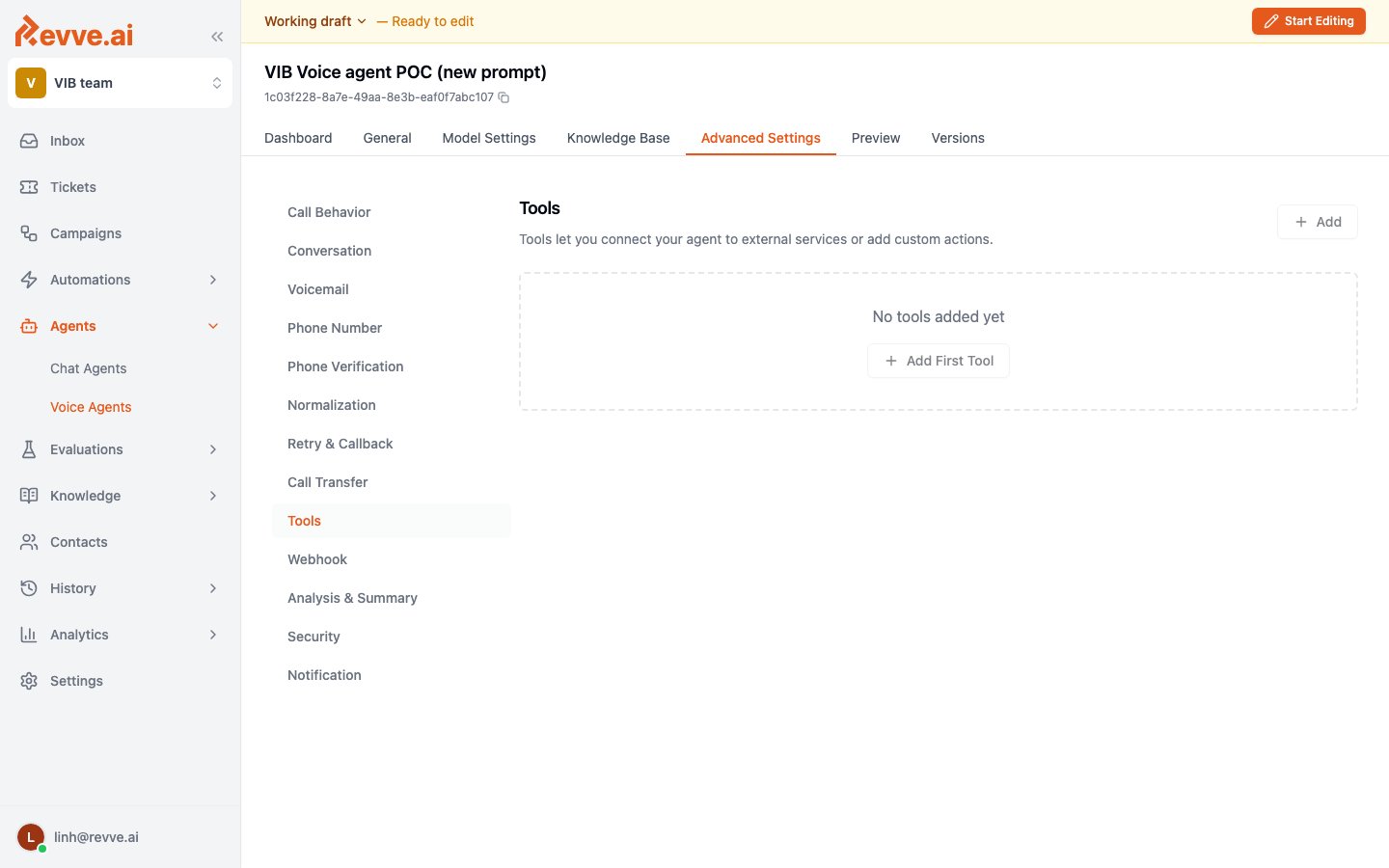
Calendar presets: a one-line summary
Check Calendar Availability and Book on the Calendar connect to a Calendly, Cal.com, HubSpot, or Chili Piper calendar so the agent can check open slots and book an appointment while the caller is still on the line. They’re the two items in the dropdown built specifically for Voice Agents. For the full setup — connecting a calendar app, configuring both tools, and the prompt instructions that tie them together — see Build a Voice Agent That Books Appointments Mid-Call.Create Ticket
Create Ticket lets the agent create a ticket from what it hears on the call — the preset’s own description is “Automatically create tickets from conversations.” Configure it with a ticket type, and the agent can file a support or follow-up ticket without the caller having to call back or wait for a human to write one up after the fact. Like the calendar presets, this is a real API call the agent triggers mid-call, and it works the same way on voice calls as anywhere else — it isn’t affected by the trap described below.Built-in Validate
Built-in Validate solves a specific, narrow problem: the language model driving your agent is bad at counting digits in a transcription. Read a 12-digit ID number out loud, and it’s common for the model to drop a digit, duplicate one, or transpose two — not because the caller misspoke, but because the model is guessing at digit count from a block of transcribed text rather than actually counting. Built-in Validate replaces that guess with a deterministic check: no LLM involved, no network call, just a normalization step and a regex match run in code.How it works
- The agent passes the caller’s raw spoken value to the tool — filler words already stripped, and any spoken letter names already converted to letters (for example, the caller saying “bê” comes through as “B”).
- The tool normalizes spoken digit words into digits, using a built-in lexicon for the language. Vietnamese and English ship by default — Vietnamese “không / hai / ba…” and English “zero / two / three…” — including compound forms like Vietnamese “mười tám” becoming
18and English “double three” becoming33. More languages can be added, and the tool’s config can pin a specific language to check against, or fall back to whatever language your agent’s Speech Recognition is set to. - The normalized string is checked against a regex you configure — a full match against the shape you expect, not a partial one.
- The tool returns whether the value is valid, its normalized form, and its length. The agent is instructed to trust this
validflag rather than re-counting digits itself — that’s the entire point of the tool.
Configuration
Three example patterns illustrate the range this tool is meant to cover:
Example: validating a spoken account number
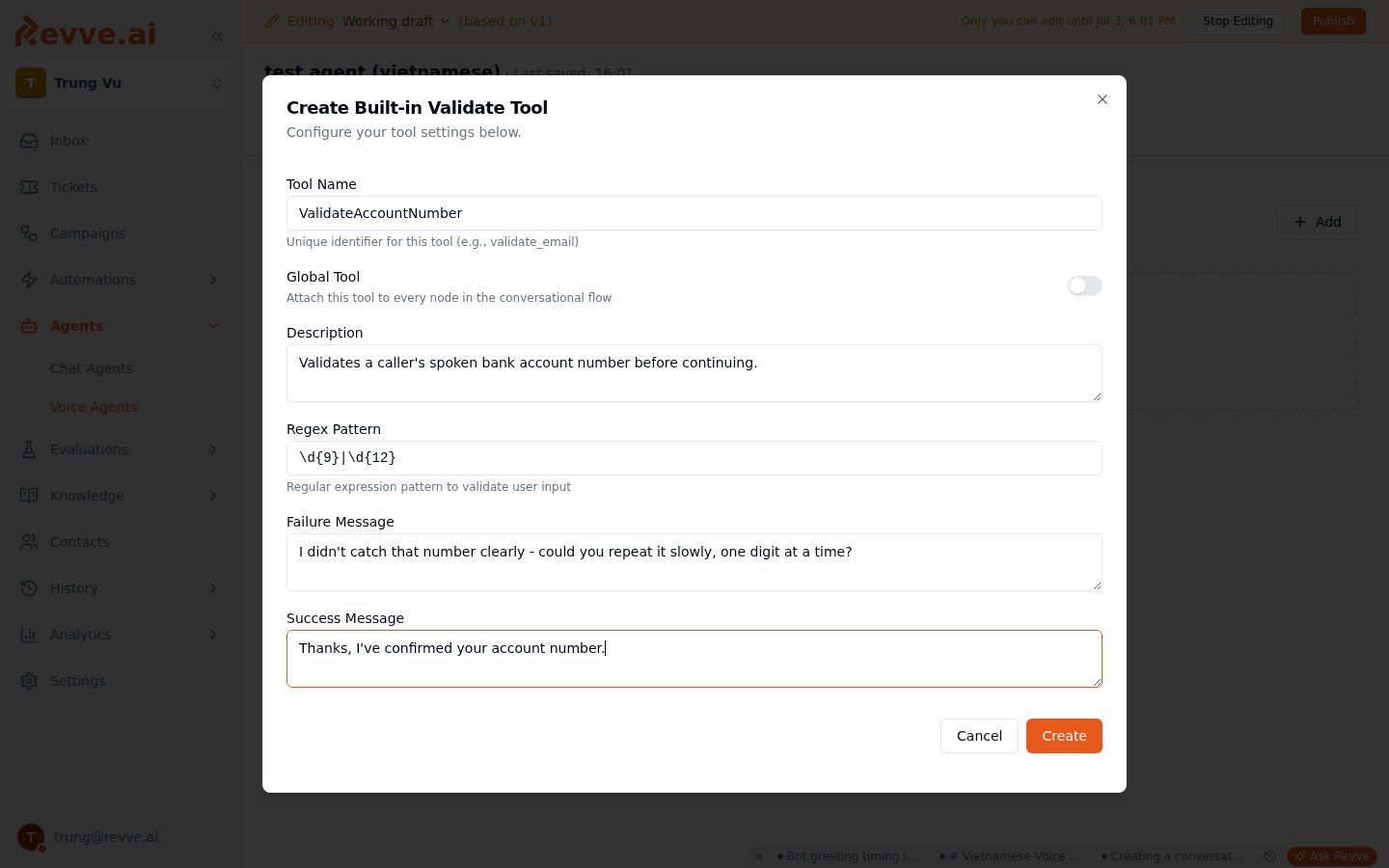
Say a bank’s Voice Agent asks a caller to state their account number before continuing. You could add Built-in Validate with a regex like\d{9}|\d{12} (matching a 9- or 12-digit account number), a success message telling the agent to proceed, and a failure message like “I didn’t catch that number clearly — could you repeat it slowly, one digit at a time?” The agent then reads back only what the tool confirms as valid, instead of trusting its own read of the transcript.
This is an illustrative example, not a banking-specific feature — the tool itself is general-purpose. Its own description covers ID numbers, account numbers, OTP codes, and passports as the kinds of spoken values it’s meant to validate, which is why the regex field is free-form rather than tied to any one format.
The trap: two presets that don’t work on a call
Button - Send OTP and Button - Fire Native Event both show up in the Tools dropdown when you’re editing a Voice Agent, and nothing in the UI stops you from adding either one. Neither does anything on a phone call. For identity or verification steps on a phone call, use Built-in Validate (above) or a custom API-call tool instead — both actually execute during a call. Reserve Send OTP and Fire Native Event for Chat Agents, where the button they render is something a caller — a chat user, in that context — can actually see and click.What’s Next
- Voice Agent Evaluation — grade whether a tool like Built-in Validate actually ran, on every completed call.
- Build a Voice Agent That Books Appointments Mid-Call — the full recipe for the two calendar presets.