Your agent needs content to answer questions. This guide covers how to add web pages and documents to your knowledge base, and how to use website crawlers to automatically keep everything up to date.

Adding Content from the Global Knowledge Base

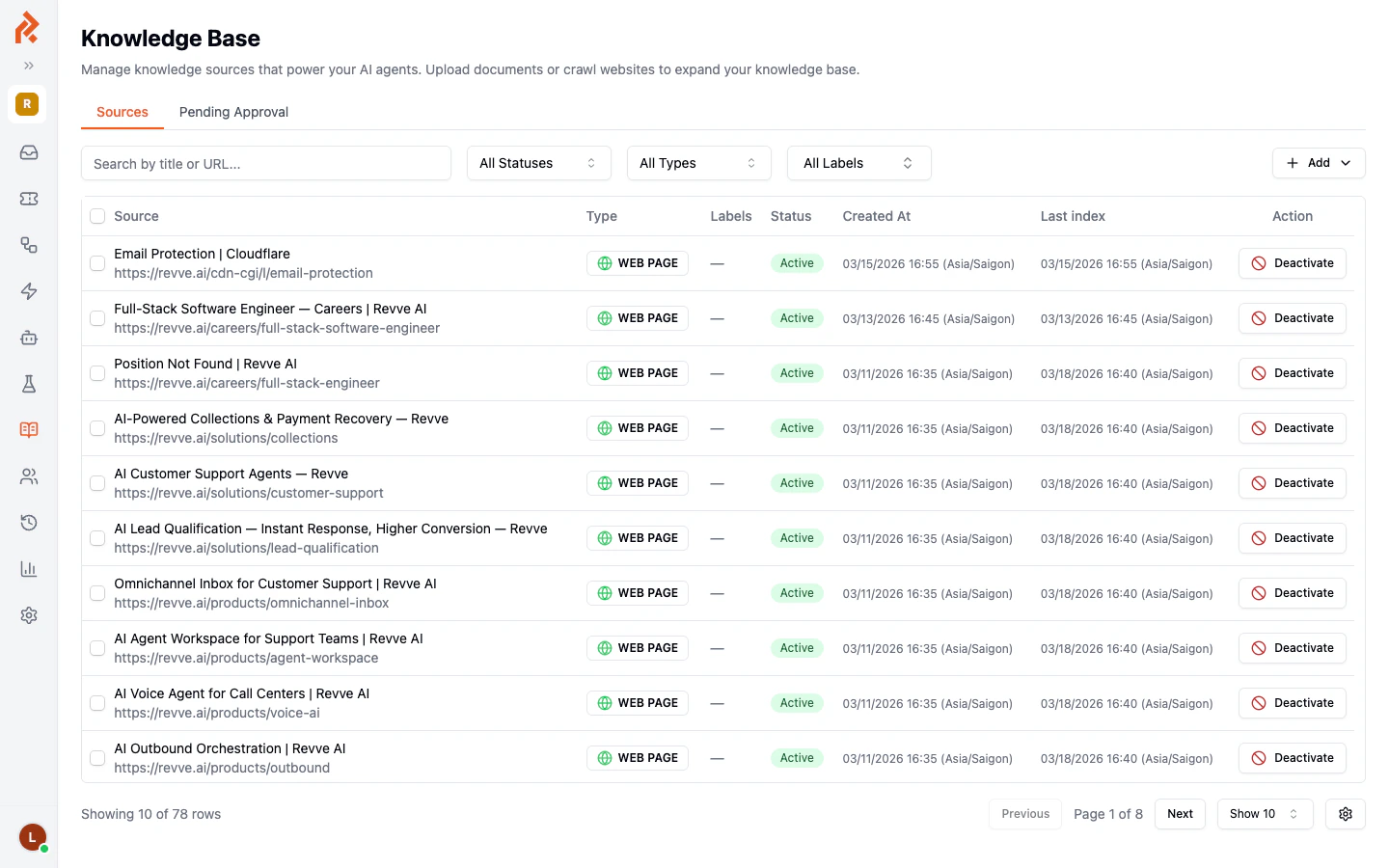
Navigate to Knowledge Base > Web Pages & Docs in the left sidebar to access your team’s central content library. From here, you can add individual web pages or upload documents. The global Knowledge Base showing a list of web page sources with their titles, URLs, types, statuses, and dates
Adding a Web Page

  1. Click the Add button in the top-right area of the Knowledge Base page.
  2. Select Add Web Page from the dropdown menu.
  3. Enter the full URL of the page you want to add (for example, https://yourcompany.com/pricing).
  4. Click Save. Revve will fetch the page content and index it for your agent.

Uploading a Document

  1. Click the Add button.
  2. Select Upload Document from the dropdown menu.
  3. Choose a file from your computer.
  4. Click Upload. The document will be processed and added to your knowledge base.
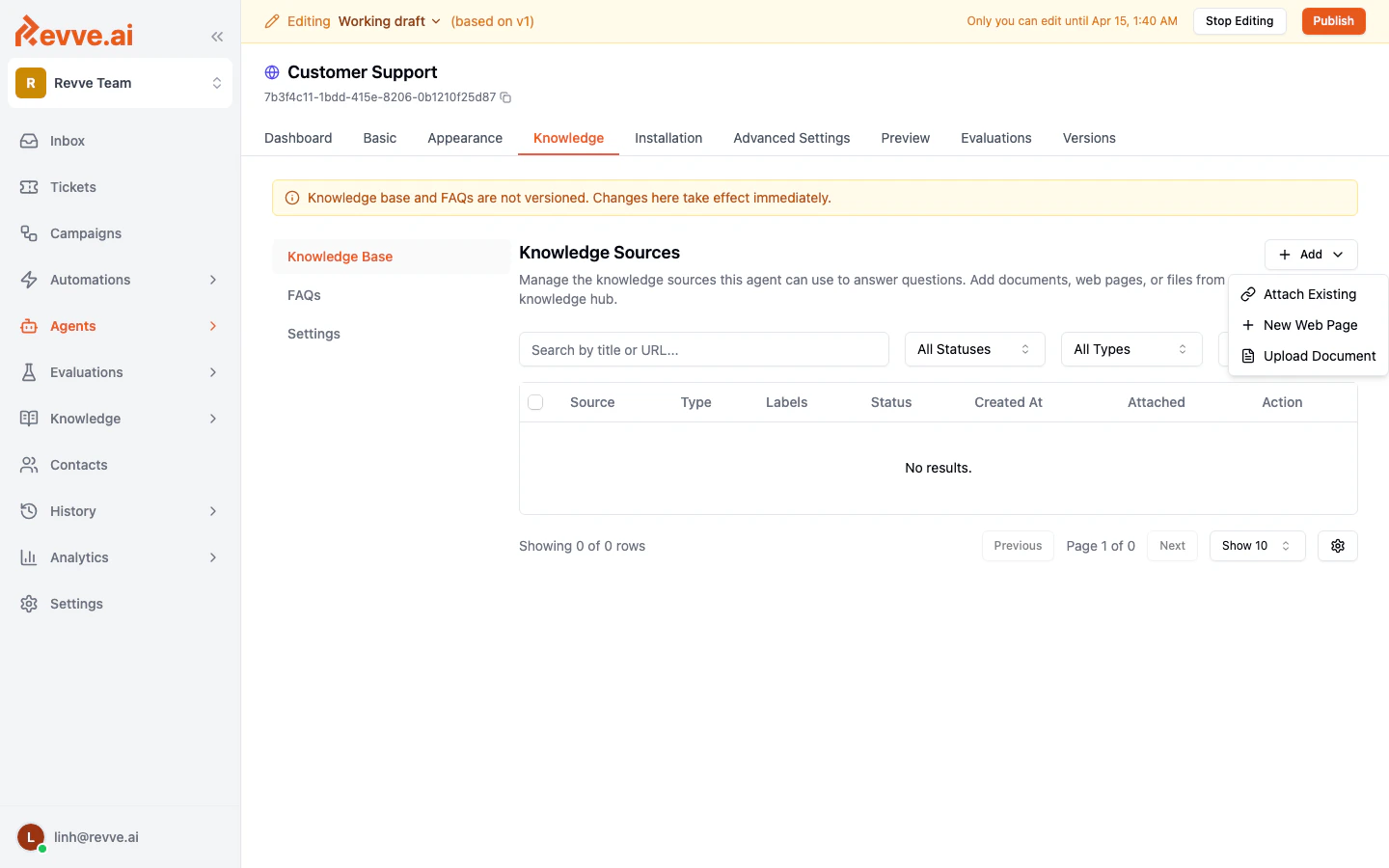
The Add dropdown showing options to Add Web Page or Upload Document Supported file formats:
FormatDescription
PDFProduct guides, datasheets, policy documents
DOCXWord documents, internal procedures
TXTPlain text files, notes, scripts

Adding Content from a Chat Agent

You can also add knowledge sources directly from within a specific chat agent:
  1. Open your chat agent and go to the Knowledge tab.
  2. Click Start Editing to enable changes.
  3. Click the Add button to add a web page or upload a document.
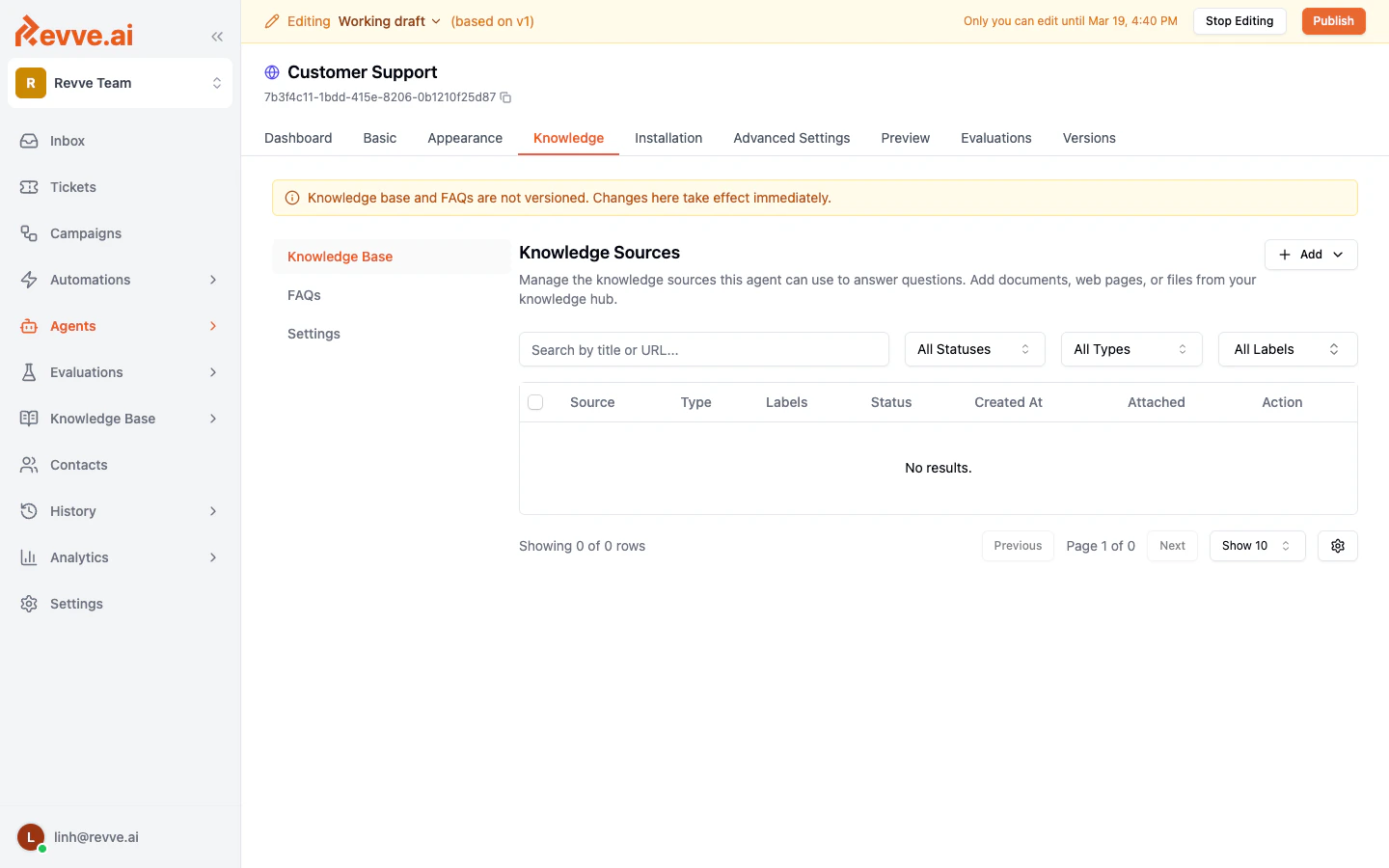
Sources added from within a chat agent are automatically attached to that agent. Sources added from the global Knowledge Base need to be attached to each agent individually. The Knowledge tab inside a chat agent in editing mode, with the Add button enabled Note: The banner at the top reminds you that “Knowledge base and FAQs are not versioned. Changes here take effect immediately.” This means any content you add or remove is live right away — there is no need to publish a new version.

Managing Knowledge Sources

Each source in your knowledge base has the following attributes:
ColumnDescription
SourceThe title and URL (for web pages) or filename (for documents).
TypeEither WEB PAGE or DOCUMENT.
LabelsOptional tags for organizing your sources.
StatusActive means the source is available to agents. You can deactivate a source without deleting it.
Created AtWhen the source was first added.
Last IndexWhen the content was last fetched and processed.

Filtering and Searching

Use the filters at the top of the sources table to narrow your view:
  • Search bar — Search by title or URL.
  • All Statuses — Filter by Active or Inactive status.
  • All Types — Filter by Web Page or Document.
  • All Labels — Filter by label tags.

Activating and Deactivating Sources

Click the Deactivate button next to any source to temporarily remove it from your agent’s knowledge without deleting it. You can reactivate it later to make it available again.

Pending Approval

If you have enabled the “Require approval before indexing” option on a crawler, newly discovered pages will appear under the Pending Approval tab. You can review and approve them before they become available to your agents.

Website Crawlers

For websites with many pages, manually adding each URL is impractical. Website crawlers automatically discover and index pages across an entire domain.

Viewing Crawlers

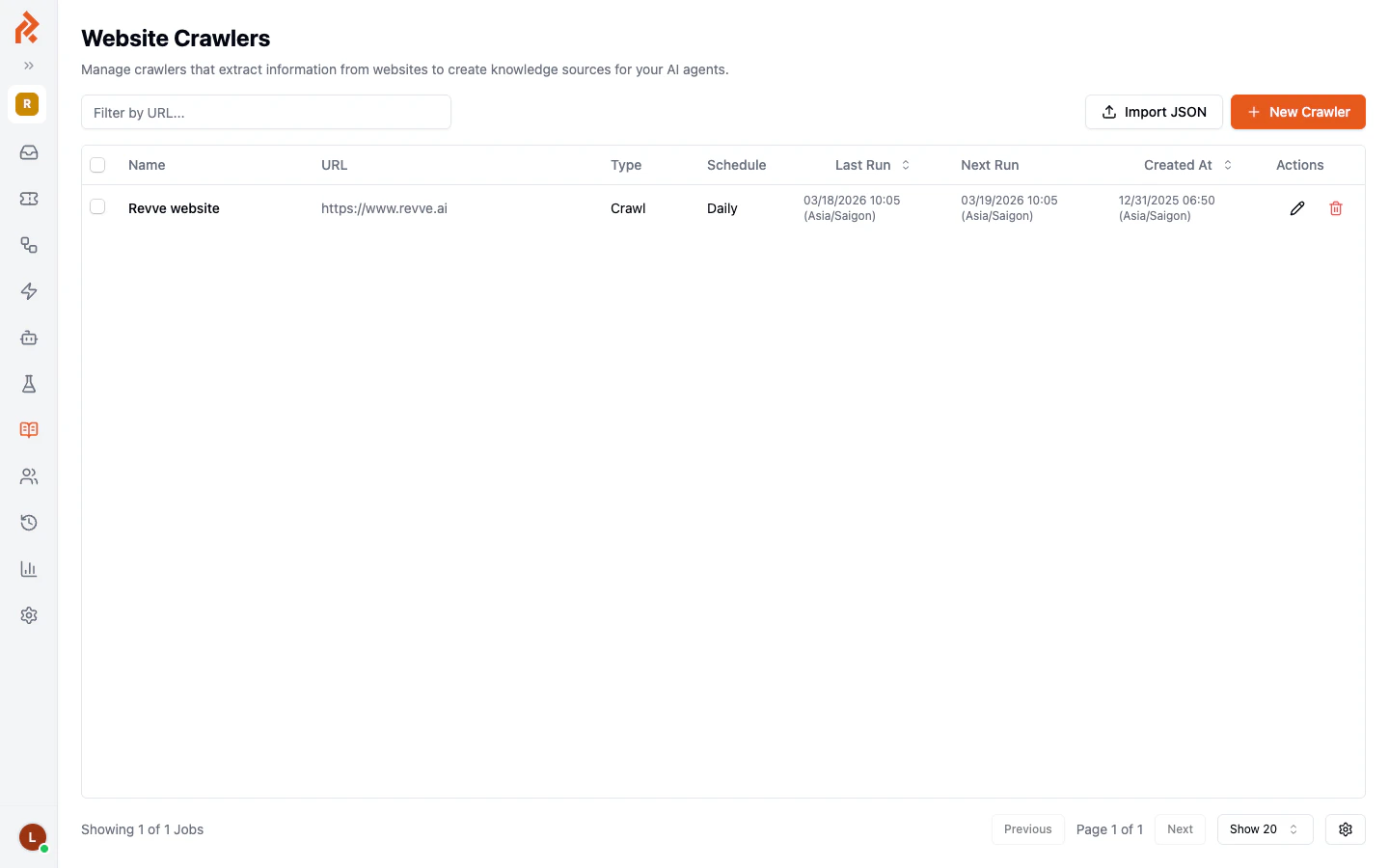
Navigate to Knowledge Base > Website Crawlers in the left sidebar to see all configured crawlers. The Website Crawlers page showing a configured crawler with its URL, type, schedule, and run history Each crawler shows:
ColumnDescription
NameA descriptive name for the crawler.
URLThe starting URL for the crawl.
TypeCrawl for full-site crawling, or Scrape for a single page.
ScheduleHow often the crawler runs (Daily, Weekly, etc.).
Last RunWhen the crawler last ran.
Next RunWhen the next scheduled run will occur.

Creating a New Crawler

  1. Click the New Crawler button.
  2. Fill in the configuration:
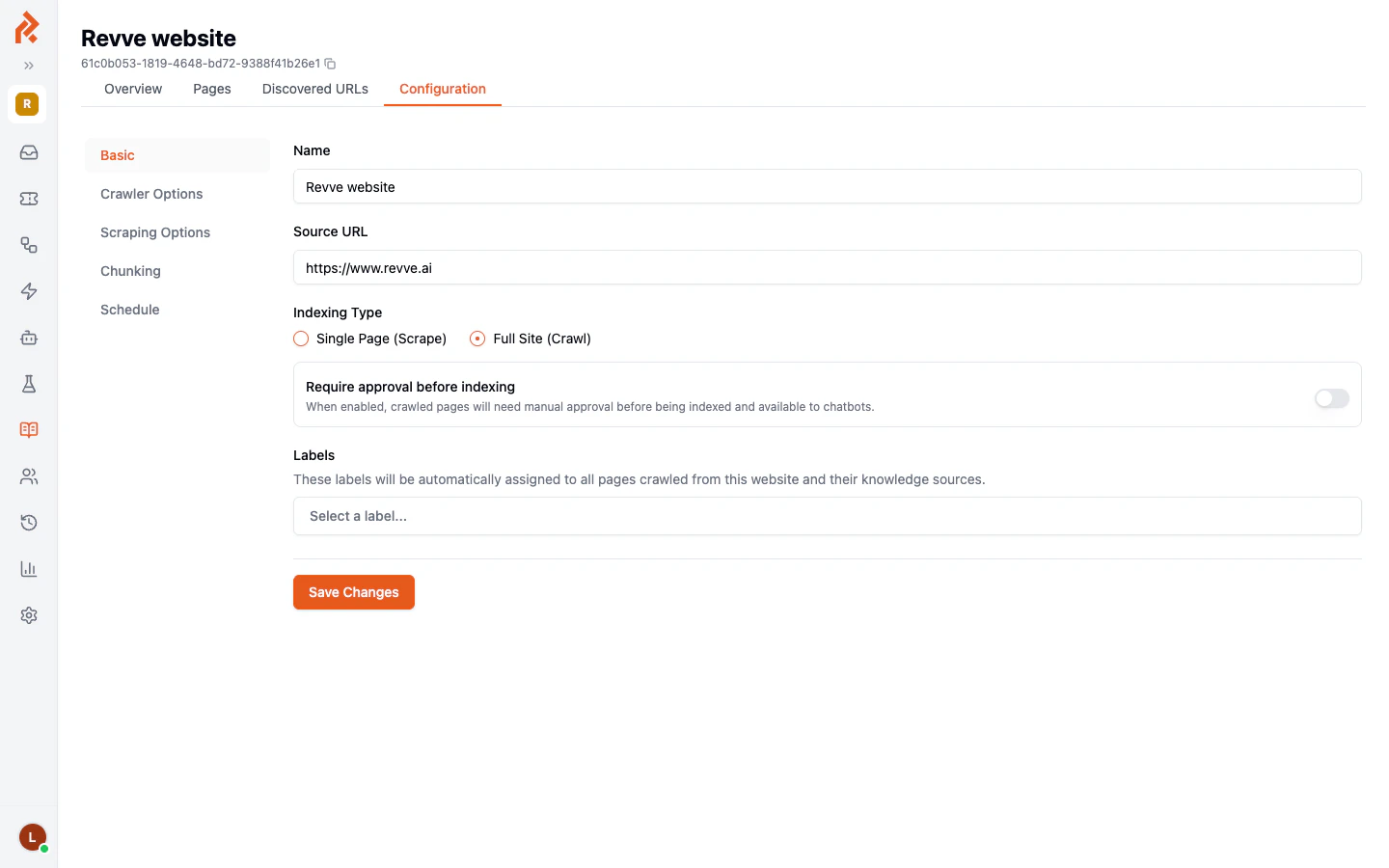
Crawler configuration showing name, source URL, indexing type, approval settings, and labels
SettingDescription
NameGive your crawler a descriptive name (e.g., “Company Website”).
Source URLThe root URL to start crawling from (e.g., https://yourcompany.com).
Indexing TypeChoose Single Page (Scrape) to index only the specified URL, or Full Site (Crawl) to discover and index all linked pages.
Require approval before indexingWhen enabled, newly discovered pages must be manually approved before they are added to the knowledge base. This is useful for large sites where you want to control which pages your agent uses.
LabelsAssign labels that will be automatically applied to all pages discovered by this crawler.

Crawler Schedules

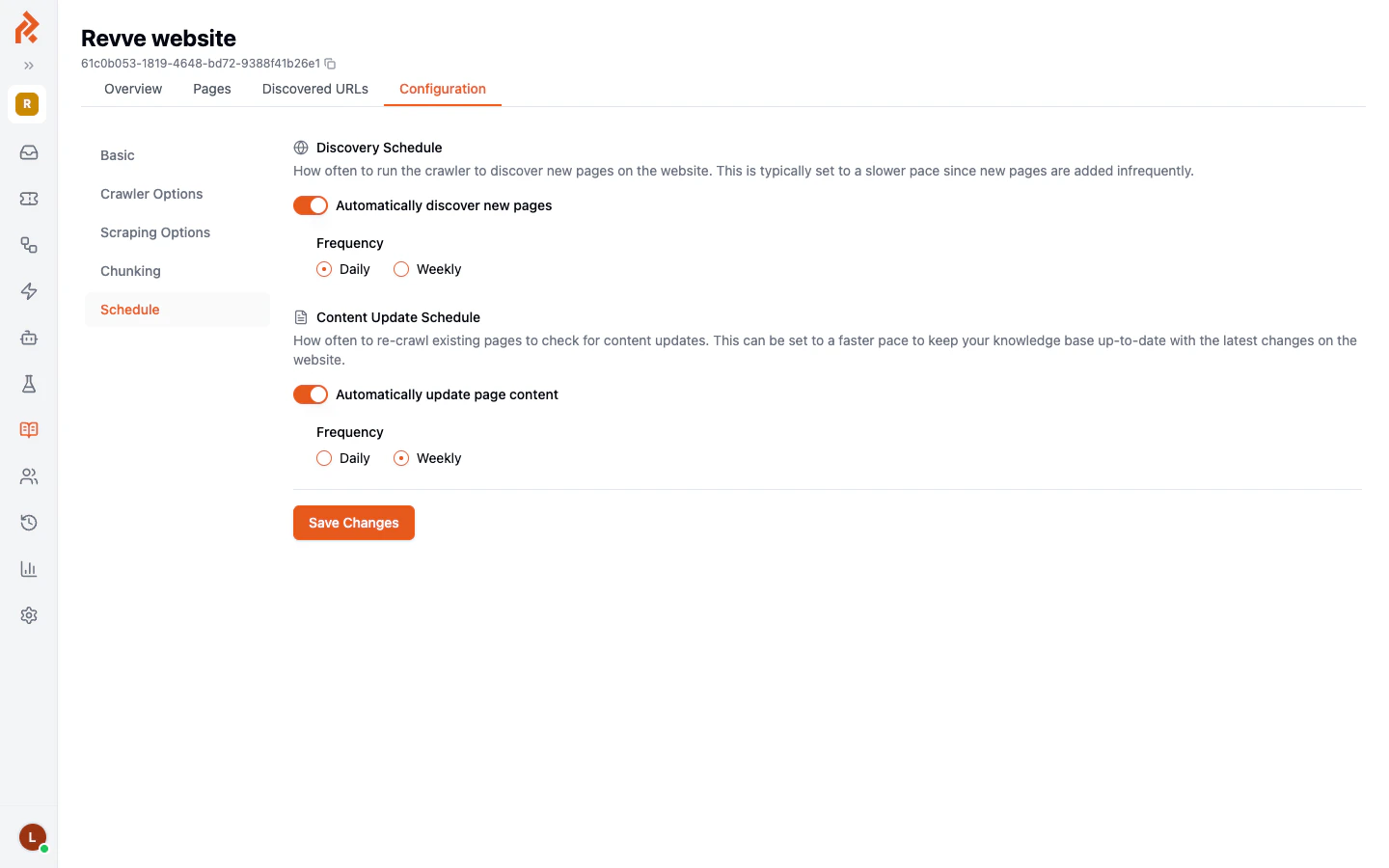
Crawlers have two independent schedules: Crawler schedule settings showing Discovery Schedule and Content Update Schedule Discovery Schedule — Controls how often the crawler looks for new pages on the website. Set this to a slower pace (e.g., Daily or Weekly) since new pages are typically added infrequently. Content Update Schedule — Controls how often existing pages are re-crawled to check for content changes. Set this to a faster pace if your website content changes frequently and you need your agent to always have the latest information. Both schedules can be toggled on or off independently, and each supports Daily or Weekly frequency.
Crawler Tabs

Each crawler has additional tabs for deeper management:
TabDescription
OverviewSummary of the crawler’s status and recent activity.
PagesList of all pages that have been indexed by this crawler.
Discovered URLsURLs found during crawling that have not yet been indexed.
ConfigurationEdit the crawler’s settings, options, and schedule.

Best Practices

  • Use crawlers for websites, manual uploads for documents. Crawlers are designed for web content. Use the Upload Document option for PDFs, Word files, and other non-web content.
  • Enable approval for large sites. If your website has hundreds of pages, enable the approval requirement so you can review which pages get indexed.
  • Set up content update schedules. If your website changes frequently (e.g., a help center with regular updates), configure the Content Update Schedule to re-crawl weekly or daily.
  • Label your sources. Labels help you organize content by topic, product, or department, making it easier to manage which agents use which content.
  • Check the Last Index date. If a source has not been re-indexed recently, the agent may be using outdated information. Re-index manually or adjust the crawler schedule.

Next Steps

  • Managing FAQs — Create question-and-answer pairs for common queries.
  • Knowledge Gaps — See what questions your agent could not answer.