

Setup Required: This channel requires initial technical setup by your account administrator before you can configure it here. This includes provisioning a Twilio phone number and connecting it to your Revve account. Contact your Revve team or administrator to get started.Once your administrator has completed the initial setup, you can configure the following settings directly from the dashboard:
- Select which connected phone number the agent uses
- Configure the agent’s prompt, knowledge base, and behavior
- Publish the agent to start receiving and responding to SMS messages
Accessing Channel Settings
- Navigate to Agents > Chat Agents.
- Select your SMS Chat Agent (or create a new one with the SMS channel type).
- Click the Channel Settings tab.
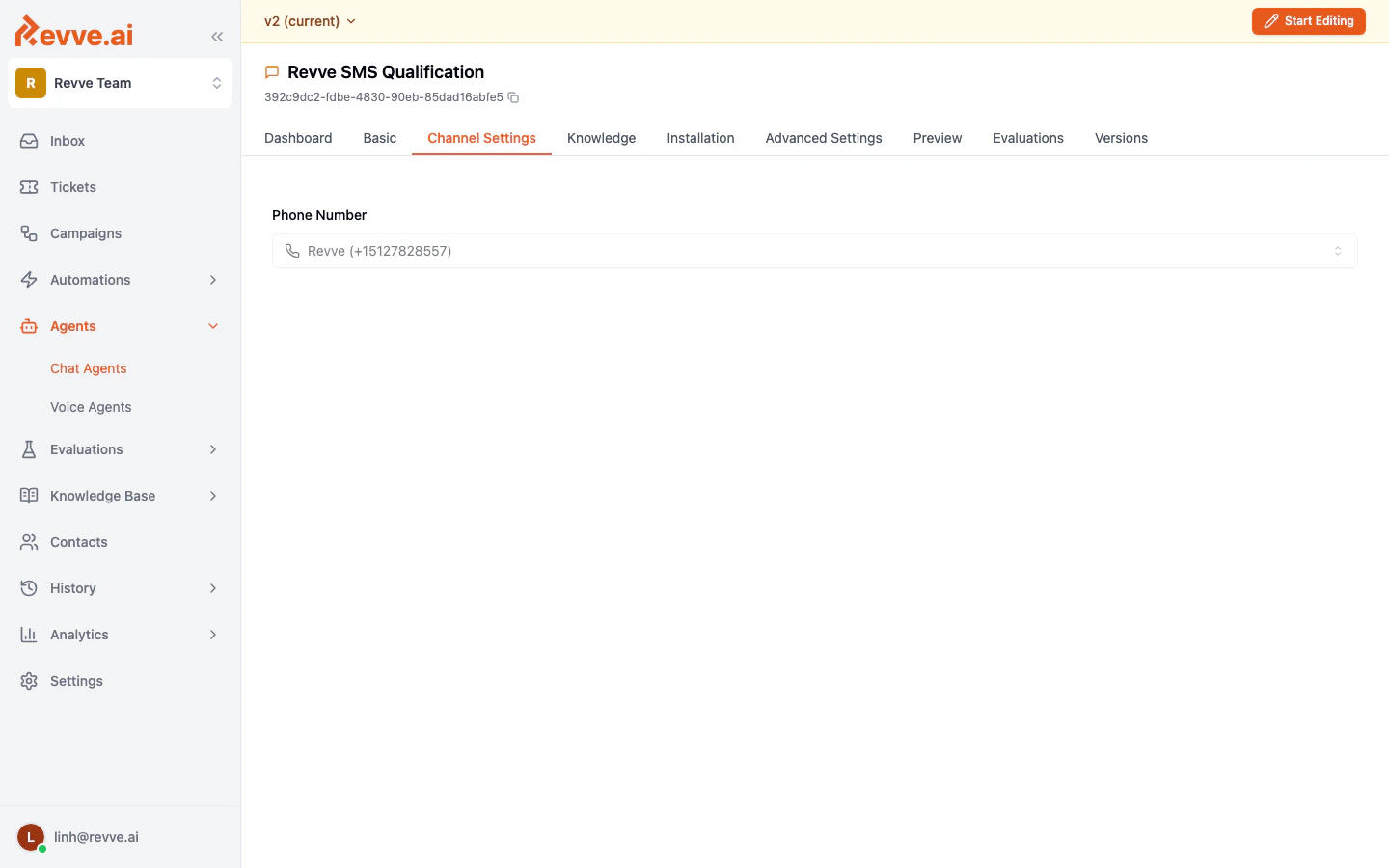
Channel Settings Fields
Setup Steps
1. Connect Twilio in Team Settings
Before you can assign a phone number to an SMS Chat Agent, you need to connect your Twilio account.- Go to Settings in the left sidebar.
- Navigate to the integrations or phone number section.
- Connect your Twilio account by providing your Twilio Account SID and Auth Token.
- Import or register the phone numbers you want to use with Revve AI.
2. Assign a Phone Number
- Open your SMS Chat Agent and go to the Channel Settings tab.
- Click the Phone Number dropdown.
- Select the phone number you want this agent to use.
- Save your changes.
3. Publish the Agent
After assigning a phone number and configuring your agent’s behavior (prompt, knowledge base, etc.), publish the agent to make it live. Incoming SMS messages to the assigned phone number will be routed to this agent.Best Practices
- Use dedicated numbers per agent. Each SMS Chat Agent should be assigned its own phone number to avoid message routing conflicts.
- Keep responses concise. SMS messages have character limits, and longer messages may be split into multiple parts. Configure your agent’s prompt to encourage brief, focused responses.
- Test before going live. Send test SMS messages to the assigned phone number to verify the agent responds correctly.
- Monitor conversations. SMS conversations appear in your team’s Inbox, where you can review agent responses and take over conversations when needed.