

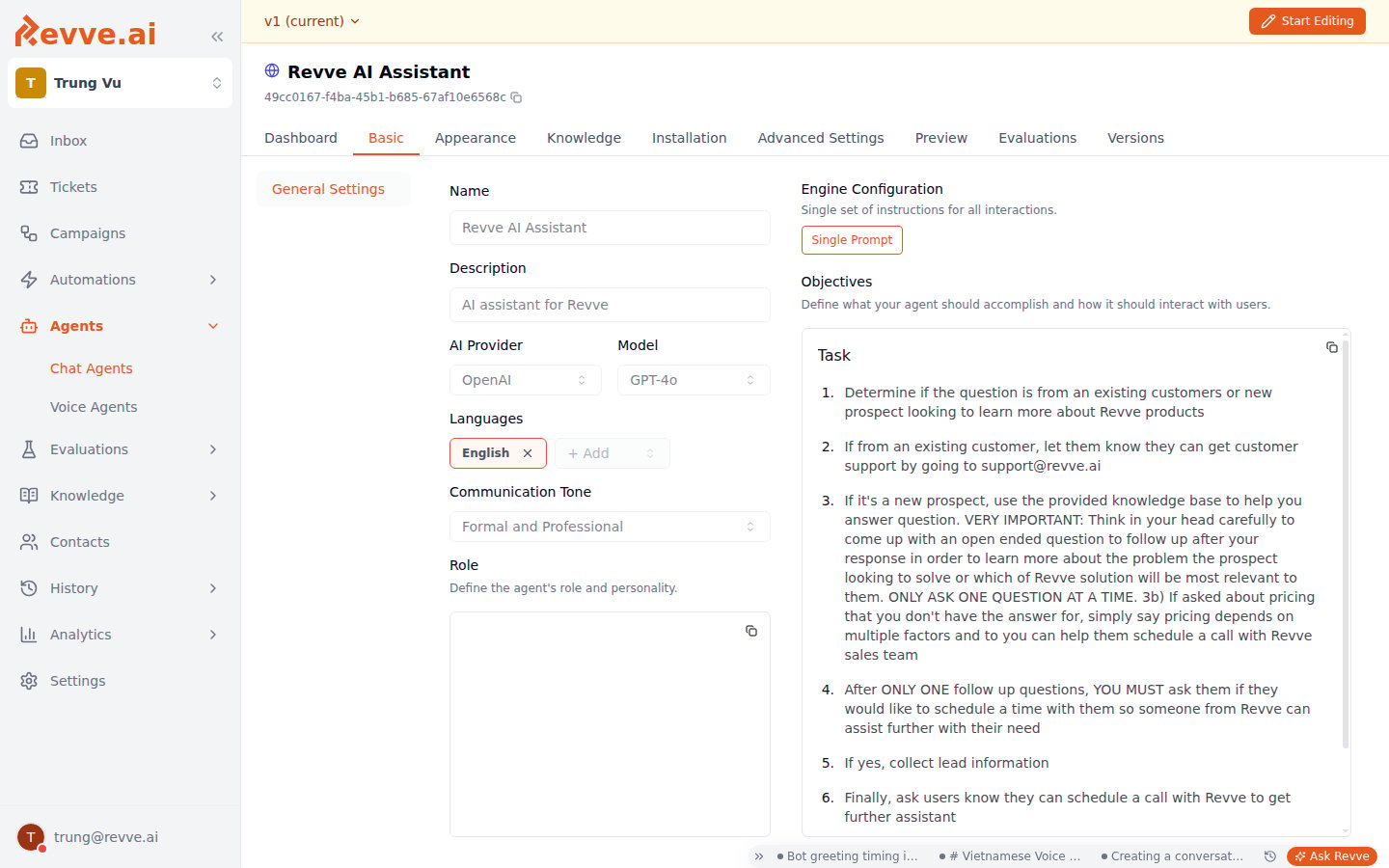
Identity Fields
How to Configure
- Navigate to Agents > Chat Agents in the sidebar and select your agent.
- Click the Basic tab.
- Click Start Editing if you are not already in edit mode.
- Fill in the Name, Description, and Role fields.
- Click Save Changes when done.
Name
The Name field sets the agent’s display identity. Visitors will see this name in the chat widget header, so choose something recognizable and appropriate for your brand. Examples:- “Customer Support” for a general help agent
- “Sales Assistant” for a lead-qualification agent
- “Booking Concierge” for a scheduling-focused agent
Description
The Description field is an internal reference that summarizes what the agent does. While visitors do not see this directly, it helps your team manage multiple agents across different use cases or channels. Examples:- “Support customers onboarding”
- “Handles product inquiries and routes qualified leads to sales”
- “Assists website visitors with booking appointments”
Role
The Role field is where you define the agent’s personality, tone boundaries, and behavioral guidelines. This field supports rich text formatting (bold, italic, lists) and is sent directly to the AI model as part of its system context. Think of the Role as the agent’s “character sheet.” A well-written role helps the AI stay consistent and on-brand. Example:You’re a digital assistant, ready to engage website visitors through personalized conversation. You are friendly, professional, and concise. Always greet visitors warmly and offer to help with their questions.
Tips
- Keep the Name short and professional. Visitors see it prominently in the chat header.
- Write the Description for your team, not for visitors. It helps when you have many agents to manage.
- Be specific in the Role field. The more detail you provide, the more consistently the AI will behave. Include guardrails such as topics to avoid or escalation instructions.
- Use formatting in the Role field. Bold key instructions and use bullet lists for clarity — the AI model processes rich text well.
Related
- Choosing an LLM Model — select which AI model powers your agent.
- Language and Tone Settings — configure the language and communication style.