

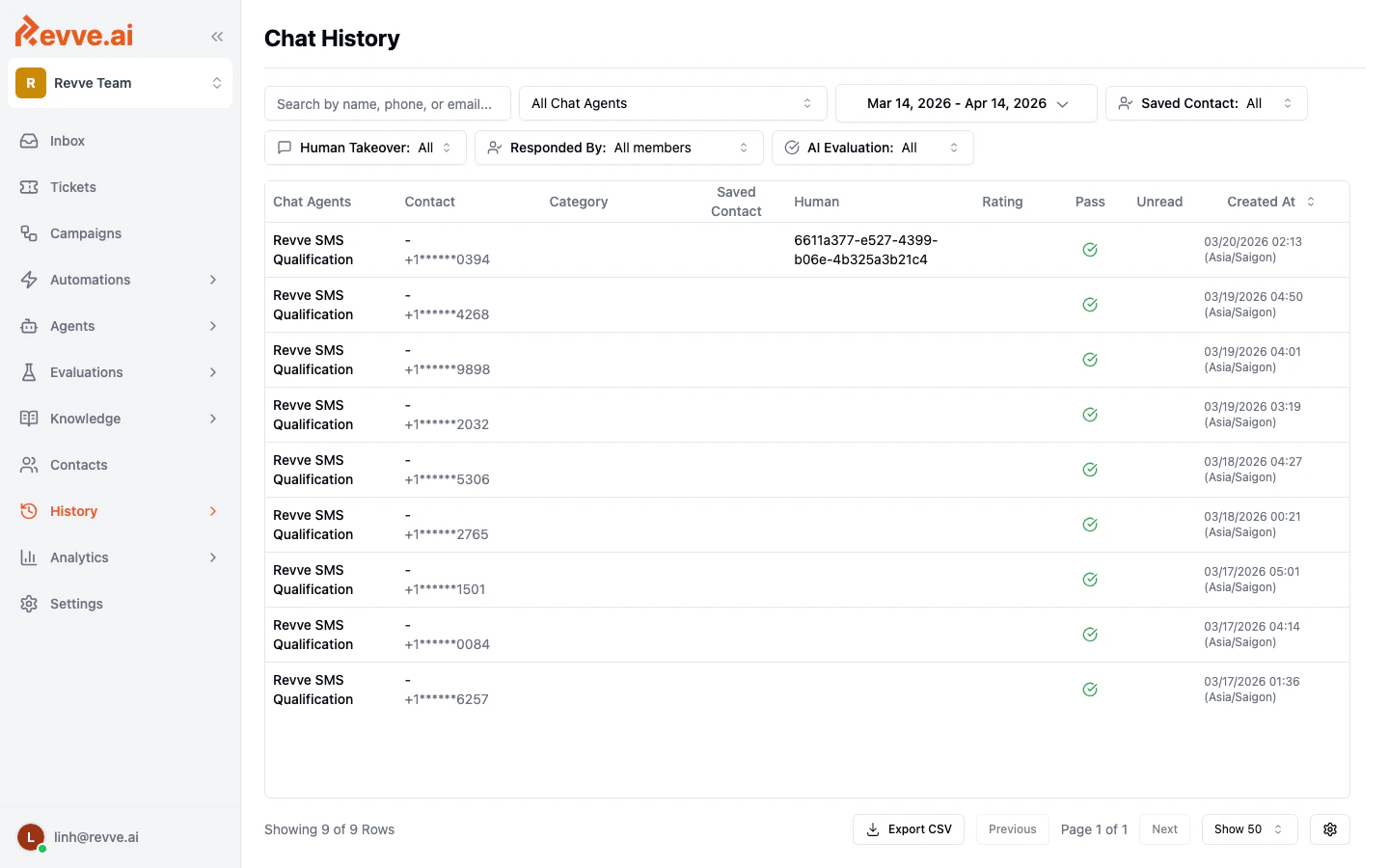
Table Columns
Each row in the table represents a single conversation thread. The following columns are available by default:Filtering Conversations
A row of filters sits above the table to help you narrow down the list.
All filters work together. For example, you can view only conversations from a specific Chat Agent that were escalated to a human during the past week.
Customizing Visible Columns
You can show or hide columns to focus on the information that matters most. Click the gear icon at the bottom-right corner of the table (next to the page size selector). A dropdown appears with checkboxes for each column. Toggle a column off to hide it from the table, or toggle it on to bring it back. Your column visibility preferences are saved in the URL, so you can bookmark a specific view or share it with teammates.Sorting
Click the Created At column header to toggle between ascending (oldest first) and descending (newest first) order. The sort direction is indicated by an arrow icon next to the column name.Pagination
The bottom of the table shows:- Row count — for example, “Showing 50 of 238 Rows”
- Page navigation — Previous and Next buttons with a page indicator (e.g., “Page 1 of 5”)
- Page size selector — Choose how many rows to display per page: 5, 10, 20, 30, 40, or 50
Viewing a Conversation
Click any row in the table to open a detail sidebar on the right side of the screen. The sidebar displays the full conversation thread, including every message exchanged between the AI and the visitor. From the detail sidebar you can:- View in Inbox — Click the link at the top of the sidebar to open the conversation in the full Inbox view, where you can reply or take further action.
- Create test case — Click this button to turn the conversation into an evaluation test case for your Chat Agent.
Tips
- Use the AI Evaluation filter to quickly find conversations where the AI did not meet your quality standards, then review those threads to identify improvement opportunities.
- Combine the Human Takeover filter with a specific Responded By team member to audit how human agents are handling escalated conversations.
- The Category column is especially useful for spotting trends in what your customers are asking about over time.
- If you need to analyze conversation data outside of Revve, see Exporting Conversations for CSV export options.