

Why Use FAQs
- Precision — FAQs give your agent an exact answer to match against incoming questions, reducing the chance of inaccurate or vague responses.
- Speed — FAQ lookups are fast because the agent is matching against structured question-answer pairs rather than searching through long documents.
- Control — You define exactly how specific questions should be answered, which is critical for topics like pricing, policies, or compliance-related information.
Accessing FAQs
There are two places to manage FAQs:Global FAQs Page
Navigate to Knowledge Base > FAQs in the left sidebar. This is the team-wide FAQ library where you create, edit, and organize all your FAQs.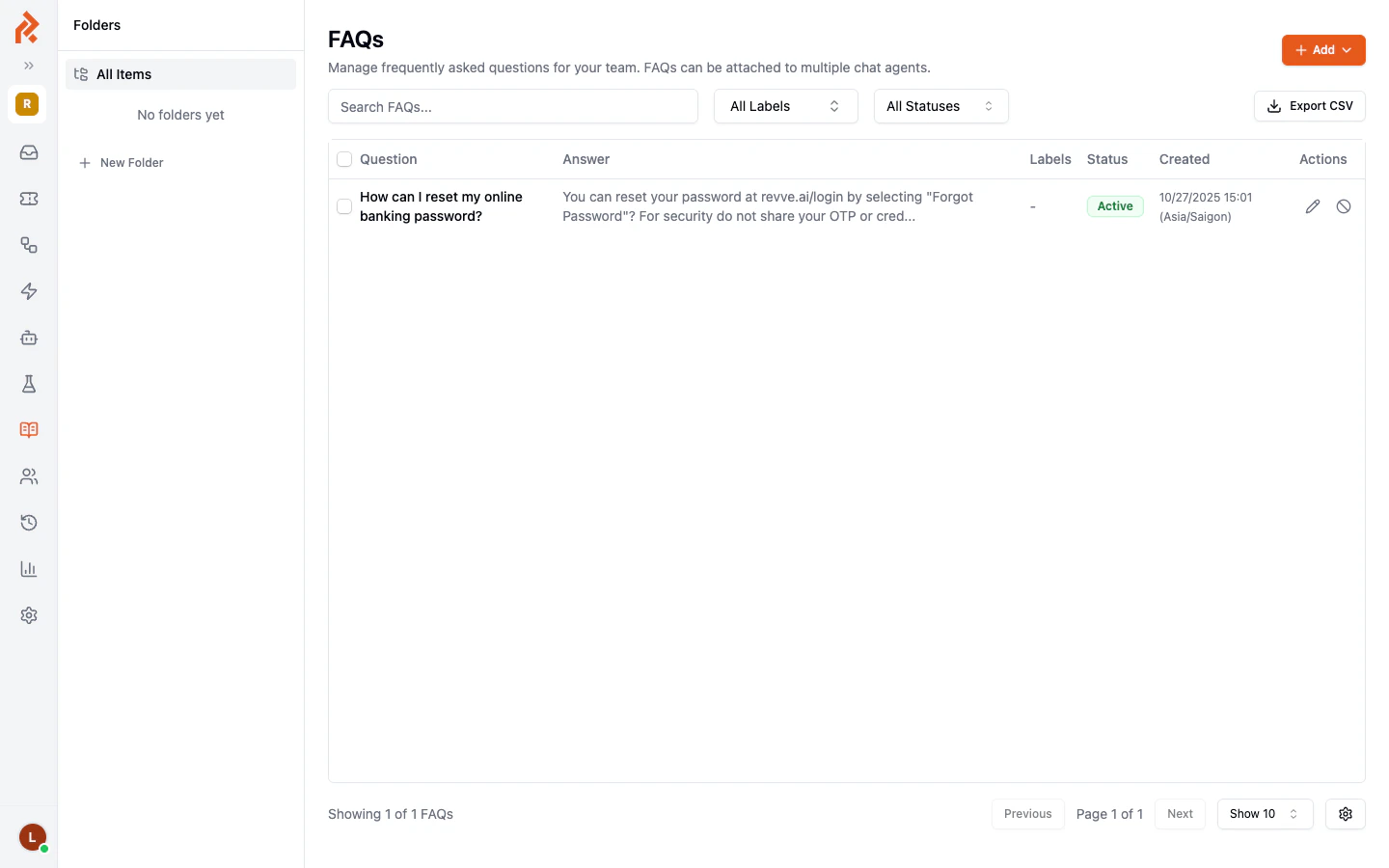
Agent-Specific FAQs
Open a chat agent, go to the Knowledge tab, and click the FAQs sub-tab. Here you can see which FAQs are attached to this specific agent and add more from your team’s library.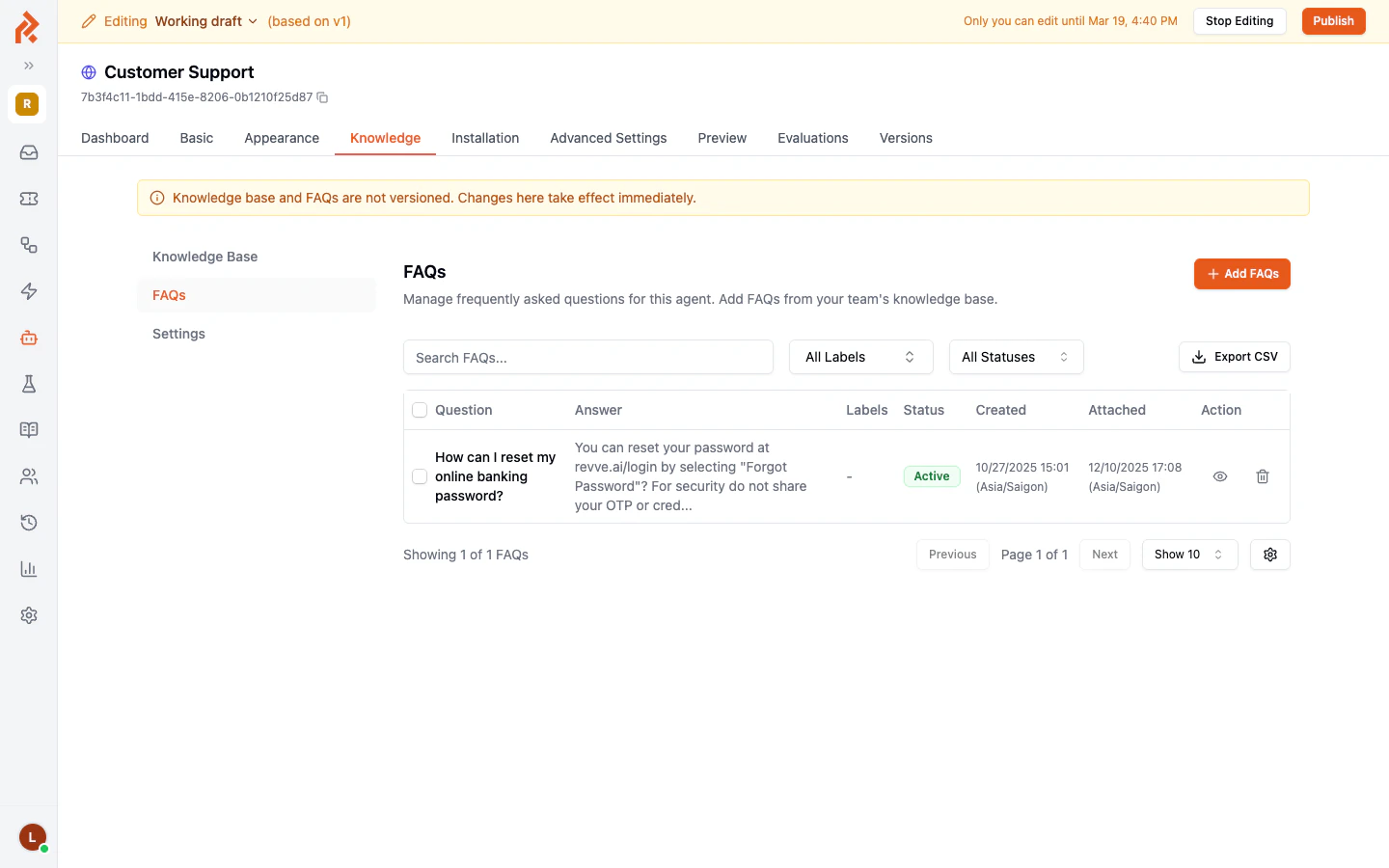
Creating a New FAQ
- Go to Knowledge Base > FAQs in the left sidebar.
- Click the Add button.
- Enter the Question — Write it the way a customer would naturally ask it. For example: “How can I reset my online banking password?”
- Enter the Answer — Provide a clear, complete response. Include any relevant links or steps.
- Save the FAQ.
FAQ Fields
Each FAQ in the list displays the following information:Organizing FAQs with Folders
The global FAQs page includes a Folders panel on the left side. You can create folders to group related FAQs together — for example, by product, department, or topic. Click New Folder to create one, then move FAQs into it for easier management.Editing an FAQ
Click on any FAQ in the list to open it for editing. You can update the question, answer, labels, or status. Changes take effect immediately — there is no need to publish.Deactivating an FAQ
Click the Deactivate button next to any FAQ to temporarily remove it from your agent’s responses without deleting it. This is useful when an answer needs updating but you do not want the outdated version to be used in the meantime.Attaching FAQs to a Chat Agent
FAQs from the global library are not automatically available to every agent. To attach FAQs to a specific agent:- Open the chat agent and go to the Knowledge tab.
- Click the FAQs sub-tab.
- Click Start Editing if you are not already in editing mode.
- Click Add FAQs to browse and attach FAQs from the global library.
Exporting FAQs
Click the Export CSV button to download all your FAQs as a CSV file. This is useful for backup, review, or importing into other systems.How FAQ Matching Works
When a visitor asks a question, your agent compares it against all active FAQs attached to that agent. The comparison is based on the meaning of the question, not just exact keyword matching. This means:- A visitor who asks “How do I reset my password?” will match an FAQ titled “How can I reset my online banking password?”
- Variations in phrasing, word order, or synonyms are handled automatically.
- If a strong match is found, the agent uses the FAQ answer as the basis for its response.
Best Practices
- Write questions the way customers ask them. Use natural, conversational language. Avoid internal jargon or technical terms that customers would not use.
- Keep answers concise but complete. Include all the information a customer needs in one response. If the topic is complex, consider linking to a more detailed resource.
- One question per FAQ. Do not combine multiple questions into a single FAQ. Create separate entries for each distinct question, even if the answers overlap.
- Review and update regularly. Products change, policies update, and new questions emerge. Set a recurring reminder to review your FAQs quarterly.
- Use labels to stay organized. As your FAQ library grows, labels make it easy to filter and manage content by topic.
- Deactivate rather than delete. If an FAQ needs updating, deactivate it first so the outdated answer is not used, then edit and reactivate it.
Next Steps
- Knowledge Gaps — Discover questions your agent could not answer and turn them into FAQs.
- Knowledge Base Settings — Configure how your agent searches the knowledge base.