

Setup Required: This channel requires initial technical setup by your account administrator before you can configure it here. This includes setting up a Meta Business account, verifying your WhatsApp Business number, and connecting it to Revve. Contact your Revve team or administrator to get started.Once your administrator has completed the initial setup, you can configure the following settings directly from the dashboard:
- Select which connected WhatsApp Business profile the agent uses
- Configure outbound message templates for campaigns
- Set up the agent’s prompt, knowledge base, languages, and behavior
- Publish the agent to start handling WhatsApp conversations
Accessing Channel Settings
- Navigate to Agents > Chat Agents.
- Select your WhatsApp Chat Agent (or create a new one with the WhatsApp channel type).
- Click the Channel Settings tab.
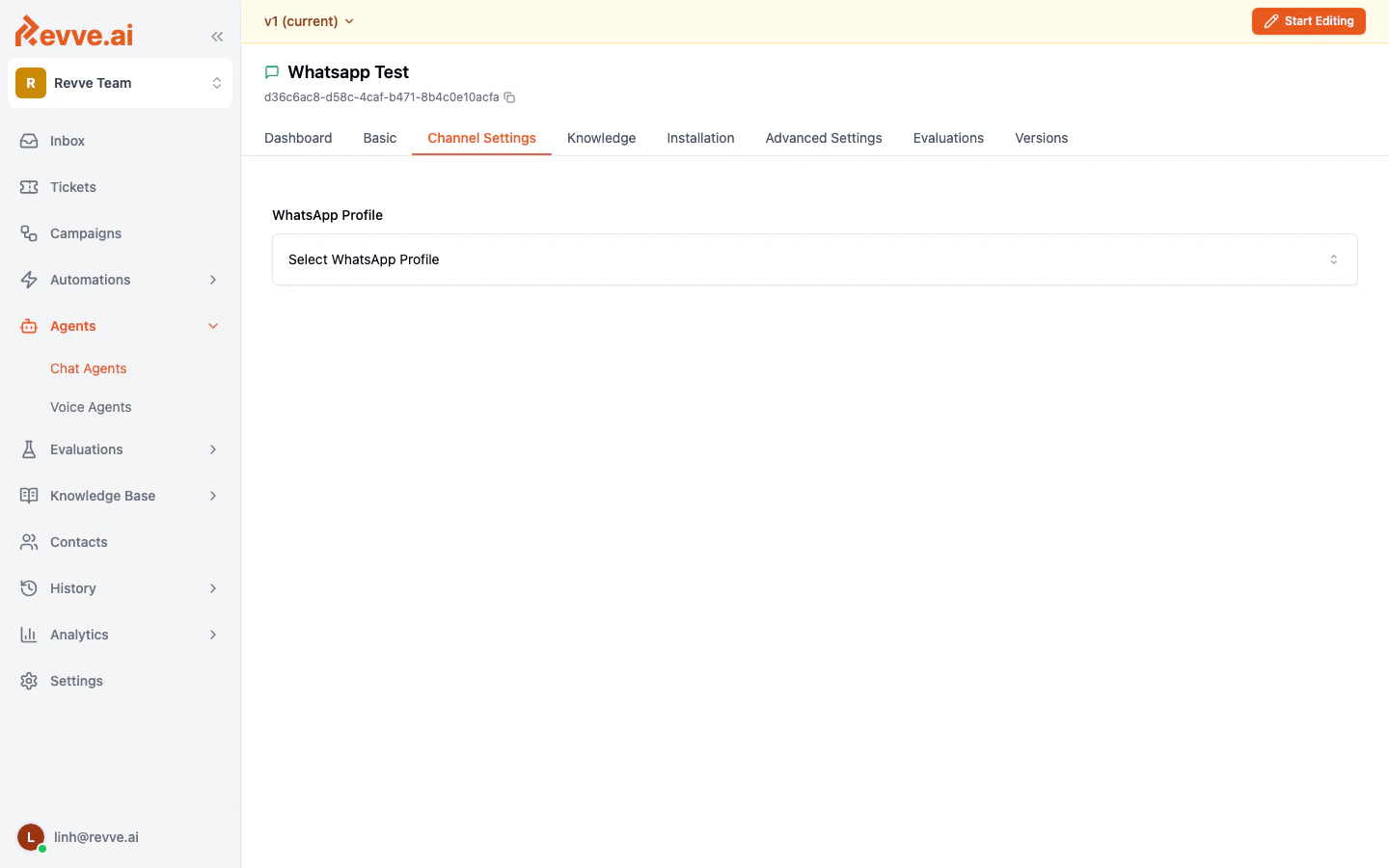
Channel Settings Fields
Setup Steps
1. Connect WhatsApp Business in Team Settings
Before you can assign a WhatsApp profile to a Chat Agent, you need to connect your WhatsApp Business account.- Go to Settings in the left sidebar.
- Navigate to the WhatsApp integration section.
- Follow the prompts to connect your WhatsApp Business account. This typically involves authenticating through Meta Business Suite and granting the necessary permissions.
- Once connected, your WhatsApp Business profiles will appear in the integration settings.
2. Assign a WhatsApp Profile
- Open your WhatsApp Chat Agent and go to the Channel Settings tab.
- Click the WhatsApp Profile dropdown.
- Select the WhatsApp Business profile you want this agent to use.
- Save your changes.
3. Configure Outbound Templates (Optional)
If your WhatsApp agent will initiate conversations (outbound messaging), you may need to configure message templates. WhatsApp requires approved templates for outbound messages sent outside the 24-hour customer service window. To configure outbound templates:- Go to the Basic tab of your WhatsApp Chat Agent.
- Click Outbound Templates in the left sidebar.
- Click Create Your First Template to set up message templates for outbound campaigns.
4. Publish the Agent
After assigning a WhatsApp profile and configuring your agent, publish it to make it live. Incoming WhatsApp messages to the connected profile will be routed to this agent.WhatsApp Messaging Rules
WhatsApp enforces specific messaging rules that affect how your Chat Agent operates:Best Practices
- Use dedicated profiles per agent. Assign each WhatsApp Chat Agent its own WhatsApp Business profile to prevent routing conflicts.
- Prepare outbound templates in advance. If your agent will initiate conversations, create and submit message templates for approval before launching campaigns, as the approval process can take time.
- Respect the 24-hour window. Design your agent’s conversation flow to resolve customer inquiries within the service window whenever possible.
- Monitor conversations. WhatsApp conversations appear in your team’s Inbox, where you can review agent responses and intervene when needed.