

Accessing Knowledge Settings
- Open your chat agent from the Agents > Chat Agents list.
- Click the Knowledge tab.
- Click the Settings sub-tab.
- Click Start Editing if you are not already in editing mode.
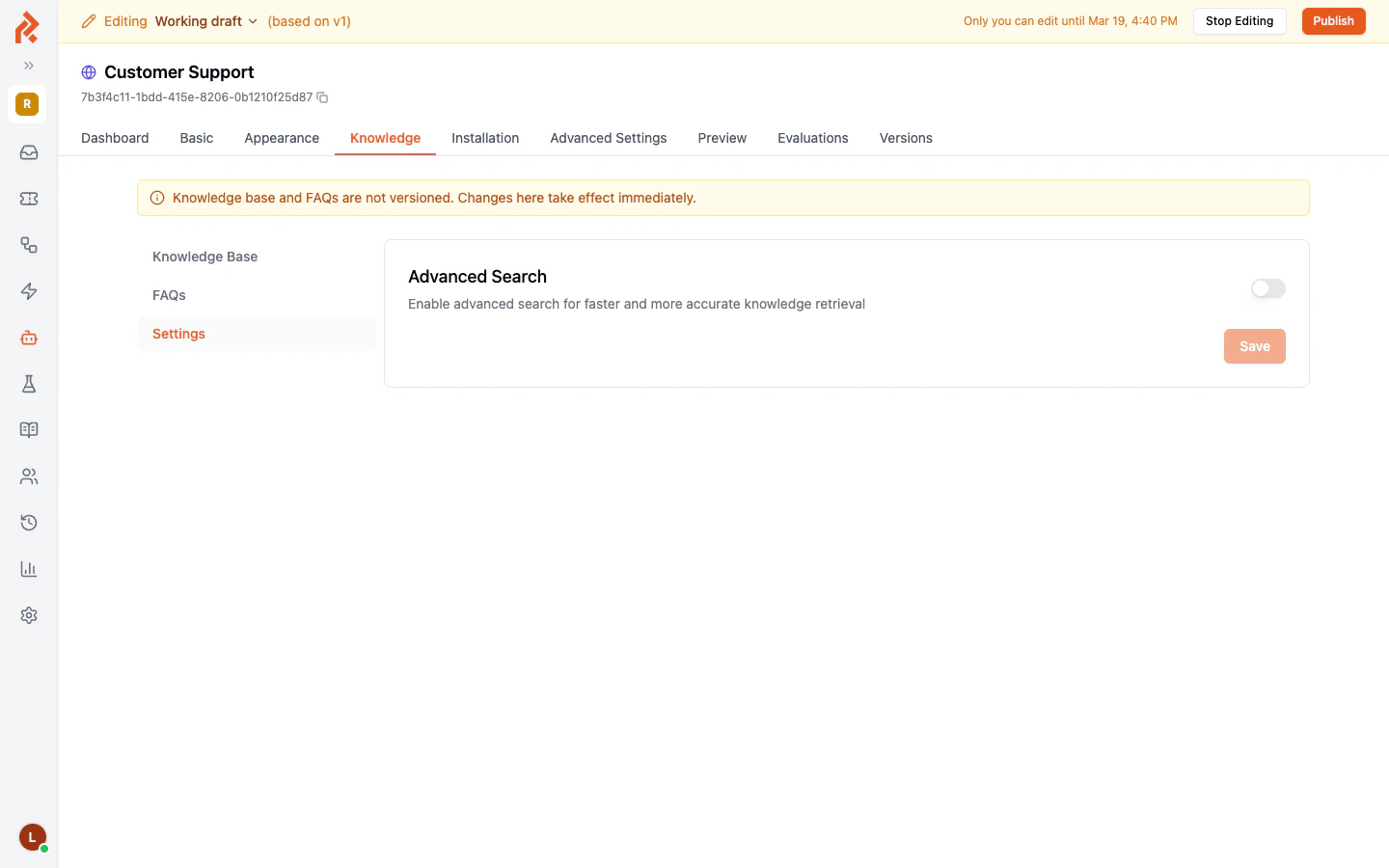
Settings Reference
Advanced Search
What Advanced Search does: Advanced Search improves how your agent finds relevant content in your knowledge base. With this setting enabled, the search process uses additional techniques to match visitor questions with the right content, even when the wording does not match exactly.
When to enable it:
- You have a large knowledge base with many sources.
- Your visitors ask questions in varied or unexpected ways.
- You want the most accurate content matching available.
- You have a small, focused knowledge base where simple matching is sufficient.
- You want to keep response times as fast as possible for very simple use cases.
How Search Works Behind the Scenes
When a visitor asks your agent a question, the search process works in several steps:- Understanding the question — The agent analyzes the visitor’s message to understand what they are asking about.
- Searching the knowledge base — The agent searches across all attached sources (web pages, documents, and FAQs) to find content that matches the question.
- Ranking results — The most relevant pieces of content are ranked by how well they match the question.
- Generating a response — The agent uses the top-ranked content to compose a natural, helpful answer.
Tips
- Start with Advanced Search enabled. For most use cases, Advanced Search provides better results with no downside. You can always turn it off later if needed.
- Pair settings with good content. Search settings can only improve how existing content is found. If the answer is not in your knowledge base, no search setting will help — add the missing content first.
- Test after making changes. After adjusting settings, use the Preview tab on your chat agent to test how the agent responds to various questions. This helps you verify that the changes improved behavior.
- Review knowledge gaps. If your agent is still missing questions after enabling Advanced Search, check the Knowledge Gaps page. The issue is likely missing content rather than a search configuration problem.
Related Topics
- Knowledge Base Overview — Understand the full knowledge base system.
- Adding Web Pages and Documents — Add content for your agent to search.
- Managing FAQs — Create precise question-and-answer pairs.
- Knowledge Gaps — Find and fill gaps in your agent’s knowledge.