> ## Documentation Index
> Fetch the complete documentation index at: https://www.revve.ai/docs/llms.txt
> Use this file to discover all available pages before exploring further.
# Working with Tickets
> For daily operators triaging and resolving tickets, and admins configuring ticket types — the ticket list, the detail sidebar, and the four ways tickets get created.
Tickets are how work items from your conversations — bug reports, callbacks, escalations — get tracked to resolution. This page covers the day-to-day workflow: finding and updating tickets on the **Tickets** page, working a ticket in the detail sidebar, and understanding the four ways tickets appear in your queue. It also covers the admin side: defining ticket types and their custom fields.
Open **Tickets** in the sidebar to get started. Access requires the **Manage Tickets** permission — see [Roles & Permissions](/docs/governance-access/roles-and-permissions).
## The ticket list
The **Tickets** page shows every ticket in your team, 50 per page. When tickets are assigned to you and not yet closed, a blue pill at the top reads "You have N ticket(s) to resolve" — that's your personal queue at a glance.
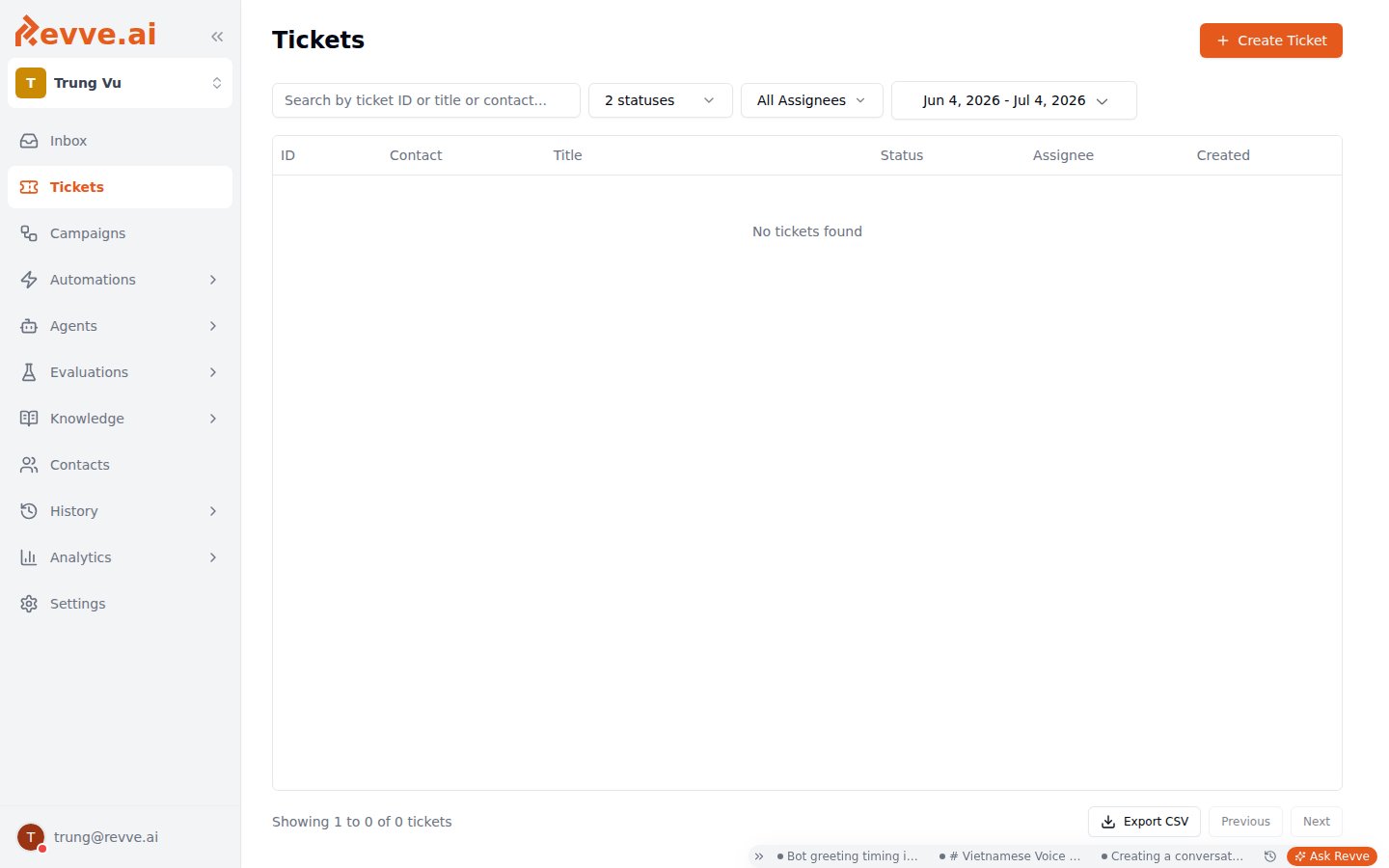 To find a ticket, use the search box ("Search by ticket ID or title or contact...") or narrow the list with filters:
| Filter | Default | Notes |
| --------------- | ------------------ | -------------------------------------------------------------------------------------------------------------------------------- |
| **Status** | Open + In Progress | Multi-select: Open, In Progress, Closed. Closed tickets are hidden by default — add Closed to the filter to audit resolved work. |
| **Ticket type** | All | Filter to one type, e.g. only Bug Reports. |
| **Assignee** | All | Filter to yourself to work your own queue. |
| **Date range** | Last 30 days | Widen this when searching for an older ticket — a ticket outside the range won't appear even if it matches your search. |
The table shows **ID**, **Contact** (name plus phone or email), **Title**, **Status**, **Assignee**, and **Created**. You don't need to open a ticket for routine triage: **Status** and **Assignee** are editable inline, straight from the table. Click any row to open the ticket's detail sidebar.
To pull tickets into a spreadsheet, use the **Export CSV** dropdown — **Export Current Page** or **Export All Data**. Exports are queued and delivered by email ("Export queued successfully. You will receive an email when ready."), so large exports don't block your browser.
## Ticket statuses
Every ticket is in exactly one of three statuses:
| Status | Color | Meaning |
| --------------- | ------ | ------------------------------- |
| **Open** | Blue | New, nobody has started on it. |
| **In Progress** | Orange | Someone is actively working it. |
| **Closed** | Green | Resolved. |
One rule to know: if a ticket's type has **Allow Reopen** turned off, a closed ticket is locked — you can't change its status or assignee, and the app rejects the attempt with "Cannot modify closed ticket - reopening is not allowed". Only close a ticket on a no-reopen type when you're sure it's done; otherwise the fix is a new ticket.
## Working a ticket
Clicking a row opens a right sidebar titled "Ticket" followed by its ID, laid out in two columns.
**Left column — context and triage:**
* A contact card with the contact's name (linked to their [contact record](/docs/contacts/managing-contacts)), email, and phone.
* The ticket's type badge.
* Where the ticket came from: tickets created from a chat show the agent link, a **View in Inbox** link to the originating thread, and the conversation's fields; tickets created from a call show a **View Call Details** link.
* **Status** and **Assigned to** selects — the same controls as the inline table edits.
**Right column — the ticket's content:**
* **Title** and **Description** are click-to-edit ("Click to add a description..."). Click the text, type, done.
* The type's **Custom Fields**, editable inline: text and number fields as inputs, boolean fields as a Yes/No switch.
Below, two activity tabs:
* **Comments** — a "Leave a comment..." box; press Enter to submit. Use comments for the human trail: what you tried, what you're waiting on, why you closed it.
* **History** — an automatic audit log: creation, status changes, assignments and unassignments, closes and reopens, plus per-field diffs showing the old and new values. Actions taken by AI agents or automation appear as "System".
The **History** tab is the fastest way to answer "who changed this and when" — you never need to reconstruct it from comments.
## How tickets get created
Tickets enter the system four ways.
### 1. Manually
Click **Create Ticket** at the top right of the list. The dialog asks for:
| Field | Required | Notes |
| -------------------------- | -------- | ------------------------------------------------------------------------------- |
| **Ticket Type** | Yes | Shown as "name (PREFIX)", e.g. "Bug Report (BUG)". |
| **Title** | Yes | Up to 200 characters — "Brief description of the issue". |
| **Description (Optional)** | No | The full context. |
| **Contact (Optional)** | No | Link the ticket to a contact so it shows in the Contact column and detail card. |
| **Assigned To (Optional)** | No | Leave empty to assign later from the list. |
Below these, the dialog shows the selected type's custom fields — required ones must be filled before you can submit. On success you'll see the toast "Ticket `{ID}` created successfully".
### 2. By your AI agents
Chat and voice agents equipped with the **Create Ticket** preset tool ("Automatically create tickets from conversations") file tickets on their own mid-conversation — see [Voice Agent Tools](/docs/voice-agents/voice-agent-tools) for attaching it to a voice agent.
The tool deduplicates per conversation: if an open ticket already exists for the same conversation, the agent **updates** that ticket instead of creating a duplicate. A new ticket is only created once the previous one is closed. So a long back-and-forth produces one evolving ticket, not a pile of near-identical ones.
### 3. By automation rules
Automation rules can include a **Create Ticket** action, so tickets get filed whenever a rule's conditions match — no human or agent in the loop. See [Creating Automation Rules](/docs/automations/creating-automation-rules).
### 4. Auto-assignment
Strictly speaking this is how tickets get *assigned*, not created — but it's why AI- and automation-created tickets often arrive in someone's queue already owned. When a ticket is created by an AI agent or an automation rule with no assignee, the routing engine picks an available human agent — preferring whoever handled the same contact in the last 24 hours, then applying your routing rules, and falling back to the least-loaded agent. It honors your routing configuration in **Settings → Routing**; the preset rules include a **Ticket Distribution** cap ("Maximum per agent: N tickets") — once an agent hits the cap, they stop receiving new tickets until their load drops.
## Configuring ticket types
Every ticket belongs to a type — Bug Report, Callback Request, Refund — and the type controls the ticket's ID prefix, starting status, reopen behavior, and custom fields. Types live in **Settings → Ticket Types**.
To find a ticket, use the search box ("Search by ticket ID or title or contact...") or narrow the list with filters:
| Filter | Default | Notes |
| --------------- | ------------------ | -------------------------------------------------------------------------------------------------------------------------------- |
| **Status** | Open + In Progress | Multi-select: Open, In Progress, Closed. Closed tickets are hidden by default — add Closed to the filter to audit resolved work. |
| **Ticket type** | All | Filter to one type, e.g. only Bug Reports. |
| **Assignee** | All | Filter to yourself to work your own queue. |
| **Date range** | Last 30 days | Widen this when searching for an older ticket — a ticket outside the range won't appear even if it matches your search. |
The table shows **ID**, **Contact** (name plus phone or email), **Title**, **Status**, **Assignee**, and **Created**. You don't need to open a ticket for routine triage: **Status** and **Assignee** are editable inline, straight from the table. Click any row to open the ticket's detail sidebar.
To pull tickets into a spreadsheet, use the **Export CSV** dropdown — **Export Current Page** or **Export All Data**. Exports are queued and delivered by email ("Export queued successfully. You will receive an email when ready."), so large exports don't block your browser.
## Ticket statuses
Every ticket is in exactly one of three statuses:
| Status | Color | Meaning |
| --------------- | ------ | ------------------------------- |
| **Open** | Blue | New, nobody has started on it. |
| **In Progress** | Orange | Someone is actively working it. |
| **Closed** | Green | Resolved. |
One rule to know: if a ticket's type has **Allow Reopen** turned off, a closed ticket is locked — you can't change its status or assignee, and the app rejects the attempt with "Cannot modify closed ticket - reopening is not allowed". Only close a ticket on a no-reopen type when you're sure it's done; otherwise the fix is a new ticket.
## Working a ticket
Clicking a row opens a right sidebar titled "Ticket" followed by its ID, laid out in two columns.
**Left column — context and triage:**
* A contact card with the contact's name (linked to their [contact record](/docs/contacts/managing-contacts)), email, and phone.
* The ticket's type badge.
* Where the ticket came from: tickets created from a chat show the agent link, a **View in Inbox** link to the originating thread, and the conversation's fields; tickets created from a call show a **View Call Details** link.
* **Status** and **Assigned to** selects — the same controls as the inline table edits.
**Right column — the ticket's content:**
* **Title** and **Description** are click-to-edit ("Click to add a description..."). Click the text, type, done.
* The type's **Custom Fields**, editable inline: text and number fields as inputs, boolean fields as a Yes/No switch.
Below, two activity tabs:
* **Comments** — a "Leave a comment..." box; press Enter to submit. Use comments for the human trail: what you tried, what you're waiting on, why you closed it.
* **History** — an automatic audit log: creation, status changes, assignments and unassignments, closes and reopens, plus per-field diffs showing the old and new values. Actions taken by AI agents or automation appear as "System".
The **History** tab is the fastest way to answer "who changed this and when" — you never need to reconstruct it from comments.
## How tickets get created
Tickets enter the system four ways.
### 1. Manually
Click **Create Ticket** at the top right of the list. The dialog asks for:
| Field | Required | Notes |
| -------------------------- | -------- | ------------------------------------------------------------------------------- |
| **Ticket Type** | Yes | Shown as "name (PREFIX)", e.g. "Bug Report (BUG)". |
| **Title** | Yes | Up to 200 characters — "Brief description of the issue". |
| **Description (Optional)** | No | The full context. |
| **Contact (Optional)** | No | Link the ticket to a contact so it shows in the Contact column and detail card. |
| **Assigned To (Optional)** | No | Leave empty to assign later from the list. |
Below these, the dialog shows the selected type's custom fields — required ones must be filled before you can submit. On success you'll see the toast "Ticket `{ID}` created successfully".
### 2. By your AI agents
Chat and voice agents equipped with the **Create Ticket** preset tool ("Automatically create tickets from conversations") file tickets on their own mid-conversation — see [Voice Agent Tools](/docs/voice-agents/voice-agent-tools) for attaching it to a voice agent.
The tool deduplicates per conversation: if an open ticket already exists for the same conversation, the agent **updates** that ticket instead of creating a duplicate. A new ticket is only created once the previous one is closed. So a long back-and-forth produces one evolving ticket, not a pile of near-identical ones.
### 3. By automation rules
Automation rules can include a **Create Ticket** action, so tickets get filed whenever a rule's conditions match — no human or agent in the loop. See [Creating Automation Rules](/docs/automations/creating-automation-rules).
### 4. Auto-assignment
Strictly speaking this is how tickets get *assigned*, not created — but it's why AI- and automation-created tickets often arrive in someone's queue already owned. When a ticket is created by an AI agent or an automation rule with no assignee, the routing engine picks an available human agent — preferring whoever handled the same contact in the last 24 hours, then applying your routing rules, and falling back to the least-loaded agent. It honors your routing configuration in **Settings → Routing**; the preset rules include a **Ticket Distribution** cap ("Maximum per agent: N tickets") — once an agent hits the cap, they stop receiving new tickets until their load drops.
## Configuring ticket types
Every ticket belongs to a type — Bug Report, Callback Request, Refund — and the type controls the ticket's ID prefix, starting status, reopen behavior, and custom fields. Types live in **Settings → Ticket Types**.
 Each type's card shows its name, ID-prefix chip, description, default-status badge, and Active/Inactive and Can Reopen/No Reopen indicators; the row menu offers **Edit**, **Configure Fields**, and **Delete**.
### Creating a type
Click **Add Ticket Type**:
| Field | Notes |
| -------------------------- | ----------------------------------------------------------------------------------------------------------------------------------------------------------------------------------------------------------------------------------------------------- |
| **Name** | Required, up to 100 characters — e.g. "Bug Report". |
| **Description (Optional)** | What the type is for, shown on the card. |
| **ID Prefix** | Required, up to 10 characters — uppercase letters and digits, starting with a letter, e.g. "BUG". Must be unique, and **cannot be changed after creation** — it builds every ticket's display ID, so pick something your team will recognize forever. |
| **Default Status** | Open, In Progress, or Closed — "New tickets will start with this status". Open is the natural choice for anything that needs a human; only pick Closed for pure record-keeping types. |
| **Active** | "Inactive ticket types cannot be used for new tickets." Deactivate a type to retire it without touching its existing tickets. |
| **Allow Reopen** | "Allow tickets of this type to be reopened after being closed." With this off, closed tickets are permanently locked (see [Ticket statuses](#ticket-statuses)). Leave it on unless closure must be final. |
### Custom fields
**Configure Fields** on a type defines the structured data its tickets carry — the fields that show in the ticket detail's right column and in the Create Ticket dialog.
| Field | Notes |
| -------------------------- | --------------------------------------------------------------------------------------------------------------------------------------------- |
| **Label** | Required — the display name, e.g. "Customer Priority". |
| **Key** | Required, snake\_case, e.g. "customer\_priority". Unique per type and **immutable after creation** — choose it as carefully as the ID prefix. |
| **Description (Optional)** | Guidance for whoever fills the field. |
| **Data Type** | Text, Number, or Boolean. Booleans render as a Yes/No switch on the ticket. |
| **Required Field** | "This field must be filled when creating a ticket." |
Deleting a type or a field asks for confirmation with "This action cannot be undone." Prefer deactivating a type over deleting it when it has history you may need.
## What's Next
* [Inbox Overview](/docs/inbox/inbox-overview) — where chat-created tickets link back to via **View in Inbox**.
* [Creating Automation Rules](/docs/automations/creating-automation-rules) — file tickets automatically with the Create Ticket action.
Each type's card shows its name, ID-prefix chip, description, default-status badge, and Active/Inactive and Can Reopen/No Reopen indicators; the row menu offers **Edit**, **Configure Fields**, and **Delete**.
### Creating a type
Click **Add Ticket Type**:
| Field | Notes |
| -------------------------- | ----------------------------------------------------------------------------------------------------------------------------------------------------------------------------------------------------------------------------------------------------- |
| **Name** | Required, up to 100 characters — e.g. "Bug Report". |
| **Description (Optional)** | What the type is for, shown on the card. |
| **ID Prefix** | Required, up to 10 characters — uppercase letters and digits, starting with a letter, e.g. "BUG". Must be unique, and **cannot be changed after creation** — it builds every ticket's display ID, so pick something your team will recognize forever. |
| **Default Status** | Open, In Progress, or Closed — "New tickets will start with this status". Open is the natural choice for anything that needs a human; only pick Closed for pure record-keeping types. |
| **Active** | "Inactive ticket types cannot be used for new tickets." Deactivate a type to retire it without touching its existing tickets. |
| **Allow Reopen** | "Allow tickets of this type to be reopened after being closed." With this off, closed tickets are permanently locked (see [Ticket statuses](#ticket-statuses)). Leave it on unless closure must be final. |
### Custom fields
**Configure Fields** on a type defines the structured data its tickets carry — the fields that show in the ticket detail's right column and in the Create Ticket dialog.
| Field | Notes |
| -------------------------- | --------------------------------------------------------------------------------------------------------------------------------------------- |
| **Label** | Required — the display name, e.g. "Customer Priority". |
| **Key** | Required, snake\_case, e.g. "customer\_priority". Unique per type and **immutable after creation** — choose it as carefully as the ID prefix. |
| **Description (Optional)** | Guidance for whoever fills the field. |
| **Data Type** | Text, Number, or Boolean. Booleans render as a Yes/No switch on the ticket. |
| **Required Field** | "This field must be filled when creating a ticket." |
Deleting a type or a field asks for confirmation with "This action cannot be undone." Prefer deactivating a type over deleting it when it has history you may need.
## What's Next
* [Inbox Overview](/docs/inbox/inbox-overview) — where chat-created tickets link back to via **View in Inbox**.
* [Creating Automation Rules](/docs/automations/creating-automation-rules) — file tickets automatically with the Create Ticket action.