> ## Documentation Index
> Fetch the complete documentation index at: https://www.revve.ai/docs/llms.txt
> Use this file to discover all available pages before exploring further.
# Managing FAQs
> Create and organize question-and-answer pairs to give your agent precise responses to common questions.
FAQs (Frequently Asked Questions) are question-and-answer pairs that you create to give your agent precise, definitive responses to common questions. Unlike web pages or documents that the agent interprets, FAQs provide direct answers that the agent can reference word-for-word.
## Why Use FAQs
* **Precision** -- FAQs give your agent an exact answer to match against incoming questions, reducing the chance of inaccurate or vague responses.
* **Speed** -- FAQ lookups are fast because the agent is matching against structured question-answer pairs rather than searching through long documents.
* **Control** -- You define exactly how specific questions should be answered, which is critical for topics like pricing, policies, or compliance-related information.
## Accessing FAQs
There are two places to manage FAQs:
### Global FAQs Page
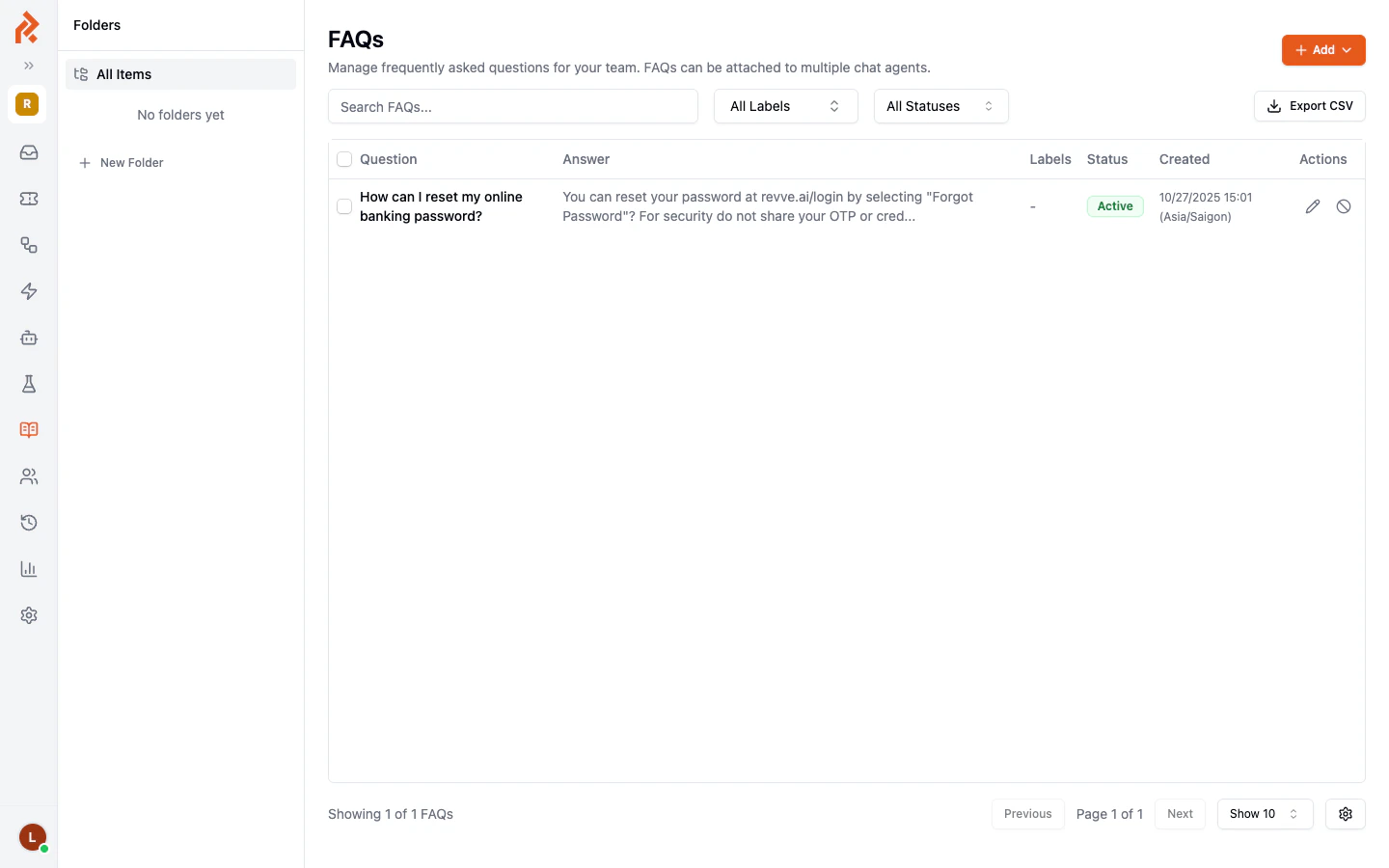
Navigate to **Knowledge Base > FAQs** in the left sidebar. This is the team-wide FAQ library where you create, edit, and organize all your FAQs.
 ### Agent-Specific FAQs
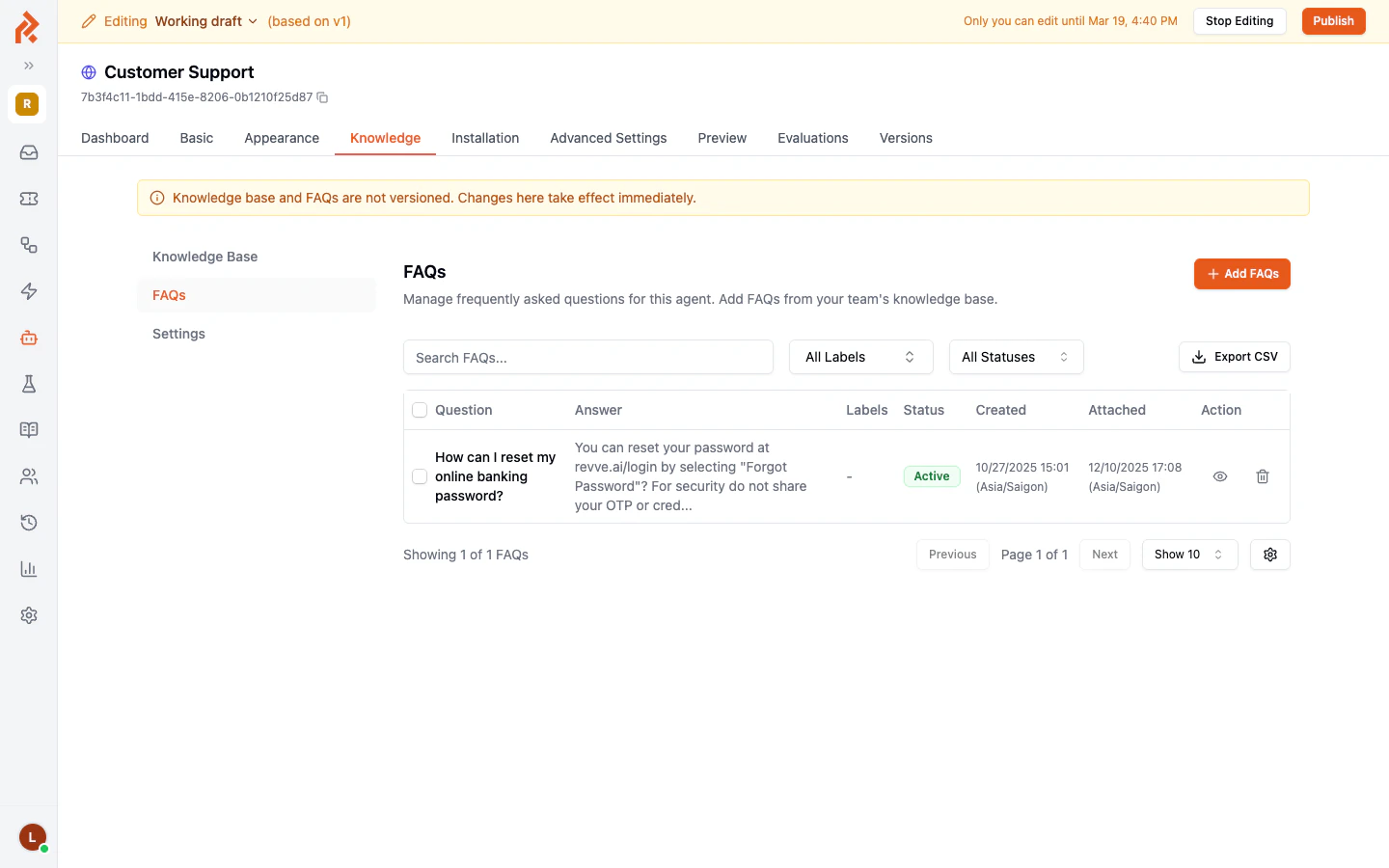
Open a chat agent, go to the **Knowledge** tab, and click the **FAQs** sub-tab. Here you can see which FAQs are attached to this specific agent and add more from your team's library.
### Agent-Specific FAQs
Open a chat agent, go to the **Knowledge** tab, and click the **FAQs** sub-tab. Here you can see which FAQs are attached to this specific agent and add more from your team's library.
 ## Creating a New FAQ
1. Go to **Knowledge Base > FAQs** in the left sidebar.
2. Click the **Add** button.
3. Enter the **Question** -- Write it the way a customer would naturally ask it. For example: "How can I reset my online banking password?"
4. Enter the **Answer** -- Provide a clear, complete response. Include any relevant links or steps.
5. Save the FAQ.
The FAQ will be processed and made available to any agent it is attached to.
## FAQ Fields
Each FAQ in the list displays the following information:
| Field | Description |
| ------------ | ---------------------------------------------------------------------------- |
| **Question** | The customer question this FAQ addresses. |
| **Answer** | The response your agent will use. Answers may be truncated in the list view. |
| **Labels** | Optional tags for organizing FAQs by topic or department. |
| **Status** | `Active` means the FAQ is available to agents. Inactive FAQs are ignored. |
| **Created** | When the FAQ was first created. |
## Organizing FAQs with Folders
The global FAQs page includes a **Folders** panel on the left side. You can create folders to group related FAQs together -- for example, by product, department, or topic. Click **New Folder** to create one, then move FAQs into it for easier management.
## Editing an FAQ
Click on any FAQ in the list to open it for editing. You can update the question, answer, labels, or status. Changes take effect immediately -- there is no need to publish.
## Deactivating an FAQ
Click the **Deactivate** button next to any FAQ to temporarily remove it from your agent's responses without deleting it. This is useful when an answer needs updating but you do not want the outdated version to be used in the meantime.
## Attaching FAQs to a Chat Agent
FAQs from the global library are not automatically available to every agent. To attach FAQs to a specific agent:
1. Open the chat agent and go to the **Knowledge** tab.
2. Click the **FAQs** sub-tab.
3. Click **Start Editing** if you are not already in editing mode.
4. Click **Add FAQs** to browse and attach FAQs from the global library.
The **Attached** column in the agent's FAQ list shows when each FAQ was attached to that agent.
## Exporting FAQs
Click the **Export CSV** button to download all your FAQs as a CSV file. This is useful for backup, review, or importing into other systems.
## How FAQ Matching Works
When a visitor asks a question, your agent compares it against all active FAQs attached to that agent. The comparison is based on the meaning of the question, not just exact keyword matching. This means:
* A visitor who asks "How do I reset my password?" will match an FAQ titled "How can I reset my online banking password?"
* Variations in phrasing, word order, or synonyms are handled automatically.
* If a strong match is found, the agent uses the FAQ answer as the basis for its response.
## Best Practices
* **Write questions the way customers ask them.** Use natural, conversational language. Avoid internal jargon or technical terms that customers would not use.
* **Keep answers concise but complete.** Include all the information a customer needs in one response. If the topic is complex, consider linking to a more detailed resource.
* **One question per FAQ.** Do not combine multiple questions into a single FAQ. Create separate entries for each distinct question, even if the answers overlap.
* **Review and update regularly.** Products change, policies update, and new questions emerge. Set a recurring reminder to review your FAQs quarterly.
* **Use labels to stay organized.** As your FAQ library grows, labels make it easy to filter and manage content by topic.
* **Deactivate rather than delete.** If an FAQ needs updating, deactivate it first so the outdated answer is not used, then edit and reactivate it.
## Next Steps
* [Knowledge Gaps](/docs/knowledge-base/knowledge-gaps) -- Discover questions your agent could not answer and turn them into FAQs.
* [Knowledge Base Settings](/docs/knowledge-base/knowledge-base-settings) -- Configure how your agent searches the knowledge base.
## Creating a New FAQ
1. Go to **Knowledge Base > FAQs** in the left sidebar.
2. Click the **Add** button.
3. Enter the **Question** -- Write it the way a customer would naturally ask it. For example: "How can I reset my online banking password?"
4. Enter the **Answer** -- Provide a clear, complete response. Include any relevant links or steps.
5. Save the FAQ.
The FAQ will be processed and made available to any agent it is attached to.
## FAQ Fields
Each FAQ in the list displays the following information:
| Field | Description |
| ------------ | ---------------------------------------------------------------------------- |
| **Question** | The customer question this FAQ addresses. |
| **Answer** | The response your agent will use. Answers may be truncated in the list view. |
| **Labels** | Optional tags for organizing FAQs by topic or department. |
| **Status** | `Active` means the FAQ is available to agents. Inactive FAQs are ignored. |
| **Created** | When the FAQ was first created. |
## Organizing FAQs with Folders
The global FAQs page includes a **Folders** panel on the left side. You can create folders to group related FAQs together -- for example, by product, department, or topic. Click **New Folder** to create one, then move FAQs into it for easier management.
## Editing an FAQ
Click on any FAQ in the list to open it for editing. You can update the question, answer, labels, or status. Changes take effect immediately -- there is no need to publish.
## Deactivating an FAQ
Click the **Deactivate** button next to any FAQ to temporarily remove it from your agent's responses without deleting it. This is useful when an answer needs updating but you do not want the outdated version to be used in the meantime.
## Attaching FAQs to a Chat Agent
FAQs from the global library are not automatically available to every agent. To attach FAQs to a specific agent:
1. Open the chat agent and go to the **Knowledge** tab.
2. Click the **FAQs** sub-tab.
3. Click **Start Editing** if you are not already in editing mode.
4. Click **Add FAQs** to browse and attach FAQs from the global library.
The **Attached** column in the agent's FAQ list shows when each FAQ was attached to that agent.
## Exporting FAQs
Click the **Export CSV** button to download all your FAQs as a CSV file. This is useful for backup, review, or importing into other systems.
## How FAQ Matching Works
When a visitor asks a question, your agent compares it against all active FAQs attached to that agent. The comparison is based on the meaning of the question, not just exact keyword matching. This means:
* A visitor who asks "How do I reset my password?" will match an FAQ titled "How can I reset my online banking password?"
* Variations in phrasing, word order, or synonyms are handled automatically.
* If a strong match is found, the agent uses the FAQ answer as the basis for its response.
## Best Practices
* **Write questions the way customers ask them.** Use natural, conversational language. Avoid internal jargon or technical terms that customers would not use.
* **Keep answers concise but complete.** Include all the information a customer needs in one response. If the topic is complex, consider linking to a more detailed resource.
* **One question per FAQ.** Do not combine multiple questions into a single FAQ. Create separate entries for each distinct question, even if the answers overlap.
* **Review and update regularly.** Products change, policies update, and new questions emerge. Set a recurring reminder to review your FAQs quarterly.
* **Use labels to stay organized.** As your FAQ library grows, labels make it easy to filter and manage content by topic.
* **Deactivate rather than delete.** If an FAQ needs updating, deactivate it first so the outdated answer is not used, then edit and reactivate it.
## Next Steps
* [Knowledge Gaps](/docs/knowledge-base/knowledge-gaps) -- Discover questions your agent could not answer and turn them into FAQs.
* [Knowledge Base Settings](/docs/knowledge-base/knowledge-base-settings) -- Configure how your agent searches the knowledge base.