> ## Documentation Index
> Fetch the complete documentation index at: https://www.revve.ai/docs/llms.txt
> Use this file to discover all available pages before exploring further.
# Knowledge Gaps
> Find questions your agent could not answer and fill the gaps in your knowledge base.
Knowledge gaps are questions that your AI agent received but could not answer confidently because it did not find relevant content in the knowledge base. Tracking and resolving these gaps is one of the most effective ways to continuously improve your agent's performance.
## What Are Knowledge Gaps
Every time your agent encounters a question it cannot answer well, it records that question as a **knowledge gap**. These are real questions from real visitors, which makes them the most valuable signal for what content you should add next.
For example, if a visitor asks "Does Revve integrate with HubSpot?" and your knowledge base does not contain any information about HubSpot integrations, the agent will flag this as a gap.
## Viewing Knowledge Gaps
Navigate to **Knowledge Base > Gaps** in the left sidebar to see all recorded gaps.
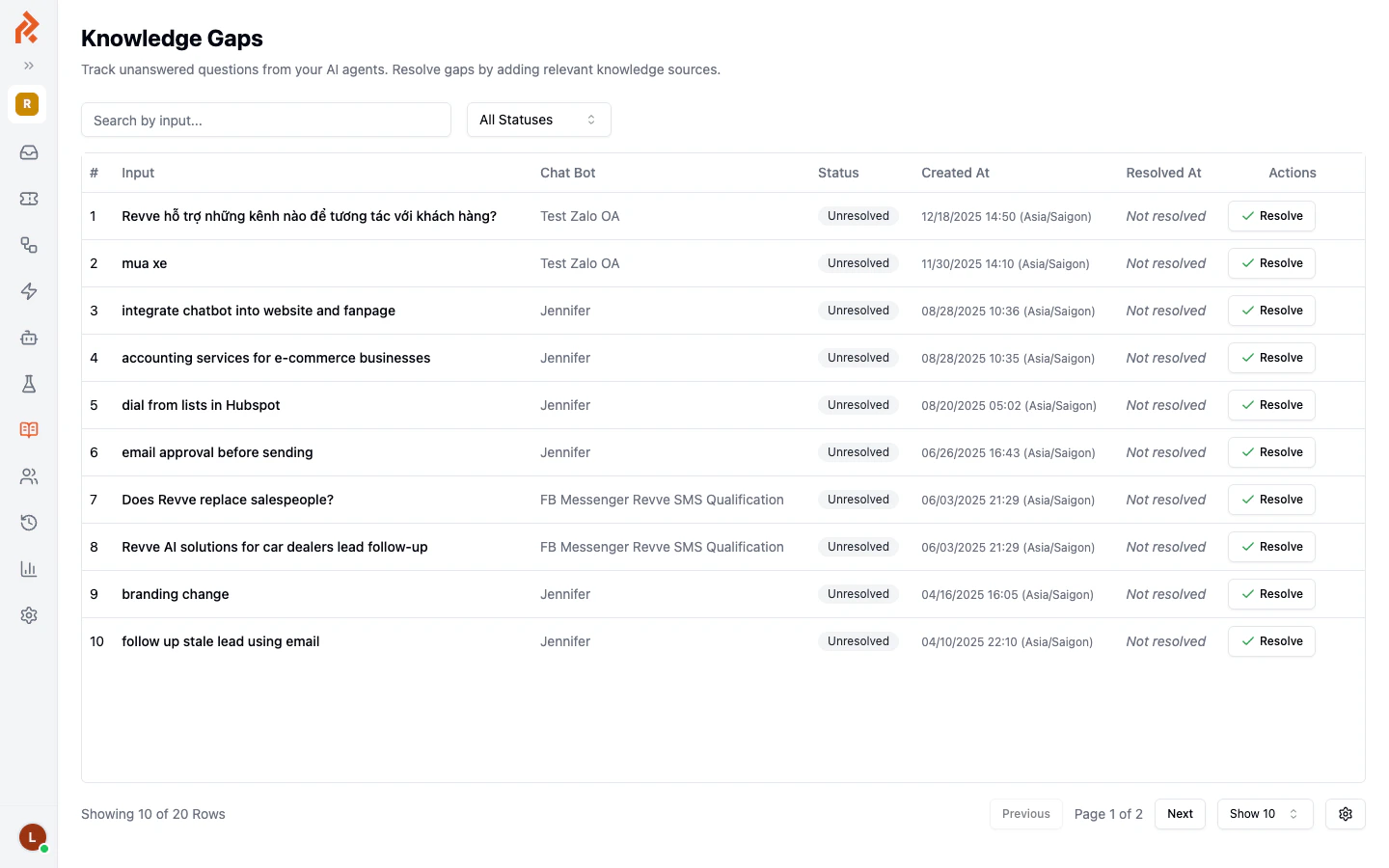 Each gap entry includes:
| Column | Description |
| --------------- | -------------------------------------------------------------------------------------------------------- |
| **#** | A sequential number for reference. |
| **Input** | The original question or message from the visitor. |
| **Chat Bot** | Which chat agent received the question. Clicking the agent name takes you to that agent's configuration. |
| **Status** | Either `Unresolved` or `Resolved`. |
| **Created At** | When the gap was first recorded. |
| **Resolved At** | When the gap was resolved (if applicable). Shows "Not resolved" for open gaps. |
### Filtering Gaps
Use the controls at the top of the page to narrow your view:
* **Search bar** -- Search by the input text.
* **All Statuses** -- Filter by Unresolved or Resolved.
## Resolving a Knowledge Gap
Click the **Resolve** button next to any gap to see your options:
Each gap entry includes:
| Column | Description |
| --------------- | -------------------------------------------------------------------------------------------------------- |
| **#** | A sequential number for reference. |
| **Input** | The original question or message from the visitor. |
| **Chat Bot** | Which chat agent received the question. Clicking the agent name takes you to that agent's configuration. |
| **Status** | Either `Unresolved` or `Resolved`. |
| **Created At** | When the gap was first recorded. |
| **Resolved At** | When the gap was resolved (if applicable). Shows "Not resolved" for open gaps. |
### Filtering Gaps
Use the controls at the top of the page to narrow your view:
* **Search bar** -- Search by the input text.
* **All Statuses** -- Filter by Unresolved or Resolved.
## Resolving a Knowledge Gap
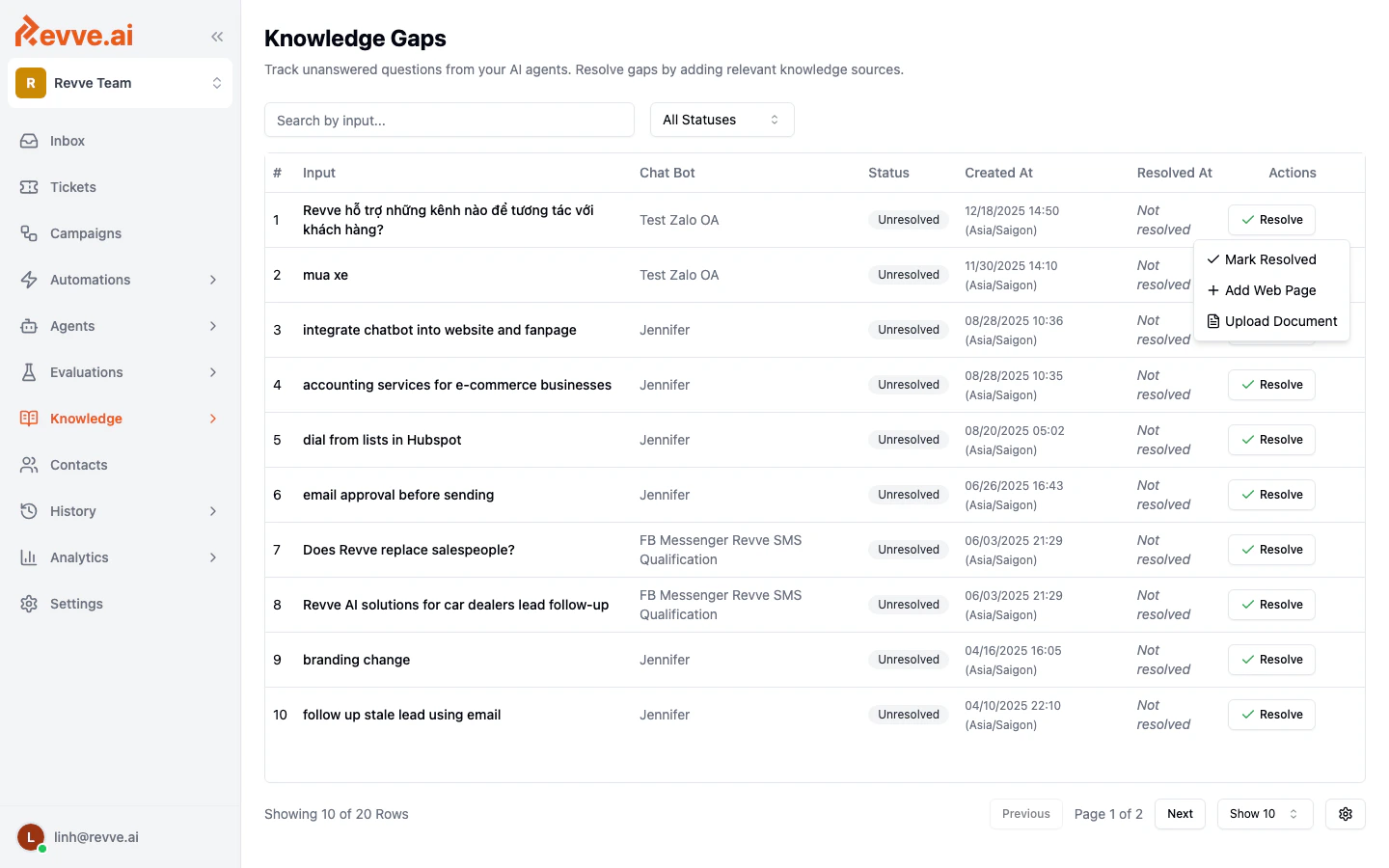
Click the **Resolve** button next to any gap to see your options:
 | Action | When to use it |
| ------------------- | ----------------------------------------------------------------------------------------------------------------------------------------------------------------- |
| **Mark Resolved** | The question is already answered by existing content (perhaps added after the gap was recorded), or the question is irrelevant and does not need to be addressed. |
| **Add Web Page** | You have a web page that answers this question. Add the URL and it will be indexed into your knowledge base. |
| **Upload Document** | You have a document (PDF, DOCX, TXT) that covers this topic. Upload it to add it to the knowledge base. |
When you add a web page or upload a document through the Resolve menu, the gap is automatically marked as resolved once the content is processed.
## Building a Knowledge Improvement Workflow
Knowledge gaps work best as part of a regular review process. Here is a recommended workflow:
### Weekly Review
1. Navigate to **Knowledge Base > Gaps** and filter by `Unresolved`.
2. Review the list and group similar questions together -- they may all be resolved by adding a single piece of content.
3. For each gap (or group of gaps):
* If you have existing content that answers the question, add the web page URL or upload the document.
* If you need to create new content, write an FAQ or create a help article, then come back and resolve the gap.
* If the question is out of scope or irrelevant, mark it as resolved.
### Prioritizing Gaps
Focus on gaps that:
* **Appear multiple times** -- If several visitors asked the same question, it is a high-priority gap.
* **Come from your primary agent** -- Gaps from your main customer-facing agent are more impactful than those from test agents.
* **Are recent** -- Recent gaps reflect current customer needs.
## Tips
* **Do not ignore gaps.** Every unresolved gap represents a missed opportunity to help a customer. Even if you cannot resolve them all immediately, prioritize and work through them over time.
* **Use gaps to discover content needs.** Gaps are direct feedback from your customers about what information they expect to find. Use this to guide your content strategy.
* **Resolve gaps with the right content type.** For factual, single-answer questions, create an FAQ. For broader topics, add a web page or document.
* **Check if content already exists.** Sometimes a gap is recorded because the relevant content was not attached to the agent, even though it exists in the global knowledge base. In this case, attach the existing source to the agent rather than creating duplicate content.
## Next Steps
* [Adding Web Pages and Documents](/docs/knowledge-base/adding-web-pages-and-documents) -- Add the content needed to fill knowledge gaps.
* [Managing FAQs](/docs/knowledge-base/managing-faqs) -- Create FAQ entries for common gap questions.
* [Knowledge Base Settings](/docs/knowledge-base/knowledge-base-settings) -- Fine-tune how your agent searches for answers.
| Action | When to use it |
| ------------------- | ----------------------------------------------------------------------------------------------------------------------------------------------------------------- |
| **Mark Resolved** | The question is already answered by existing content (perhaps added after the gap was recorded), or the question is irrelevant and does not need to be addressed. |
| **Add Web Page** | You have a web page that answers this question. Add the URL and it will be indexed into your knowledge base. |
| **Upload Document** | You have a document (PDF, DOCX, TXT) that covers this topic. Upload it to add it to the knowledge base. |
When you add a web page or upload a document through the Resolve menu, the gap is automatically marked as resolved once the content is processed.
## Building a Knowledge Improvement Workflow
Knowledge gaps work best as part of a regular review process. Here is a recommended workflow:
### Weekly Review
1. Navigate to **Knowledge Base > Gaps** and filter by `Unresolved`.
2. Review the list and group similar questions together -- they may all be resolved by adding a single piece of content.
3. For each gap (or group of gaps):
* If you have existing content that answers the question, add the web page URL or upload the document.
* If you need to create new content, write an FAQ or create a help article, then come back and resolve the gap.
* If the question is out of scope or irrelevant, mark it as resolved.
### Prioritizing Gaps
Focus on gaps that:
* **Appear multiple times** -- If several visitors asked the same question, it is a high-priority gap.
* **Come from your primary agent** -- Gaps from your main customer-facing agent are more impactful than those from test agents.
* **Are recent** -- Recent gaps reflect current customer needs.
## Tips
* **Do not ignore gaps.** Every unresolved gap represents a missed opportunity to help a customer. Even if you cannot resolve them all immediately, prioritize and work through them over time.
* **Use gaps to discover content needs.** Gaps are direct feedback from your customers about what information they expect to find. Use this to guide your content strategy.
* **Resolve gaps with the right content type.** For factual, single-answer questions, create an FAQ. For broader topics, add a web page or document.
* **Check if content already exists.** Sometimes a gap is recorded because the relevant content was not attached to the agent, even though it exists in the global knowledge base. In this case, attach the existing source to the agent rather than creating duplicate content.
## Next Steps
* [Adding Web Pages and Documents](/docs/knowledge-base/adding-web-pages-and-documents) -- Add the content needed to fill knowledge gaps.
* [Managing FAQs](/docs/knowledge-base/managing-faqs) -- Create FAQ entries for common gap questions.
* [Knowledge Base Settings](/docs/knowledge-base/knowledge-base-settings) -- Fine-tune how your agent searches for answers.