> ## Documentation Index
> Fetch the complete documentation index at: https://www.revve.ai/docs/llms.txt
> Use this file to discover all available pages before exploring further.
# Apps & Integrations Overview
> For the admin connecting Revve to the rest of their stack — where integrations live, who can install them, and how installed apps power agent features.
**Apps** are Revve's integrations with the tools your team already uses — scheduling platforms, CRMs, and Slack. You install an app once for your team, and its capabilities become available everywhere they're relevant: a scheduling app you connect today shows up as a bookable calendar in every agent you configure tomorrow. This page explains how the Apps surface works; the setup walkthroughs live on their own pages.
## Where to find it
Apps live under **Settings → Apps** in the sidebar. The entire Settings section requires the **Manage Settings** permission, so only users whose role grants it can install, reconfigure, or remove apps. If you don't see Settings in your sidebar, ask an admin — see [Roles & Permissions](/docs/governance-access/roles-and-permissions).
## Reading the Apps page
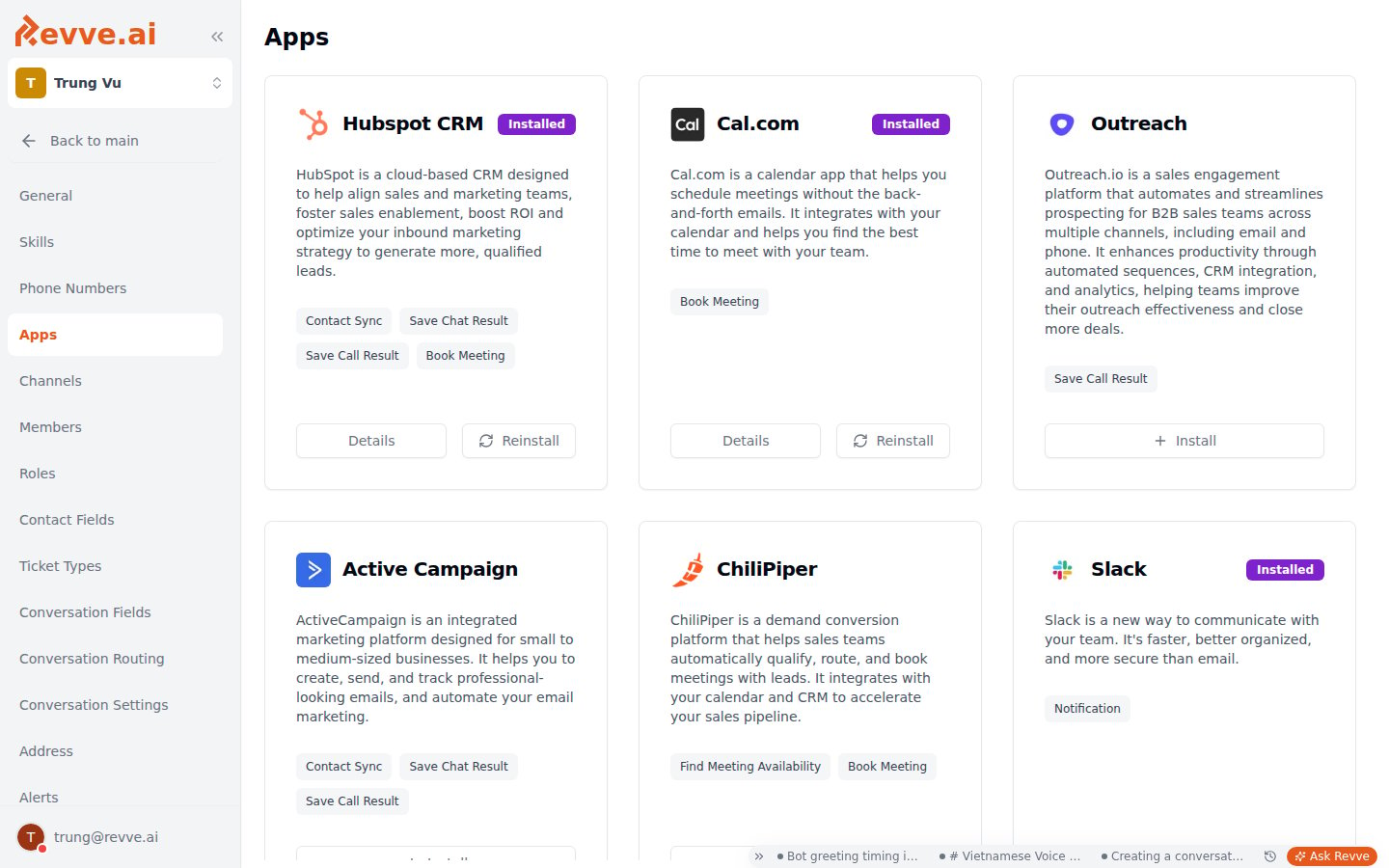 The page is a card grid titled **Apps**. Each card tells you three things at a glance:
1. **What it is** — the app's icon, name, and a short description.
2. **What it can do** — feature pills naming the capabilities the app provides, such as **Book Meeting**. These pills are what matter functionally: they determine where the app surfaces elsewhere in Revve.
3. **Where it stands** — a purple **Installed** badge if your team has connected it, or an amber **Coming Soon** badge if it isn't available yet.
The button on each card follows its state:
| State | Button | What it does |
| --------------------- | ------------- | -------------------------------------------------------------------- |
| Not installed | **Install** | Starts that app's install flow. |
| Installed | **Details** | Opens the app's management page — configurations, profiles, removal. |
| Installed (some apps) | **Reinstall** | Re-runs setup, for apps where reconnecting is supported. |
The catalog is maintained by Revve and grows over time. Apps available today include scheduling platforms (Calendly, Cal.com, ChiliPiper), CRMs (HubSpot, Salesforce, Outreach, ActiveCampaign), and Slack.
## How installing works
Clicking **Install** starts a flow that differs by app, depending on how the provider handles authentication:
* **OAuth redirect** (Calendly) — you'll be redirected to log in, approve permissions, and return to Revve automatically. See [Connecting Calendly](/docs/integrations/connecting-calendly).
* **API-key form** (Cal.com) — you paste an API key generated in the provider's settings.
* **Configuration form** (ChiliPiper) — you enter account details such as tenant, subdomain, and router details.
Some apps support **multiple profiles per team**: Calendly and Cal.com let you connect several calendars side by side — for example a sales calendar and a support calendar — each with its own alias so agents can tell them apart. ChiliPiper and HubSpot are one configuration per team.
## How installed apps power agents
Installing an app is what makes its capability appear in agent configuration. The clearest example is scheduling: any installed app with the **Book Meeting** capability appears in the **Calendar App** selectors across chat agent Schedule Meeting settings, Schedule Meeting flow nodes, and voice agent calendar tools. Those selectors also include an **Install new app** shortcut that opens the Apps page in a new tab — so if the calendar you need isn't listed while building an agent, you're one click from installing it without abandoning your work.
| Category | Apps | What it unlocks |
| ----------------- | --------------------------------------------- | -------------------------------------------------------------------------------------------------------------------------------------------------------------------- |
| **Scheduling** | Calendly, Cal.com, ChiliPiper | Agents check real availability and book meetings on your team's calendars. See [Scheduling & Booking](/docs/integrations/scheduling-and-booking). |
| **CRM** | HubSpot, Salesforce, Outreach, ActiveCampaign | Sync call and chat results and leads to your CRM. CRM apps also appear as read-only "managed" actions in [automation rules](/docs/automations/automation-rules-overview). |
| **Notifications** | Slack | Send team notifications to your Slack workspace. |
There is no Google Calendar integration. To book against a Google Calendar, connect it through one of the scheduling apps (Calendly, Cal.com, or ChiliPiper) and install that app in Revve.
## Managing and removing apps
Everything after install happens on the app's **Details** page:
* **Profile-based apps** (Calendly, Cal.com) — remove individual profiles from the Details page; a confirmation dialog guards against accidental removal. Removing one profile leaves the others connected.
* **OAuth apps** — in addition to removing them in Revve, you can revoke the access token from the provider's own settings, which cuts off access immediately on the provider side.
Before removing a scheduling profile, check which agents use it as their **Calendar App**. An agent pointed at a removed profile can no longer book meetings until you select a replacement.
## What's Next
* [Connecting Calendly](/docs/integrations/connecting-calendly) — the OAuth install flow, step by step.
* [Scheduling & Booking](/docs/integrations/scheduling-and-booking) — how calendar apps wire into chat and voice agents, including Cal.com and ChiliPiper.
The page is a card grid titled **Apps**. Each card tells you three things at a glance:
1. **What it is** — the app's icon, name, and a short description.
2. **What it can do** — feature pills naming the capabilities the app provides, such as **Book Meeting**. These pills are what matter functionally: they determine where the app surfaces elsewhere in Revve.
3. **Where it stands** — a purple **Installed** badge if your team has connected it, or an amber **Coming Soon** badge if it isn't available yet.
The button on each card follows its state:
| State | Button | What it does |
| --------------------- | ------------- | -------------------------------------------------------------------- |
| Not installed | **Install** | Starts that app's install flow. |
| Installed | **Details** | Opens the app's management page — configurations, profiles, removal. |
| Installed (some apps) | **Reinstall** | Re-runs setup, for apps where reconnecting is supported. |
The catalog is maintained by Revve and grows over time. Apps available today include scheduling platforms (Calendly, Cal.com, ChiliPiper), CRMs (HubSpot, Salesforce, Outreach, ActiveCampaign), and Slack.
## How installing works
Clicking **Install** starts a flow that differs by app, depending on how the provider handles authentication:
* **OAuth redirect** (Calendly) — you'll be redirected to log in, approve permissions, and return to Revve automatically. See [Connecting Calendly](/docs/integrations/connecting-calendly).
* **API-key form** (Cal.com) — you paste an API key generated in the provider's settings.
* **Configuration form** (ChiliPiper) — you enter account details such as tenant, subdomain, and router details.
Some apps support **multiple profiles per team**: Calendly and Cal.com let you connect several calendars side by side — for example a sales calendar and a support calendar — each with its own alias so agents can tell them apart. ChiliPiper and HubSpot are one configuration per team.
## How installed apps power agents
Installing an app is what makes its capability appear in agent configuration. The clearest example is scheduling: any installed app with the **Book Meeting** capability appears in the **Calendar App** selectors across chat agent Schedule Meeting settings, Schedule Meeting flow nodes, and voice agent calendar tools. Those selectors also include an **Install new app** shortcut that opens the Apps page in a new tab — so if the calendar you need isn't listed while building an agent, you're one click from installing it without abandoning your work.
| Category | Apps | What it unlocks |
| ----------------- | --------------------------------------------- | -------------------------------------------------------------------------------------------------------------------------------------------------------------------- |
| **Scheduling** | Calendly, Cal.com, ChiliPiper | Agents check real availability and book meetings on your team's calendars. See [Scheduling & Booking](/docs/integrations/scheduling-and-booking). |
| **CRM** | HubSpot, Salesforce, Outreach, ActiveCampaign | Sync call and chat results and leads to your CRM. CRM apps also appear as read-only "managed" actions in [automation rules](/docs/automations/automation-rules-overview). |
| **Notifications** | Slack | Send team notifications to your Slack workspace. |
There is no Google Calendar integration. To book against a Google Calendar, connect it through one of the scheduling apps (Calendly, Cal.com, or ChiliPiper) and install that app in Revve.
## Managing and removing apps
Everything after install happens on the app's **Details** page:
* **Profile-based apps** (Calendly, Cal.com) — remove individual profiles from the Details page; a confirmation dialog guards against accidental removal. Removing one profile leaves the others connected.
* **OAuth apps** — in addition to removing them in Revve, you can revoke the access token from the provider's own settings, which cuts off access immediately on the provider side.
Before removing a scheduling profile, check which agents use it as their **Calendar App**. An agent pointed at a removed profile can no longer book meetings until you select a replacement.
## What's Next
* [Connecting Calendly](/docs/integrations/connecting-calendly) — the OAuth install flow, step by step.
* [Scheduling & Booking](/docs/integrations/scheduling-and-booking) — how calendar apps wire into chat and voice agents, including Cal.com and ChiliPiper.