> ## Documentation Index
> Fetch the complete documentation index at: https://www.revve.ai/docs/llms.txt
> Use this file to discover all available pages before exploring further.
# Build a Voice Agent That Books Appointments Mid-Call
> A complete, copy-paste recipe: a Voice Agent that checks real calendar availability and books an appointment for the caller before the call ends — no callback, no separate booking step.
**What you'll build:** a Voice Agent that, while the caller is still on the line, checks a real calendar for open slots, offers them out loud, and books the appointment the caller picks — all before the call ends. The caller hangs up with a confirmed day and time, not a promise that "someone will call you back."
This recipe illustrates the mechanism with a banking scenario: an inbound caller says "I'd like to speak with someone about a mortgage," and the agent offers to book them onto an advisor's calendar right then. That's an example, not a banking-specific feature — the two tools this recipe uses are generic. Any team with a Calendly, Cal.com, or Chili Piper calendar connected can attach them to any Voice Agent, for any kind of appointment.
Revve has no banking-specific compliance certifications and no built-in advisor-routing or branch logic. Anything in this recipe that sounds bank-specific — "speak with an advisor," "mortgage," "branch" — is scenario dressing you write into the prompt, not a product feature. The calendar-checking and booking tools themselves are generic: they read and write to whatever calendar app your team connects.
**Time:** about 20–30 minutes, assuming you already have a published Voice Agent and a calendar app you can connect.
## Prerequisites
* A published [Voice Agent](/docs/voice-agents/creating-your-first-voice-agent).
* A calendar app connected under **Apps** in the dashboard, on a plan that supports the "book meeting" feature. Pick one:
* **Calendly** — click **Connect Calendly** and complete the OAuth authorization on Calendly's site. No manual fields.
* **Cal.com** — fill in **Alias** (a friendly name, e.g. "\[Advisor Team Calendar]" — useful if you'll connect more than one), **API Key** (click **Validate** before saving), **Event Length (minutes)**, and **Event Type ID**.
* **Chili Piper** — fill in **Tenant ID** and **Subdomain**, then choose a mode with the **Use Routing** toggle: routing mode needs a **Router Slug** and **API Key** (plus an optional **Router Form Mapping** if you want to override the default email/first name/last name mapping); direct-link mode needs an **Owner Booking Link Field** and a **Direct Link Form Mapping**.
If you already have a calendar app connected for another agent, you can reuse it — skip to Step 2.
## Step 1: Confirm your calendar app is connected
Go to **Apps** in the dashboard and check that your Calendly, Cal.com, or Chili Piper connection shows as active. If it isn't there yet, connect it now using the fields above — the two tools you add in the next steps can't do anything without a calendar app behind them.
If you manage appointments for more than one team or branch, consider a separate Cal.com profile (or Chili Piper Router Slug) per team, and a separate pair of tools per Voice Agent. One calendar mixing every team's slots makes it hard to write clean prompt instructions later.
## Step 2: Add the "Check Calendar Availability" tool
Open your Voice Agent, go to **Advanced Settings** → **Tools**. This tab starts empty:
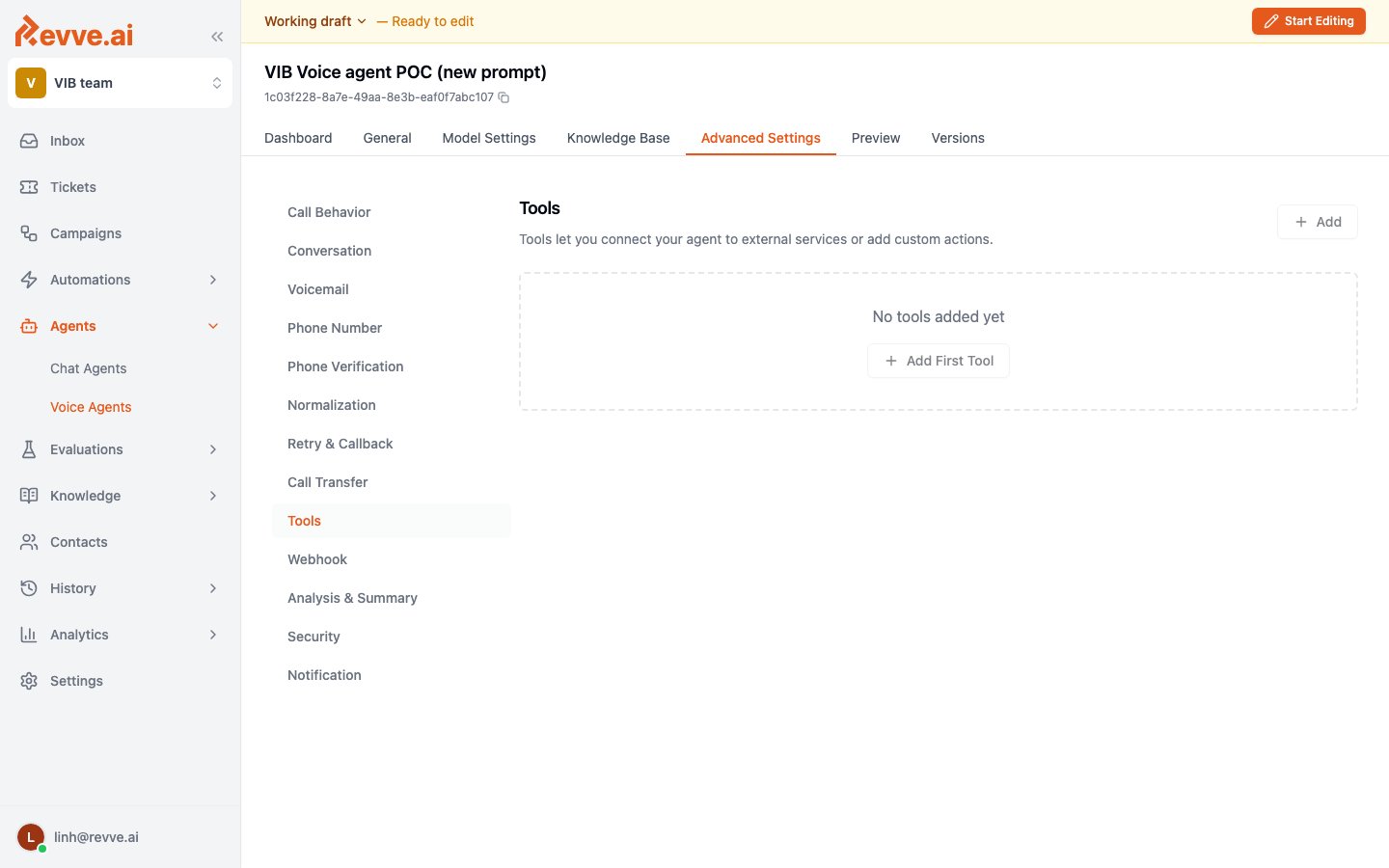 Click **+ Add** (or **+ Add First Tool**) and choose **Check Calendar Availability** from the dropdown. This preset and the one in Step 3 are the only two items specific to Voice Agents — Chat Agents' Tools dropdown doesn't show them, because chat agents book meetings through a different mechanism (a "Schedule Meeting" node in the Conversational Flow builder — see the note at the end of this step).
Configure it:
| Field | Value |
| -------- | --------------------------------------------------------- |
| Name | `CheckAdvisorAvailability` |
| Calendar | \[your connected calendar — e.g. "Advisor Team Calendar"] |
Click **+ Add** (or **+ Add First Tool**) and choose **Check Calendar Availability** from the dropdown. This preset and the one in Step 3 are the only two items specific to Voice Agents — Chat Agents' Tools dropdown doesn't show them, because chat agents book meetings through a different mechanism (a "Schedule Meeting" node in the Conversational Flow builder — see the note at the end of this step).
Configure it:
| Field | Value |
| -------- | --------------------------------------------------------- |
| Name | `CheckAdvisorAvailability` |
| Calendar | \[your connected calendar — e.g. "Advisor Team Calendar"] |
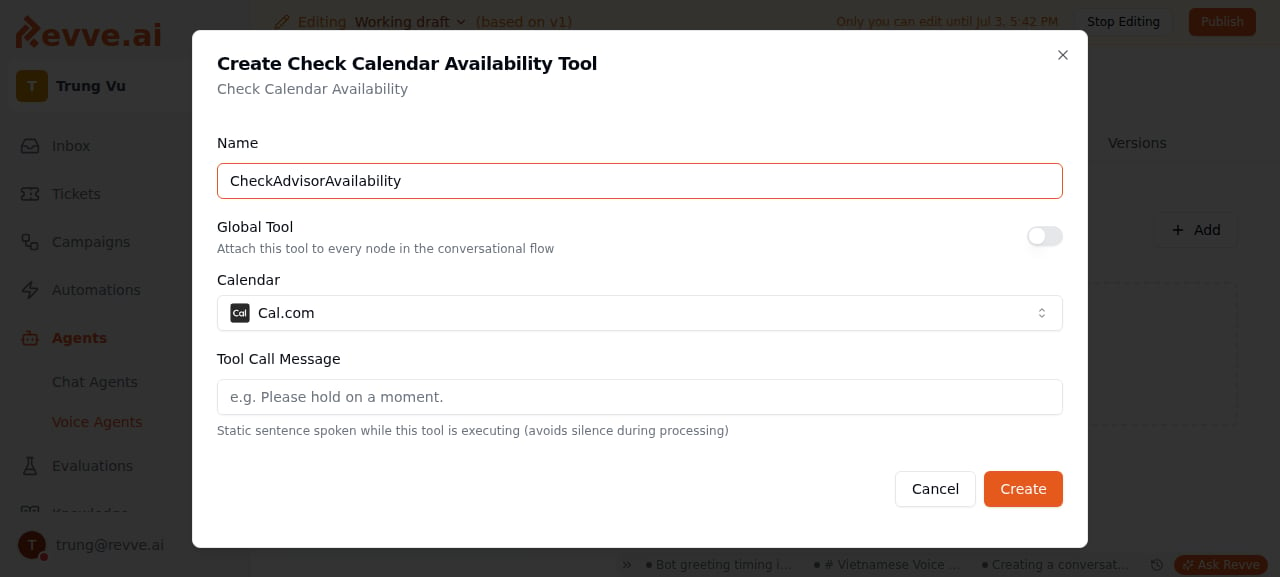 If you selected a Chili Piper calendar, a **Chili Piper Booking Method** field appears: choose **Router** to submit the caller's data before assignment, or **Direct Link** to check availability against the configured user or contact owner link. Router is the better default if you route callers to different advisors by criteria you haven't decided yet on the call; Direct Link is simpler if every call maps to one fixed advisor or link.
The **Name** field can't contain spaces — the UI strips them as you type — because this is the literal name the agent's underlying model uses to call the tool. Use a descriptive, code-like name (`CheckAdvisorAvailability`, not `Check Availability`), and keep it consistent with the name you reference in your System Prompt in Step 4.
Voice Agents can't use the Schedule Meeting flow node that Chat Agents use — even Voice Agents built on the Conversational Flow engine have that node type filtered out of their node picker. These two Tools-tab presets are the only way to attach calendar booking to a Voice Agent. If you've already built the chat-side version of this ([Build a Lead Qualification Agent That Books Meetings](/docs/guides/lead-qualification-agent)), it's the same underlying calendar apps, a different attachment point.
## Step 3: Add the "Book on the Calendar" tool
Still on the **Tools** tab, click **+ Add** again and choose **Book on the Calendar**. Configure it the same way:
| Field | Value |
| -------- | --------------------------------------- |
| Name | `BookAdvisorAppointment` |
| Calendar | \[same calendar you selected in Step 2] |
Point both tools at the same calendar — the agent needs to book into the same place it just checked, or it can end up offering a slot from one calendar and writing the appointment into another. If you chose Chili Piper, set the same **Chili Piper Booking Method** here as you did in Step 2.
## Step 4: Tell the agent when and how to use the tools
Adding the tools makes them available; the agent still needs instructions for when to reach for them and what to say around them. Add this to your System Prompt (Single Prompt engine) or to the Instruction of the node where booking should happen (Conversational Flow engine):
```text theme={null}
If the caller wants to [speak with an advisor / book an appointment /
discuss a mortgage], offer to schedule a time before the call ends.
1. Ask what day or time range works for them (e.g. "this week" or
"Tuesday afternoon").
2. Call `CheckAdvisorAvailability` for that range. Offer the caller 2–3
real open times from the result — never invent or guess a time that
the tool didn't return.
3. Once the caller picks a time, confirm it back to them once before
booking: "So that's [day] at [time] — should I go ahead and book
that?"
4. On a yes, call `BookAdvisorAppointment` with that time. After it
succeeds, restate the confirmed day and time out loud and let them
know [what to expect — e.g. a confirmation email, what to bring].
5. If booking fails or the slot is no longer available, apologize,
call `CheckAdvisorAvailability` again, and offer new times — don't
tell the caller it's booked unless the tool confirms it.
If none of the offered times work for the caller, offer to have
[a team member / the advisor] follow up directly instead of leaving
the call without a next step.
```
Adjust the bracketed parts for your scenario — the tool names here (`CheckAdvisorAvailability`, `BookAdvisorAppointment`) must match exactly what you typed into the **Name** field in Steps 2 and 3.
Step 3 of the instructions — confirming the time back to the caller *before* calling the booking tool — is worth keeping even though it costs one extra conversational turn. It's the difference between the agent booking what it misheard and booking what the caller actually said.
## Test scenarios
Run these from **Preview** before publishing:
| Scenario | Expect |
| ----------------------------------------------------------- | ------------------------------------------------------------------------------------------------------------------------------------------------------------------------------------------------------------------------------------------ |
| Caller asks for an appointment, picks an offered time | Agent proposes 2–3 real available times, confirms the caller's choice, books it, and restates the day and time before the call ends. |
| Caller asks for a time that's already taken | Agent doesn't offer it — only times `CheckAdvisorAvailability` actually returned — and proposes alternatives instead. |
| Caller changes their mind after confirming a time | Agent re-checks availability rather than booking the original time, and confirms the new choice before booking. |
| Caller declines every offered time | Agent falls back to the "have someone follow up" path instead of ending the call with no next step. |
| Booking call fails (e.g. slot taken between check and book) | Agent apologizes, re-checks availability, and does not tell the caller it's booked. |
| Chili Piper: Router vs Direct Link | With Router, availability reflects whatever criteria your Router Form Mapping routes on; with Direct Link, it reflects one fixed user's or contact owner's calendar. Confirm the mode you configured is producing the calendar you expect. |
Fix issues at the field level: wrong or invented times → sharpen the instruction's rule about only offering times the tool returned; booking the wrong calendar → recheck that both tools point at the same **Calendar** value; tool never fires → check the **Name** fields match what the prompt calls, with no spaces.
## Variations
* **Outbound callback booking:** the same two tools work on outbound calls — e.g. a callback campaign where the agent says "I have some times open this week, would any of these work?" instead of waiting for the caller to ask. The prompt instructions from Step 4 apply unchanged.
* **Inside a Campaign:** pair this Voice Agent inside a [Campaign](/docs/campaigns/campaign-overview) the same way [Build a Payment Reminder Campaign](/docs/guides/payment-reminder-campaign) pairs a voice and SMS agent. Note the difference in mechanism: that guide's "Branch appointment reminder" variation *reminds and reschedules* an appointment that already exists (a call now, an SMS fallback later); this recipe *books a brand-new appointment live, during the call itself*. Use this recipe for the booking step, and the campaign guide's pattern if you also want reminder/reschedule follow-up around it.
* **Router vs. Direct Link (Chili Piper):** Router costs one more step (submitting data before assignment) but lets you route callers dynamically; Direct Link is faster to set up and simpler to reason about, but ties every booking to one fixed link. Start with Direct Link for a single advisor or team; move to Router once you need the agent to route by criteria it learns during the call.
## What's Next
* [Voice Agent Settings](/docs/voice-agents/voice-agent-settings) — every setting on the tabs this recipe touches, including the rest of what the Tools row can do.
* [What Is a Voice Agent?](/docs/voice-agents/what-is-a-voice-agent) — the concepts behind Voice Agents if you're new to them.
* [Build a Lead Qualification Agent That Books Meetings](/docs/guides/lead-qualification-agent) — the chat-side equivalent, using the same calendar apps through the Schedule Meeting flow node.
If you selected a Chili Piper calendar, a **Chili Piper Booking Method** field appears: choose **Router** to submit the caller's data before assignment, or **Direct Link** to check availability against the configured user or contact owner link. Router is the better default if you route callers to different advisors by criteria you haven't decided yet on the call; Direct Link is simpler if every call maps to one fixed advisor or link.
The **Name** field can't contain spaces — the UI strips them as you type — because this is the literal name the agent's underlying model uses to call the tool. Use a descriptive, code-like name (`CheckAdvisorAvailability`, not `Check Availability`), and keep it consistent with the name you reference in your System Prompt in Step 4.
Voice Agents can't use the Schedule Meeting flow node that Chat Agents use — even Voice Agents built on the Conversational Flow engine have that node type filtered out of their node picker. These two Tools-tab presets are the only way to attach calendar booking to a Voice Agent. If you've already built the chat-side version of this ([Build a Lead Qualification Agent That Books Meetings](/docs/guides/lead-qualification-agent)), it's the same underlying calendar apps, a different attachment point.
## Step 3: Add the "Book on the Calendar" tool
Still on the **Tools** tab, click **+ Add** again and choose **Book on the Calendar**. Configure it the same way:
| Field | Value |
| -------- | --------------------------------------- |
| Name | `BookAdvisorAppointment` |
| Calendar | \[same calendar you selected in Step 2] |
Point both tools at the same calendar — the agent needs to book into the same place it just checked, or it can end up offering a slot from one calendar and writing the appointment into another. If you chose Chili Piper, set the same **Chili Piper Booking Method** here as you did in Step 2.
## Step 4: Tell the agent when and how to use the tools
Adding the tools makes them available; the agent still needs instructions for when to reach for them and what to say around them. Add this to your System Prompt (Single Prompt engine) or to the Instruction of the node where booking should happen (Conversational Flow engine):
```text theme={null}
If the caller wants to [speak with an advisor / book an appointment /
discuss a mortgage], offer to schedule a time before the call ends.
1. Ask what day or time range works for them (e.g. "this week" or
"Tuesday afternoon").
2. Call `CheckAdvisorAvailability` for that range. Offer the caller 2–3
real open times from the result — never invent or guess a time that
the tool didn't return.
3. Once the caller picks a time, confirm it back to them once before
booking: "So that's [day] at [time] — should I go ahead and book
that?"
4. On a yes, call `BookAdvisorAppointment` with that time. After it
succeeds, restate the confirmed day and time out loud and let them
know [what to expect — e.g. a confirmation email, what to bring].
5. If booking fails or the slot is no longer available, apologize,
call `CheckAdvisorAvailability` again, and offer new times — don't
tell the caller it's booked unless the tool confirms it.
If none of the offered times work for the caller, offer to have
[a team member / the advisor] follow up directly instead of leaving
the call without a next step.
```
Adjust the bracketed parts for your scenario — the tool names here (`CheckAdvisorAvailability`, `BookAdvisorAppointment`) must match exactly what you typed into the **Name** field in Steps 2 and 3.
Step 3 of the instructions — confirming the time back to the caller *before* calling the booking tool — is worth keeping even though it costs one extra conversational turn. It's the difference between the agent booking what it misheard and booking what the caller actually said.
## Test scenarios
Run these from **Preview** before publishing:
| Scenario | Expect |
| ----------------------------------------------------------- | ------------------------------------------------------------------------------------------------------------------------------------------------------------------------------------------------------------------------------------------ |
| Caller asks for an appointment, picks an offered time | Agent proposes 2–3 real available times, confirms the caller's choice, books it, and restates the day and time before the call ends. |
| Caller asks for a time that's already taken | Agent doesn't offer it — only times `CheckAdvisorAvailability` actually returned — and proposes alternatives instead. |
| Caller changes their mind after confirming a time | Agent re-checks availability rather than booking the original time, and confirms the new choice before booking. |
| Caller declines every offered time | Agent falls back to the "have someone follow up" path instead of ending the call with no next step. |
| Booking call fails (e.g. slot taken between check and book) | Agent apologizes, re-checks availability, and does not tell the caller it's booked. |
| Chili Piper: Router vs Direct Link | With Router, availability reflects whatever criteria your Router Form Mapping routes on; with Direct Link, it reflects one fixed user's or contact owner's calendar. Confirm the mode you configured is producing the calendar you expect. |
Fix issues at the field level: wrong or invented times → sharpen the instruction's rule about only offering times the tool returned; booking the wrong calendar → recheck that both tools point at the same **Calendar** value; tool never fires → check the **Name** fields match what the prompt calls, with no spaces.
## Variations
* **Outbound callback booking:** the same two tools work on outbound calls — e.g. a callback campaign where the agent says "I have some times open this week, would any of these work?" instead of waiting for the caller to ask. The prompt instructions from Step 4 apply unchanged.
* **Inside a Campaign:** pair this Voice Agent inside a [Campaign](/docs/campaigns/campaign-overview) the same way [Build a Payment Reminder Campaign](/docs/guides/payment-reminder-campaign) pairs a voice and SMS agent. Note the difference in mechanism: that guide's "Branch appointment reminder" variation *reminds and reschedules* an appointment that already exists (a call now, an SMS fallback later); this recipe *books a brand-new appointment live, during the call itself*. Use this recipe for the booking step, and the campaign guide's pattern if you also want reminder/reschedule follow-up around it.
* **Router vs. Direct Link (Chili Piper):** Router costs one more step (submitting data before assignment) but lets you route callers dynamically; Direct Link is faster to set up and simpler to reason about, but ties every booking to one fixed link. Start with Direct Link for a single advisor or team; move to Router once you need the agent to route by criteria it learns during the call.
## What's Next
* [Voice Agent Settings](/docs/voice-agents/voice-agent-settings) — every setting on the tabs this recipe touches, including the rest of what the Tools row can do.
* [What Is a Voice Agent?](/docs/voice-agents/what-is-a-voice-agent) — the concepts behind Voice Agents if you're new to them.
* [Build a Lead Qualification Agent That Books Meetings](/docs/guides/lead-qualification-agent) — the chat-side equivalent, using the same calendar apps through the Schedule Meeting flow node.