> ## Documentation Index
> Fetch the complete documentation index at: https://www.revve.ai/docs/llms.txt
> Use this file to discover all available pages before exploring further.
# Roles & Permissions
> How team-level role-based access control works in Revve — default roles, the permission catalog, custom roles, and how members and invitations are managed.
Every Revve team has its own role-based access control (RBAC): a set of **roles**, each holding a subset of a fixed **permission catalog**, assigned to **members**. This page documents team-level RBAC — what a Revve customer's own team members can do inside their team, configured under **Settings → Roles** and **Settings → Members**.
This page covers permissions and role management. The separate approve/decline flow for publishing agents and campaigns is documented in [Publish Approval Workflow](/docs/governance-access/publish-approval-workflow).
## How it works
1. Every new team gets two protected default roles automatically: **admin** and **member**.
2. Each role holds a subset of 13 permissions — anyone with the **Manage Settings** permission can create additional custom roles with any name and any combination of permissions.
3. Members are added to the team by email invite or, on teams with direct-add enabled, immediately by email lookup — each is assigned exactly one role.
4. Permission checks run server-side, on the specific action being taken, not just as UI visibility rules.
5. Members can also be assigned to **Groups**, a separate mechanism used only for routing conversations — groups carry no permissions.
## Default roles
Every team is provisioned with two roles it cannot delete or rename away:
| Role | Permissions |
| ---------- | ----------------------------------------------------------------------------------------------------------------------------------------------------------------------- |
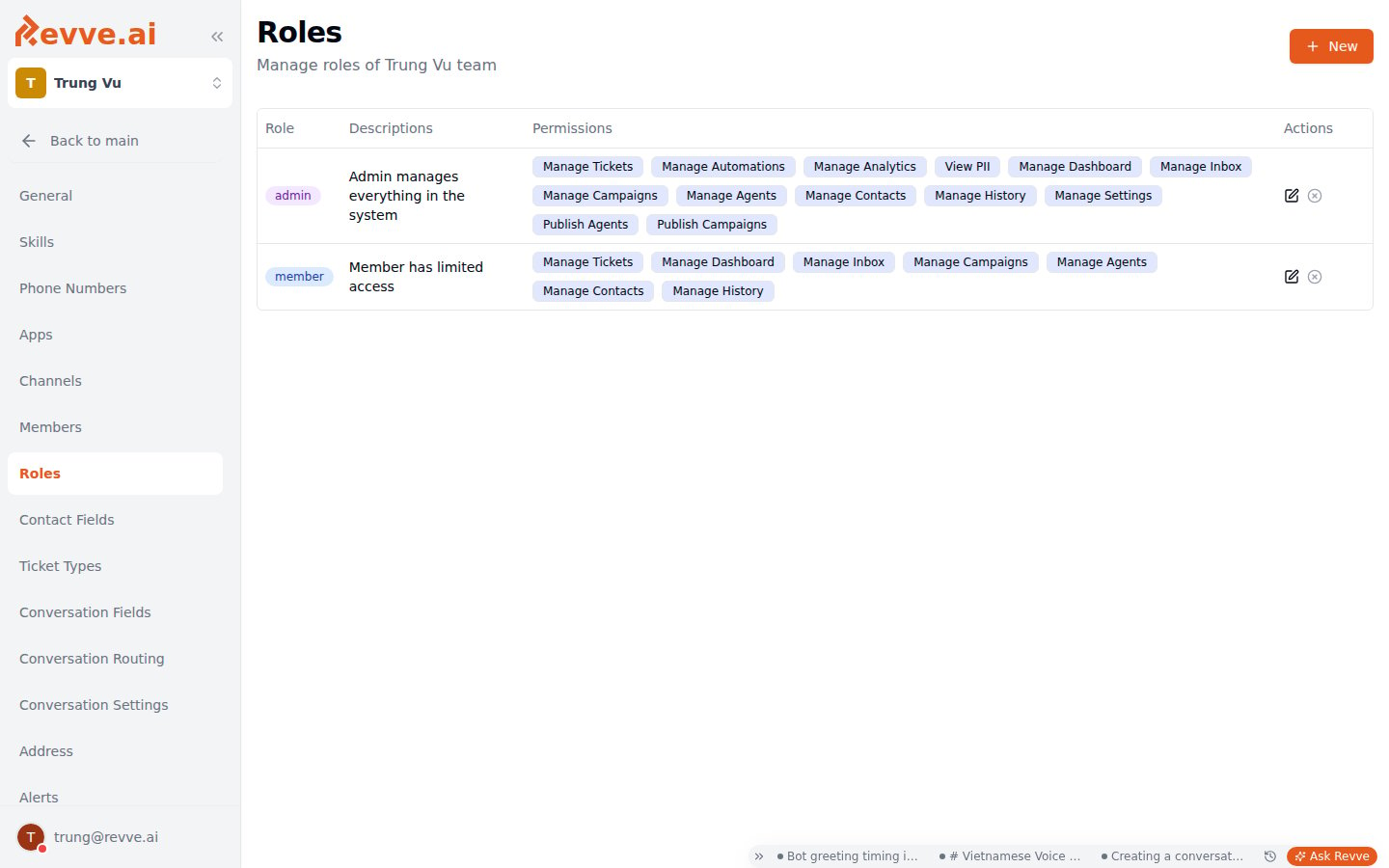
| **admin** | All 13 permissions in the catalog. |
| **member** | **Manage Dashboard**, **Manage Inbox**, **Manage Tickets**, **Manage Campaigns**, **Manage Agents**, **Manage Contacts**, **Manage History** — 7 of the 13 permissions. |
In practice, **member** covers day-to-day work across the dashboard, inbox, tickets, campaigns, agents, contacts, and history — but a member can't manage automations, view analytics, change team settings, see unmasked PII, or publish an agent or campaign draft directly (**Manage Automations**, **Manage Analytics**, **Manage Settings**, **View PII**, **Publish Agents**, and **Publish Campaigns** are all admin-only by default). Getting those requires the **admin** role or a custom role that grants the relevant permission.
The **admin** and **member** rows in the roles table have their delete action disabled — the server also rejects the request with `"Cannot delete admin or member roles."` if it's attempted directly.
 ## The permission catalog
There are 13 permissions. Every role — default or custom — is defined as some subset of this list.
| Permission | Unlocks |
| ---------------------- | -------------------------------------------------------------------------------------------------------------------------------- |
| **Manage Dashboard** | Access to the team's dashboard. |
| **Manage Inbox** | Access to the Inbox — viewing and handling conversations. |
| **Manage Tickets** | Viewing, creating, and managing support tickets. |
| **Manage Campaigns** | Creating and editing campaigns. |
| **Manage Agents** | Creating and editing voice and chat agents. |
| **Manage Contacts** | Creating and editing contacts. |
| **Manage History** | Access to call/message history. |
| **Manage Settings** | Managing team settings, roles, and members — this is the permission that lets someone create custom roles or invite/add members. |
| **Manage Automations** | Creating and editing automations. |
| **Manage Analytics** | Viewing system overview and AI & human agent analytics. |
| **View PII** | Viewing unmasked PII data (elsewhere in the dashboard, PII is masked by default). |
| **Publish Agents** | Publishing agent drafts (voice or chat) directly, without going through the approval flow. |
| **Publish Campaigns** | Publishing campaign drafts directly, without going through the approval flow. |
Members who hold **Manage Campaigns** or **Manage Agents** but not **Publish Campaigns** / **Publish Agents** can still build and edit drafts — they just can't make the draft live themselves. Their only path to production is submitting the draft for review, per [Publish Approval Workflow](/docs/governance-access/publish-approval-workflow). This is the mechanic behind the review step in [Campaign Overview](/docs/campaigns/campaign-overview): "Team members without publish permission submit drafts for review; a reviewer approves or declines." The draft/publish mechanics themselves — independent of who's allowed to press the button — follow the same pattern across all three resource types but are implemented and documented separately: [Publishing & Versioning](/docs/getting-started/publishing-and-versioning) for chat agents, [Campaign Versioning](/docs/campaigns/campaign-versioning) for campaigns, and [Voice Agent Versioning](/docs/voice-agents/voice-agent-versioning) for voice agents.
## Custom roles
Any member holding **Manage Settings** can create a role with an arbitrary name, description, and any combination of the 13 permissions above.
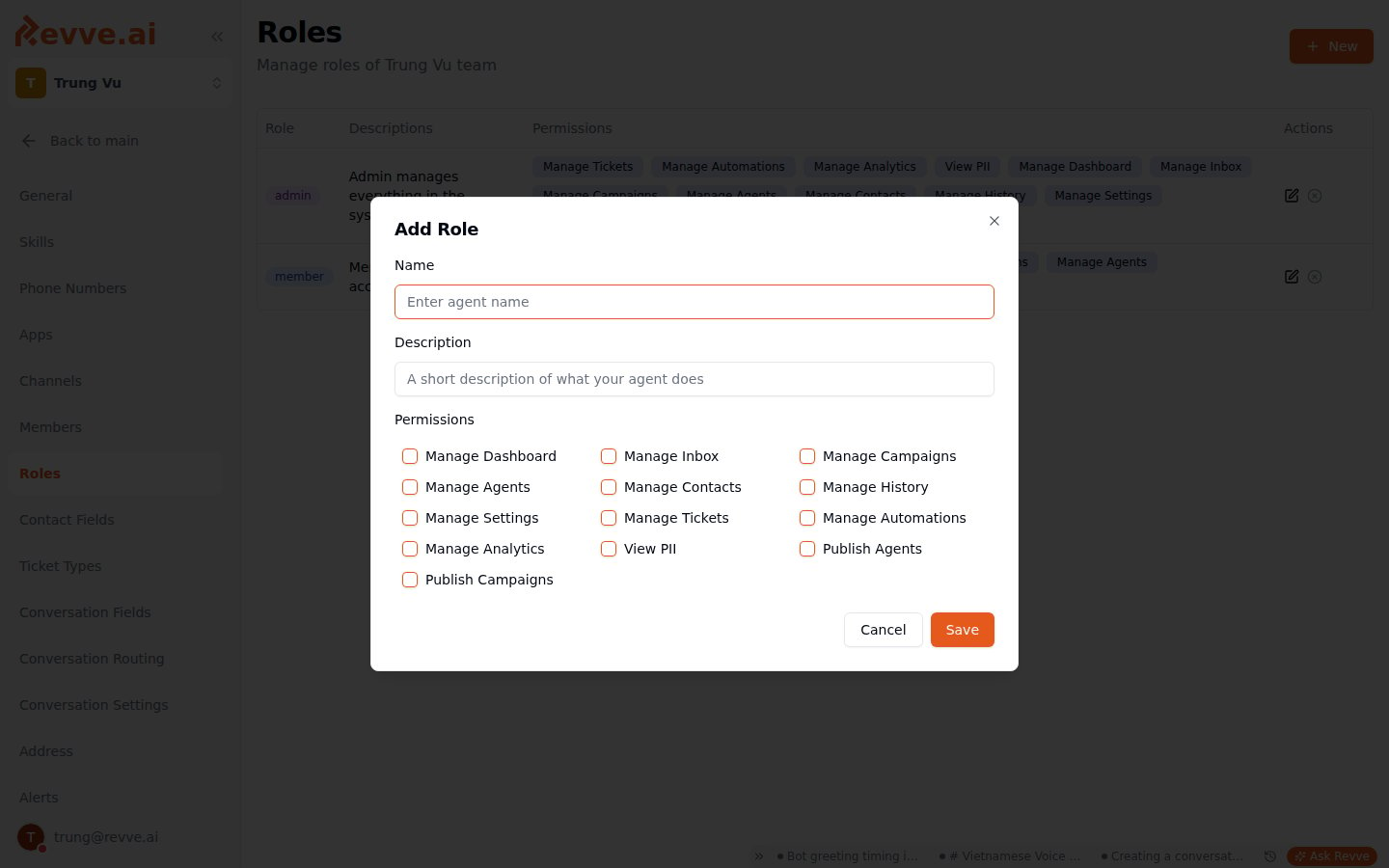
To create one, go to **Settings → Roles** and click **New**. This opens the **Add Role** dialog:
* **Name** — free text, must be unique within the team.
* **Description** — free text.
* **Permissions** — a checkbox grid, one box per permission; check any combination.
Save creates the role; editing an existing custom role reuses the same dialog, titled **Edit Role**.
## The permission catalog
There are 13 permissions. Every role — default or custom — is defined as some subset of this list.
| Permission | Unlocks |
| ---------------------- | -------------------------------------------------------------------------------------------------------------------------------- |
| **Manage Dashboard** | Access to the team's dashboard. |
| **Manage Inbox** | Access to the Inbox — viewing and handling conversations. |
| **Manage Tickets** | Viewing, creating, and managing support tickets. |
| **Manage Campaigns** | Creating and editing campaigns. |
| **Manage Agents** | Creating and editing voice and chat agents. |
| **Manage Contacts** | Creating and editing contacts. |
| **Manage History** | Access to call/message history. |
| **Manage Settings** | Managing team settings, roles, and members — this is the permission that lets someone create custom roles or invite/add members. |
| **Manage Automations** | Creating and editing automations. |
| **Manage Analytics** | Viewing system overview and AI & human agent analytics. |
| **View PII** | Viewing unmasked PII data (elsewhere in the dashboard, PII is masked by default). |
| **Publish Agents** | Publishing agent drafts (voice or chat) directly, without going through the approval flow. |
| **Publish Campaigns** | Publishing campaign drafts directly, without going through the approval flow. |
Members who hold **Manage Campaigns** or **Manage Agents** but not **Publish Campaigns** / **Publish Agents** can still build and edit drafts — they just can't make the draft live themselves. Their only path to production is submitting the draft for review, per [Publish Approval Workflow](/docs/governance-access/publish-approval-workflow). This is the mechanic behind the review step in [Campaign Overview](/docs/campaigns/campaign-overview): "Team members without publish permission submit drafts for review; a reviewer approves or declines." The draft/publish mechanics themselves — independent of who's allowed to press the button — follow the same pattern across all three resource types but are implemented and documented separately: [Publishing & Versioning](/docs/getting-started/publishing-and-versioning) for chat agents, [Campaign Versioning](/docs/campaigns/campaign-versioning) for campaigns, and [Voice Agent Versioning](/docs/voice-agents/voice-agent-versioning) for voice agents.
## Custom roles
Any member holding **Manage Settings** can create a role with an arbitrary name, description, and any combination of the 13 permissions above.
To create one, go to **Settings → Roles** and click **New**. This opens the **Add Role** dialog:
* **Name** — free text, must be unique within the team.
* **Description** — free text.
* **Permissions** — a checkbox grid, one box per permission; check any combination.
Save creates the role; editing an existing custom role reuses the same dialog, titled **Edit Role**.
 Deleting a custom role prompts a confirmation dialog: *"This action cannot be undone. This will permanently delete role **`{role name}`**."* Members currently holding a deleted role lose its permissions immediately.
Use custom roles to hand out publish rights narrowly. For example, a **Campaign Reviewer** role with every campaign-related permission plus **Publish Campaigns**, but without **Manage Settings** — someone who can approve and ship campaigns but can't touch team configuration or other members' access.
## How permissions are enforced
This matters for a security review, so it's worth being precise about the mechanism rather than just the labels.
Two separate checks are involved in every authorized request:
1. **Team membership.** Every route and service-layer query that bypasses row-level security is gated by a team-membership check — it confirms the requesting user belongs to the team, and nothing more. This is the baseline authorization gate; it does not know or care what role or permissions the user has.
2. **Permission grant.** Routes that guard a specific sensitive action separately check whether the user's current role grants the named permission, via a real-time database join across the team's roles, role-permission assignments, and the permission catalog. For example, the endpoints that approve or decline a publish request each check for **Publish Campaigns** (or **Publish Agents**) before proceeding, and return HTTP 403 with `"You do not have permission to approve publish requests"` (or `"...decline..."`) if the check fails.
The practical implication: **permission enforcement happens at the database/service layer on the actions that need it — not merely by hiding buttons in the UI.** The dashboard does hide controls a member's role doesn't grant, but that's a UX convenience layered on top of a real server-side check for the actions that matter (publishing, approving, declining, and similar). A member who lacked **Publish Campaigns** could not force the action through by calling the underlying route directly — the server rejects it independently of what the UI shows.
Underneath, a role's permissions come from data, not code: each role in a team is a row with a name and description, permissions are a fixed global catalog, and a join table maps which permissions each role has. A member's current role is what's checked at request time — changing a member's role (or a role's permissions) takes effect on their next action, without requiring re-login.
## Members
**Settings → Members** lists everyone on the team and lets admins manage who's on it and what role they hold.
Deleting a custom role prompts a confirmation dialog: *"This action cannot be undone. This will permanently delete role **`{role name}`**."* Members currently holding a deleted role lose its permissions immediately.
Use custom roles to hand out publish rights narrowly. For example, a **Campaign Reviewer** role with every campaign-related permission plus **Publish Campaigns**, but without **Manage Settings** — someone who can approve and ship campaigns but can't touch team configuration or other members' access.
## How permissions are enforced
This matters for a security review, so it's worth being precise about the mechanism rather than just the labels.
Two separate checks are involved in every authorized request:
1. **Team membership.** Every route and service-layer query that bypasses row-level security is gated by a team-membership check — it confirms the requesting user belongs to the team, and nothing more. This is the baseline authorization gate; it does not know or care what role or permissions the user has.
2. **Permission grant.** Routes that guard a specific sensitive action separately check whether the user's current role grants the named permission, via a real-time database join across the team's roles, role-permission assignments, and the permission catalog. For example, the endpoints that approve or decline a publish request each check for **Publish Campaigns** (or **Publish Agents**) before proceeding, and return HTTP 403 with `"You do not have permission to approve publish requests"` (or `"...decline..."`) if the check fails.
The practical implication: **permission enforcement happens at the database/service layer on the actions that need it — not merely by hiding buttons in the UI.** The dashboard does hide controls a member's role doesn't grant, but that's a UX convenience layered on top of a real server-side check for the actions that matter (publishing, approving, declining, and similar). A member who lacked **Publish Campaigns** could not force the action through by calling the underlying route directly — the server rejects it independently of what the UI shows.
Underneath, a role's permissions come from data, not code: each role in a team is a row with a name and description, permissions are a fixed global catalog, and a join table maps which permissions each role has. A member's current role is what's checked at request time — changing a member's role (or a role's permissions) takes effect on their next action, without requiring re-login.
## Members
**Settings → Members** lists everyone on the team and lets admins manage who's on it and what role they hold.
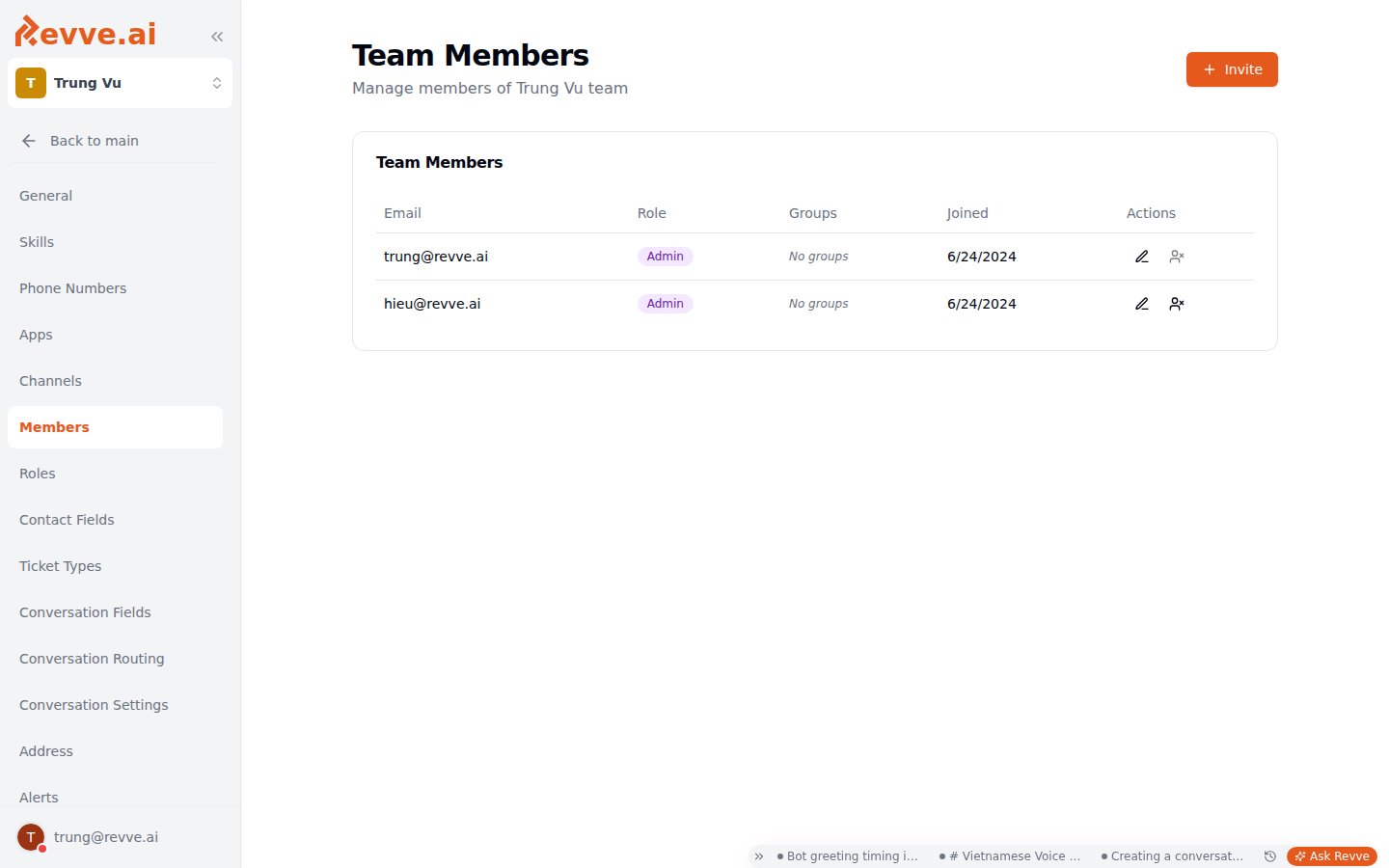 Two tables:
| Table | Columns | Shown when |
| ----------------------- | ------------------------------------ | ------------------------------------------------- |
| **Team Members** | Email, Role, Groups, Joined, Actions | Always. |
| **Pending Invitations** | Email, Role, Sent, Actions | Only when at least one invitation is outstanding. |
### Adding a member: invite vs. direct add
There are two distinct ways to get someone onto the team, and only admins can do either:
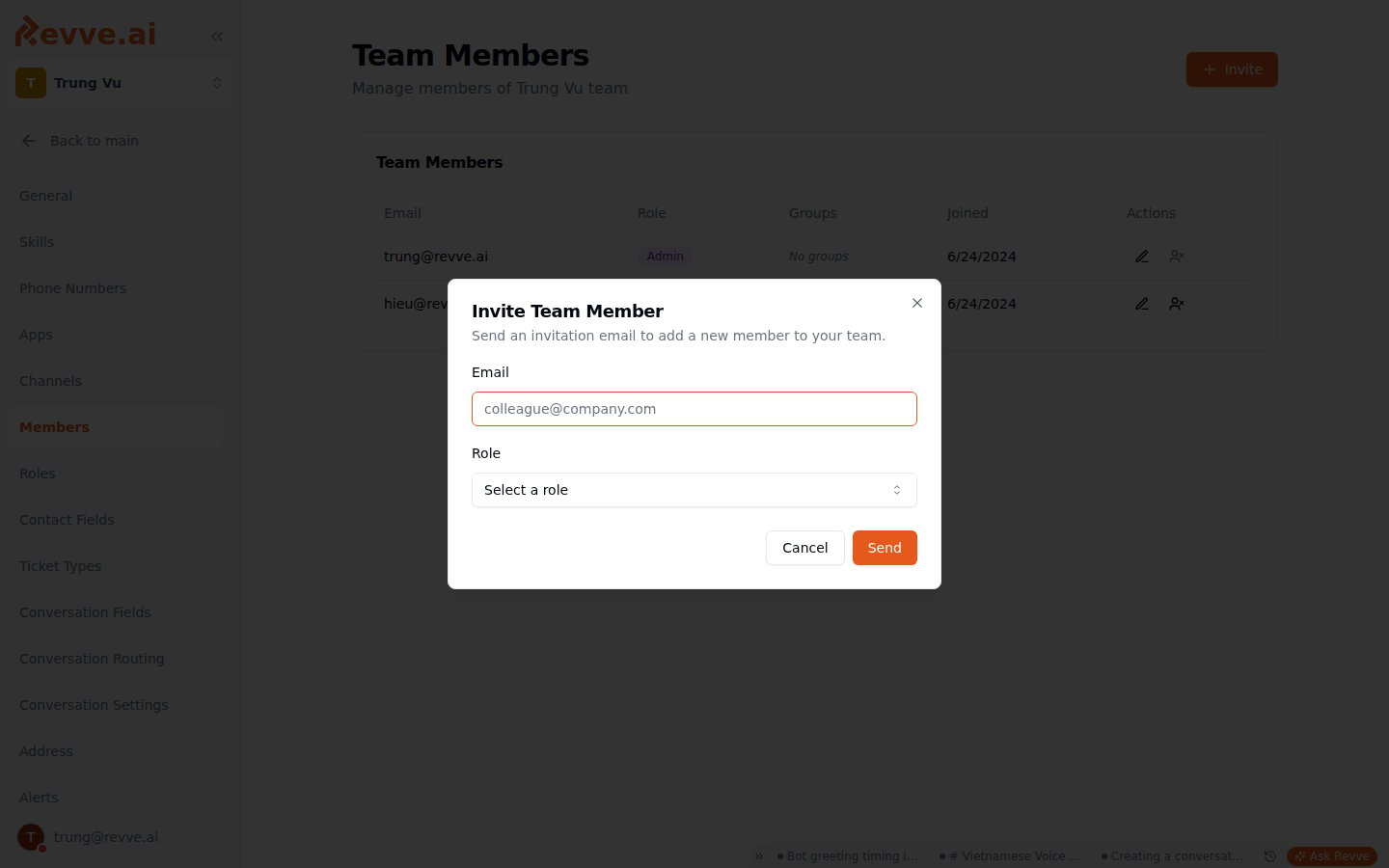
**Email invite** (the default, always available): collects **Email** and **Role**. Submitting creates a pending invitation valid for **48 hours** and sends the invitee an email with an accept link. The person doesn't join the team until they click through and accept — until then, they show up in **Pending Invitations**, not **Team Members**.
**Direct add** (only available on teams with direct-add mode enabled): collects **Email**, **Role**, and optionally **Group Assignments**. Submitting looks up an existing Supabase-auth user by that email and adds them to the team immediately — no invitation email, no accept step. Direct add does not create a new user account: the person must already have a Revve account under that exact email, or the lookup fails.
The header button reflects which mode is active — it reads **Add Member** when direct-add is on, or **Invite** otherwise. Both open the same dialog shape, titled **Add Team Member** or **Invite Team Member** respectively; the footer button reads **Add Member** or **Send** (with loading states "Adding..." / "Sending...").
Two tables:
| Table | Columns | Shown when |
| ----------------------- | ------------------------------------ | ------------------------------------------------- |
| **Team Members** | Email, Role, Groups, Joined, Actions | Always. |
| **Pending Invitations** | Email, Role, Sent, Actions | Only when at least one invitation is outstanding. |
### Adding a member: invite vs. direct add
There are two distinct ways to get someone onto the team, and only admins can do either:
**Email invite** (the default, always available): collects **Email** and **Role**. Submitting creates a pending invitation valid for **48 hours** and sends the invitee an email with an accept link. The person doesn't join the team until they click through and accept — until then, they show up in **Pending Invitations**, not **Team Members**.
**Direct add** (only available on teams with direct-add mode enabled): collects **Email**, **Role**, and optionally **Group Assignments**. Submitting looks up an existing Supabase-auth user by that email and adds them to the team immediately — no invitation email, no accept step. Direct add does not create a new user account: the person must already have a Revve account under that exact email, or the lookup fails.
The header button reflects which mode is active — it reads **Add Member** when direct-add is on, or **Invite** otherwise. Both open the same dialog shape, titled **Add Team Member** or **Invite Team Member** respectively; the footer button reads **Add Member** or **Send** (with loading states "Adding..." / "Sending...").
 ### Editing and removing members
Clicking a member's row action opens the **Edit member** dialog: **Role** (a dropdown — disabled if the member's current role is `admin`, so you can't demote an admin from this dialog) and **Group Assignments**. **Save Changes** applies the update.
Removing a member opens a **Remove Team Member** confirmation showing their email and role. The dialog blocks the removal, with a warning banner, if the member is the team's **last admin** — a team can never be left without at least one admin through this flow.
## Groups: routing, not access control
Groups are a separate, lightweight concept from roles — don't conflate the two:
* A member's **role** governs what they're allowed to do (the permission catalog above).
* A member's **groups** govern which conversations get routed to them. Groups carry no permissions of their own and aren't sub-teams.
Groups are created inline: in the **Group Assignments** field of the add/edit member dialogs (direct-add mode only), type a new name to create a group on the fly, or pick from existing ones. The UI frames this plainly as routing: *"Assign groups to help route conversations to this member"* / *"Groups help route conversations to the right team members."*
Because groups are independent of roles, a member can belong to any number of groups regardless of what their role permits, and changing someone's group assignments has no effect on what actions they can perform.
## What's Next
* [Publish Approval Workflow](/docs/governance-access/publish-approval-workflow) — how the **Publish Agents** / **Publish Campaigns** permissions gate requesting, approving, declining, and canceling a publish.
* [Publishing & Versioning](/docs/getting-started/publishing-and-versioning) — the draft/publish mechanics that publish permissions and approvals sit on top of.
### Editing and removing members
Clicking a member's row action opens the **Edit member** dialog: **Role** (a dropdown — disabled if the member's current role is `admin`, so you can't demote an admin from this dialog) and **Group Assignments**. **Save Changes** applies the update.
Removing a member opens a **Remove Team Member** confirmation showing their email and role. The dialog blocks the removal, with a warning banner, if the member is the team's **last admin** — a team can never be left without at least one admin through this flow.
## Groups: routing, not access control
Groups are a separate, lightweight concept from roles — don't conflate the two:
* A member's **role** governs what they're allowed to do (the permission catalog above).
* A member's **groups** govern which conversations get routed to them. Groups carry no permissions of their own and aren't sub-teams.
Groups are created inline: in the **Group Assignments** field of the add/edit member dialogs (direct-add mode only), type a new name to create a group on the fly, or pick from existing ones. The UI frames this plainly as routing: *"Assign groups to help route conversations to this member"* / *"Groups help route conversations to the right team members."*
Because groups are independent of roles, a member can belong to any number of groups regardless of what their role permits, and changing someone's group assignments has no effect on what actions they can perform.
## What's Next
* [Publish Approval Workflow](/docs/governance-access/publish-approval-workflow) — how the **Publish Agents** / **Publish Campaigns** permissions gate requesting, approving, declining, and canceling a publish.
* [Publishing & Versioning](/docs/getting-started/publishing-and-versioning) — the draft/publish mechanics that publish permissions and approvals sit on top of.