> ## Documentation Index
> Fetch the complete documentation index at: https://www.revve.ai/docs/llms.txt
> Use this file to discover all available pages before exploring further.
# TikTok Channel Setup
> For workspace admins and agent builders: connect a TikTok Business account and put a chat agent on TikTok Direct Messages.
Connect your TikTok Business account to Revve and your chat agent answers TikTok Direct Messages automatically. This guide walks through connecting the account, assigning it to an agent, and keeping the connection healthy.
The TikTok channel handles **Direct Messages only**. Inbound text and image DMs reach your agent — image content is read via text extraction, so the AI can answer a photo of a receipt or a screenshot. Other message types (such as video) are logged in the conversation but not answered. Comments, mentions, and video interactions on your content are not processed, and the agent's replies are always text.
***
## Prerequisites
* A **TikTok Business account**. The connection uses TikTok's Business API, so a personal TikTok account won't work — convert it to a Business account in the TikTok app first.
* Permission to manage channels in your Revve workspace.
***
## Step 1: Connect your TikTok account
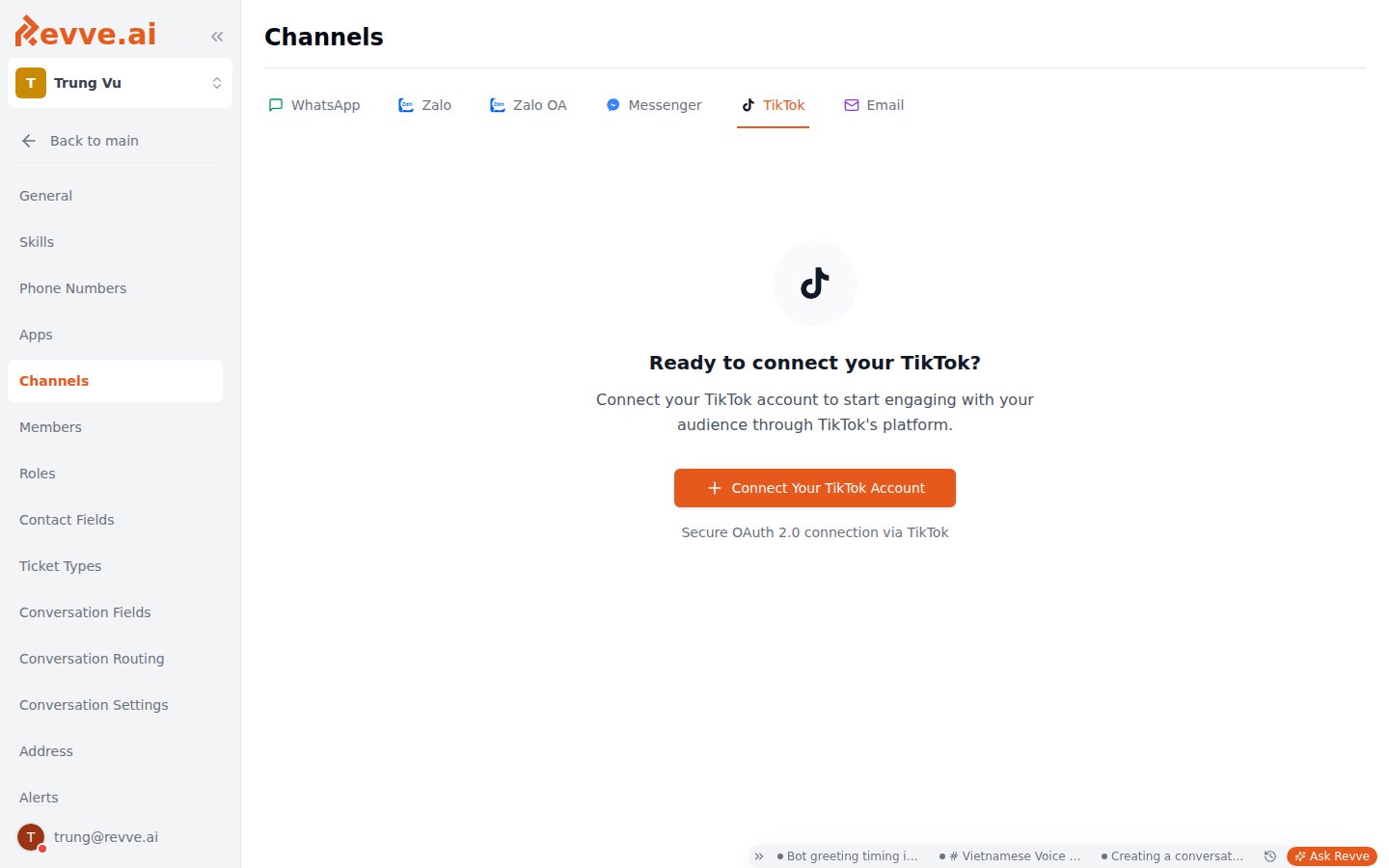
1. Go to **Settings → Channels** and open the **TikTok** tab.
2. If nothing is connected yet, you'll see the empty state — "Ready to connect your TikTok?" Click **Connect Your TikTok Account** (a secure OAuth 2.0 connection via TikTok).
 3\. TikTok's authorization page opens in a new tab. Sign in with your TikTok Business account and approve the requested permissions.
4\. You're returned to the Channels page with a "Channel connected successfully" toast.
Make sure you're logged into the correct TikTok Business account in your browser before starting the flow. If several people manage your TikTok presence, connect the account that actually receives customer DMs.
Once at least one account is connected, an **Add TikTok Account** button lets you connect more — useful when you run separate TikTok accounts per brand or market.
### What a connected account shows
Each connected account appears as a card on the TikTok tab:
| Field | What it tells you |
| --------------- | ------------------------------------------------------------------------------------------------------------------------- |
| Display name | The account's TikTok display name. |
| Status badge | Connection health — a healthy account shows as connected; see [Staying connected](#staying-connected) for expired states. |
| **Username** | The @handle, so you can tell similar accounts apart. |
| **Business ID** | TikTok's identifier for the business account. |
| **Connected** | When the account was connected or last reconnected. |
***
## Step 2: Put a chat agent on the account
A connected TikTok account does nothing until an agent is assigned to it.
1. Create a chat agent with Channel Type **TikTok**, or open an existing TikTok agent's Channel settings. New to chat agents? Start with [Creating your first chat agent](/docs/getting-started/creating-your-first-chat-agent).
2. In the **TikTok Account** dropdown, pick the connected account the agent should answer for. If the account you need isn't listed, the **Connect new account** shortcut takes you back to **Settings → Channels**.
3. Configure the agent's prompt, knowledge base, and languages as usual, then publish.
From then on, DMs sent to that TikTok account are routed to the agent, and its text replies go back to the user in the same conversation.
### Optional: collect ratings after conversations
**Social Feedback**, in the agent's Advanced Settings, asks users for a rating when a conversation ends on TikTok (and other social channels), and sends a follow-up when the rating is at or below the threshold you set. See [Chat agent advanced settings](/docs/general-configuration/chat-agent-advanced-settings).
***
## Staying connected
Access tokens refresh automatically — day to day you don't need to do anything. The longer-lived authorization TikTok grants does expire, though:
* **Before expiry:** if Channel Alerts are enabled, Revve emails a reconnect warning ("expires in N days — reconnect to avoid service interruption"). Enable alerts in [Workspace settings](/docs/administration/workspace-settings) so this doesn't catch you off guard.
* **After expiry:** the account card shows **Disconnected**, and the agent stops receiving DMs. Click **Reconnect** on the card to re-run the OAuth flow and restore service.
***
## Troubleshooting
| Symptom | Cause and fix |
| ----------------------------------------------------------------------------------------- | --------------------------------------------------------------------------------------------------------------------------------------------------------- |
| "Permission denied. Please authorize the app to connect your TikTok account." | You declined the authorization on TikTok's page. Start the connection again and approve the requested permissions. |
| "OAuth session expired. Please try again." or "Invalid or expired OAuth state" | The connect window sat open too long before you approved. Close it and start the flow again from **Settings → Channels**. |
| "Failed to connect TikTok account" | A generic connection failure. Retry, and check that you're logged into the right TikTok **Business** account — personal accounts can't complete the flow. |
| Agent doesn't reply to a DM that contains only a video or another non-text/non-image type | Only text and image DMs get AI replies; other types are logged without a response. A human can pick up the conversation from the Inbox. |
| Account card shows **Disconnected** | The TikTok authorization has lapsed (or was revoked). Click **Reconnect** on the account card to re-run the OAuth flow. |
***
## What's Next
* [Creating your first chat agent](/docs/getting-started/creating-your-first-chat-agent) — build the agent that will answer your TikTok DMs.
* [Chat agent advanced settings](/docs/general-configuration/chat-agent-advanced-settings) — enable Social Feedback and other behavior tuning.
3\. TikTok's authorization page opens in a new tab. Sign in with your TikTok Business account and approve the requested permissions.
4\. You're returned to the Channels page with a "Channel connected successfully" toast.
Make sure you're logged into the correct TikTok Business account in your browser before starting the flow. If several people manage your TikTok presence, connect the account that actually receives customer DMs.
Once at least one account is connected, an **Add TikTok Account** button lets you connect more — useful when you run separate TikTok accounts per brand or market.
### What a connected account shows
Each connected account appears as a card on the TikTok tab:
| Field | What it tells you |
| --------------- | ------------------------------------------------------------------------------------------------------------------------- |
| Display name | The account's TikTok display name. |
| Status badge | Connection health — a healthy account shows as connected; see [Staying connected](#staying-connected) for expired states. |
| **Username** | The @handle, so you can tell similar accounts apart. |
| **Business ID** | TikTok's identifier for the business account. |
| **Connected** | When the account was connected or last reconnected. |
***
## Step 2: Put a chat agent on the account
A connected TikTok account does nothing until an agent is assigned to it.
1. Create a chat agent with Channel Type **TikTok**, or open an existing TikTok agent's Channel settings. New to chat agents? Start with [Creating your first chat agent](/docs/getting-started/creating-your-first-chat-agent).
2. In the **TikTok Account** dropdown, pick the connected account the agent should answer for. If the account you need isn't listed, the **Connect new account** shortcut takes you back to **Settings → Channels**.
3. Configure the agent's prompt, knowledge base, and languages as usual, then publish.
From then on, DMs sent to that TikTok account are routed to the agent, and its text replies go back to the user in the same conversation.
### Optional: collect ratings after conversations
**Social Feedback**, in the agent's Advanced Settings, asks users for a rating when a conversation ends on TikTok (and other social channels), and sends a follow-up when the rating is at or below the threshold you set. See [Chat agent advanced settings](/docs/general-configuration/chat-agent-advanced-settings).
***
## Staying connected
Access tokens refresh automatically — day to day you don't need to do anything. The longer-lived authorization TikTok grants does expire, though:
* **Before expiry:** if Channel Alerts are enabled, Revve emails a reconnect warning ("expires in N days — reconnect to avoid service interruption"). Enable alerts in [Workspace settings](/docs/administration/workspace-settings) so this doesn't catch you off guard.
* **After expiry:** the account card shows **Disconnected**, and the agent stops receiving DMs. Click **Reconnect** on the card to re-run the OAuth flow and restore service.
***
## Troubleshooting
| Symptom | Cause and fix |
| ----------------------------------------------------------------------------------------- | --------------------------------------------------------------------------------------------------------------------------------------------------------- |
| "Permission denied. Please authorize the app to connect your TikTok account." | You declined the authorization on TikTok's page. Start the connection again and approve the requested permissions. |
| "OAuth session expired. Please try again." or "Invalid or expired OAuth state" | The connect window sat open too long before you approved. Close it and start the flow again from **Settings → Channels**. |
| "Failed to connect TikTok account" | A generic connection failure. Retry, and check that you're logged into the right TikTok **Business** account — personal accounts can't complete the flow. |
| Agent doesn't reply to a DM that contains only a video or another non-text/non-image type | Only text and image DMs get AI replies; other types are logged without a response. A human can pick up the conversation from the Inbox. |
| Account card shows **Disconnected** | The TikTok authorization has lapsed (or was revoked). Click **Reconnect** on the account card to re-run the OAuth flow. |
***
## What's Next
* [Creating your first chat agent](/docs/getting-started/creating-your-first-chat-agent) — build the agent that will answer your TikTok DMs.
* [Chat agent advanced settings](/docs/general-configuration/chat-agent-advanced-settings) — enable Social Feedback and other behavior tuning.