> ## Documentation Index
> Fetch the complete documentation index at: https://www.revve.ai/docs/llms.txt
> Use this file to discover all available pages before exploring further.
# Channels Overview
> For workspace admins and agent builders deciding which messaging channels to connect and how to keep those connections healthy.
A channel is where your chat agent meets your customers: your website, their email inbox, or a messaging app like WhatsApp, Zalo, Messenger, or TikTok. Every chat agent is created for exactly one channel type, and most channel types need a connected account before the agent can send or receive anything. This page maps the whole channel system — what's available, where accounts live, how connection status works, and which setup guide to follow for each channel.
Voice agents don't use chat channels — they run on phone lines. See [What is a Voice Agent?](/docs/voice-agents/what-is-a-voice-agent)
***
## Available channel types
When you create a chat agent, the **Channel Type** dropdown offers eight options:
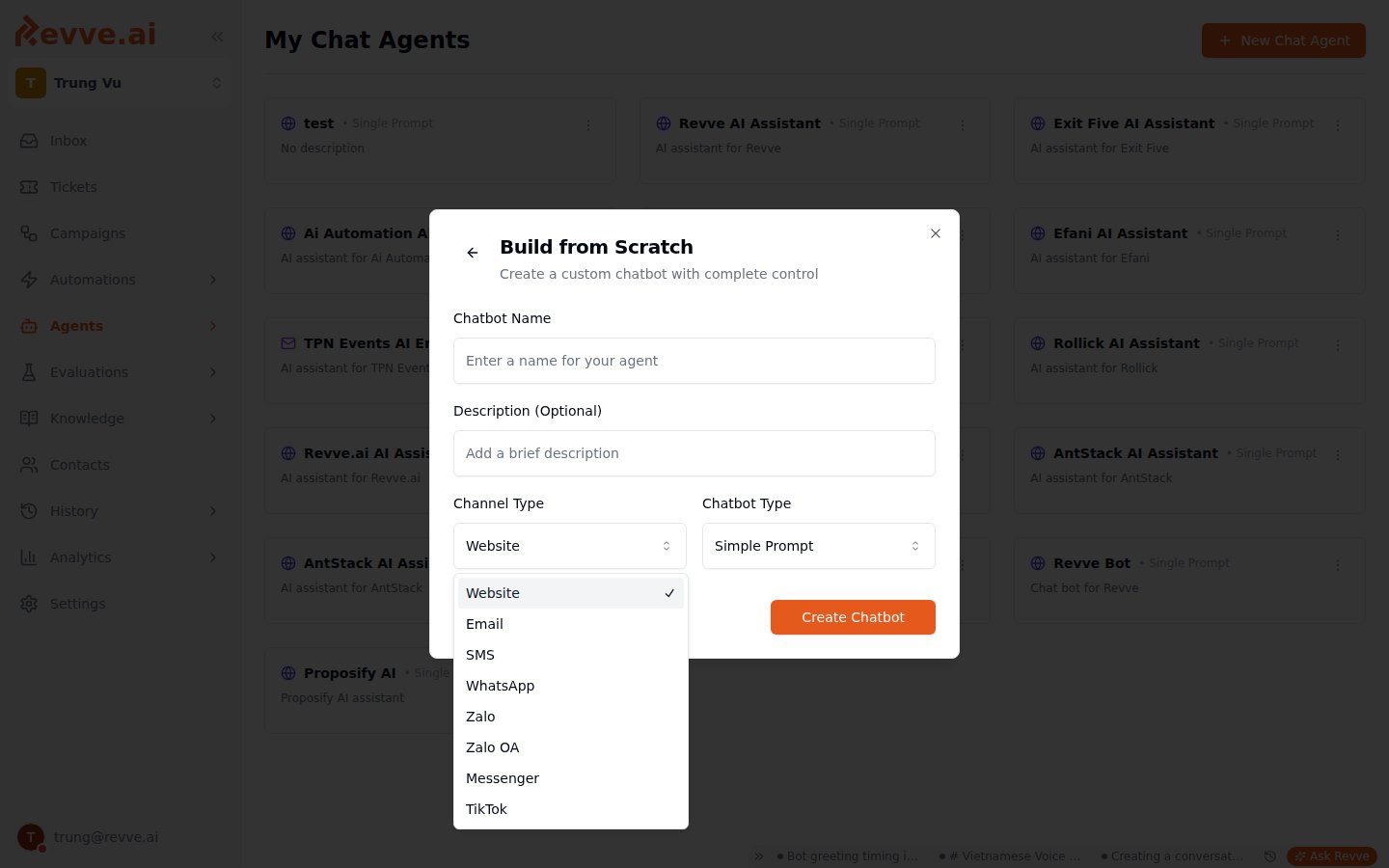 | Channel type | What it is |
| ------------- | ----------------------------------------------------------------------------------- |
| **Website** | A chat widget embedded on your site. No account to connect — you install a snippet. |
| **Email** | The agent replies from a connected Gmail or Outlook account. |
| **SMS** | Text messaging through a provisioned phone number. |
| **WhatsApp** | Conversations through a WhatsApp Business profile. |
| **Zalo** | A personal Zalo account, connected via a login session. |
| **Zalo OA** | A Zalo Official Account, connected via OAuth. |
| **Messenger** | A Facebook Page's Messenger inbox. |
| **TikTok** | Direct messages to a TikTok business account. |
The channel type is fixed at creation — it determines which settings tabs the agent shows and which accounts it can use. To serve the same use case on two channels, create two agents.
***
## Where channel accounts are connected
Channel accounts belong to the workspace, not to individual agents. Connect them under **Settings → Channels**, which has one tab per channel: **WhatsApp**, **Zalo**, **Zalo OA**, **Messenger**, **TikTok**, and **Email**.
Two channel types don't appear there because they have no account to connect:
* **Website** agents are installed by embedding a widget snippet on your site — see [Website Installation](/docs/channel-setup/website-installation).
* **SMS** is configured through phone-number provisioning — see [SMS Channel Setup](/docs/channel-setup/sms-channel-setup).
Each tab uses the connect method its platform requires:
| Connect method | Channels |
| -------------------------------- | ------------------------------------------------- |
| OAuth (sign in and grant access) | TikTok, Zalo OA, Messenger, Email (Gmail/Outlook) |
| WhatsApp Business Account | WhatsApp |
| Session-based login | Zalo (personal) |
Connect accounts before creating agents. An agent's channel settings can only list accounts that are already connected, so doing Settings → Channels first saves a round trip.
Some accounts can be marked **Outreach campaigns only**, restricting them to outbound campaign messages instead of two-way conversations. Use this for accounts dedicated to campaign sends that shouldn't pick up inbound replies.
***
## Connection status
Every connected account card in **Settings → Channels** shows a status:
| Status | Color | Meaning |
| ----------------------------------------------- | ------ | ------------------------------------------------------------------------------------------------------------- |
| **Connected** / **Active** | Green | The account is live and messages flow normally. |
| **Pending** | Yellow | The connection flow started but hasn't finished — complete the remaining verification or authorization steps. |
| **Disconnected** / **Expired** / **Incomplete** | Red | The account can't send or receive. Agents using it stop working on this channel until you reconnect. |
Any card with a non-connected status shows a **Reconnect** button that re-runs the connection flow for that channel.
OAuth-based channels can expire on the platform's schedule — TikTok refresh tokens, for example, have a fixed lifetime. When Channel Alerts are enabled, Revve emails you a reconnect warning before an account expires so you can reconnect before conversations drop. Enable alerts in [Workspace Settings](/docs/administration/workspace-settings).
***
## Linking an agent to an account
For **Zalo OA**, **Messenger**, and **TikTok** agents, the agent's Channel settings include an account dropdown (for example, **TikTok Account**) listing every account connected in your workspace. Pick the one this agent should use. If the account you need isn't connected yet, the dropdown's **Connect new account** shortcut takes you straight into **Settings → Channels**.
Email and WhatsApp agents assign their account the same way from their own settings tabs — the per-channel guides below walk through each.
***
## Channel comparison
| Channel | Account connection | Setup guide |
| --------- | ---------------------------------------------- | ----------------------------------------------------------------------------------------------------------------------------------------------------------------------------------------------------- |
| Website | None — embed a widget snippet | [Website Installation](/docs/channel-setup/website-installation), then [Appearance & Styling](/docs/channel-setup/website-appearance-and-styling) and [Bubble Messages](/docs/channel-setup/website-bubble-messages) |
| Email | OAuth (Gmail/Outlook), Settings → Channels | [Email Channel Setup](/docs/channel-setup/email-channel-setup) |
| SMS | Phone-number provisioning | [SMS Channel Setup](/docs/channel-setup/sms-channel-setup) |
| WhatsApp | WhatsApp Business Account, Settings → Channels | [WhatsApp Channel Setup](/docs/channel-setup/whatsapp-channel-setup) |
| Zalo | Session-based login, Settings → Channels | Connected directly in **Settings → Channels → Zalo** (no dedicated guide yet) |
| Zalo OA | OAuth, Settings → Channels | [Zalo Channel Setup](/docs/channel-setup/zalo-channel-setup) (covers Official Accounts) |
| Messenger | OAuth, Settings → Channels | [Messenger Channel Setup](/docs/channel-setup/messenger-channel-setup) |
| TikTok | OAuth, Settings → Channels | [TikTok Channel Setup](/docs/channel-setup/tiktok-channel-setup) |
On some channels your team can reply manually alongside the agent from the Inbox — see [Managing Conversations](/docs/inbox/managing-conversations) for which channels support human replies today.
***
## What's Next
* [Website Installation](/docs/channel-setup/website-installation) — the fastest channel to get live: embed the widget and start chatting.
* [Managing Conversations](/docs/inbox/managing-conversations) — where conversations from every channel land, and how humans step in.
| Channel type | What it is |
| ------------- | ----------------------------------------------------------------------------------- |
| **Website** | A chat widget embedded on your site. No account to connect — you install a snippet. |
| **Email** | The agent replies from a connected Gmail or Outlook account. |
| **SMS** | Text messaging through a provisioned phone number. |
| **WhatsApp** | Conversations through a WhatsApp Business profile. |
| **Zalo** | A personal Zalo account, connected via a login session. |
| **Zalo OA** | A Zalo Official Account, connected via OAuth. |
| **Messenger** | A Facebook Page's Messenger inbox. |
| **TikTok** | Direct messages to a TikTok business account. |
The channel type is fixed at creation — it determines which settings tabs the agent shows and which accounts it can use. To serve the same use case on two channels, create two agents.
***
## Where channel accounts are connected
Channel accounts belong to the workspace, not to individual agents. Connect them under **Settings → Channels**, which has one tab per channel: **WhatsApp**, **Zalo**, **Zalo OA**, **Messenger**, **TikTok**, and **Email**.
Two channel types don't appear there because they have no account to connect:
* **Website** agents are installed by embedding a widget snippet on your site — see [Website Installation](/docs/channel-setup/website-installation).
* **SMS** is configured through phone-number provisioning — see [SMS Channel Setup](/docs/channel-setup/sms-channel-setup).
Each tab uses the connect method its platform requires:
| Connect method | Channels |
| -------------------------------- | ------------------------------------------------- |
| OAuth (sign in and grant access) | TikTok, Zalo OA, Messenger, Email (Gmail/Outlook) |
| WhatsApp Business Account | WhatsApp |
| Session-based login | Zalo (personal) |
Connect accounts before creating agents. An agent's channel settings can only list accounts that are already connected, so doing Settings → Channels first saves a round trip.
Some accounts can be marked **Outreach campaigns only**, restricting them to outbound campaign messages instead of two-way conversations. Use this for accounts dedicated to campaign sends that shouldn't pick up inbound replies.
***
## Connection status
Every connected account card in **Settings → Channels** shows a status:
| Status | Color | Meaning |
| ----------------------------------------------- | ------ | ------------------------------------------------------------------------------------------------------------- |
| **Connected** / **Active** | Green | The account is live and messages flow normally. |
| **Pending** | Yellow | The connection flow started but hasn't finished — complete the remaining verification or authorization steps. |
| **Disconnected** / **Expired** / **Incomplete** | Red | The account can't send or receive. Agents using it stop working on this channel until you reconnect. |
Any card with a non-connected status shows a **Reconnect** button that re-runs the connection flow for that channel.
OAuth-based channels can expire on the platform's schedule — TikTok refresh tokens, for example, have a fixed lifetime. When Channel Alerts are enabled, Revve emails you a reconnect warning before an account expires so you can reconnect before conversations drop. Enable alerts in [Workspace Settings](/docs/administration/workspace-settings).
***
## Linking an agent to an account
For **Zalo OA**, **Messenger**, and **TikTok** agents, the agent's Channel settings include an account dropdown (for example, **TikTok Account**) listing every account connected in your workspace. Pick the one this agent should use. If the account you need isn't connected yet, the dropdown's **Connect new account** shortcut takes you straight into **Settings → Channels**.
Email and WhatsApp agents assign their account the same way from their own settings tabs — the per-channel guides below walk through each.
***
## Channel comparison
| Channel | Account connection | Setup guide |
| --------- | ---------------------------------------------- | ----------------------------------------------------------------------------------------------------------------------------------------------------------------------------------------------------- |
| Website | None — embed a widget snippet | [Website Installation](/docs/channel-setup/website-installation), then [Appearance & Styling](/docs/channel-setup/website-appearance-and-styling) and [Bubble Messages](/docs/channel-setup/website-bubble-messages) |
| Email | OAuth (Gmail/Outlook), Settings → Channels | [Email Channel Setup](/docs/channel-setup/email-channel-setup) |
| SMS | Phone-number provisioning | [SMS Channel Setup](/docs/channel-setup/sms-channel-setup) |
| WhatsApp | WhatsApp Business Account, Settings → Channels | [WhatsApp Channel Setup](/docs/channel-setup/whatsapp-channel-setup) |
| Zalo | Session-based login, Settings → Channels | Connected directly in **Settings → Channels → Zalo** (no dedicated guide yet) |
| Zalo OA | OAuth, Settings → Channels | [Zalo Channel Setup](/docs/channel-setup/zalo-channel-setup) (covers Official Accounts) |
| Messenger | OAuth, Settings → Channels | [Messenger Channel Setup](/docs/channel-setup/messenger-channel-setup) |
| TikTok | OAuth, Settings → Channels | [TikTok Channel Setup](/docs/channel-setup/tiktok-channel-setup) |
On some channels your team can reply manually alongside the agent from the Inbox — see [Managing Conversations](/docs/inbox/managing-conversations) for which channels support human replies today.
***
## What's Next
* [Website Installation](/docs/channel-setup/website-installation) — the fastest channel to get live: embed the widget and start chatting.
* [Managing Conversations](/docs/inbox/managing-conversations) — where conversations from every channel land, and how humans step in.