> ## Documentation Index
> Fetch the complete documentation index at: https://www.revve.ai/docs/llms.txt
> Use this file to discover all available pages before exploring further.
# Automation Rules — Overview
> For team admins deciding what follow-up work to automate: what Automation Rules can react to, what they can do, and how executions behave.
An **Automation Rule** connects an event in Revve to actions in your workflow: *when* something happens (a call finishes analysis, an enrollment completes, a contact changes), *if* it matches your conditions, *do* one or more things (call your API, update the contact, send an email, create a ticket, enroll the contact in another campaign). Rules are the glue between what your agents and campaigns produce and the follow-up work that would otherwise be manual.
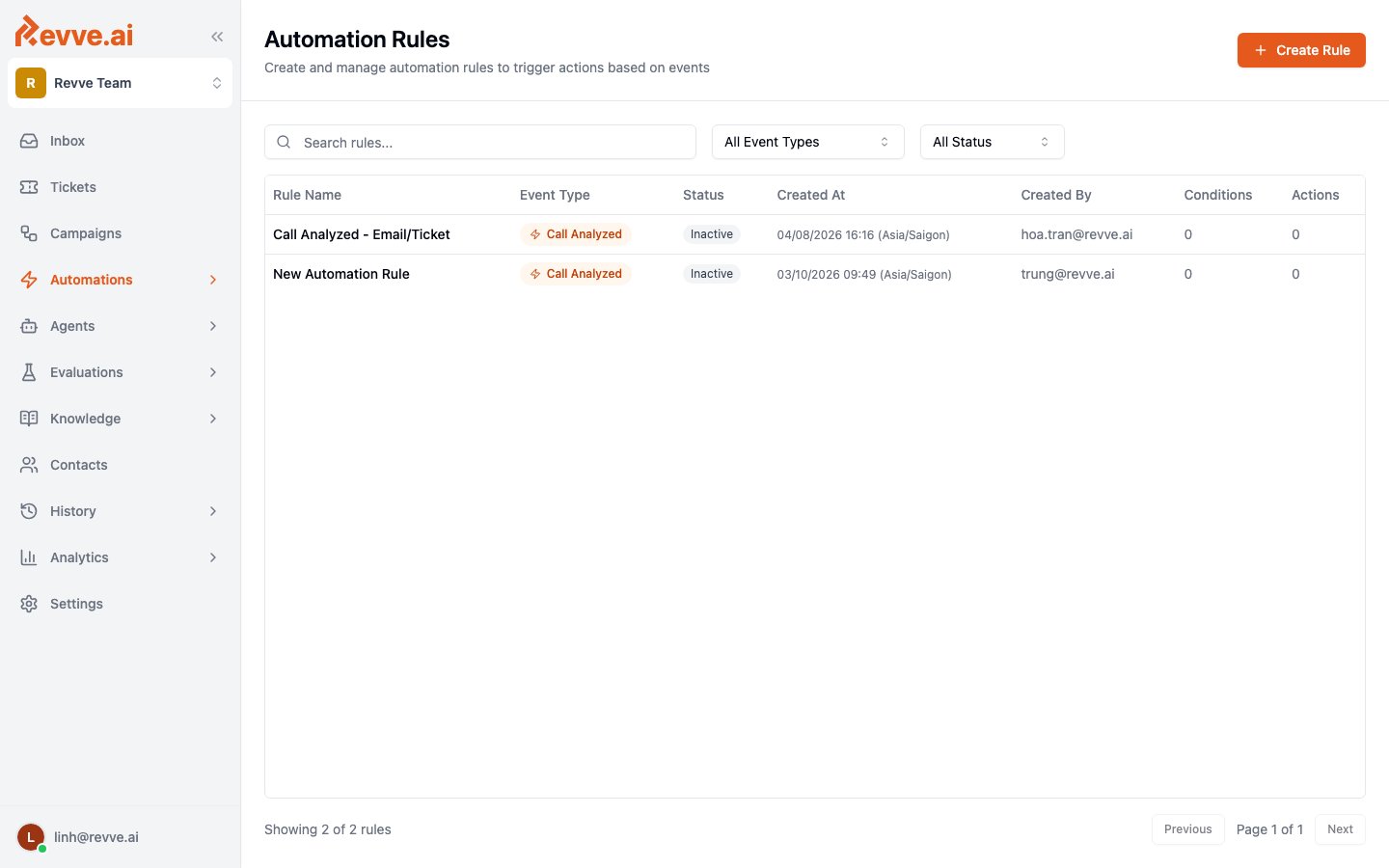
You'll find them in the sidebar under **Automations**, with two children: **Rules** (define what runs) and **Executions** (see what ran). Both require the **Manage Automations** permission — admin-only by default; see [Roles and Permissions](/docs/governance-access/roles-and-permissions).
 ## How a rule executes
1. A rule is built from three parts: **one trigger event**, **optional conditions**, and **one or more actions**.
2. When the event fires, every **active** rule on your team listening to that event is checked. Rules run in creation order. New rules start **Inactive** — nothing runs until you toggle **Activate**.
3. Conditions are AND-only: "All conditions must match for this rule to apply". There is no OR. A rule with zero conditions fires on every occurrence of its event.
4. When conditions match, "Actions execute sequentially when conditions match" — in the order you arranged them. A failed action does **not** stop later actions, with one exception: a later action that references a failed prior action's result is skipped.
5. Processing is asynchronous and near-real-time — events are queued, so actions typically run seconds after the event. An event fires the automation once; there are no automatic re-runs at the event level. The only retries are the opt-in per-action HTTP retries on API Call actions (up to 5 attempts, 10 seconds apart).
Conditions and action inputs read from the event's payload using dot-paths like `payload.fieldName`, and action templates insert values with `{{payload.field}}` syntax. The rule editor's **Event Preview** panel shows recent real events so you can explore which fields are available before you write anything. The full templating and operator reference lives in [Creating Automation Rules](/docs/automations/creating-automation-rules).
## What rules can react to
Eleven trigger events cover the lifecycle of conversations, contacts, and campaigns:
| Event | Fires when |
| ------------------------ | --------------------------------------------------------------------------------------------------------------------------------------------------------------------------------------------- |
| **Call Analyzed** | A voice call finishes analysis. Payload includes call details, transcript, summary, [custom analysis data](/docs/inbox/conversation-analysis-panel), the contact, and campaign/enrollment context. |
| **Call Evaluated** | A [call evaluation](/docs/voice-agents/voice-agent-evaluation) reaches a final result — passed, failed, or error. Payload includes status, final score, pass rate, and per-metric scores. |
| **Chat Analyzed** | A chat conversation finishes analysis. Payload includes chat details, transcript, summary, custom analysis data, the contact, and campaign context. |
| **Node Moved** | A chat conversation flow advances from one node to another. |
| **Lead Created** | A lead is created — via inbound webhook or lead reconciliation. |
| **Contact Updated** | A contact record changes. The payload includes which fields changed. |
| **Enrollment Created** | A contact is enrolled in a [campaign](/docs/campaigns/campaign-overview). |
| **Enrollment Completed** | A campaign enrollment finishes. Payload includes a success flag and the exit reason. |
| **Enrollment Paused** | An enrollment pauses — human-loop or prehook error. |
| **Action Completed** | A campaign action (call, message, …) completes. |
| **Action Failed** | A campaign action fails. |
The two workhorses for most teams are **Call Analyzed** (push every call's outcome and extracted data into your systems) and **Enrollment Completed** (branch on the exit reason — hand successes to sales, route failures to a nurture campaign).
## What rules can do
Five action types are available from the action menu:
| Action | What it does |
| ------------------------ | --------------------------------------------------------------------------------------------------------------------------------- |
| **API Call** | Sends a templated HTTP request to your own systems, with optional retry. URLs are validated against your team's domain allowlist. |
| **Update Contact Field** | Writes values — including custom fields — to the contact record. |
| **Send Email** | Sends a templated HTML email, with Cc/Bcc support. |
| **Create Ticket** | Creates a ticket of a chosen type and auto-assigns it via routing rules. |
| **Enroll in Campaign** | Enrolls the event's contact into an active campaign. |
You may also see **managed** actions on some rules — Salesforce/HubSpot sync actions like **Save Call Result**, **Save Chat Result**, **Save Lead**, and **Save Campaign Member**. These appear read-only with a "managed" badge: they're provisioned by the CRM app's settings, not addable from the action menu.
Because actions run sequentially and can reference earlier results, you can chain them — for example, an **API Call** that looks up an account in your backend, followed by an **Update Contact Field** that writes the response onto the contact. Configuration details for each action are in [Creating Automation Rules](/docs/automations/creating-automation-rules).
Templates and secrets: **API Call** actions can use team secrets (for API keys and auth headers), and those values are redacted from execution logs.
## Monitoring executions
The **Executions** page is the audit trail for everything your rules did — or didn't do.
## How a rule executes
1. A rule is built from three parts: **one trigger event**, **optional conditions**, and **one or more actions**.
2. When the event fires, every **active** rule on your team listening to that event is checked. Rules run in creation order. New rules start **Inactive** — nothing runs until you toggle **Activate**.
3. Conditions are AND-only: "All conditions must match for this rule to apply". There is no OR. A rule with zero conditions fires on every occurrence of its event.
4. When conditions match, "Actions execute sequentially when conditions match" — in the order you arranged them. A failed action does **not** stop later actions, with one exception: a later action that references a failed prior action's result is skipped.
5. Processing is asynchronous and near-real-time — events are queued, so actions typically run seconds after the event. An event fires the automation once; there are no automatic re-runs at the event level. The only retries are the opt-in per-action HTTP retries on API Call actions (up to 5 attempts, 10 seconds apart).
Conditions and action inputs read from the event's payload using dot-paths like `payload.fieldName`, and action templates insert values with `{{payload.field}}` syntax. The rule editor's **Event Preview** panel shows recent real events so you can explore which fields are available before you write anything. The full templating and operator reference lives in [Creating Automation Rules](/docs/automations/creating-automation-rules).
## What rules can react to
Eleven trigger events cover the lifecycle of conversations, contacts, and campaigns:
| Event | Fires when |
| ------------------------ | --------------------------------------------------------------------------------------------------------------------------------------------------------------------------------------------- |
| **Call Analyzed** | A voice call finishes analysis. Payload includes call details, transcript, summary, [custom analysis data](/docs/inbox/conversation-analysis-panel), the contact, and campaign/enrollment context. |
| **Call Evaluated** | A [call evaluation](/docs/voice-agents/voice-agent-evaluation) reaches a final result — passed, failed, or error. Payload includes status, final score, pass rate, and per-metric scores. |
| **Chat Analyzed** | A chat conversation finishes analysis. Payload includes chat details, transcript, summary, custom analysis data, the contact, and campaign context. |
| **Node Moved** | A chat conversation flow advances from one node to another. |
| **Lead Created** | A lead is created — via inbound webhook or lead reconciliation. |
| **Contact Updated** | A contact record changes. The payload includes which fields changed. |
| **Enrollment Created** | A contact is enrolled in a [campaign](/docs/campaigns/campaign-overview). |
| **Enrollment Completed** | A campaign enrollment finishes. Payload includes a success flag and the exit reason. |
| **Enrollment Paused** | An enrollment pauses — human-loop or prehook error. |
| **Action Completed** | A campaign action (call, message, …) completes. |
| **Action Failed** | A campaign action fails. |
The two workhorses for most teams are **Call Analyzed** (push every call's outcome and extracted data into your systems) and **Enrollment Completed** (branch on the exit reason — hand successes to sales, route failures to a nurture campaign).
## What rules can do
Five action types are available from the action menu:
| Action | What it does |
| ------------------------ | --------------------------------------------------------------------------------------------------------------------------------- |
| **API Call** | Sends a templated HTTP request to your own systems, with optional retry. URLs are validated against your team's domain allowlist. |
| **Update Contact Field** | Writes values — including custom fields — to the contact record. |
| **Send Email** | Sends a templated HTML email, with Cc/Bcc support. |
| **Create Ticket** | Creates a ticket of a chosen type and auto-assigns it via routing rules. |
| **Enroll in Campaign** | Enrolls the event's contact into an active campaign. |
You may also see **managed** actions on some rules — Salesforce/HubSpot sync actions like **Save Call Result**, **Save Chat Result**, **Save Lead**, and **Save Campaign Member**. These appear read-only with a "managed" badge: they're provisioned by the CRM app's settings, not addable from the action menu.
Because actions run sequentially and can reference earlier results, you can chain them — for example, an **API Call** that looks up an account in your backend, followed by an **Update Contact Field** that writes the response onto the contact. Configuration details for each action are in [Creating Automation Rules](/docs/automations/creating-automation-rules).
Templates and secrets: **API Call** actions can use team secrets (for API keys and auth headers), and those values are redacted from execution logs.
## Monitoring executions
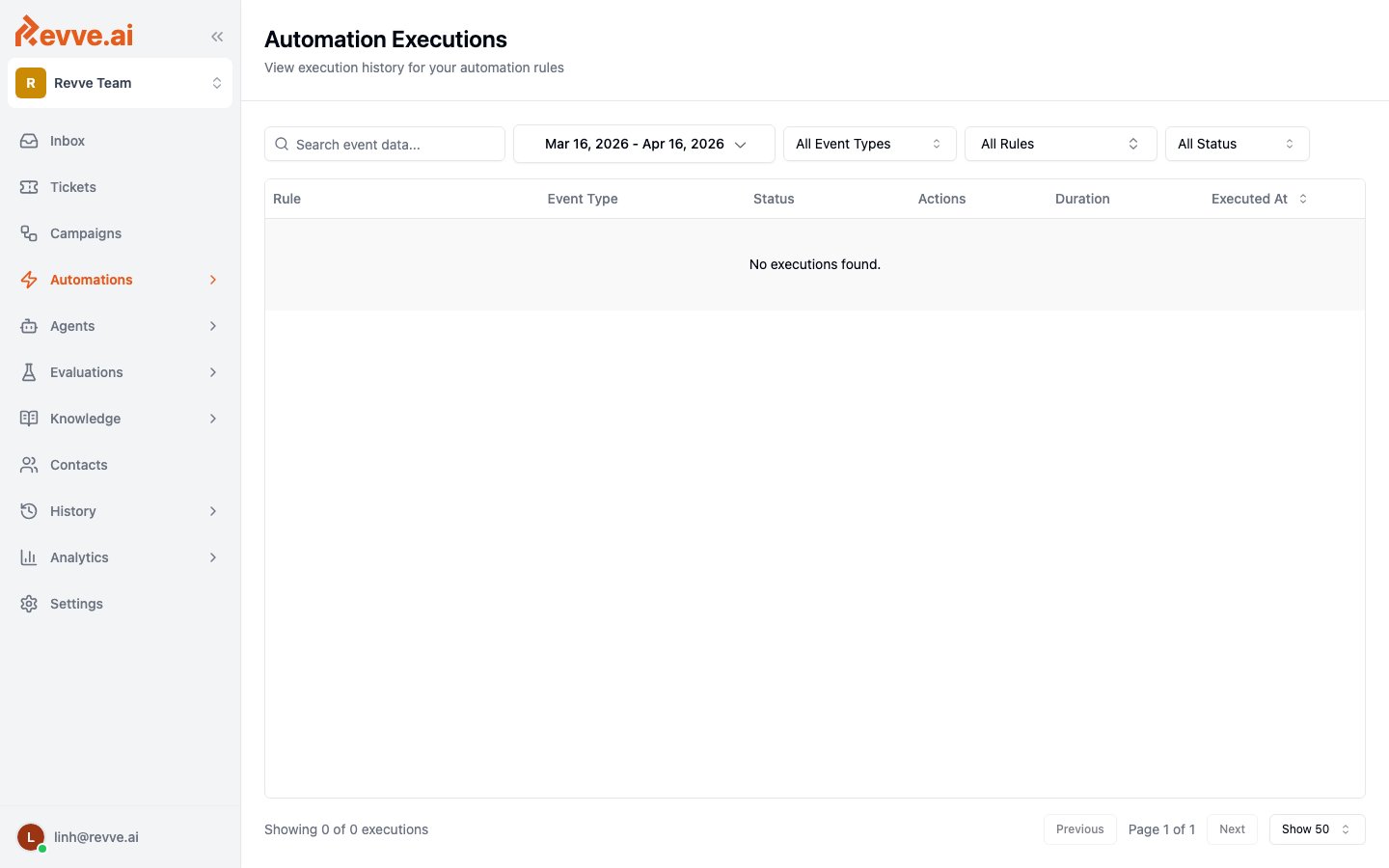
The **Executions** page is the audit trail for everything your rules did — or didn't do.
 Each execution gets one of three statuses:
| Status | Meaning |
| ----------- | ----------------------------------------------------------------------- |
| **Success** | At least one action succeeded. |
| **Failed** | The rule ran but no action succeeded, or the run errored. |
| **Skipped** | The event arrived but no active rule was listening for that event type. |
The table shows the rule, event type, status, an action success count (e.g. "2/3 success"), duration in milliseconds, and when it executed. Filter by event-data search, date range (defaults to the last month), event type (currently Call Analyzed and Call Evaluated), rule, or status. A rule whose conditions didn't match logs no row at all — only rules that actually ran appear here.
Click a row to open the **Execution Detail** panel: per-action result cards with request/response details (secrets redacted), error messages, and a Retry Log for retried API calls — plus an **Event Data** tab with the raw payload, which doubles as a reference for the fields your conditions and templates can use.
There is no "retry execution" button. If a run failed and you want it to happen again, re-trigger the underlying event — for example, re-run the analysis or re-enroll the contact.
## Key facts and limits
* **AND-only conditions.** To express "A or B", create two rules on the same event — every matching active rule runs.
* **One event, one run.** No automatic re-runs; the only retries are the opt-in HTTP retries on API Call actions.
* **Rules deactivate, they don't delete.** There is no UI to delete a rule — toggle it inactive instead.
* **API Call URLs must match your team's domain allowlist.**
* **Access is admin-only by default** via the [Manage Automations permission](/docs/governance-access/roles-and-permissions).
## What's Next
* [Creating Automation Rules](/docs/automations/creating-automation-rules) — the step-by-step builder walkthrough: conditions, operators, action configuration, and the `{{payload.field}}` templating syntax.
* [Conversation Analysis Panel](/docs/inbox/conversation-analysis-panel) — the analysis data that **Call Analyzed** and **Chat Analyzed** events carry.
Each execution gets one of three statuses:
| Status | Meaning |
| ----------- | ----------------------------------------------------------------------- |
| **Success** | At least one action succeeded. |
| **Failed** | The rule ran but no action succeeded, or the run errored. |
| **Skipped** | The event arrived but no active rule was listening for that event type. |
The table shows the rule, event type, status, an action success count (e.g. "2/3 success"), duration in milliseconds, and when it executed. Filter by event-data search, date range (defaults to the last month), event type (currently Call Analyzed and Call Evaluated), rule, or status. A rule whose conditions didn't match logs no row at all — only rules that actually ran appear here.
Click a row to open the **Execution Detail** panel: per-action result cards with request/response details (secrets redacted), error messages, and a Retry Log for retried API calls — plus an **Event Data** tab with the raw payload, which doubles as a reference for the fields your conditions and templates can use.
There is no "retry execution" button. If a run failed and you want it to happen again, re-trigger the underlying event — for example, re-run the analysis or re-enroll the contact.
## Key facts and limits
* **AND-only conditions.** To express "A or B", create two rules on the same event — every matching active rule runs.
* **One event, one run.** No automatic re-runs; the only retries are the opt-in HTTP retries on API Call actions.
* **Rules deactivate, they don't delete.** There is no UI to delete a rule — toggle it inactive instead.
* **API Call URLs must match your team's domain allowlist.**
* **Access is admin-only by default** via the [Manage Automations permission](/docs/governance-access/roles-and-permissions).
## What's Next
* [Creating Automation Rules](/docs/automations/creating-automation-rules) — the step-by-step builder walkthrough: conditions, operators, action configuration, and the `{{payload.field}}` templating syntax.
* [Conversation Analysis Panel](/docs/inbox/conversation-analysis-panel) — the analysis data that **Call Analyzed** and **Chat Analyzed** events carry.