> ## Documentation Index
> Fetch the complete documentation index at: https://www.revve.ai/docs/llms.txt
> Use this file to discover all available pages before exploring further.
# Workspace Settings
> The team-wide settings reference for workspace admins — general defaults, brand context, calling guardrails, alerts, secrets, audit logs, and conversation timeouts.
Everything under **Settings** applies to your whole team, and everything on this page requires the **Manage Settings** permission — see [Roles and Permissions](/docs/governance-access/roles-and-permissions). One section, **Audit Logs**, is stricter: it requires the admin role.
Settings pages are organized as cards, and **most cards have their own Save button** that enables only when you've changed something (some tabs — Brand, Global Limits — share one Save for the whole tab). Saving one card does not save the others — if you edit Working Hours and the Call Window in one sitting, save both.
This page covers **General** (all six tabs), **Alerts**, **Secrets**, **Audit Logs**, **Conversation Settings**, and **Address**. Two Settings sections get their own pages: [Conversation Routing](/docs/administration/conversation-routing) and [Phone Numbers](/docs/administration/phone-numbers).
## General
Settings → **General** has six horizontal tabs: **General**, **Brand**, **Block List**, **Whitelist**, **Global Limits**, and **Privacy & Security**.
### General tab
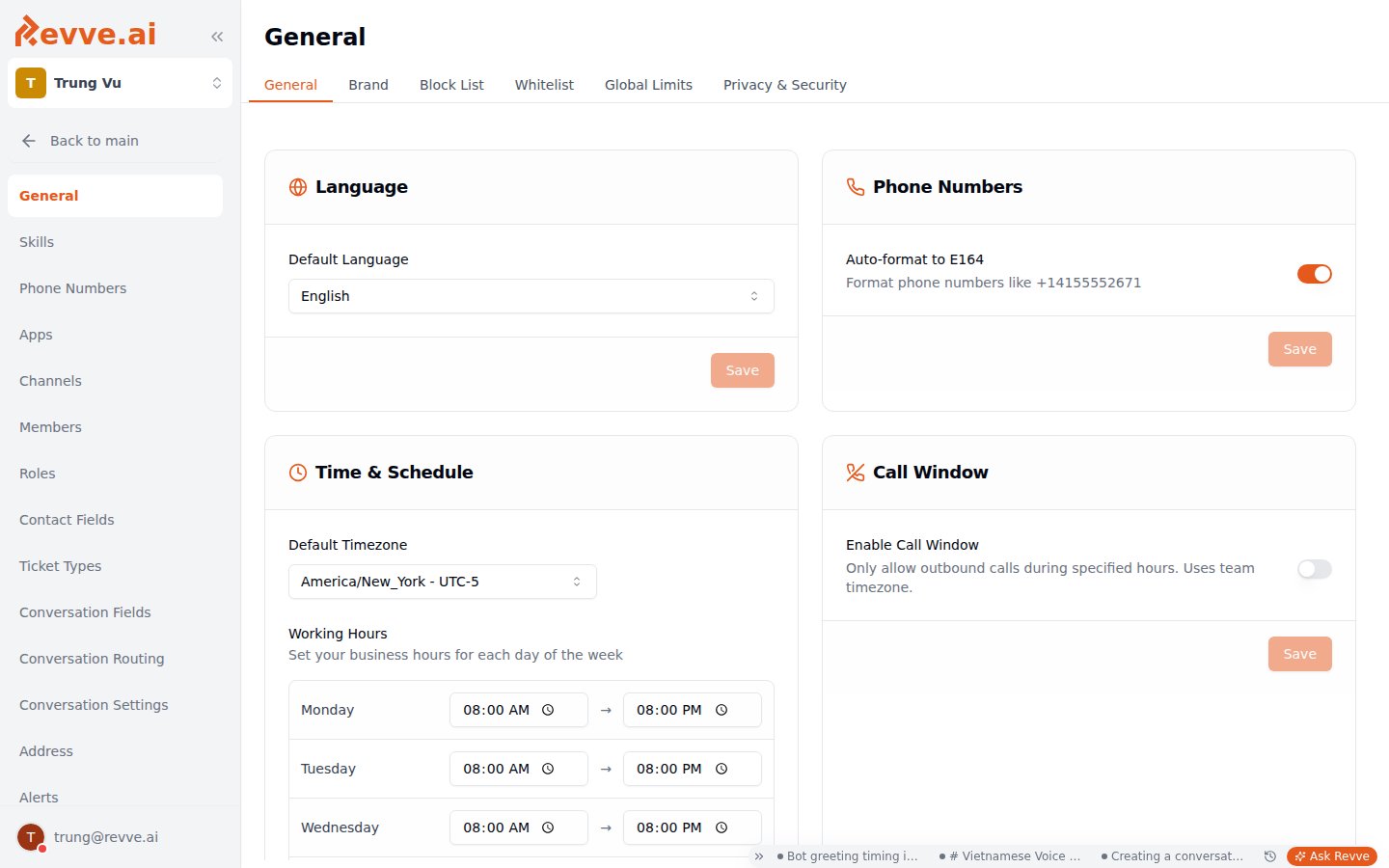 Five cards of team-wide defaults:
| Setting | Default | When to change |
| -------------------------------------------- | ------------------------------------------------------------ | -------------------------------------------------------------------------------------------------------------------------------------------------------------------------------------------------------------------------- |
| **Default Language** | — | Set it once to the language most of your contacts speak. Individual agents can differ, but this is what everything falls back to. |
| **Auto-format to E164** (Phone Numbers card) | On | Leave it on. It normalizes numbers like `+14155552671` so the same contact isn't stored under three formats. Turn off only if an external system requires numbers exactly as entered. |
| **Default Timezone** (Time & Schedule card) | — | Set to the timezone your *contacts* live in, not where your office is — Working Hours and the Call Window both interpret times in this timezone. |
| **Working Hours** | 08:00–20:00 every day | Per-weekday start/end (end must be after start). This is your team's declared availability — routing features such as the out-of-office escalation message key off it. |
| **Enable Call Window** | Off | Turn this on as a compliance guardrail wherever calling-hours regulations apply. When enabled, outbound calls outside the allowed hours are **automatically failed** — a hard stop, not a warning. Uses the team timezone. |
| **Delay (seconds)** (Auto-save Delay card) | 1.5 seconds effective default (the settings form prefills 2) | How long after you stop typing before agent settings auto-save. Range 1–5 in 0.1 steps. Raise it if edits are saving mid-thought; lower it if you keep navigating away before changes persist. |
When you enable the Call Window, the seed schedule is Mon–Fri 09:00–18:00 with weekends off. Adjust the per-weekday enable and start/end times ("Allowed Calling Hours") to match your local regulations before launching a campaign — the window fails calls silently from the caller's perspective, so a too-narrow window looks like a campaign that mysteriously stopped dialing.
### Brand tab
Two textareas (each capped at 1,000 words, with a live counter) that give every AI agent shared context about your company:
* **Business Description** — your business, products, services, and target audience.
* **Brand Voice** — how your brand should sound: tone, style, personality traits, and example phrases to use or avoid.
Fill these in before writing individual agent prompts. Anything that's true for *every* agent — what the company does, banned phrases, formality level — belongs here once, not copy-pasted into each agent's system prompt.
### Block List tab
The team's voice **Do Not Call list** — numbers here are never contacted by voice agents. Add numbers via **Add to Block List** (minimum 10 digits); the table shows each number with matched contact info, when it was added, and an Export CSV option.
This tab covers voice calls only. SMS "STOP" opt-outs are handled automatically per contact via a do-not-message flag — there is no SMS block list to manage. For the full picture (how blocked numbers behave in campaigns, exporting for compliance audits), see [Do Not Call List](/docs/voice-agents/do-not-call-list).
### Whitelist tab
An allow-list of numbers *permitted* for outbound calls — the inverse of the Block List. It only takes effect when **Enable Whitelist Only** is on in the Privacy & Security tab, and it exists primarily for development and test environments: turn it on in a test workspace and your agents physically cannot dial anyone except your QA numbers.
**Add to Whitelist** takes a Phone Number and an optional Description (e.g. "Test number for QA team"). The table tracks who added each number and when, and supports Export CSV.
### Global Limits tab
Team-wide call frequency caps. These are your anti-harassment and cost guardrails: no matter what a campaign or automation does, no phone number gets called more often than these limits allow.
| Setting | Default | When to change |
| ------------------------------------------------------ | ------------------------------------- | -------------------------------------------------------------------------------------------------------------------------------------------------------------------------------------------------------------------------------------------------------------------------------------------- |
| **Default Limits** — max calls per number, Daily (24h) | 5 | These apply to all call agents by default. Lower them if compliance or brand-safety rules demand fewer touches; raising them should be a deliberate decision, not a fix for a campaign that isn't connecting. |
| **Default Limits** — Weekly (7 days) | 25 | Same reasoning as daily. |
| **Default Limits** — Monthly (30 days) | 100 | Same reasoning as daily. |
| **Max Concurrent Calls** | 5 | The team-wide cap on simultaneous active Revve calls — inbound and outbound both count. At the limit, **outbound calls queue; inbound calls are rejected**. Raise it before a high-volume campaign; keep it modest otherwise, because it's also your cost ceiling if an automation misfires. |
| **Custom Limits** | New limits start at 10 calls / 1 hour | Named limits with a Max Calls count and a Time Window (Hours/Days/Weeks/Months). Use these when a specific use case needs a different cadence than the defaults — e.g. a tight "3 calls per day" limit for a sensitive collections campaign. |
If a campaign stalls with calls stuck in a queued state, check Max Concurrent Calls before debugging the campaign itself — a low concurrency cap is the most common cause.
### Privacy & Security tab
Four cards:
| Setting | Default | When to change |
| -------------------------------------------------------- | ------- | -------------------------------------------------------------------------------------------------------------------------------------------------------------------------------------------------------------------------------------------------------- |
| **API Key** | — | Your team's API key, shown masked with reveal and copy. Use it to authenticate API requests, and never share it publicly. There is no self-service rotate button — contact Revve if the key is compromised. |
| **Enable Whitelist Only** (Outbound Call Whitelist card) | Off | Turn on in dev/test environments so outbound calls can only reach numbers on the Whitelist tab. Never leave this on in production unless you genuinely intend to call an approved list only. |
| **Enable Contact Deletion** | Off | When on, admins can permanently delete contacts and all related data. Intended for testing and cleanup — keep it off in production so contact history can't be irreversibly destroyed by accident. See [Managing Contacts](/docs/contacts/managing-contacts). |
| **Enable Warning** (Sensitive Data Warning card) | Off | Warns when outgoing messages match regex patterns you define — e.g. the SSN pattern `\b\d{3}-\d{2}-\d{4}\b`. Turn on if your team handles regulated data; add a pattern per data type you must not send in plain text. |
## Alerts
Settings → **Alerts** currently offers one alert type, **Channel Alerts** — get notified when messaging channels experience delivery failures or connectivity issues.
| Setting | Default | When to change |
| ------------------------- | ------- | -------------------------------------------------------------------------------------------------------------------------------------------------------------------------------------------- |
| **Enable Channel Alerts** | Off | Turn on in any production workspace — it sends an email when outgoing messages fail to deliver, which is otherwise easy to miss until customers complain. |
| **Recipients** | Empty | Email addresses (entered as chips). At least one recipient is required when alerts are enabled — saving is blocked otherwise. Use a shared alias or on-call address, not one person's inbox. |
There are no per-event alert rules; this is a single on/off with a recipient list.
## Secrets
Settings → **Secrets** stores values that are injected into prehook and webhook templates as `{{secrets.name}}`. This is how you keep API keys and tokens out of your automation configurations: the template references the secret by name, and the value never appears in the automation itself — or in front of teammates who can edit automations but shouldn't see credentials.
Click **Add Secret** in the **Team Secrets** card. Each secret has:
* **Name** — letters, digits, and underscores; must not start with a digit. The name is **immutable after creation**, so choose deliberately — it becomes the template variable `{{secrets.}}` that your automations reference.
* **Key Source** — one of two options:
* **Direct Value**: you paste the value into a password field. When editing later, leave the field blank to keep the current value.
* **Environment Variable**: the value is read from the server environment at runtime, from a variable whose name must start with `CUSTOM_`. Use this for values your ops team manages outside the app.
Secrets resolve in automation API Call actions, campaign prehooks, and webhook templates — see [Creating Automation Rules](/docs/automations/creating-automation-rules).
Deleting a secret does not update anything that references it: any prehook or webhook still using `{{secrets.name}}` will simply stop resolving that value. Search your automations for the variable before deleting.
## Audit Logs
Settings → **Audit Logs** answers "who changed this setting, and what was it before?" It records all settings changes for the team with field-level old → new diffs.
Audit Logs requires the **admin role**, not just Manage Settings. Non-admins see "Access Denied — Only administrators can view audit logs."
Each row shows the time, who made the change (a user, or "System" for automated changes), the action (insert / update / delete), the category, the target, and the first two field-level diffs (with "+N more" when there are more). Click a row to open a detail panel with the full change. Filters: date range (defaults to the last 7 days), Changed by, Category, and Action.
Logged categories span:
* **Team and access** — team settings, members, invitations, groups, secrets, roles and permissions
* **Conversation configuration** — routing, conversation fields, ticket types
* **Channels and phone** — channel configs, phone numbers, pools, whitelist, do-not-call
* **Data and content** — contact fields, address divisions, installed apps
When something breaks after "nobody changed anything," start here: filter to the relevant category, widen the date range past the 7-day default, and read the diffs. There are no retention or export controls in the UI.
## Conversation Settings
Settings → **Conversation Settings** configures auto-close timeouts — how long inactive conversations stay open before the system closes them. Stale open conversations skew your metrics and clutter agents' queues; these settings keep the [inbox](/docs/inbox/managing-conversations) honest.
| Setting | Default | When to change |
| ----------------------------------------------------- | ------------------------------ | -------------------------------------------------------------------------------------------------------------------------------------------------------------------------------------------------------------------------------------------- |
| **Enable Auto-Close** | Off | Turn on once your team relies on conversation states for reporting or routing. While off, the three timeout inputs below are disabled. |
| **AI-Handled Timeout (Active Conversations)** | 30 min (1–1440) | How long an AI-handled conversation stays open after the last activity. AI conversations resolve fast — a short timeout is usually right. |
| **Human-Handled Timeout (Active Conversations)** | 60 min (1–1440) | Longer than the AI timeout because humans juggle multiple conversations. Raise it if agents complain that conversations close while they're still working them. |
| **Pending Conversation Timeout** | 1440 min / 24h (1–10080) | How long a pending conversation waits before auto-closing. Match it to your promised response time — if you commit to replying within 48 hours, don't auto-close at 24. |
| **Prevent Manual Close Without Human Agent Response** | 24 hours (0–168; 0 = disabled) | Blocks manually closing a conversation when a customer messaged within the window and no human has replied yet — a guardrail against dismissing customers unanswered. **Not** gated by the Enable Auto-Close toggle; it works independently. |
## Address
Settings → **Address** ("Address Management") holds the team's administrative-divisions reference data — provinces, districts, and wards — used by address normalization in voice agents. The table lists each division's Code, Name, Level, Country, and Parent Hierarchy, with search and country/level filters. You can **Add Division** individually, **Import CSV** in bulk, and edit or delete entries — deleting a division cascades to its children, so check the hierarchy first.
Most teams only touch this page when setting up address collection for a new country or region. For how normalization is used on calls, see [Voice Agent Advanced Capabilities](/docs/voice-agents/voice-agent-advanced-capabilities).
## What's Next
Build the human routing pool and the preset and custom rules that decide which agent gets each conversation.
Connect Twilio, manage SIP numbers, monitor connection-rate insights, and set up number pools for caller-ID rotation.
Five cards of team-wide defaults:
| Setting | Default | When to change |
| -------------------------------------------- | ------------------------------------------------------------ | -------------------------------------------------------------------------------------------------------------------------------------------------------------------------------------------------------------------------- |
| **Default Language** | — | Set it once to the language most of your contacts speak. Individual agents can differ, but this is what everything falls back to. |
| **Auto-format to E164** (Phone Numbers card) | On | Leave it on. It normalizes numbers like `+14155552671` so the same contact isn't stored under three formats. Turn off only if an external system requires numbers exactly as entered. |
| **Default Timezone** (Time & Schedule card) | — | Set to the timezone your *contacts* live in, not where your office is — Working Hours and the Call Window both interpret times in this timezone. |
| **Working Hours** | 08:00–20:00 every day | Per-weekday start/end (end must be after start). This is your team's declared availability — routing features such as the out-of-office escalation message key off it. |
| **Enable Call Window** | Off | Turn this on as a compliance guardrail wherever calling-hours regulations apply. When enabled, outbound calls outside the allowed hours are **automatically failed** — a hard stop, not a warning. Uses the team timezone. |
| **Delay (seconds)** (Auto-save Delay card) | 1.5 seconds effective default (the settings form prefills 2) | How long after you stop typing before agent settings auto-save. Range 1–5 in 0.1 steps. Raise it if edits are saving mid-thought; lower it if you keep navigating away before changes persist. |
When you enable the Call Window, the seed schedule is Mon–Fri 09:00–18:00 with weekends off. Adjust the per-weekday enable and start/end times ("Allowed Calling Hours") to match your local regulations before launching a campaign — the window fails calls silently from the caller's perspective, so a too-narrow window looks like a campaign that mysteriously stopped dialing.
### Brand tab
Two textareas (each capped at 1,000 words, with a live counter) that give every AI agent shared context about your company:
* **Business Description** — your business, products, services, and target audience.
* **Brand Voice** — how your brand should sound: tone, style, personality traits, and example phrases to use or avoid.
Fill these in before writing individual agent prompts. Anything that's true for *every* agent — what the company does, banned phrases, formality level — belongs here once, not copy-pasted into each agent's system prompt.
### Block List tab
The team's voice **Do Not Call list** — numbers here are never contacted by voice agents. Add numbers via **Add to Block List** (minimum 10 digits); the table shows each number with matched contact info, when it was added, and an Export CSV option.
This tab covers voice calls only. SMS "STOP" opt-outs are handled automatically per contact via a do-not-message flag — there is no SMS block list to manage. For the full picture (how blocked numbers behave in campaigns, exporting for compliance audits), see [Do Not Call List](/docs/voice-agents/do-not-call-list).
### Whitelist tab
An allow-list of numbers *permitted* for outbound calls — the inverse of the Block List. It only takes effect when **Enable Whitelist Only** is on in the Privacy & Security tab, and it exists primarily for development and test environments: turn it on in a test workspace and your agents physically cannot dial anyone except your QA numbers.
**Add to Whitelist** takes a Phone Number and an optional Description (e.g. "Test number for QA team"). The table tracks who added each number and when, and supports Export CSV.
### Global Limits tab
Team-wide call frequency caps. These are your anti-harassment and cost guardrails: no matter what a campaign or automation does, no phone number gets called more often than these limits allow.
| Setting | Default | When to change |
| ------------------------------------------------------ | ------------------------------------- | -------------------------------------------------------------------------------------------------------------------------------------------------------------------------------------------------------------------------------------------------------------------------------------------- |
| **Default Limits** — max calls per number, Daily (24h) | 5 | These apply to all call agents by default. Lower them if compliance or brand-safety rules demand fewer touches; raising them should be a deliberate decision, not a fix for a campaign that isn't connecting. |
| **Default Limits** — Weekly (7 days) | 25 | Same reasoning as daily. |
| **Default Limits** — Monthly (30 days) | 100 | Same reasoning as daily. |
| **Max Concurrent Calls** | 5 | The team-wide cap on simultaneous active Revve calls — inbound and outbound both count. At the limit, **outbound calls queue; inbound calls are rejected**. Raise it before a high-volume campaign; keep it modest otherwise, because it's also your cost ceiling if an automation misfires. |
| **Custom Limits** | New limits start at 10 calls / 1 hour | Named limits with a Max Calls count and a Time Window (Hours/Days/Weeks/Months). Use these when a specific use case needs a different cadence than the defaults — e.g. a tight "3 calls per day" limit for a sensitive collections campaign. |
If a campaign stalls with calls stuck in a queued state, check Max Concurrent Calls before debugging the campaign itself — a low concurrency cap is the most common cause.
### Privacy & Security tab
Four cards:
| Setting | Default | When to change |
| -------------------------------------------------------- | ------- | -------------------------------------------------------------------------------------------------------------------------------------------------------------------------------------------------------------------------------------------------------- |
| **API Key** | — | Your team's API key, shown masked with reveal and copy. Use it to authenticate API requests, and never share it publicly. There is no self-service rotate button — contact Revve if the key is compromised. |
| **Enable Whitelist Only** (Outbound Call Whitelist card) | Off | Turn on in dev/test environments so outbound calls can only reach numbers on the Whitelist tab. Never leave this on in production unless you genuinely intend to call an approved list only. |
| **Enable Contact Deletion** | Off | When on, admins can permanently delete contacts and all related data. Intended for testing and cleanup — keep it off in production so contact history can't be irreversibly destroyed by accident. See [Managing Contacts](/docs/contacts/managing-contacts). |
| **Enable Warning** (Sensitive Data Warning card) | Off | Warns when outgoing messages match regex patterns you define — e.g. the SSN pattern `\b\d{3}-\d{2}-\d{4}\b`. Turn on if your team handles regulated data; add a pattern per data type you must not send in plain text. |
## Alerts
Settings → **Alerts** currently offers one alert type, **Channel Alerts** — get notified when messaging channels experience delivery failures or connectivity issues.
| Setting | Default | When to change |
| ------------------------- | ------- | -------------------------------------------------------------------------------------------------------------------------------------------------------------------------------------------- |
| **Enable Channel Alerts** | Off | Turn on in any production workspace — it sends an email when outgoing messages fail to deliver, which is otherwise easy to miss until customers complain. |
| **Recipients** | Empty | Email addresses (entered as chips). At least one recipient is required when alerts are enabled — saving is blocked otherwise. Use a shared alias or on-call address, not one person's inbox. |
There are no per-event alert rules; this is a single on/off with a recipient list.
## Secrets
Settings → **Secrets** stores values that are injected into prehook and webhook templates as `{{secrets.name}}`. This is how you keep API keys and tokens out of your automation configurations: the template references the secret by name, and the value never appears in the automation itself — or in front of teammates who can edit automations but shouldn't see credentials.
Click **Add Secret** in the **Team Secrets** card. Each secret has:
* **Name** — letters, digits, and underscores; must not start with a digit. The name is **immutable after creation**, so choose deliberately — it becomes the template variable `{{secrets.}}` that your automations reference.
* **Key Source** — one of two options:
* **Direct Value**: you paste the value into a password field. When editing later, leave the field blank to keep the current value.
* **Environment Variable**: the value is read from the server environment at runtime, from a variable whose name must start with `CUSTOM_`. Use this for values your ops team manages outside the app.
Secrets resolve in automation API Call actions, campaign prehooks, and webhook templates — see [Creating Automation Rules](/docs/automations/creating-automation-rules).
Deleting a secret does not update anything that references it: any prehook or webhook still using `{{secrets.name}}` will simply stop resolving that value. Search your automations for the variable before deleting.
## Audit Logs
Settings → **Audit Logs** answers "who changed this setting, and what was it before?" It records all settings changes for the team with field-level old → new diffs.
Audit Logs requires the **admin role**, not just Manage Settings. Non-admins see "Access Denied — Only administrators can view audit logs."
Each row shows the time, who made the change (a user, or "System" for automated changes), the action (insert / update / delete), the category, the target, and the first two field-level diffs (with "+N more" when there are more). Click a row to open a detail panel with the full change. Filters: date range (defaults to the last 7 days), Changed by, Category, and Action.
Logged categories span:
* **Team and access** — team settings, members, invitations, groups, secrets, roles and permissions
* **Conversation configuration** — routing, conversation fields, ticket types
* **Channels and phone** — channel configs, phone numbers, pools, whitelist, do-not-call
* **Data and content** — contact fields, address divisions, installed apps
When something breaks after "nobody changed anything," start here: filter to the relevant category, widen the date range past the 7-day default, and read the diffs. There are no retention or export controls in the UI.
## Conversation Settings
Settings → **Conversation Settings** configures auto-close timeouts — how long inactive conversations stay open before the system closes them. Stale open conversations skew your metrics and clutter agents' queues; these settings keep the [inbox](/docs/inbox/managing-conversations) honest.
| Setting | Default | When to change |
| ----------------------------------------------------- | ------------------------------ | -------------------------------------------------------------------------------------------------------------------------------------------------------------------------------------------------------------------------------------------- |
| **Enable Auto-Close** | Off | Turn on once your team relies on conversation states for reporting or routing. While off, the three timeout inputs below are disabled. |
| **AI-Handled Timeout (Active Conversations)** | 30 min (1–1440) | How long an AI-handled conversation stays open after the last activity. AI conversations resolve fast — a short timeout is usually right. |
| **Human-Handled Timeout (Active Conversations)** | 60 min (1–1440) | Longer than the AI timeout because humans juggle multiple conversations. Raise it if agents complain that conversations close while they're still working them. |
| **Pending Conversation Timeout** | 1440 min / 24h (1–10080) | How long a pending conversation waits before auto-closing. Match it to your promised response time — if you commit to replying within 48 hours, don't auto-close at 24. |
| **Prevent Manual Close Without Human Agent Response** | 24 hours (0–168; 0 = disabled) | Blocks manually closing a conversation when a customer messaged within the window and no human has replied yet — a guardrail against dismissing customers unanswered. **Not** gated by the Enable Auto-Close toggle; it works independently. |
## Address
Settings → **Address** ("Address Management") holds the team's administrative-divisions reference data — provinces, districts, and wards — used by address normalization in voice agents. The table lists each division's Code, Name, Level, Country, and Parent Hierarchy, with search and country/level filters. You can **Add Division** individually, **Import CSV** in bulk, and edit or delete entries — deleting a division cascades to its children, so check the hierarchy first.
Most teams only touch this page when setting up address collection for a new country or region. For how normalization is used on calls, see [Voice Agent Advanced Capabilities](/docs/voice-agents/voice-agent-advanced-capabilities).
## What's Next
Build the human routing pool and the preset and custom rules that decide which agent gets each conversation.
Connect Twilio, manage SIP numbers, monitor connection-rate insights, and set up number pools for caller-ID rotation.