> ## Documentation Index
> Fetch the complete documentation index at: https://www.revve.ai/docs/llms.txt
> Use this file to discover all available pages before exploring further.
# Phone Numbers
> For workspace admins who manage the team's calling infrastructure — adding Twilio and SIP numbers, assigning inbound agents, enabling SMS, and rotating numbers before spam-labeling kills your connection rates.
Every call your voice agents make or receive goes through a number on this page. **Settings → Phone Numbers** is where you add numbers, decide which agent answers each one, enable SMS, and — the part teams discover too late — monitor whether carriers have started flagging your caller IDs as spam.
Like the rest of Settings, this page requires the **Manage Settings** permission (see [Roles and Permissions](/docs/governance-access/roles-and-permissions)).
The page has three tabs: **Phone Numbers** (the inventory), **Insights** (per-number health trends), and **Number Pools** (caller-ID rotation for outbound).
## Phone Numbers tab
### Adding numbers: Twilio or SIP
Numbers come from two sources:
| Source | How you add it | What it's for |
| ---------- | ---------------------------------------------------------------------------------------------------------------------------------------------------------------------------------------------------------------------------------- | ------------------------------------------------------------------------------------- |
| **Twilio** | Connect your own Twilio credentials via the Twilio provider card. Once connected, two buttons appear: **Import from Twilio** (bring in numbers you already own) and **Buy from Twilio** (purchase new ones without leaving Revve). | The default path. Twilio numbers are the only ones that support SMS. |
| **SIP** | **Add SIP Number** — always available, no Twilio account needed. | Bring-your-own telephony: numbers hosted on your existing SIP trunk or local carrier. |
If you plan to text as well as call, buy Twilio numbers — the **SMS** column (and SMS enablement in general) only applies to Twilio-sourced numbers. SIP numbers are voice-only.
### The number inventory
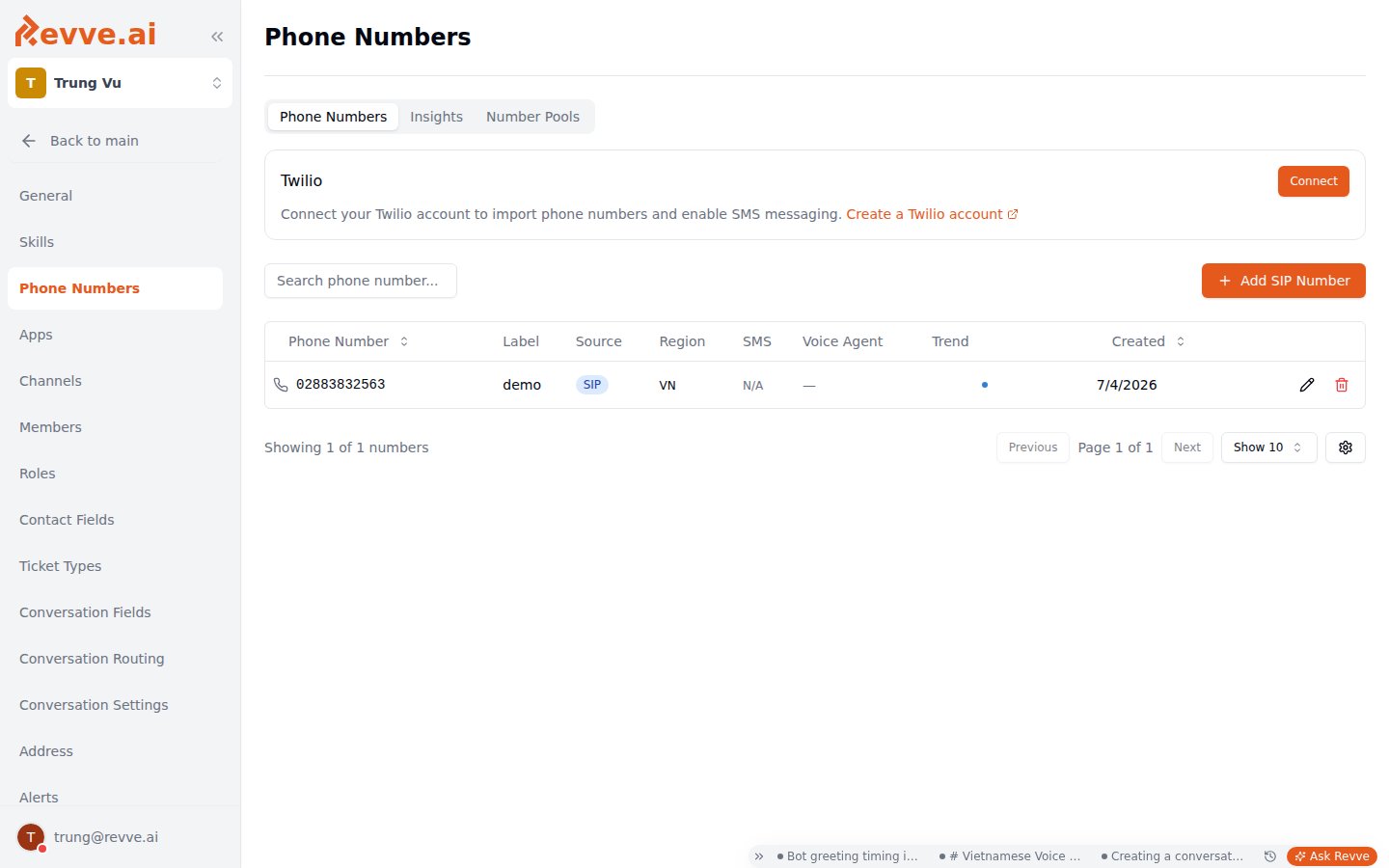 Each number in the table shows: **Phone Number** · **Label** · **Source** (a Twilio or SIP badge) · **Region** (default US) · **SMS** (Twilio numbers only) · **Voice Agent** (which agent answers inbound calls) · **Trend** (a 30-day connection-rate sparkline that links to Insights) · **Created**, plus edit and delete actions.
Two habits pay off here:
* **Label every number by purpose** — "Outbound collections VN", "Inbound support line", "Campaign pool #3". Six months from now, a bare phone number in a table tells you nothing, and you won't remember which one is safe to delete.
* **Glance at the Trend sparkline** whenever you're on this page. A number whose sparkline is sliding downward is telling you something — click through to Insights before it flatlines.
### Editing a number
The edit dialog covers:
| Field | What it controls |
| -------------------------------------- | --------------------------------------------------------------------------------------------------------------------------------------------------------------------------------------------------------------------------------------------------------------------------- |
| **Label** | The human-readable name shown in the table. |
| **Region** | Where the number's call traffic is anchored. Shown for SIP numbers only and read-only — it's fixed when the SIP number is added. |
| **Enable Voice + inbound voice agent** | Whether the number accepts inbound calls, and which voice agent picks up when someone dials it. This is how you put an agent "on" a number — build the agent first ([Creating Your First Voice Agent](/docs/voice-agents/creating-your-first-voice-agent)), then assign it here. |
| **SMS enablement** | Turns on texting for the number (Twilio numbers only). Enabling SMS here is the prerequisite for using the number as an SMS channel — see [SMS Channel Setup](/docs/channel-setup/sms-channel-setup) for the rest of that configuration. |
## Insights tab: catch spam-blocking early
Carriers silently spam-label numbers that make lots of outbound calls. You won't get a notification — your calls just stop being answered, because recipients see "Spam Likely" instead of your caller ID. The symptom is a **collapsing connection rate on a number that used to perform fine**.
Revve surfaces this two ways:
1. **A warning banner on the Phone Numbers tab** when it detects numbers "connecting well below peers and may be spam-blocked." The banner links straight to Insights.
2. **The Insights tab itself**: per-number connectivity trends over the last 30 days by default (7- and 90-day windows available).
When you see the banner (or a Trend sparkline falling off a cliff):
1. Open **Insights** and identify which numbers have collapsed relative to your other numbers dialing similar audiences.
2. **Rotate the affected numbers out**: reassign their outbound traffic to healthy numbers (or a pool — see below) and rest the flagged ones.
3. Keep the flagged numbers for inbound or low-volume use while their reputation recovers, or replace them entirely if the rate never comes back.
A low connection rate isn't always spam-labeling — a bad contact list produces the same shape. The tell is divergence: if one number collapses while sibling numbers calling the same kind of list stay healthy, suspect the number, not the list.
## Number Pools tab: rotate caller IDs on outbound
A single number making high-volume outbound calls is exactly what gets spam-labeled. Number pools spread that volume: instead of attaching one number to a voice agent, you attach a pool, and each outbound call picks a caller ID from it.
The tab lists existing pools (**Name** · **Strategy** · **Members** · **Created**). Creating a pool takes a **Name** and a **Selection Strategy** — currently **Random**, which picks a member number at random for each outbound call.
Pools are attached per voice agent, in the agent's phone number configuration — see the Phone Number section of [Voice Agent Advanced Capabilities](/docs/voice-agents/voice-agent-advanced-capabilities).
**When to use a pool:** any agent doing sustained outbound volume — campaign dialing especially. Ten numbers each making a tenth of the calls stay under carrier thresholds far longer than one number making all of them. Combine this with the Insights workflow above: when one pool member starts degrading, swap it out and the pool keeps running without touching the agent.
## What's Next
Attach your numbers and pools to a voice agent, and configure the rest of its calling behavior.
The rest of team-level configuration — call windows, global call limits, block lists, and security.
Each number in the table shows: **Phone Number** · **Label** · **Source** (a Twilio or SIP badge) · **Region** (default US) · **SMS** (Twilio numbers only) · **Voice Agent** (which agent answers inbound calls) · **Trend** (a 30-day connection-rate sparkline that links to Insights) · **Created**, plus edit and delete actions.
Two habits pay off here:
* **Label every number by purpose** — "Outbound collections VN", "Inbound support line", "Campaign pool #3". Six months from now, a bare phone number in a table tells you nothing, and you won't remember which one is safe to delete.
* **Glance at the Trend sparkline** whenever you're on this page. A number whose sparkline is sliding downward is telling you something — click through to Insights before it flatlines.
### Editing a number
The edit dialog covers:
| Field | What it controls |
| -------------------------------------- | --------------------------------------------------------------------------------------------------------------------------------------------------------------------------------------------------------------------------------------------------------------------------- |
| **Label** | The human-readable name shown in the table. |
| **Region** | Where the number's call traffic is anchored. Shown for SIP numbers only and read-only — it's fixed when the SIP number is added. |
| **Enable Voice + inbound voice agent** | Whether the number accepts inbound calls, and which voice agent picks up when someone dials it. This is how you put an agent "on" a number — build the agent first ([Creating Your First Voice Agent](/docs/voice-agents/creating-your-first-voice-agent)), then assign it here. |
| **SMS enablement** | Turns on texting for the number (Twilio numbers only). Enabling SMS here is the prerequisite for using the number as an SMS channel — see [SMS Channel Setup](/docs/channel-setup/sms-channel-setup) for the rest of that configuration. |
## Insights tab: catch spam-blocking early
Carriers silently spam-label numbers that make lots of outbound calls. You won't get a notification — your calls just stop being answered, because recipients see "Spam Likely" instead of your caller ID. The symptom is a **collapsing connection rate on a number that used to perform fine**.
Revve surfaces this two ways:
1. **A warning banner on the Phone Numbers tab** when it detects numbers "connecting well below peers and may be spam-blocked." The banner links straight to Insights.
2. **The Insights tab itself**: per-number connectivity trends over the last 30 days by default (7- and 90-day windows available).
When you see the banner (or a Trend sparkline falling off a cliff):
1. Open **Insights** and identify which numbers have collapsed relative to your other numbers dialing similar audiences.
2. **Rotate the affected numbers out**: reassign their outbound traffic to healthy numbers (or a pool — see below) and rest the flagged ones.
3. Keep the flagged numbers for inbound or low-volume use while their reputation recovers, or replace them entirely if the rate never comes back.
A low connection rate isn't always spam-labeling — a bad contact list produces the same shape. The tell is divergence: if one number collapses while sibling numbers calling the same kind of list stay healthy, suspect the number, not the list.
## Number Pools tab: rotate caller IDs on outbound
A single number making high-volume outbound calls is exactly what gets spam-labeled. Number pools spread that volume: instead of attaching one number to a voice agent, you attach a pool, and each outbound call picks a caller ID from it.
The tab lists existing pools (**Name** · **Strategy** · **Members** · **Created**). Creating a pool takes a **Name** and a **Selection Strategy** — currently **Random**, which picks a member number at random for each outbound call.
Pools are attached per voice agent, in the agent's phone number configuration — see the Phone Number section of [Voice Agent Advanced Capabilities](/docs/voice-agents/voice-agent-advanced-capabilities).
**When to use a pool:** any agent doing sustained outbound volume — campaign dialing especially. Ten numbers each making a tenth of the calls stay under carrier thresholds far longer than one number making all of them. Combine this with the Insights workflow above: when one pool member starts degrading, swap it out and the pool keeps running without touching the agent.
## What's Next
Attach your numbers and pools to a voice agent, and configure the rest of its calling behavior.
The rest of team-level configuration — call windows, global call limits, block lists, and security.