> ## Documentation Index
> Fetch the complete documentation index at: https://www.revve.ai/docs/llms.txt
> Use this file to discover all available pages before exploring further.
# Conversation Routing
> For the admin who decides which humans get which conversations: set up the routing pool, tune the preset rules, and add custom rules for specific customer segments.
Conversation Routing controls what happens after a conversation or ticket needs a human: which team member it lands on, what happens when everyone is busy, and what the customer hears while they wait. You configure it under **Settings → Conversation Routing** ("Manage conversation assignment" for your team), which has two tabs: **Human Agents** (who can receive work) and **Rules** (how work is distributed).
The entire Settings section requires the **Manage Settings** permission. See [Roles and Permissions](/docs/governance-access/roles-and-permissions) for how permissions are granted. For the rest of the Settings section, see [Workspace Settings](/docs/administration/workspace-settings).
## The Routing Pool (Human Agents Tab)
Routing only considers team members you have explicitly added to the pool — being a workspace member is not enough. Click **Add Agent** and pick a team member who is not already in the pool (once everyone is added, the dialog shows "All members are in routing pool").
Each pool entry shows:
| Column | What it shows |
| ----------- | --------------------------------------------------------------------------------------------------------------------------------------------------------------------------------------------------------------------------------------------------------------------- |
| **Agent** | The team member's email. |
| **Groups** | Group membership chips — custom rules can target a specific group. |
| **Status** | An enable/disable switch. Only **enabled** agents receive routed conversations. (One caveat for tickets: the 24-hour continuity path checks the agent's personal ticket availability, not this pool switch — a disabled agent can still receive a continuity ticket.) |
| **Actions** | Remove the agent from the pool (with a "Remove Routing Agent" confirmation). |
Use the **Status** switch for vacations and short absences instead of removing the agent. Disabling stops new assignments immediately but keeps the agent's group memberships intact, so nothing needs to be rebuilt when they return. Removal is for people leaving the routing rotation for good.
## Preset Rules
The **Rules** tab starts with four preset rule cards, with a single **Save** button for the section that enables when you change something. These presets cover most teams — configure them before you write any custom rules.
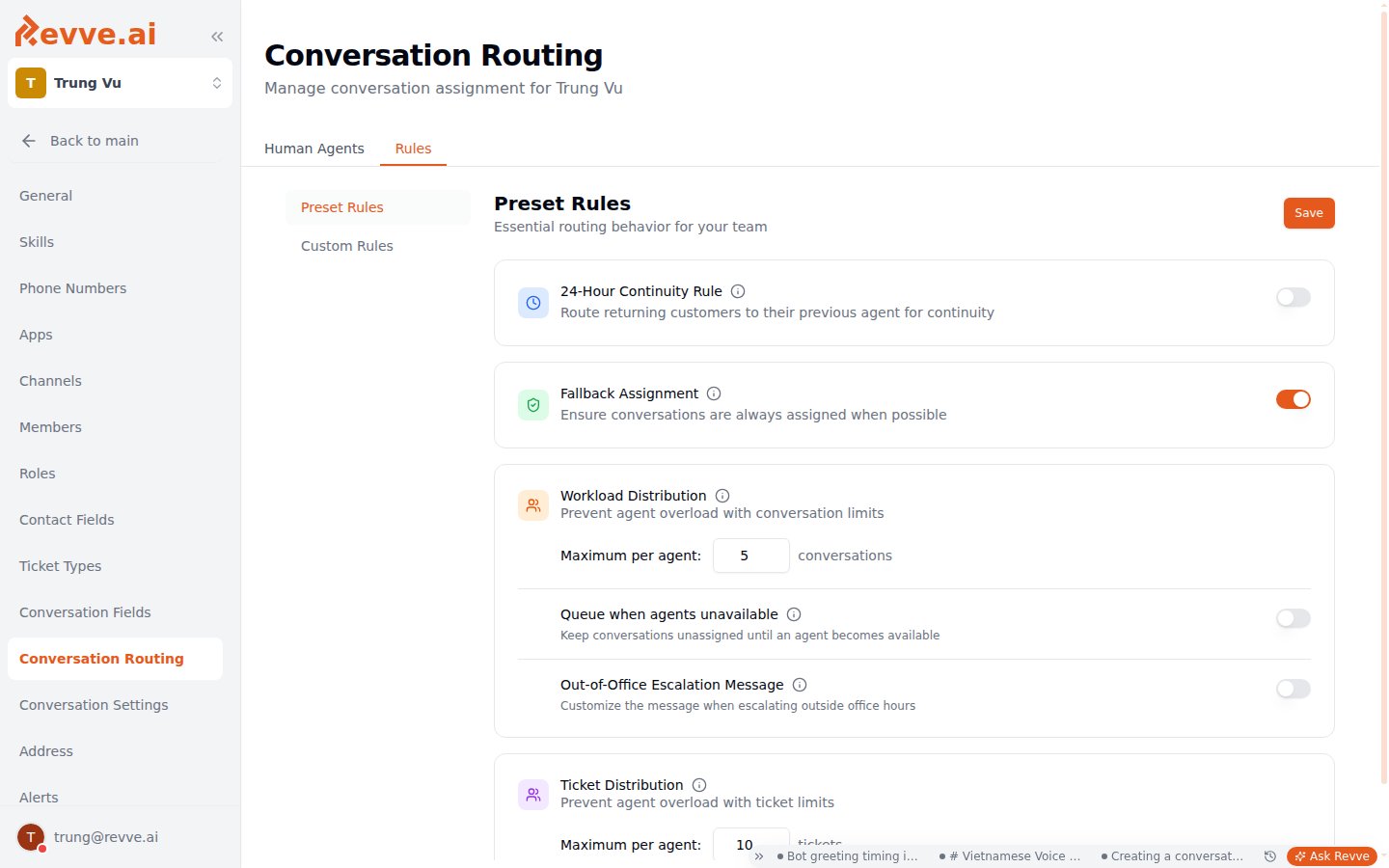 ### 24-Hour Continuity Rule
A toggle: "Route returning customers to their previous agent for continuity." When a contact comes back within 24 hours, the conversation goes to the agent who handled them last — if that agent is available. Keep this on for support-style teams: customers hate re-explaining their problem, and the previous agent already has context. Turn it off only if your team works from a shared queue where any agent is interchangeable and you care more about even load than context.
### Fallback Assignment
A toggle: "When no custom rules match or specific agents are unavailable, route to any available agent in the pool." This is the safety net — with it off, a conversation that matches no rule (or whose target group is fully busy) sits unassigned until someone claims it manually from the Inbox. Leave it on unless you deliberately want unmatched conversations to wait for a manual [human takeover](/docs/inbox/human-takeover).
### Workload Distribution
Sets the maximum concurrent conversations per agent (1–500). An agent at their limit counts as unavailable, so routing skips them. Set this to what one person can genuinely juggle — a low cap protects response quality; a high cap effectively disables the protection.
Nested options control what happens when every agent is at capacity or off the clock:
| Option | What it does |
| ------------------------------------ | ---------------------------------------------------------------------------------------------------------------------------------------------------------------------------------------------------------------------------------------------- |
| **Queue when agents unavailable** | Holds conversations unassigned in a queue instead of overloading agents past their limit. |
| **Out-of-Office Escalation Message** | A toggle plus a message textarea. The message is injected into the escalate-to-human response outside working hours. Default: "Our human agents will be available during business hours. Please leave your message and we'll get back to you." |
| **Queue-Based Wait Time Messages** | Only shown when queuing is on. Define a message per queue-size range (for example one message when a few people are ahead, another when the queue is long). Ranges must be continuous and non-overlapping, and the last range is open-ended. |
If you enable queuing, write the wait-time messages honestly — a customer told "we'll be right with you" at queue position 40 loses trust. Escalate the tone as the ranges grow: acknowledge the wait, offer an alternative channel in the longest range.
### Ticket Distribution
Sets the maximum open tickets per agent (1–500). At the limit, the agent stops receiving new ticket assignments until they close some. This is separate from the conversation cap because ticket work is asynchronous — an agent can carry more tickets than live conversations. See [Working with Tickets](/docs/tickets/working-with-tickets) for how agents handle their assigned tickets.
## Custom Rules
Custom rules are ordered condition → assignment rules for when specific conversations should go to specific people. Each rule has:
* **Rule name** (required — e.g. "VIP Customers", "Technical Support").
* **When** — one or more conditions that must **all** match (AND logic). Each condition is a **Field Type** (Contact Field or Conversation Field), a **Field**, an **Operator** (equals, not equals, contains, not contains, starts with, ends with), and a **Value**.
* **Then** — assign to a **Specific Group** (one group from the pool) or **Any Available Agent**.
Rules can be toggled on and off, edited, and deleted, so you can stage a rule disabled and switch it on when the target group is ready. Groups exist purely for routing — see [Roles and Permissions](/docs/governance-access/roles-and-permissions) for how they differ from roles.
Don't start with custom rules. Run on presets alone until you see a real pattern — a segment that keeps landing on the wrong people. Then add one rule per segment (a "VIP" contact field routing to a senior group, a "language" conversation field routing to the right regional group) and keep **Fallback Assignment** on so anything the rules miss still gets picked up.
## How a Conversation Gets Assigned
When a conversation escalates to a human, expect routing to resolve in this order:
1. **Continuity first** — if the 24-Hour Continuity Rule is on and the contact's previous agent (from the last 24 hours) is enabled and under their workload limit, they get it.
2. **Custom rules** — otherwise, the conversation is checked against your custom rules; the first enabled rule whose conditions all match assigns it to that rule's group (or any available agent).
3. **Fallback** — if no rule matches, or the matched group has no one available, Fallback Assignment routes it to any available agent in the pool.
4. **Queue** — if nobody in the pool is available (everyone disabled, marked unavailable, or at their limit), the conversation queues unassigned (when queuing is on) and the customer sees your wait-time message.
"Available" throughout means: in the pool, **Status** enabled, personally marked available, and under the Workload Distribution limit (or the Ticket Distribution limit, for tickets). Working hours act as a team-wide pre-check instead: outside working hours, if the Out-of-Office Escalation Message is enabled, the customer gets that message immediately and no routing happens; with it disabled, out-of-hours conversations route normally. What the assigned team member sees on their end is covered in [Human Takeover](/docs/inbox/human-takeover).
## What's Next
What routed agents experience in the Inbox — claiming, replying, and handing back to the AI.
How assigned tickets are tracked and resolved once Ticket Distribution hands them out.
### 24-Hour Continuity Rule
A toggle: "Route returning customers to their previous agent for continuity." When a contact comes back within 24 hours, the conversation goes to the agent who handled them last — if that agent is available. Keep this on for support-style teams: customers hate re-explaining their problem, and the previous agent already has context. Turn it off only if your team works from a shared queue where any agent is interchangeable and you care more about even load than context.
### Fallback Assignment
A toggle: "When no custom rules match or specific agents are unavailable, route to any available agent in the pool." This is the safety net — with it off, a conversation that matches no rule (or whose target group is fully busy) sits unassigned until someone claims it manually from the Inbox. Leave it on unless you deliberately want unmatched conversations to wait for a manual [human takeover](/docs/inbox/human-takeover).
### Workload Distribution
Sets the maximum concurrent conversations per agent (1–500). An agent at their limit counts as unavailable, so routing skips them. Set this to what one person can genuinely juggle — a low cap protects response quality; a high cap effectively disables the protection.
Nested options control what happens when every agent is at capacity or off the clock:
| Option | What it does |
| ------------------------------------ | ---------------------------------------------------------------------------------------------------------------------------------------------------------------------------------------------------------------------------------------------- |
| **Queue when agents unavailable** | Holds conversations unassigned in a queue instead of overloading agents past their limit. |
| **Out-of-Office Escalation Message** | A toggle plus a message textarea. The message is injected into the escalate-to-human response outside working hours. Default: "Our human agents will be available during business hours. Please leave your message and we'll get back to you." |
| **Queue-Based Wait Time Messages** | Only shown when queuing is on. Define a message per queue-size range (for example one message when a few people are ahead, another when the queue is long). Ranges must be continuous and non-overlapping, and the last range is open-ended. |
If you enable queuing, write the wait-time messages honestly — a customer told "we'll be right with you" at queue position 40 loses trust. Escalate the tone as the ranges grow: acknowledge the wait, offer an alternative channel in the longest range.
### Ticket Distribution
Sets the maximum open tickets per agent (1–500). At the limit, the agent stops receiving new ticket assignments until they close some. This is separate from the conversation cap because ticket work is asynchronous — an agent can carry more tickets than live conversations. See [Working with Tickets](/docs/tickets/working-with-tickets) for how agents handle their assigned tickets.
## Custom Rules
Custom rules are ordered condition → assignment rules for when specific conversations should go to specific people. Each rule has:
* **Rule name** (required — e.g. "VIP Customers", "Technical Support").
* **When** — one or more conditions that must **all** match (AND logic). Each condition is a **Field Type** (Contact Field or Conversation Field), a **Field**, an **Operator** (equals, not equals, contains, not contains, starts with, ends with), and a **Value**.
* **Then** — assign to a **Specific Group** (one group from the pool) or **Any Available Agent**.
Rules can be toggled on and off, edited, and deleted, so you can stage a rule disabled and switch it on when the target group is ready. Groups exist purely for routing — see [Roles and Permissions](/docs/governance-access/roles-and-permissions) for how they differ from roles.
Don't start with custom rules. Run on presets alone until you see a real pattern — a segment that keeps landing on the wrong people. Then add one rule per segment (a "VIP" contact field routing to a senior group, a "language" conversation field routing to the right regional group) and keep **Fallback Assignment** on so anything the rules miss still gets picked up.
## How a Conversation Gets Assigned
When a conversation escalates to a human, expect routing to resolve in this order:
1. **Continuity first** — if the 24-Hour Continuity Rule is on and the contact's previous agent (from the last 24 hours) is enabled and under their workload limit, they get it.
2. **Custom rules** — otherwise, the conversation is checked against your custom rules; the first enabled rule whose conditions all match assigns it to that rule's group (or any available agent).
3. **Fallback** — if no rule matches, or the matched group has no one available, Fallback Assignment routes it to any available agent in the pool.
4. **Queue** — if nobody in the pool is available (everyone disabled, marked unavailable, or at their limit), the conversation queues unassigned (when queuing is on) and the customer sees your wait-time message.
"Available" throughout means: in the pool, **Status** enabled, personally marked available, and under the Workload Distribution limit (or the Ticket Distribution limit, for tickets). Working hours act as a team-wide pre-check instead: outside working hours, if the Out-of-Office Escalation Message is enabled, the customer gets that message immediately and no routing happens; with it disabled, out-of-hours conversations route normally. What the assigned team member sees on their end is covered in [Human Takeover](/docs/inbox/human-takeover).
## What's Next
What routed agents experience in the Inbox — claiming, replying, and handing back to the AI.
How assigned tickets are tracked and resolved once Ticket Distribution hands them out.