> ## Documentation Index
> Fetch the complete documentation index at: https://www.revve.ai/docs/llms.txt
> Use this file to discover all available pages before exploring further.
# Conversation Fields
> For the admin who designs how conversations are classified: build a hierarchical label taxonomy that operators tag in the Inbox, routing rules match on, and flow automations set for you.
Conversation fields are tree-structured labels attached to **conversations**, not people. Each **field type** (say, "Topic" or "Priority") owns a hierarchy of values — "Billing → Refunds → Duplicate charge" — and every conversation can hold one selected value per field type. That single taxonomy then drives everything downstream: operators tag conversations in the Inbox, routing rules match on the values, and chat flows set them automatically.
Don't confuse them with contact fields (**Settings → Contact Fields**), which store facts about a *person* — name, plan, region — across all of their conversations. Conversation fields classify *this conversation*: what it's about, how urgent it is, which workcode it bills to. See [Managing Contacts](/docs/contacts/managing-contacts) for the contact side.
You manage the taxonomy under **Settings → Conversation Fields**. Any team member with Settings access can edit it — there is no separate admin gate — and every change is audit-logged under the "Conversation Fields" category (see [Workspace Settings](/docs/administration/workspace-settings)).
## Building the taxonomy
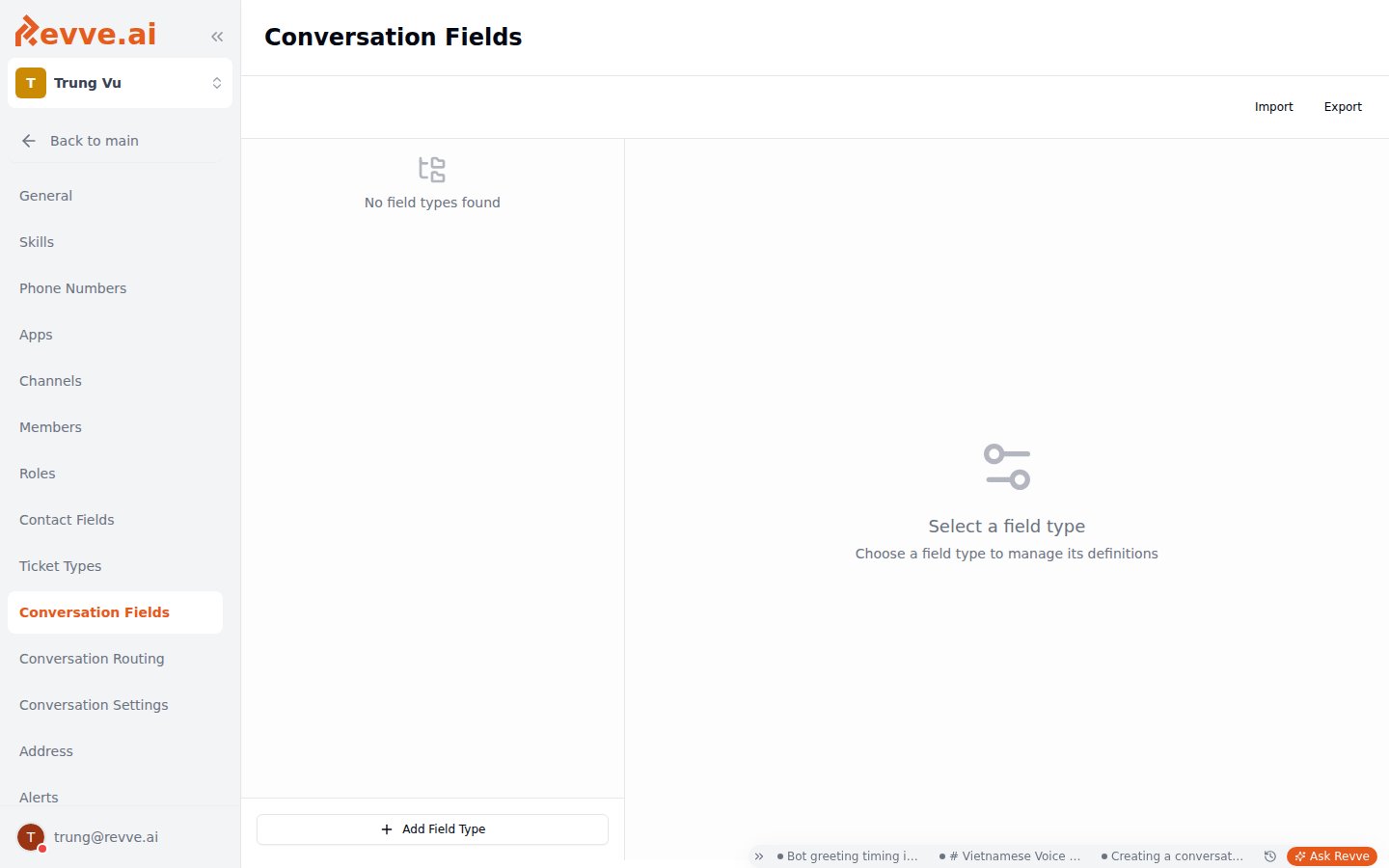
The page has two panes: field types on the left, the selected type's value tree on the right, with **Import** and **Export** buttons in the top bar.
 ### Field types
The left pane lists your field types (empty state: "No field types found"). Click **Add Field Type** at the bottom — the "Create Field Type" popover asks for a name only. The ⋯ menu on each row offers **Edit** (rename) and **Delete**.
Deleting a field type asks for confirmation: "Are you sure you want to delete `{name}`? This will permanently delete the field type and all its definitions. This action cannot be undone."
### Definitions (the value tree)
Select a field type and the right pane shows "`{name}` Definitions" — "Manage the hierarchical structure for this field type". To build the tree:
1. Click **Add** in the header to create a root value (the "Add Definition" popover).
2. Hover any existing value and click the **+** icon → **Add Child** to nest a value under it.
3. Repeat to whatever depth you need. Each value shows an `L{level}` badge (L1 for roots, L2 for their children, and so on) and chevrons to expand or collapse its branch.
Each value's ⋯ menu offers **Edit** and **Delete**.
Deleting a definition (a value) happens **immediately, with no confirmation dialog** — the value and its place in the tree are gone the moment you click Delete. Only deleting a whole field type asks for confirmation. **Export** the taxonomy before any restructuring so you can rebuild from the JSON if you slip.
### Import and Export
**Export** downloads the full taxonomy as a JSON file (`custom-fields-{team}-{date}.json`). **Import** reads such a file and creates the field types in it, **skipping** any field type whose name already exists (it reports which ones were skipped). Their main job is backing up before a restructure so you can restore if it goes wrong.
## Where conversation fields surface
A taxonomy is only worth building because four features consume it:
| Surface | How the field is used |
| -------------------- | ------------------------------------------------------------------------------------------------------------------------------------------------------------------------------------------------------------------------------------------------------------------------------------------------------------------------------ |
| **Inbox** | Each field type appears as a chip in the conversation header, next to the contact name and label — "`+ {name}`" when unset, "`{name}: A › B › C`" when set. Clicking opens a searchable picker, so operators classify conversations by hand. See [Inbox Overview](/docs/inbox/inbox-overview). |
| **Routing rules** | A custom rule condition can target a conversation field: pick the field, an operator (equals, not equals, contains, not contains, starts with, ends with), and a value from the multi-column "Select Field Value" tree picker (columns Level 1, Level 2, …). See [Conversation Routing](/docs/administration/conversation-routing). |
| **Flow automations** | A flow node or transition can set a field automatically — **Add Node Automation** → "1. Select Custom Field Type:" → "2. Select Field Value:" — so "When users reach this node, set `{FieldType}` to `{A › B}`" with no human touch. See [Flow Node Features](/docs/conversational-flow/flow-node-features). |
| **Tickets** | The conversation's field values surface on the ticket detail, giving the assigned agent the classification at a glance. See [Working with Tickets](/docs/tickets/working-with-tickets). |
Every field change is also recorded on the conversation's history as old path → new path, so you can see when and how a conversation was reclassified.
## Designing a good taxonomy
* **Design around routing and reporting, not around everything you could tag.** Start from the questions "which team should get this?" and "what do I want to count?" A two-level "Topic" tree (Billing → Refunds) lets a routing rule target the whole Billing branch or just Refunds — that's usually all the depth you need. Deep, exhaustive trees mostly produce values nobody selects.
* **Automate first, hand-tag second.** Wherever a flow already knows the answer — the customer reached the refunds node, so the topic *is* Billing → Refunds — set the field with a node automation. Reserve Inbox hand-tagging for what automation can't infer; operators are inconsistent taggers, automations aren't.
* **Export before you restructure.** Value deletion has no undo and no confirmation; the JSON export is your only rollback.
## What's Next
* [Conversation Routing](/docs/administration/conversation-routing) — write custom rules that match on your new fields.
* [Flow Node Features](/docs/conversational-flow/flow-node-features) — set fields automatically from your chat flows.
### Field types
The left pane lists your field types (empty state: "No field types found"). Click **Add Field Type** at the bottom — the "Create Field Type" popover asks for a name only. The ⋯ menu on each row offers **Edit** (rename) and **Delete**.
Deleting a field type asks for confirmation: "Are you sure you want to delete `{name}`? This will permanently delete the field type and all its definitions. This action cannot be undone."
### Definitions (the value tree)
Select a field type and the right pane shows "`{name}` Definitions" — "Manage the hierarchical structure for this field type". To build the tree:
1. Click **Add** in the header to create a root value (the "Add Definition" popover).
2. Hover any existing value and click the **+** icon → **Add Child** to nest a value under it.
3. Repeat to whatever depth you need. Each value shows an `L{level}` badge (L1 for roots, L2 for their children, and so on) and chevrons to expand or collapse its branch.
Each value's ⋯ menu offers **Edit** and **Delete**.
Deleting a definition (a value) happens **immediately, with no confirmation dialog** — the value and its place in the tree are gone the moment you click Delete. Only deleting a whole field type asks for confirmation. **Export** the taxonomy before any restructuring so you can rebuild from the JSON if you slip.
### Import and Export
**Export** downloads the full taxonomy as a JSON file (`custom-fields-{team}-{date}.json`). **Import** reads such a file and creates the field types in it, **skipping** any field type whose name already exists (it reports which ones were skipped). Their main job is backing up before a restructure so you can restore if it goes wrong.
## Where conversation fields surface
A taxonomy is only worth building because four features consume it:
| Surface | How the field is used |
| -------------------- | ------------------------------------------------------------------------------------------------------------------------------------------------------------------------------------------------------------------------------------------------------------------------------------------------------------------------------ |
| **Inbox** | Each field type appears as a chip in the conversation header, next to the contact name and label — "`+ {name}`" when unset, "`{name}: A › B › C`" when set. Clicking opens a searchable picker, so operators classify conversations by hand. See [Inbox Overview](/docs/inbox/inbox-overview). |
| **Routing rules** | A custom rule condition can target a conversation field: pick the field, an operator (equals, not equals, contains, not contains, starts with, ends with), and a value from the multi-column "Select Field Value" tree picker (columns Level 1, Level 2, …). See [Conversation Routing](/docs/administration/conversation-routing). |
| **Flow automations** | A flow node or transition can set a field automatically — **Add Node Automation** → "1. Select Custom Field Type:" → "2. Select Field Value:" — so "When users reach this node, set `{FieldType}` to `{A › B}`" with no human touch. See [Flow Node Features](/docs/conversational-flow/flow-node-features). |
| **Tickets** | The conversation's field values surface on the ticket detail, giving the assigned agent the classification at a glance. See [Working with Tickets](/docs/tickets/working-with-tickets). |
Every field change is also recorded on the conversation's history as old path → new path, so you can see when and how a conversation was reclassified.
## Designing a good taxonomy
* **Design around routing and reporting, not around everything you could tag.** Start from the questions "which team should get this?" and "what do I want to count?" A two-level "Topic" tree (Billing → Refunds) lets a routing rule target the whole Billing branch or just Refunds — that's usually all the depth you need. Deep, exhaustive trees mostly produce values nobody selects.
* **Automate first, hand-tag second.** Wherever a flow already knows the answer — the customer reached the refunds node, so the topic *is* Billing → Refunds — set the field with a node automation. Reserve Inbox hand-tagging for what automation can't infer; operators are inconsistent taggers, automations aren't.
* **Export before you restructure.** Value deletion has no undo and no confirmation; the JSON export is your only rollback.
## What's Next
* [Conversation Routing](/docs/administration/conversation-routing) — write custom rules that match on your new fields.
* [Flow Node Features](/docs/conversational-flow/flow-node-features) — set fields automatically from your chat flows.